RhinoArtisan Modeling
Lesson 7 of 13
Creating the Central Channel for Setting
Sign in to access this lesson
This lesson is part of From RhinoArtisan to Keyshot: Jewelry Rendering Intermediate, which can come bundled with a RhinoArtisan Commercial license subject to current promotions. Log in with your customer account, or get in touch and we'll set you up.
Customers only
Solo para clientes
This lesson is part of From RhinoArtisan to Keyshot: Jewelry Rendering Intermediate, which can be included with a RhinoArtisan Commercial license subject to current promotions. If you've already purchased and don't see it in your account, get in touch.
Objective: Learn how to create the central channel for setting stones by extracting curves, splitting surfaces, and using Boolean operations.
Creating the Central Channel for Setting
To begin creating the channel, we need a reference point on the surface. Go to the Curve tab and use the Point command.
 Make sure the Osnap option is enabled with Int and End selected. Click on the bottom part of the seam on the lofted surface to place the point.
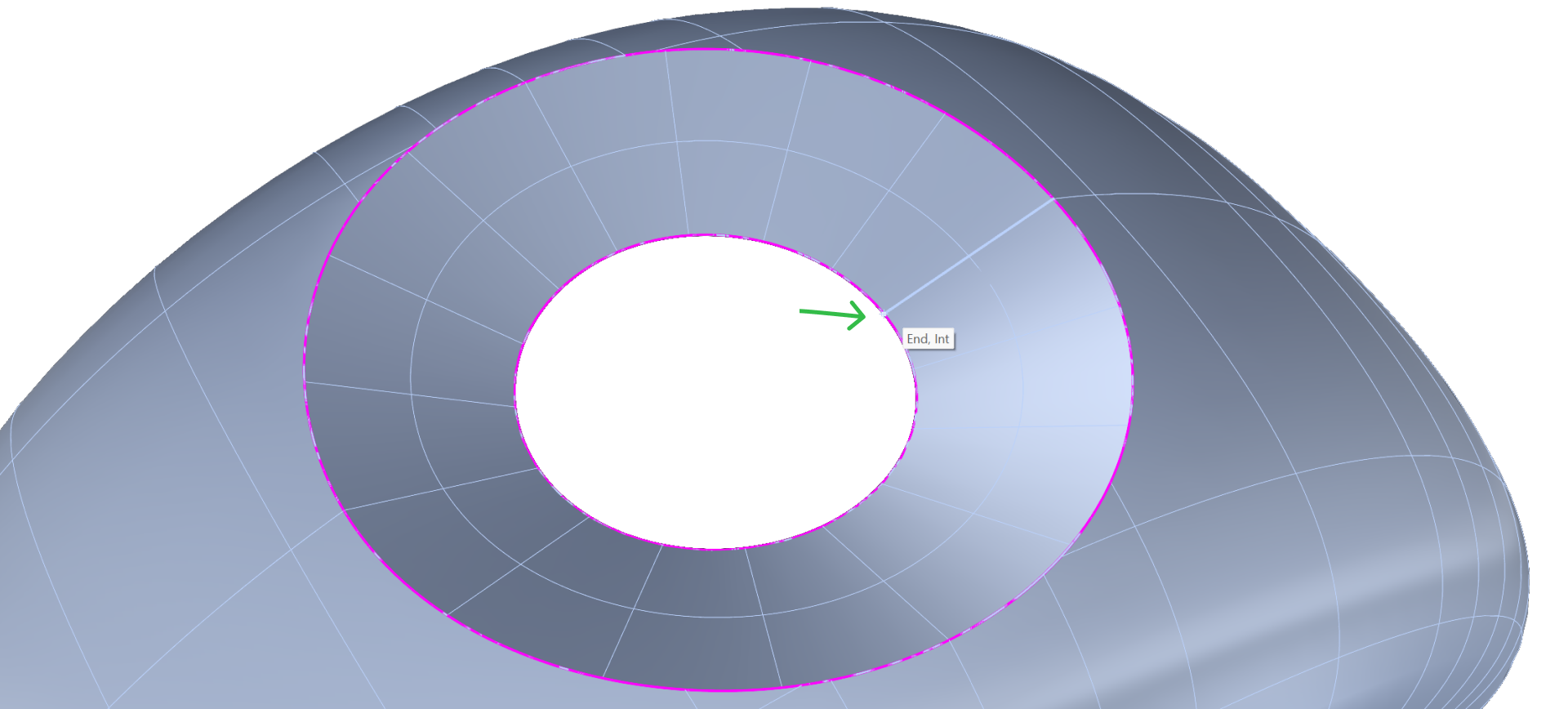
Once the point is created, move it by 0.5 mm along the seam.
Select the point.
Go to the Transform tab and click on the Move command.

Click on the point to set it as the reference.
Type 0.5 in the command bar to move it precisely by 0.5 mm.
With Osnap and the Near option enabled, select the seam to guide the movement.
Extracting the Isocurve
Now, we will use the Extract Isocurve command, found in the Curve tab, at the point we just created.
Select the Extract Isocurve command.
Click on the surface.
Change the direction to V.
Click on the previously created point, and press Enter to complete the command.
Splitting the Surface
Switch to the Surface tab and use the Split Refit Surface command:
Select the surface.
Select the extracted isocurve.
Now, the surface is split into two parts.
Delete the smaller surface.
Creating the Offset
Select the larger surface, and click on the Offset command.
Change the BothSides option to Yes to create an offset in both directions.
Enter 0.3 mm as the offset distance.
Press Enter twice to complete the command.
Performing the Boolean Difference
To create the channel, we will use a Boolean difference:
Go to the Solid tab and select the Boolean Difference command.
First, select the shank and press Enter.
Then, select the offset surface we just created and press Enter to complete the Boolean operation.
The central channel is now created.
Next Lesson: Preparing the Channel for Stone Placement
Almost there — you still have some lessons to complete. Jump to the next one →
Impersonating — progress and reviews are disabled.
Course completed
You've completed From RhinoArtisan to Keyshot: Jewelry Rendering Intermediate 🎉
Great work. Get your certificate of completion and, if you have a minute, let other jewelers know what you thought of the course.