Adding and Customizing the Ground Plane
Enable Ground Plane
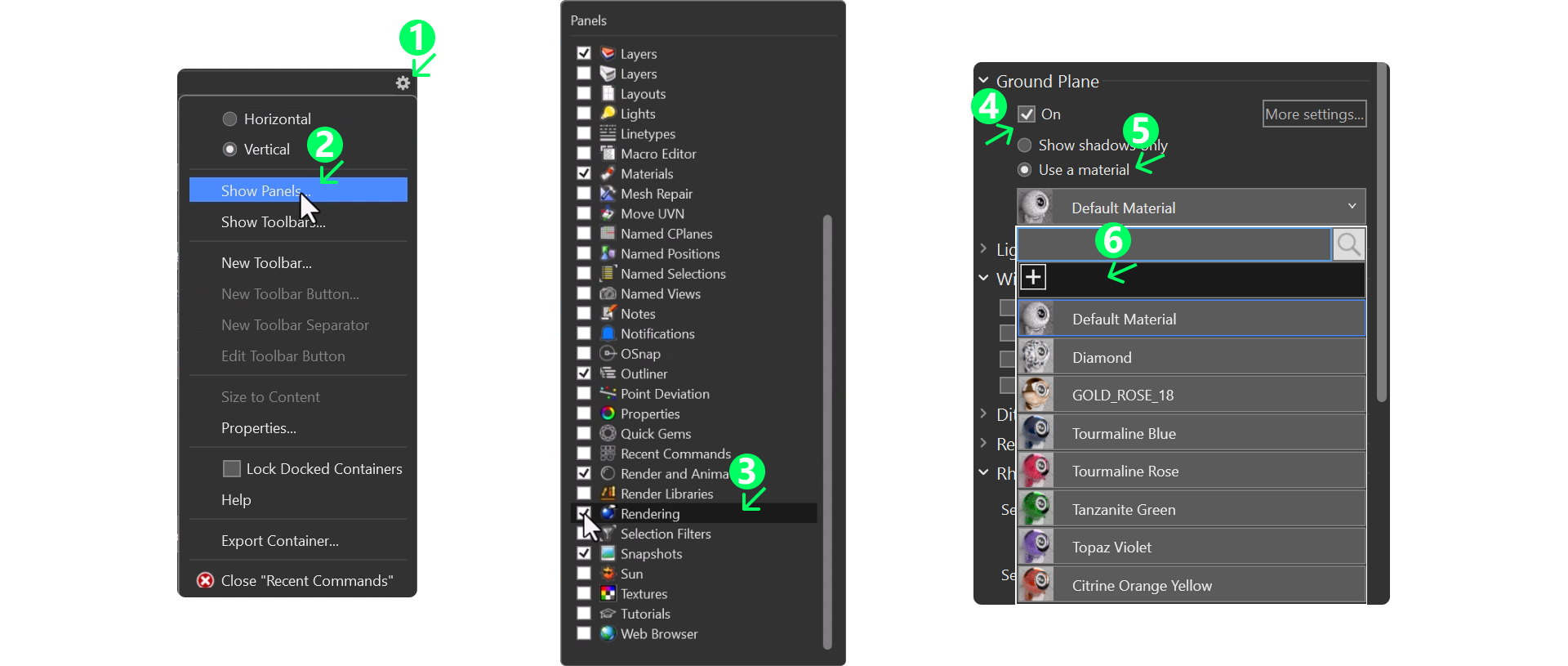
- Go to the Rendering Panel. If not available, enable it by going to Settings(1) and clicking Show Panels(2).
- Check the Rendering Panel (3)
- In the Rendering Panel, navigate to the Ground Plane section and enable it (4).
- Click Use Material (5) to apply the material to the ground plane..
Create a Custom Metallic Material
- Click on the New Material (6) icon and choose Metallic (1).
- Go to the Materials Panel (2), If not available, enable it by going to Settings and check it.
- Double-click on the material (3) in the Materials Panel to edit it.
- Set the color (4) to a dark tone (use the hex code: #452B2B) (5).
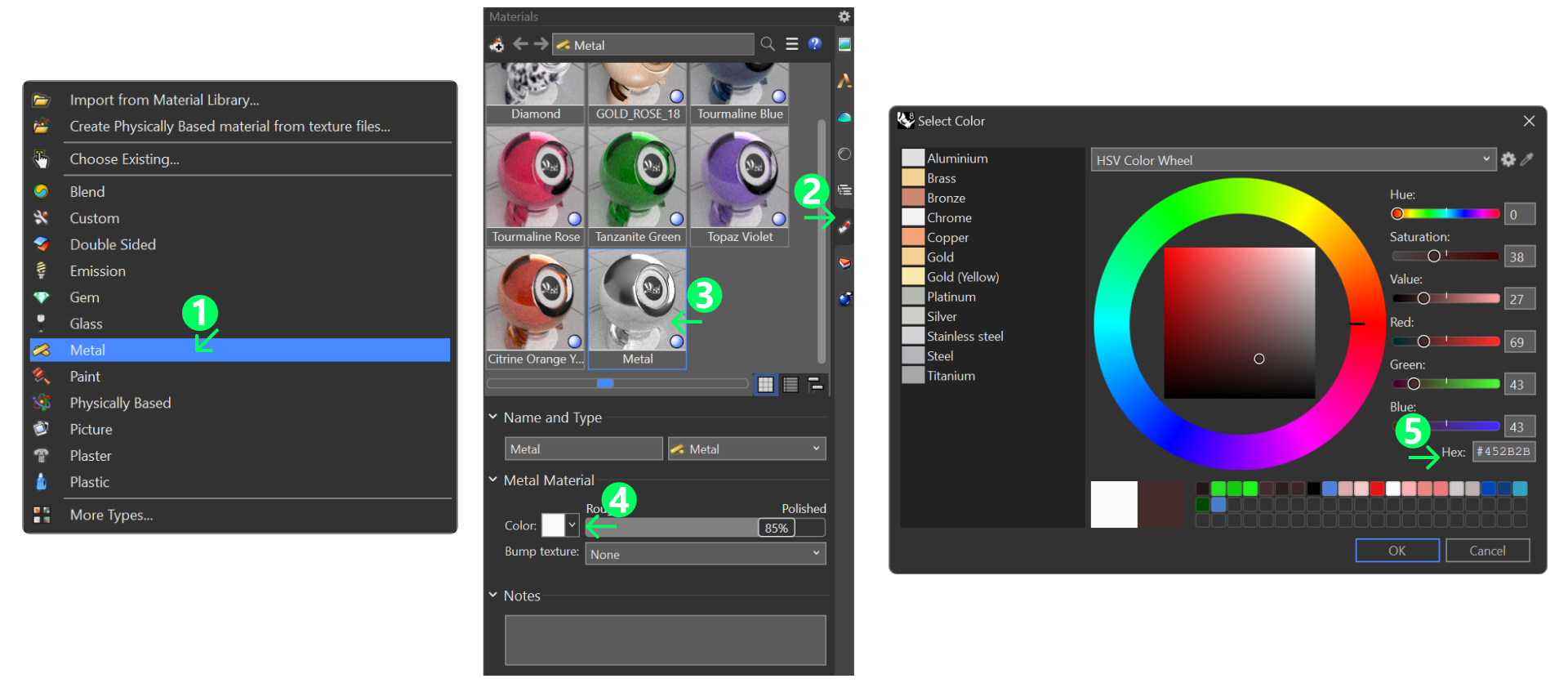
Lower the Roughness to 13% for a polished finish.

Adjust View and Lighting
- Switch to Raytracing Mode to view the changes to the ground.
- Position the view to your liking and ensure it is ready for the final render.
Video Lesson
Next Lesson:
Finalizing the Render Settings