My First Render
Lesson 10 of 17
Importing the Earrings Design
Sign in to access this lesson
This lesson is part of From RhinoArtisan to Keyshot: Jewelry Rendering Essentials, which can come bundled with a RhinoArtisan Commercial license subject to current promotions. Log in with your customer account, or get in touch and we'll set you up.
Customers only
Solo para clientes
This lesson is part of From RhinoArtisan to Keyshot: Jewelry Rendering Essentials, which can be included with a RhinoArtisan Commercial license subject to current promotions. If you've already purchased and don't see it in your account, get in touch.
Downloads
Objective: Learn how to import a 3D earring model from RhinoArtisan into KeyShot Studio for professional rendering.
Open the Earring Model
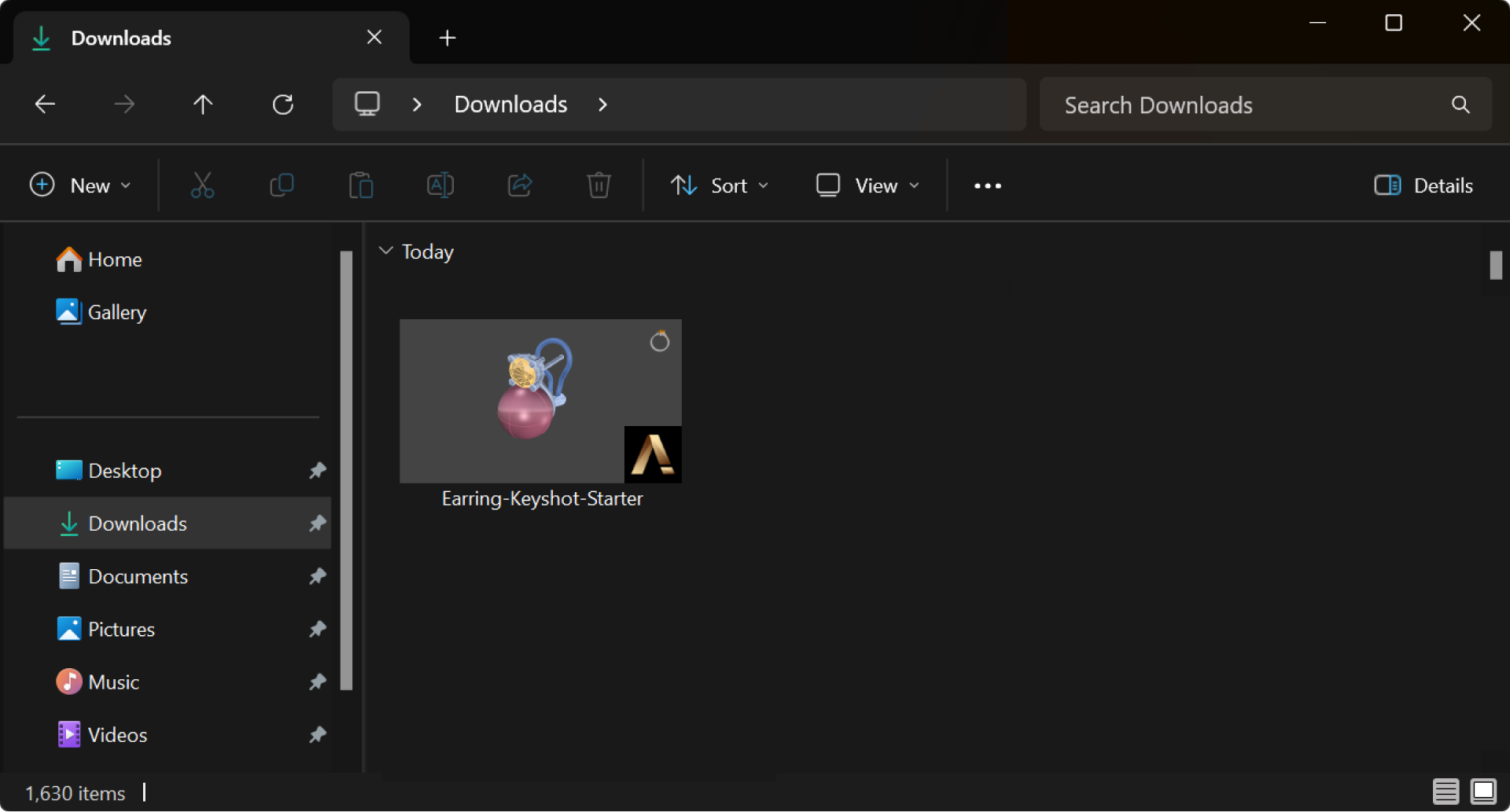
Locate the earring file from the course resources and dowload it.
Open the model you just downloaded.
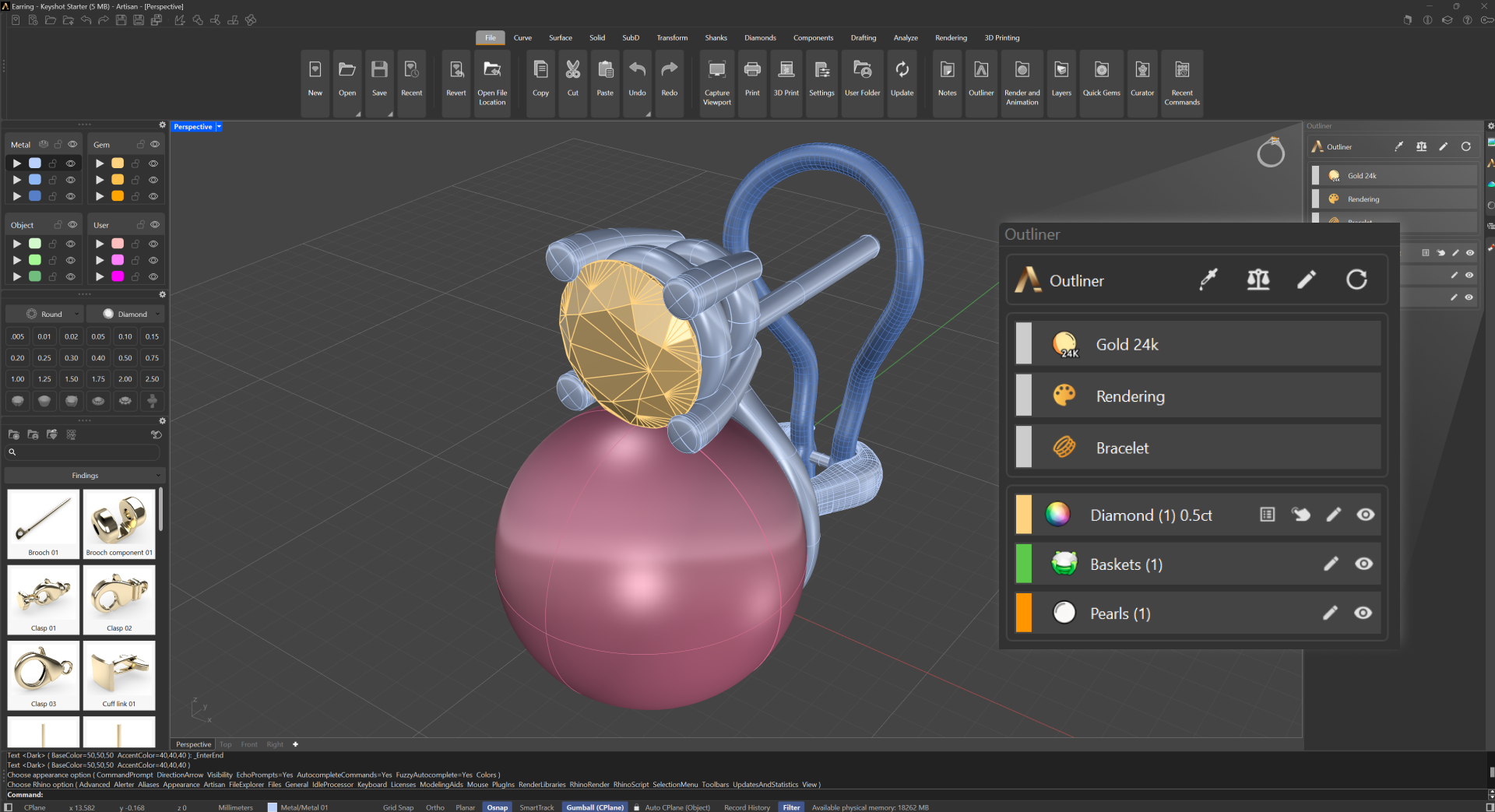
In the Outliner panel, you will see:
- A 0.50 ct diamond set in a basket.
- A 10 mm pearl supported by a metal base with an omega clip system, including the heel, post, and the omega itself.
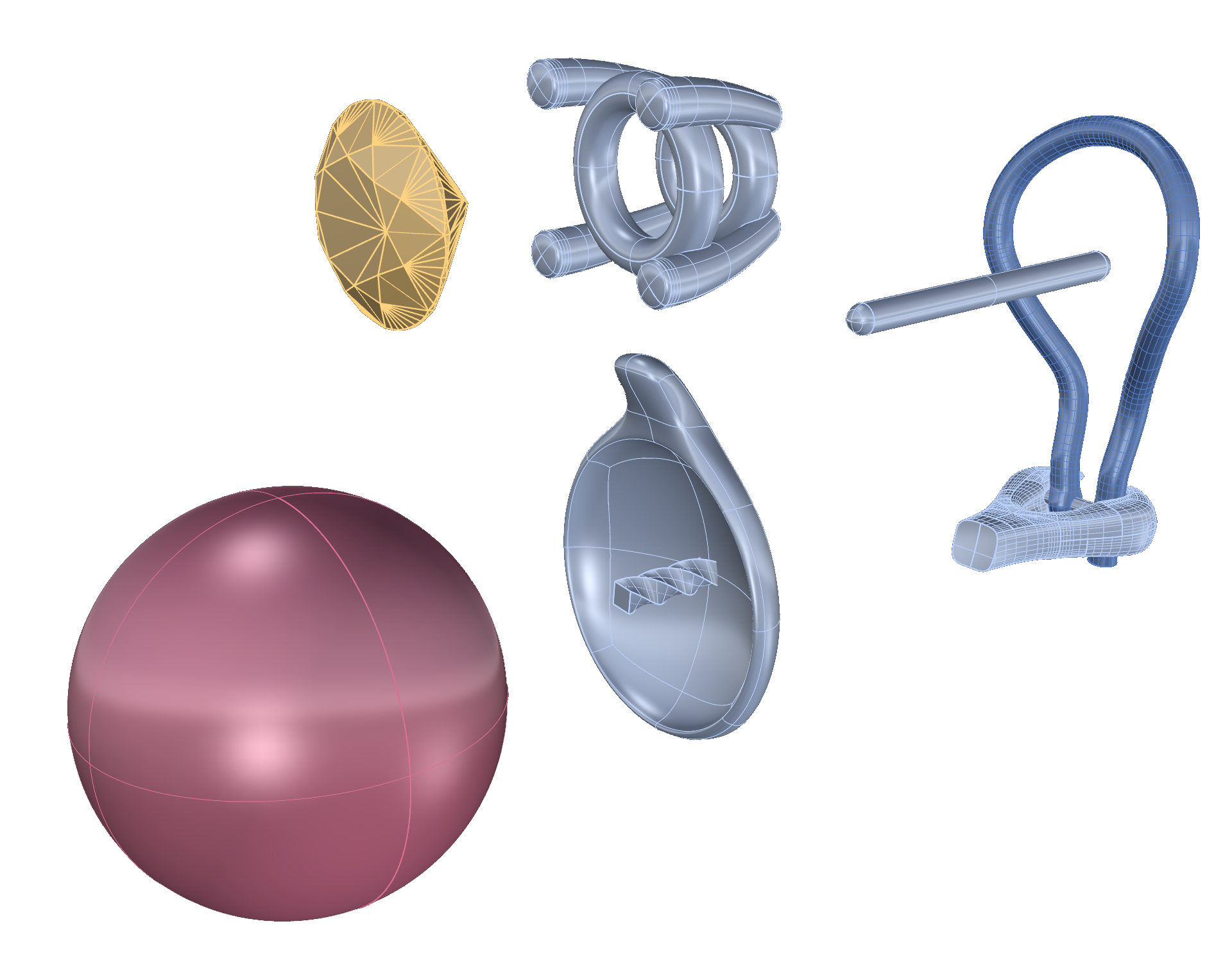
Layer Organization
Different parts of the earring model are on separate layers:
- Pearl: Pink color in the viewport.
- Diamond: Orange color in the viewport.
- Metal: Includes the base and omega clip, which appear in a darker shade.
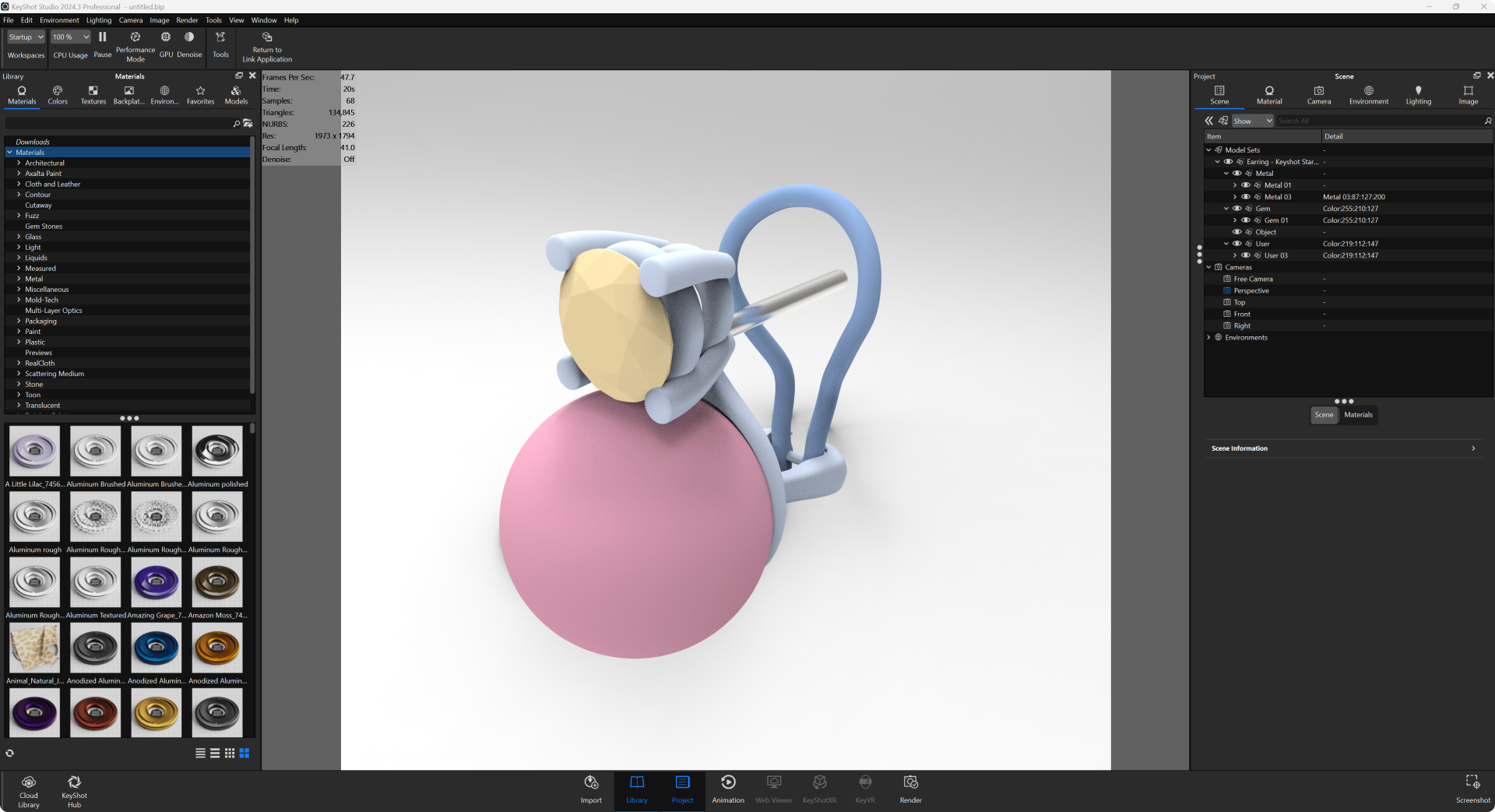
Exporting to KeyShot Studio
- Navigate to the Render tab in RhinoArtisan and click the Live Linking button (KeyShot icon).

- KeyShot Studio will open and import all visible elements in the viewport. Hidden elements in RhinoArtisan will not be imported.
Next Lesson: Create the Pair Earring and Updating the Scene
Almost there — you still have some lessons to complete. Jump to the next one →
Impersonating — progress and reviews are disabled.
Course completed
You've completed From RhinoArtisan to Keyshot: Jewelry Rendering Essentials 🎉
Great work. Get your certificate of completion and, if you have a minute, let other jewelers know what you thought of the course.