My First Render
Lesson 16 of 17
Rendering the Earrings
Sign in to access this lesson
This lesson is part of From RhinoArtisan to Keyshot: Jewelry Rendering Essentials, which can come bundled with a RhinoArtisan Commercial license subject to current promotions. Log in with your customer account, or get in touch and we'll set you up.
Customers only
Solo para clientes
This lesson is part of From RhinoArtisan to Keyshot: Jewelry Rendering Essentials, which can be included with a RhinoArtisan Commercial license subject to current promotions. If you've already purchased and don't see it in your account, get in touch.
Objective: Generate a high-quality image for sharing or client presentation.
Render Settings
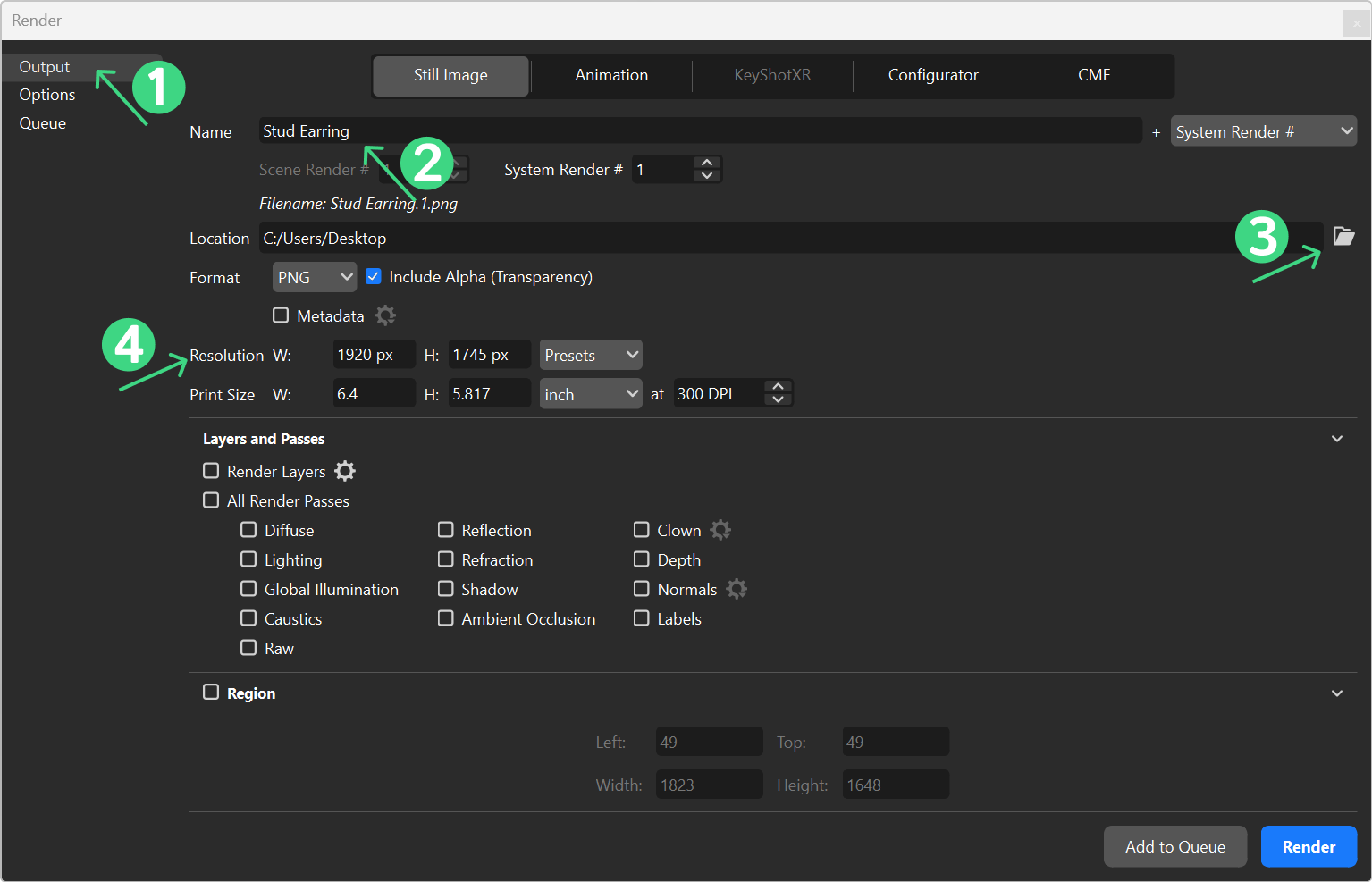
In KeyShot, click the Render button.

Set the following:
- Output Name: Choose a descriptive name for the image (2).
- Location: Select a folder to save your image(3).
- Resolution: Select your desired resolution (4).
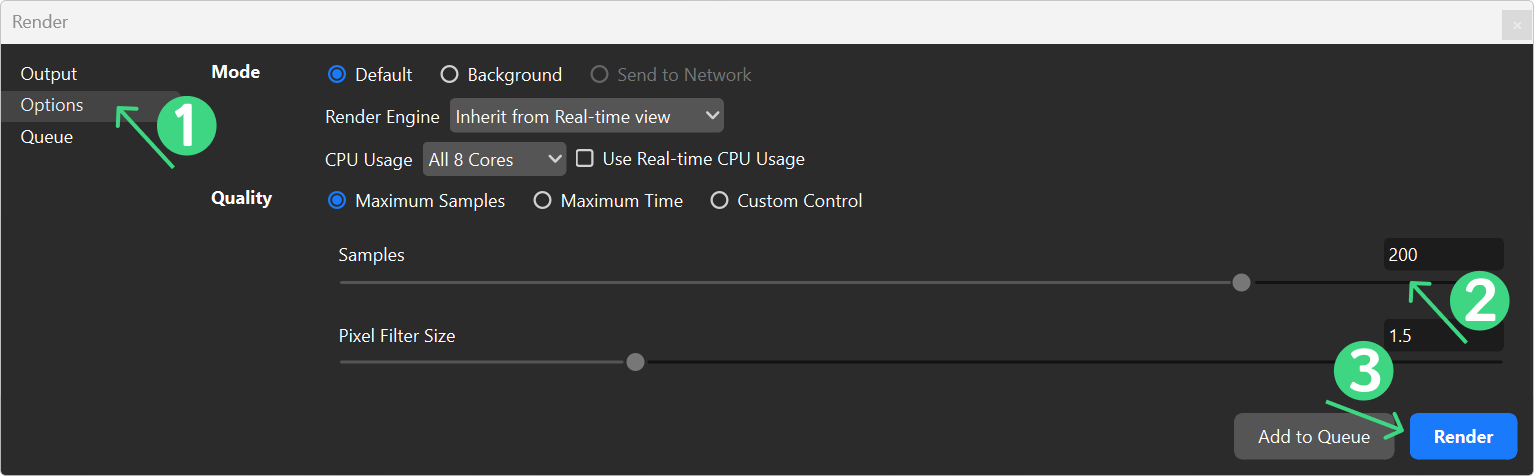
- Go to Options (1).
- Number of Samples: Set to 200 for optimal quality.
- Click Render and monitor progress.
- Once complete, the render will be saved in your location folder.
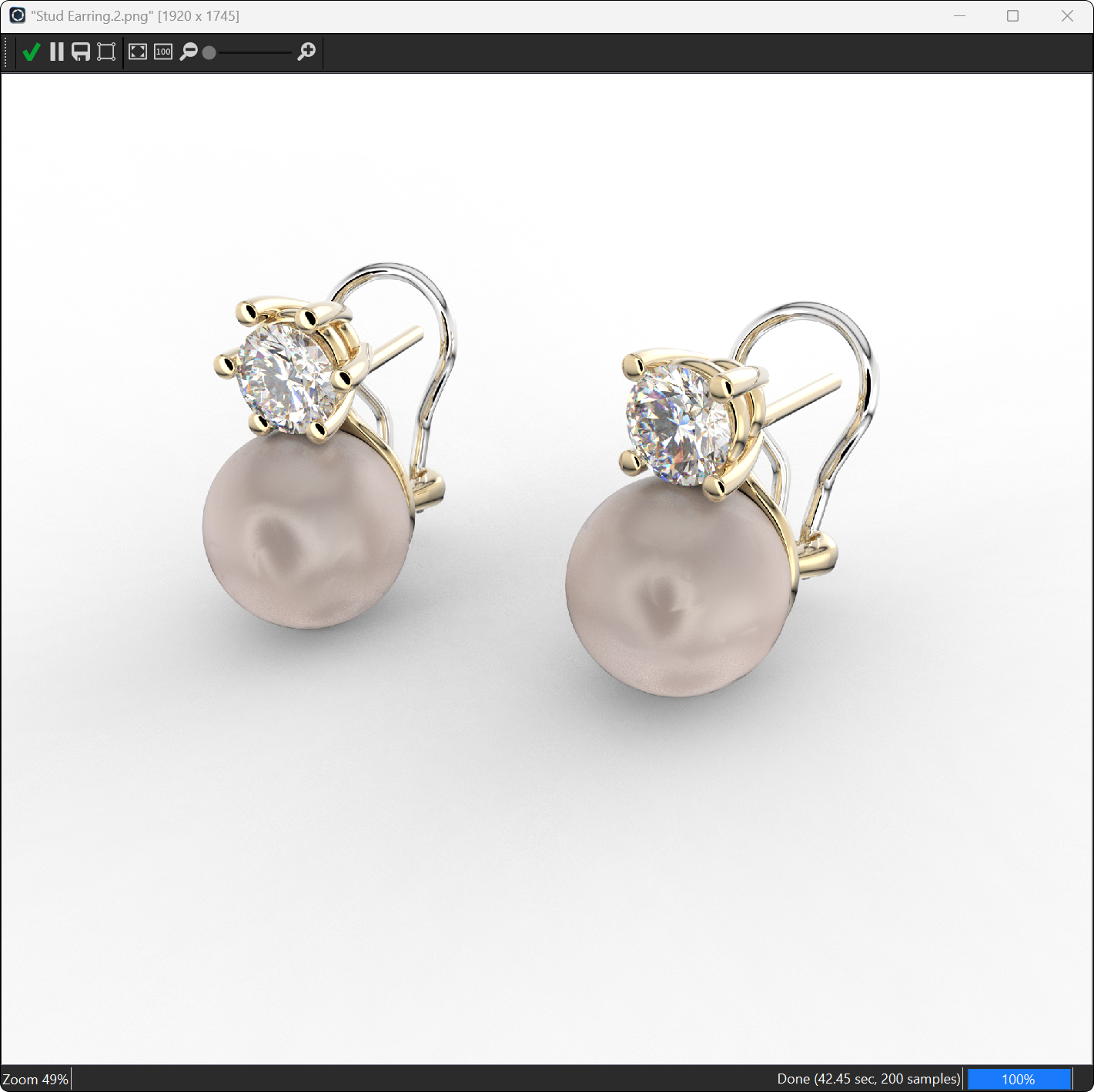
Congratulations!
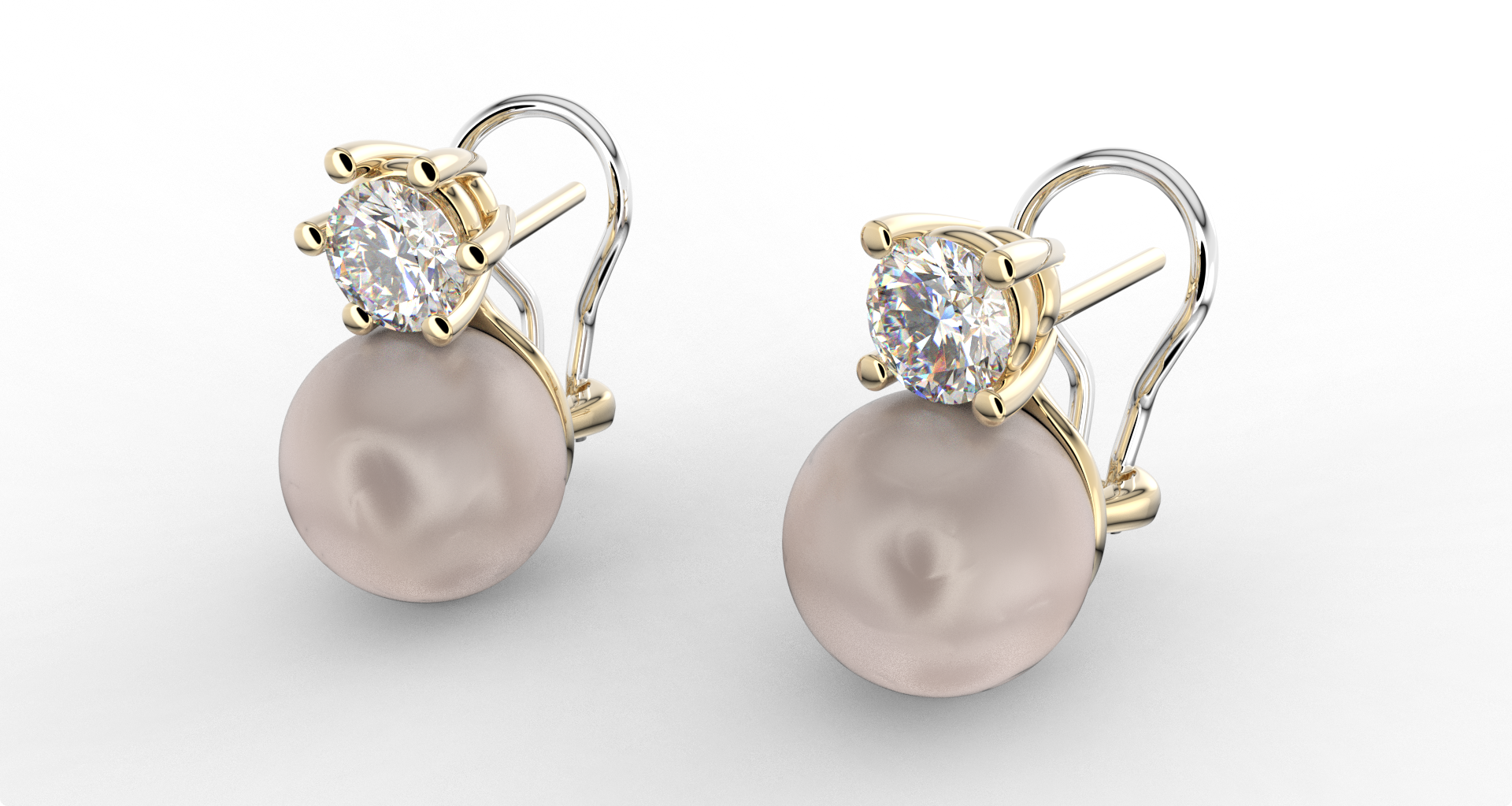
You have successfully rendered a pair of earrings with realistic materials and lighting in KeyShot Studio. Now you can experiment with different materials and designs to create even more stunning visuals.
Almost there — you still have some lessons to complete. Jump to the next one →
Impersonating — progress and reviews are disabled.
Course completed
You've completed From RhinoArtisan to Keyshot: Jewelry Rendering Essentials 🎉
Great work. Get your certificate of completion and, if you have a minute, let other jewelers know what you thought of the course.