KeyShot Studio Interface
Lesson 8 of 17
Project Panel
Sign in to access this lesson
This lesson is part of From RhinoArtisan to Keyshot: Jewelry Rendering Essentials, which can come bundled with a RhinoArtisan Commercial license subject to current promotions. Log in with your customer account, or get in touch and we'll set you up.
Customers only
Solo para clientes
This lesson is part of From RhinoArtisan to Keyshot: Jewelry Rendering Essentials, which can be included with a RhinoArtisan Commercial license subject to current promotions. If you've already purchased and don't see it in your account, get in touch.
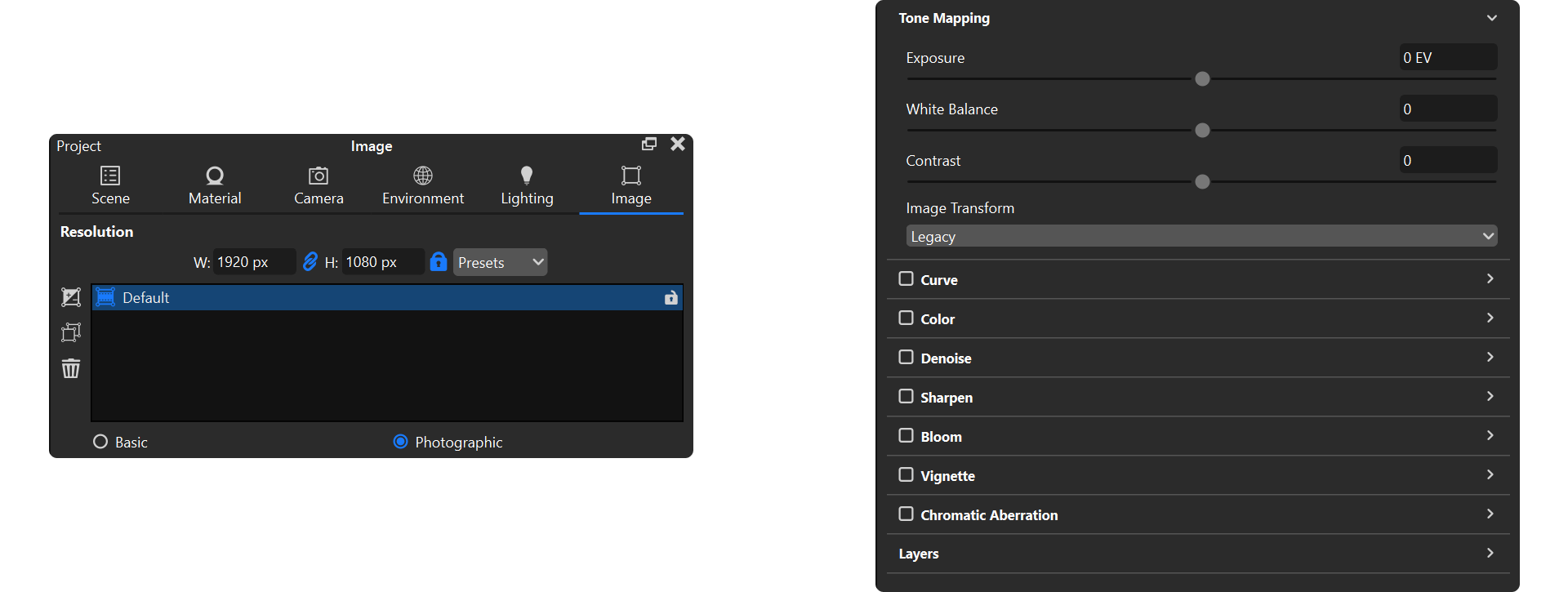
The Project Panel is a central feature in KeyShot Studio, offering powerful tools to manage and adjust all elements of your scene. It allows designers to fine-tune their jewelry models, apply realistic materials, control lighting, set camera views, and perform post-production edits—all in one place. Mastering this panel is essential for creating stunning, photorealistic renderings of jewelry pieces designed in RhinoArtisan.

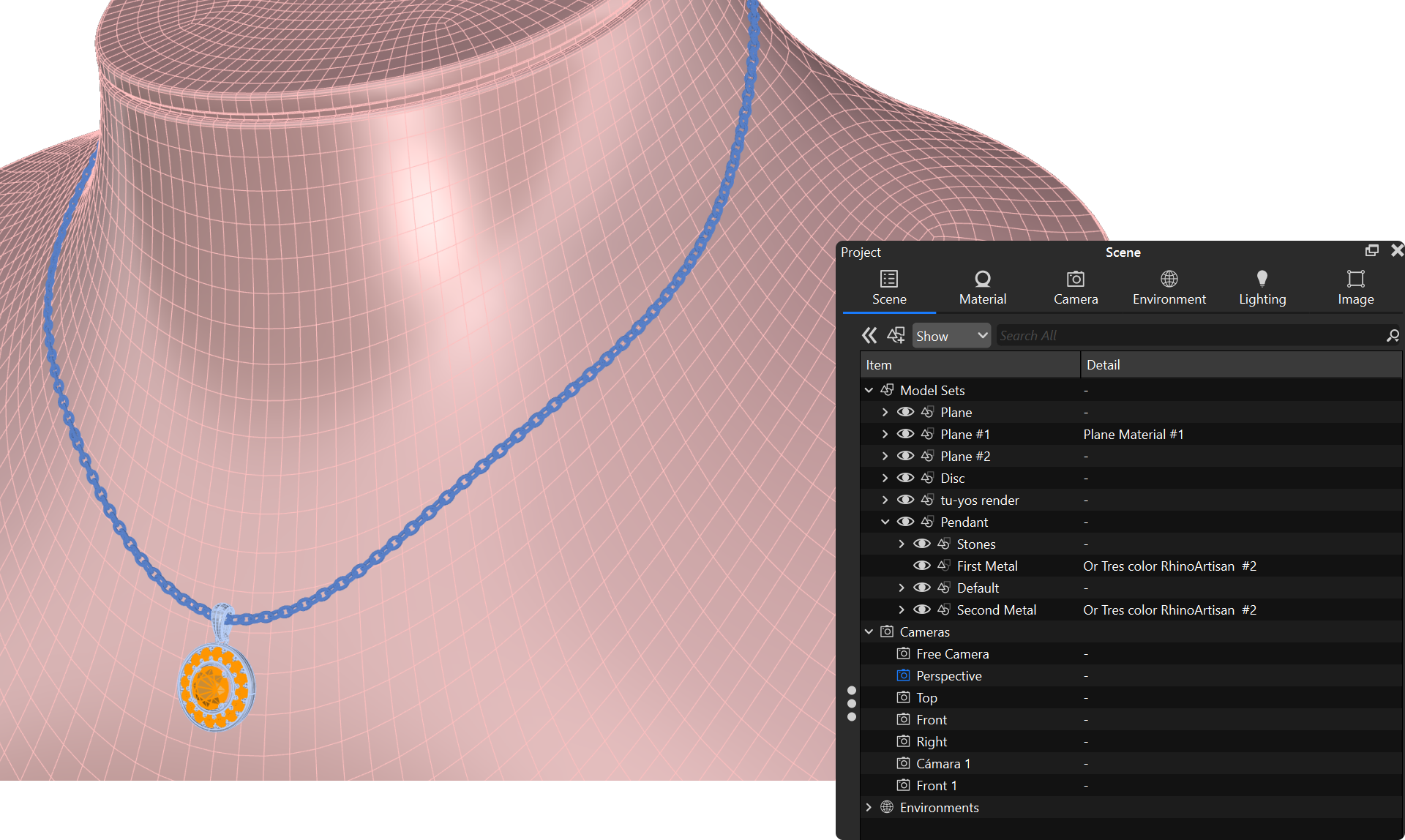
Scene: Displays the hierarchical structure of models and components. Select, organize, and modify jewelry pieces here.
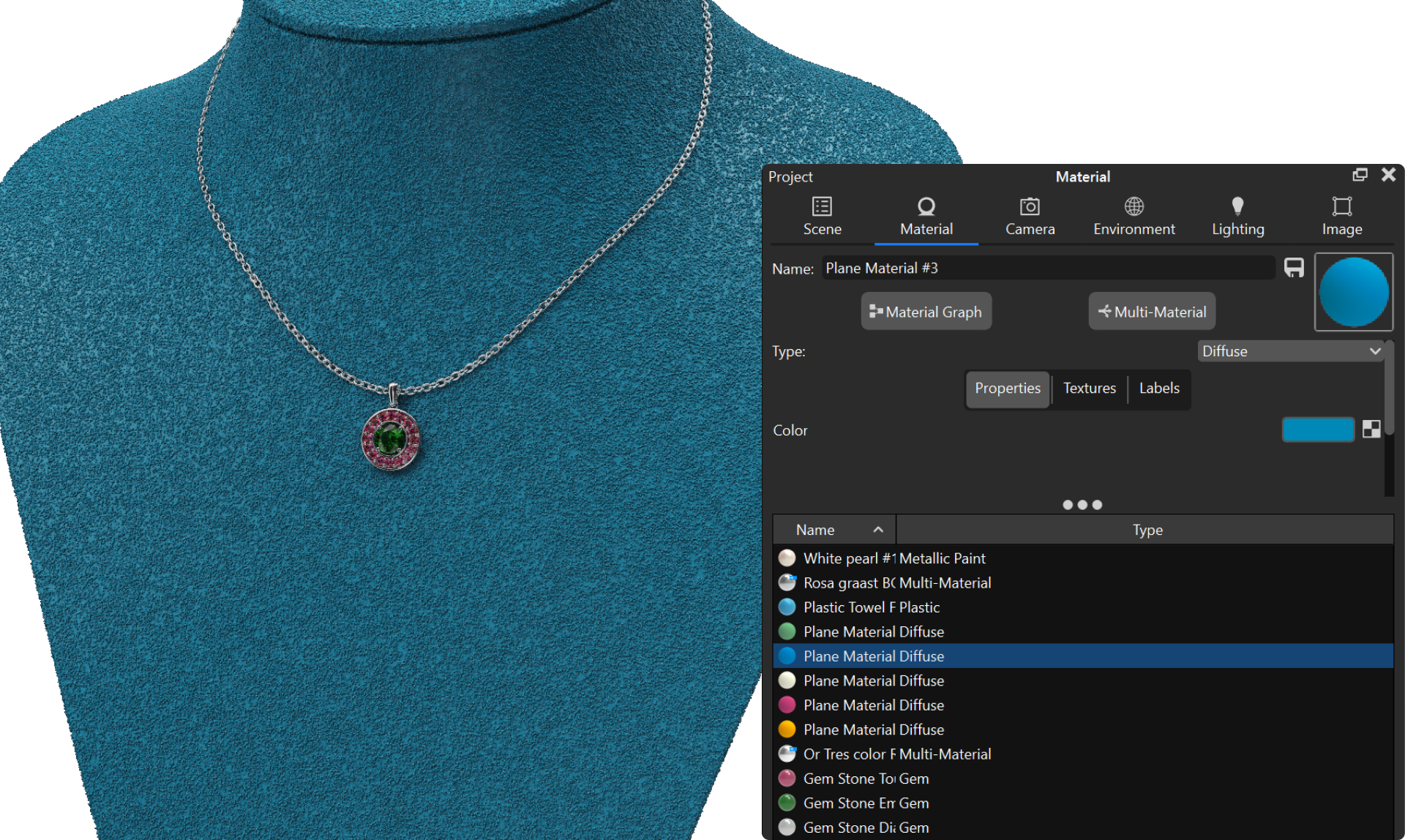
Materials: Edit applied materials, including color, shine, transparency, and texture for realistic rendering.
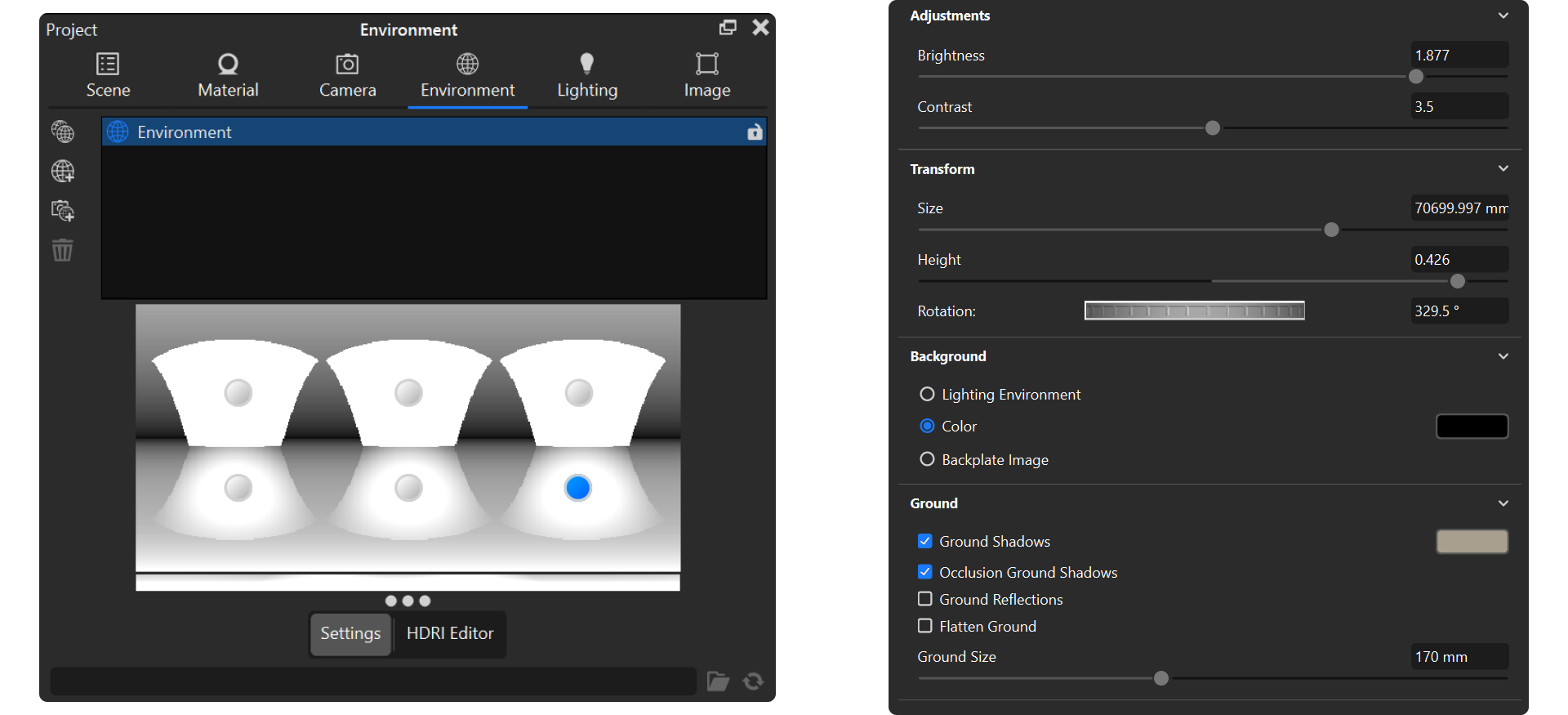
Environment: Adjust global lighting using HDRI maps to influence reflections and shadows.
Camera: Manage camera settings, including focal length, depth of field, and angles to capture every detail.
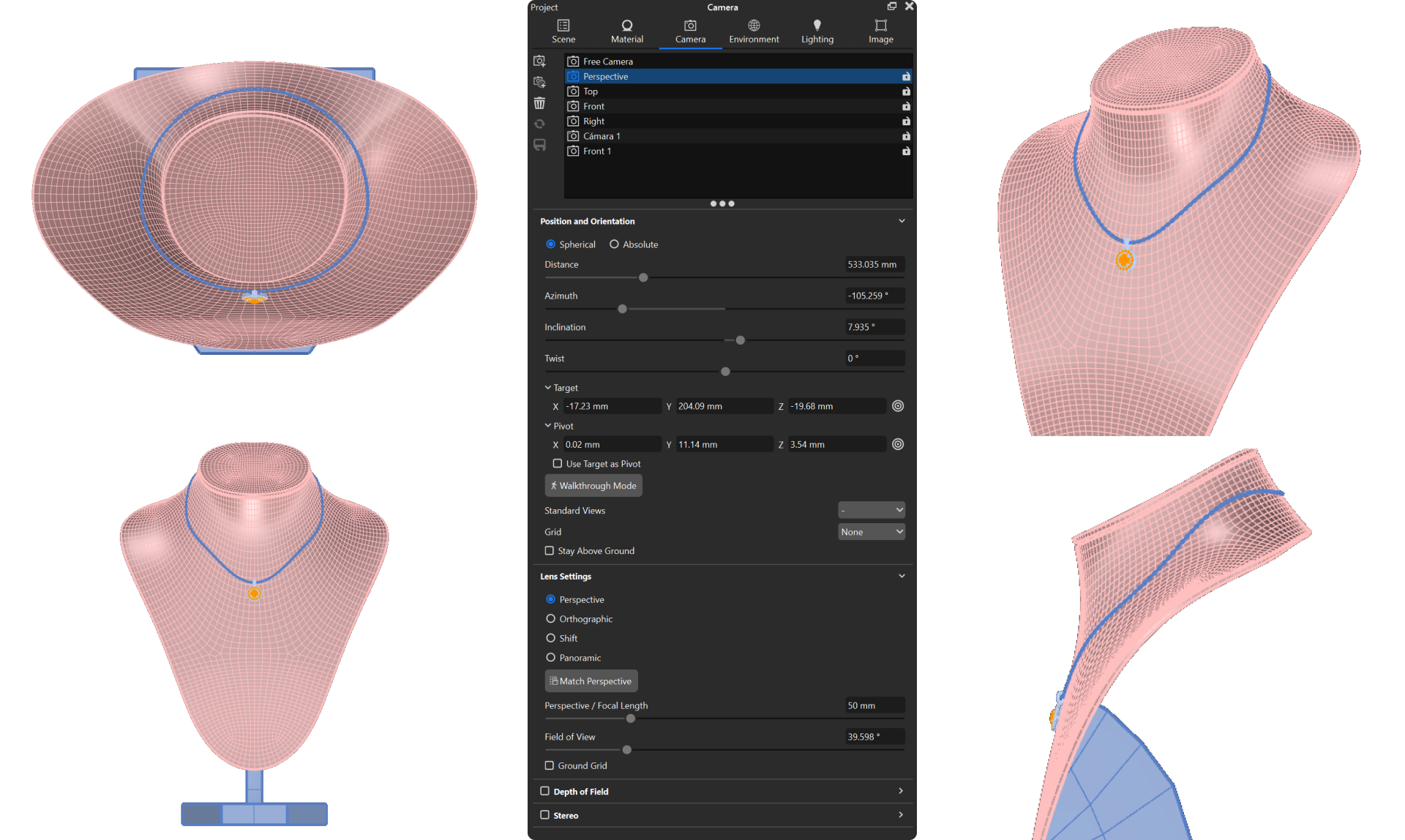
Image: Post-process rendered images by tweaking exposure, contrast, and color corrections for professional results.
Almost there — you still have some lessons to complete. Jump to the next one →
Impersonating — progress and reviews are disabled.
Course completed
You've completed From RhinoArtisan to Keyshot: Jewelry Rendering Essentials 🎉
Great work. Get your certificate of completion and, if you have a minute, let other jewelers know what you thought of the course.