My First Render
Lesson 14 of 17
Lighting and Environment Setup
Sign in to access this lesson
This lesson is part of From RhinoArtisan to Keyshot: Jewelry Rendering Essentials, which can come bundled with a RhinoArtisan Commercial license subject to current promotions. Log in with your customer account, or get in touch and we'll set you up.
Customers only
Solo para clientes
This lesson is part of From RhinoArtisan to Keyshot: Jewelry Rendering Essentials, which can be included with a RhinoArtisan Commercial license subject to current promotions. If you've already purchased and don't see it in your account, get in touch.
Downloads
Objective: Optimize the scene’s lighting and environment for realistic reflections and highlights.
Adjust Lighting
- Go to the Lighting tab in the Project panel.
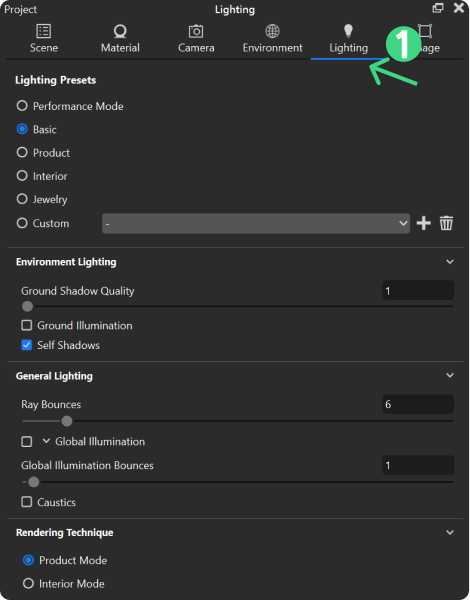
- Set Ray Bounces to 17 for enhanced diamond brilliance.
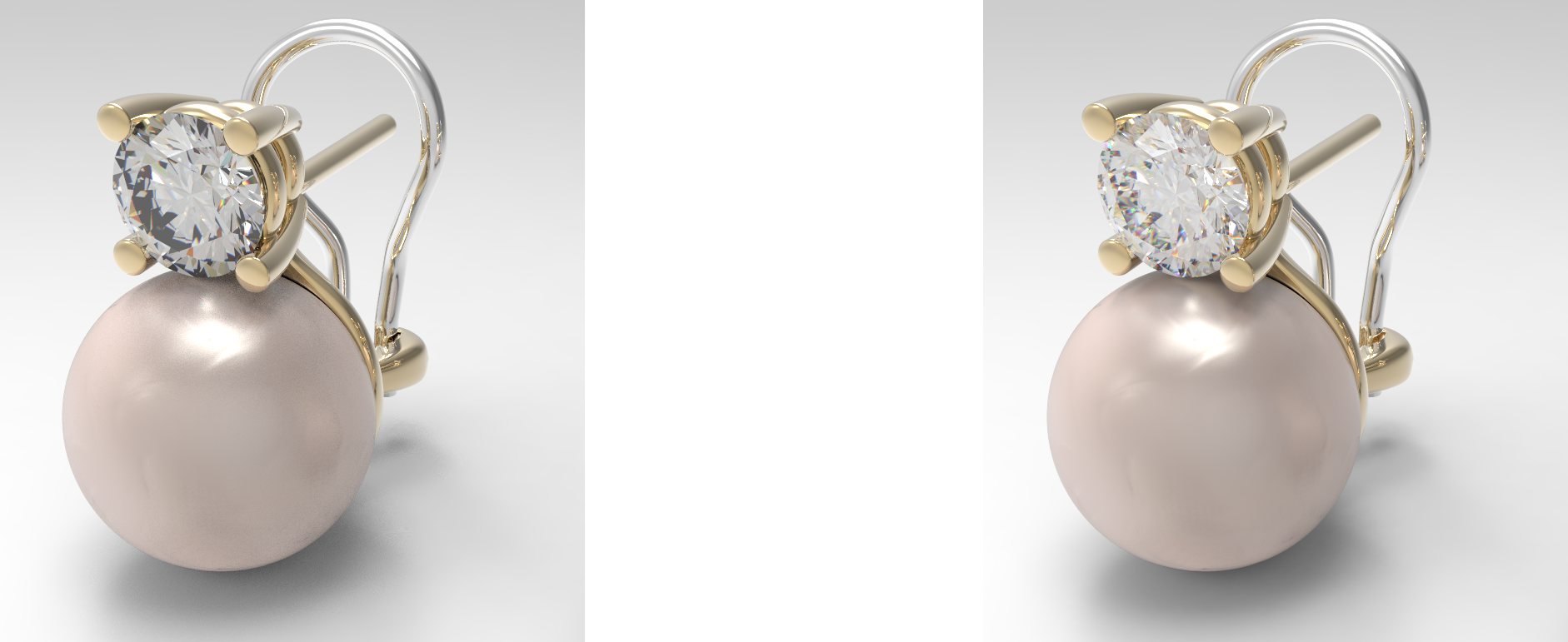
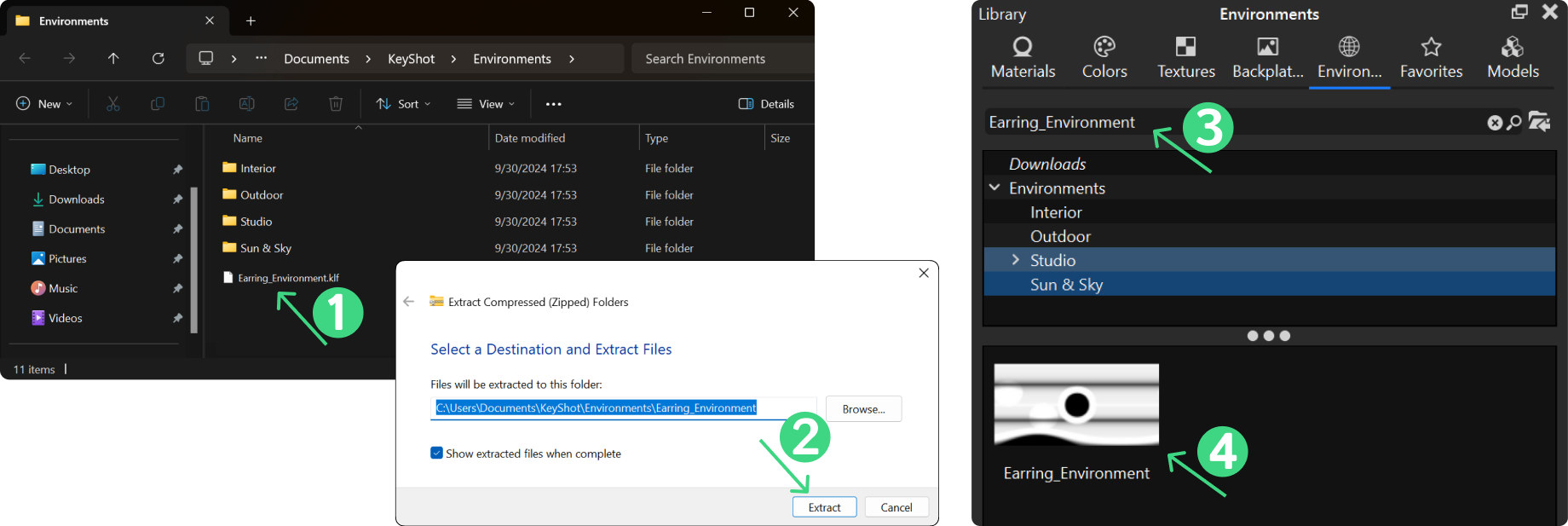
Change Environment
- Download the custom environment from the course resources and place it in the
Documents > KeyShot > Environmentsfolder. - In KeyShot, refresh the environment list.
- Apply the new environment to the scene, double click.
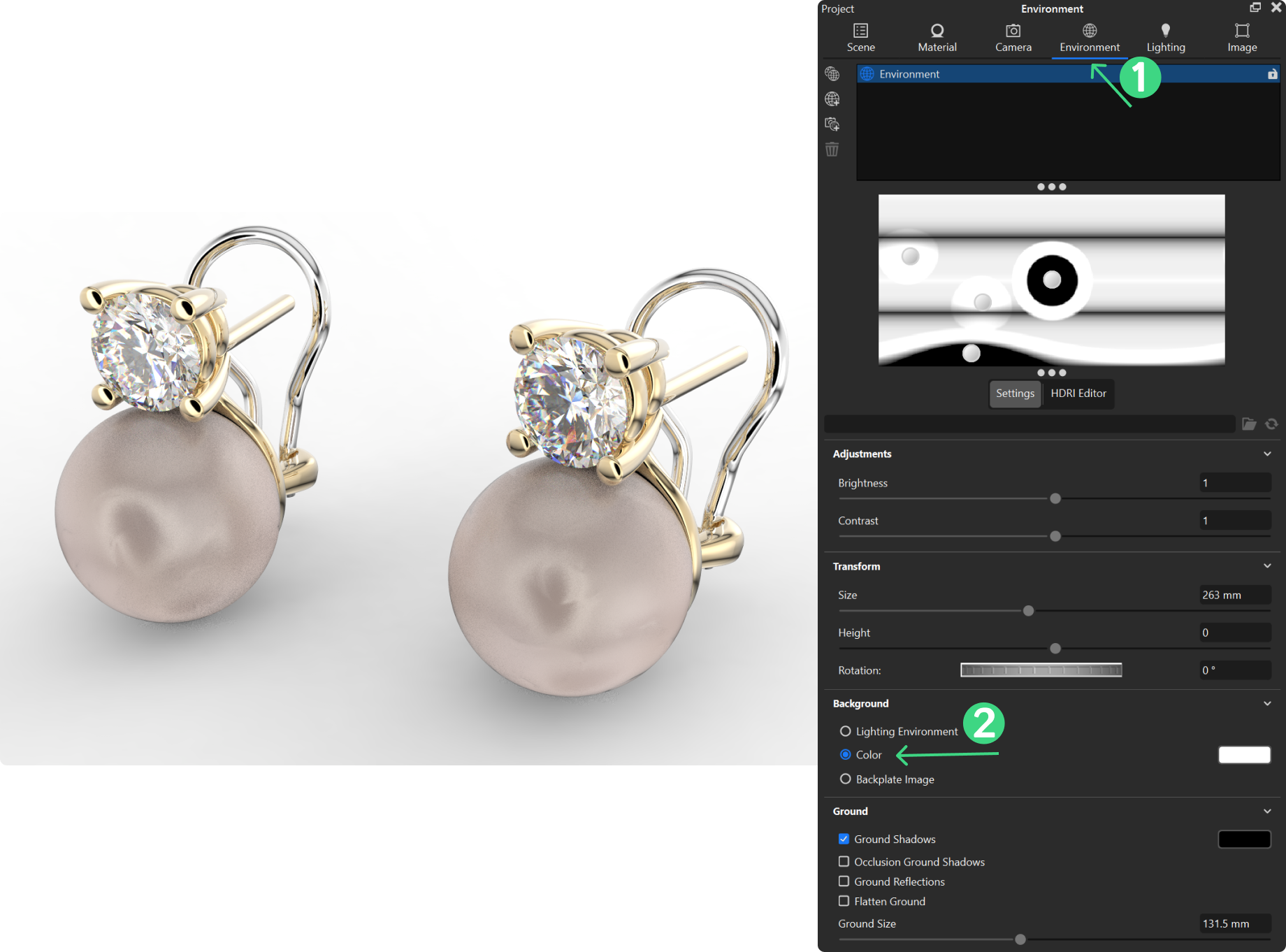
- In the Environment tab, change the Background to Color.
Next Lesson: Customizing the Model
Almost there — you still have some lessons to complete. Jump to the next one →
Impersonating — progress and reviews are disabled.
Course completed
You've completed From RhinoArtisan to Keyshot: Jewelry Rendering Essentials 🎉
Great work. Get your certificate of completion and, if you have a minute, let other jewelers know what you thought of the course.