Print-Ready Jewelry Report
Lesson 2 of 18
Breakdown Data & Report Setup
Sign in to access this lesson
This lesson is part of Jewelry Production & Manufacturing Essentials, which can come bundled with a RhinoArtisan Commercial license subject to current promotions. Log in with your customer account, or get in touch and we'll set you up.
Customers only
Solo para clientes
This lesson is part of Jewelry Production & Manufacturing Essentials, which can be included with a RhinoArtisan Commercial license subject to current promotions. If you've already purchased and don't see it in your account, get in touch.
1. Verify Breakdown Settings Before Generating the Report
In the Manufacturing tab, open Breakdown Settings and confirm every required field is completed before going any further — missing data here means incomplete output later. The pricing tutorial covers this setup in more detail.
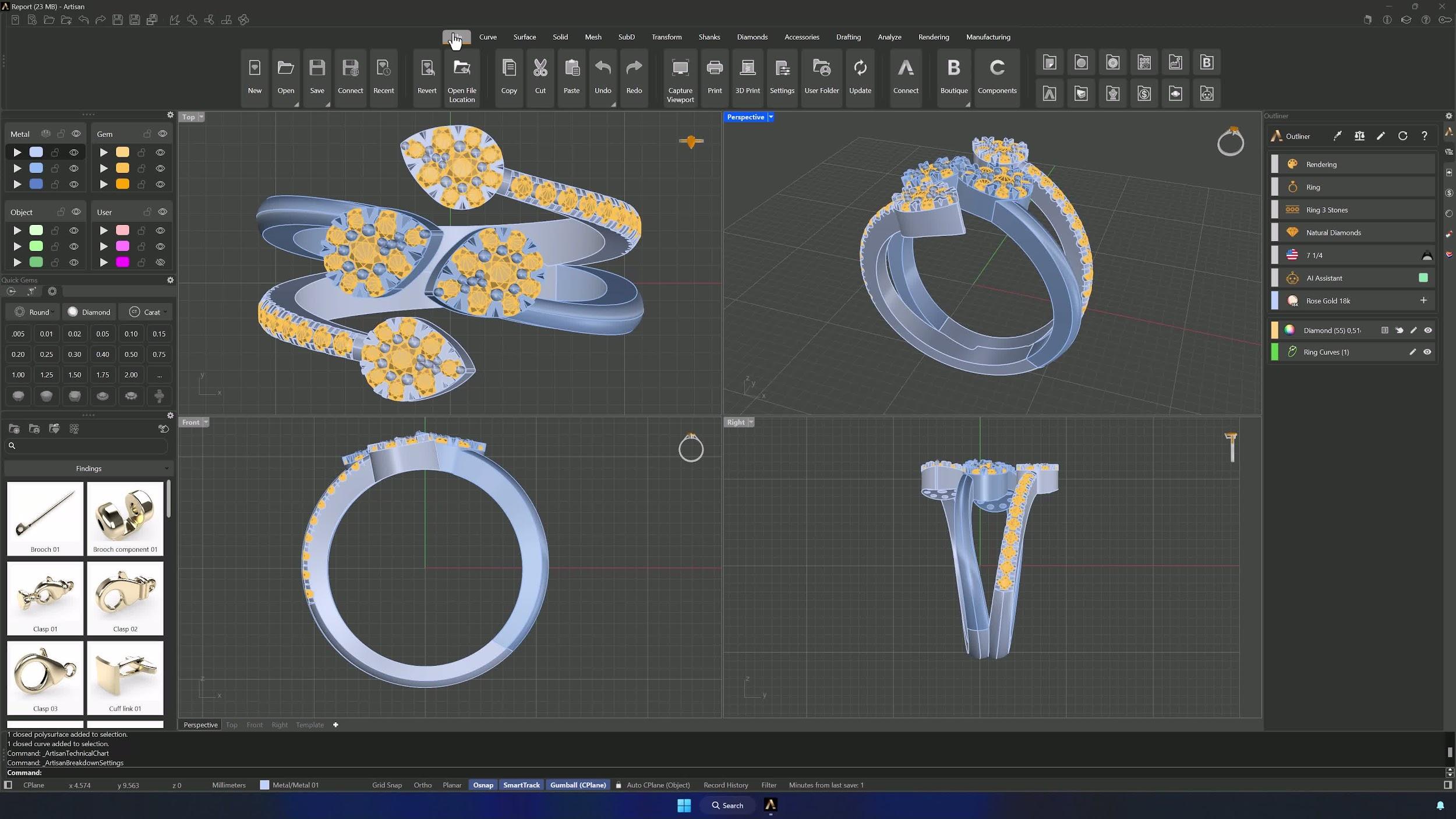
2. Generate Model Details from the Breakdown Panel
Back in the Files tab, open the Breakdown Details panel and click Generate — all the model details populate automatically. Check the information landed correctly before moving on.
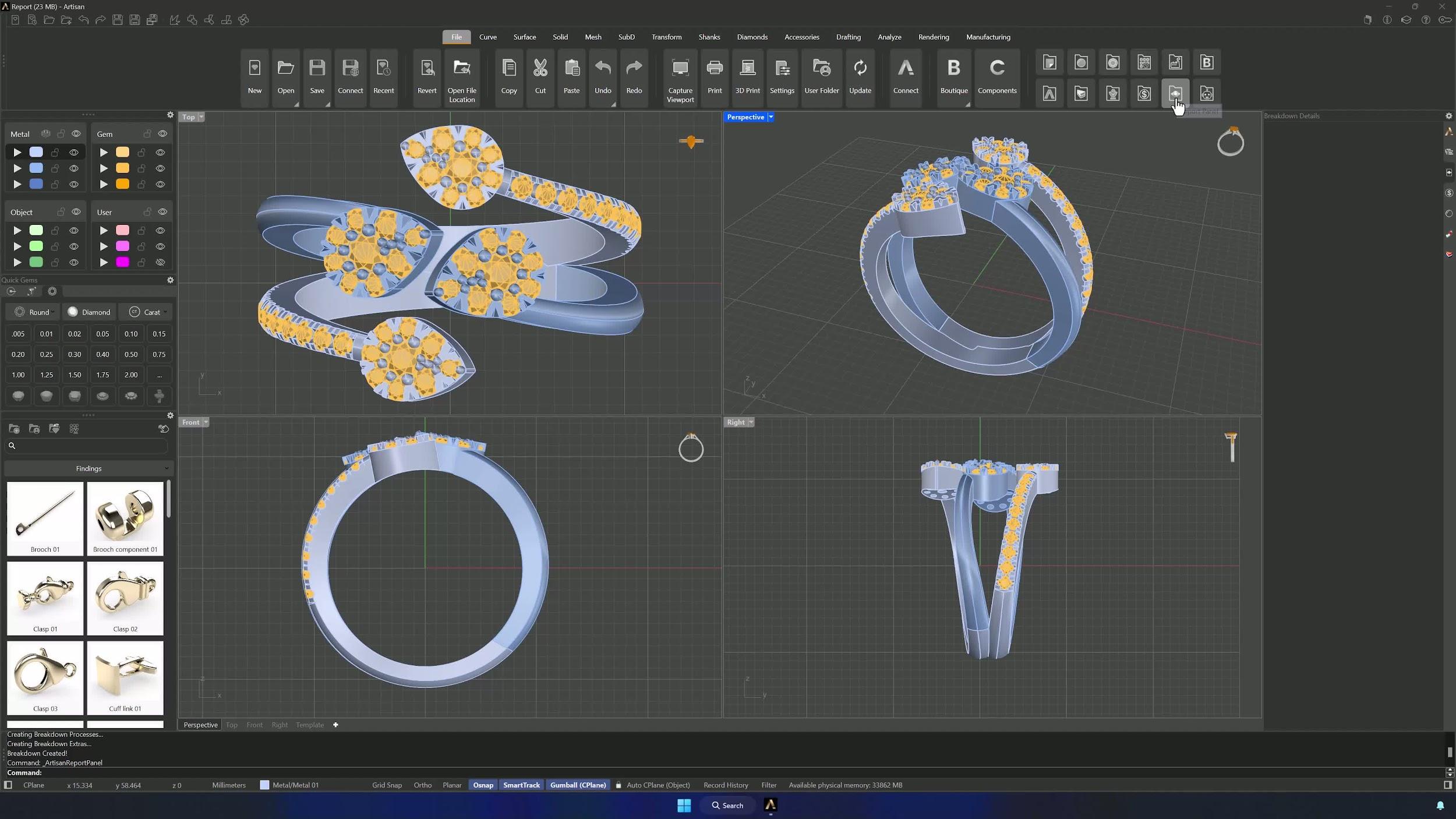
3. Fill Out the Report Information
Open the Report panel and complete the job fields: Client ID, product order, style, CAD designer and description — matching the job being prepared for print.
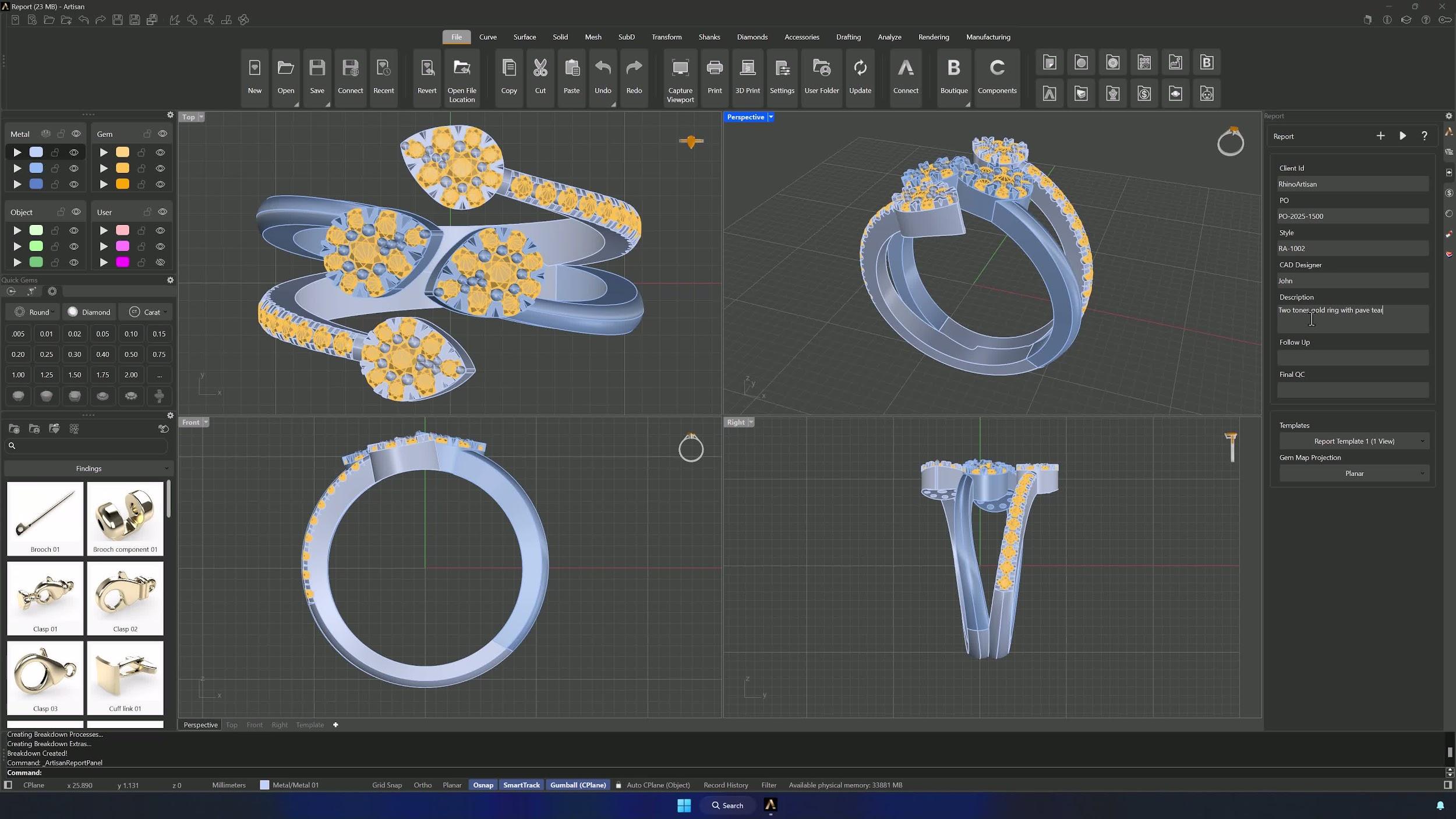
4. Select a Template and Generate the Report
Pick the template (Report Template 1, for example) and click Generate. The report should come out with metal details, gem details and model views — review all three before refining.
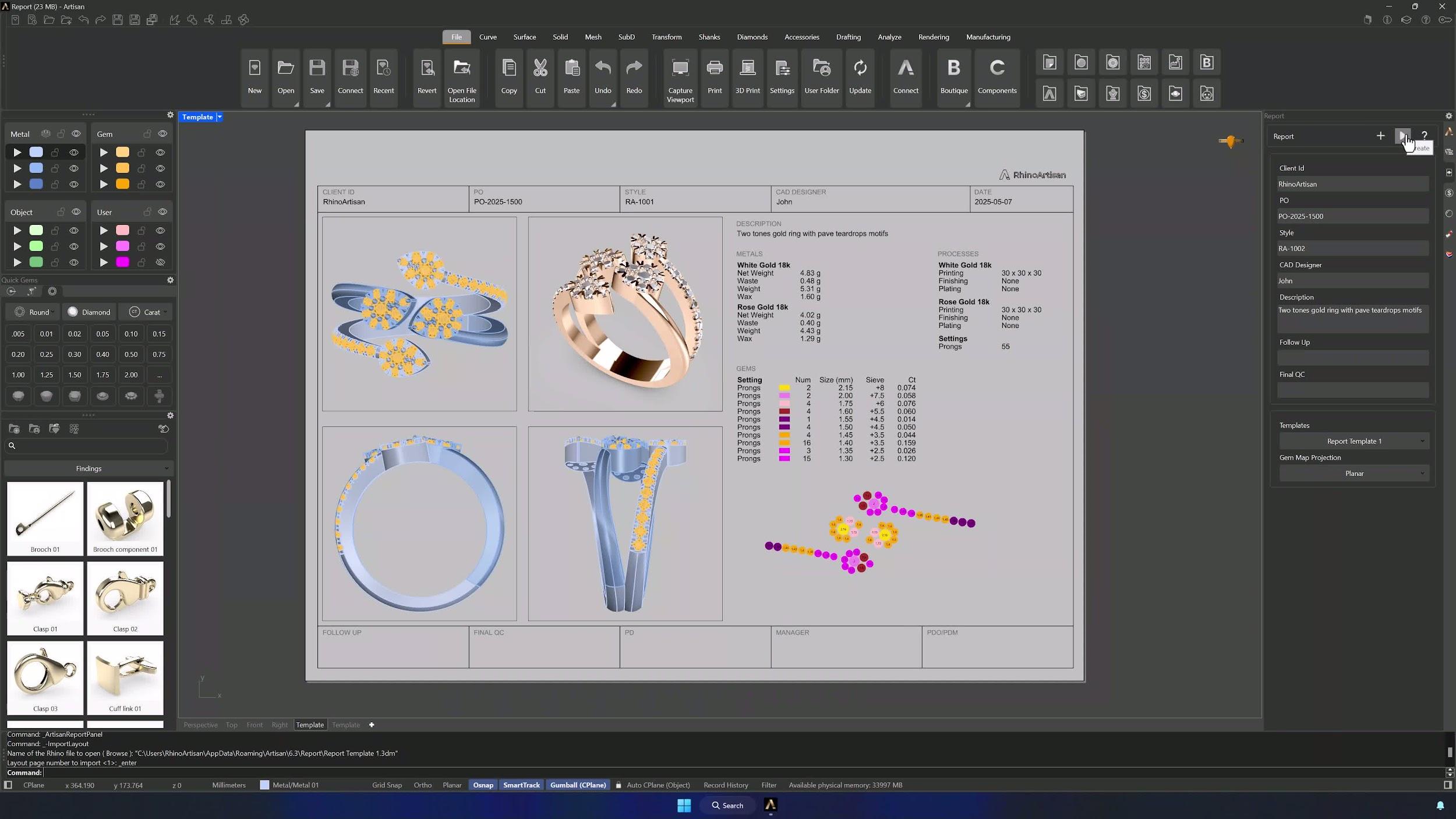
Almost there — you still have some lessons to complete. Jump to the next one →
Impersonating — progress and reviews are disabled.
Course completed
You've completed Jewelry Production & Manufacturing Essentials 🎉
Great work. Get your certificate of completion and, if you have a minute, let other jewelers know what you thought of the course.