Print-Ready Jewelry Report
Lesson 3 of 18
Views, Dimensions & Export
Sign in to access this lesson
This lesson is part of Jewelry Production & Manufacturing Essentials, which can come bundled with a RhinoArtisan Commercial license subject to current promotions. Log in with your customer account, or get in touch and we'll set you up.
Customers only
Solo para clientes
This lesson is part of Jewelry Production & Manufacturing Essentials, which can be included with a RhinoArtisan Commercial license subject to current promotions. If you've already purchased and don't see it in your account, get in touch.
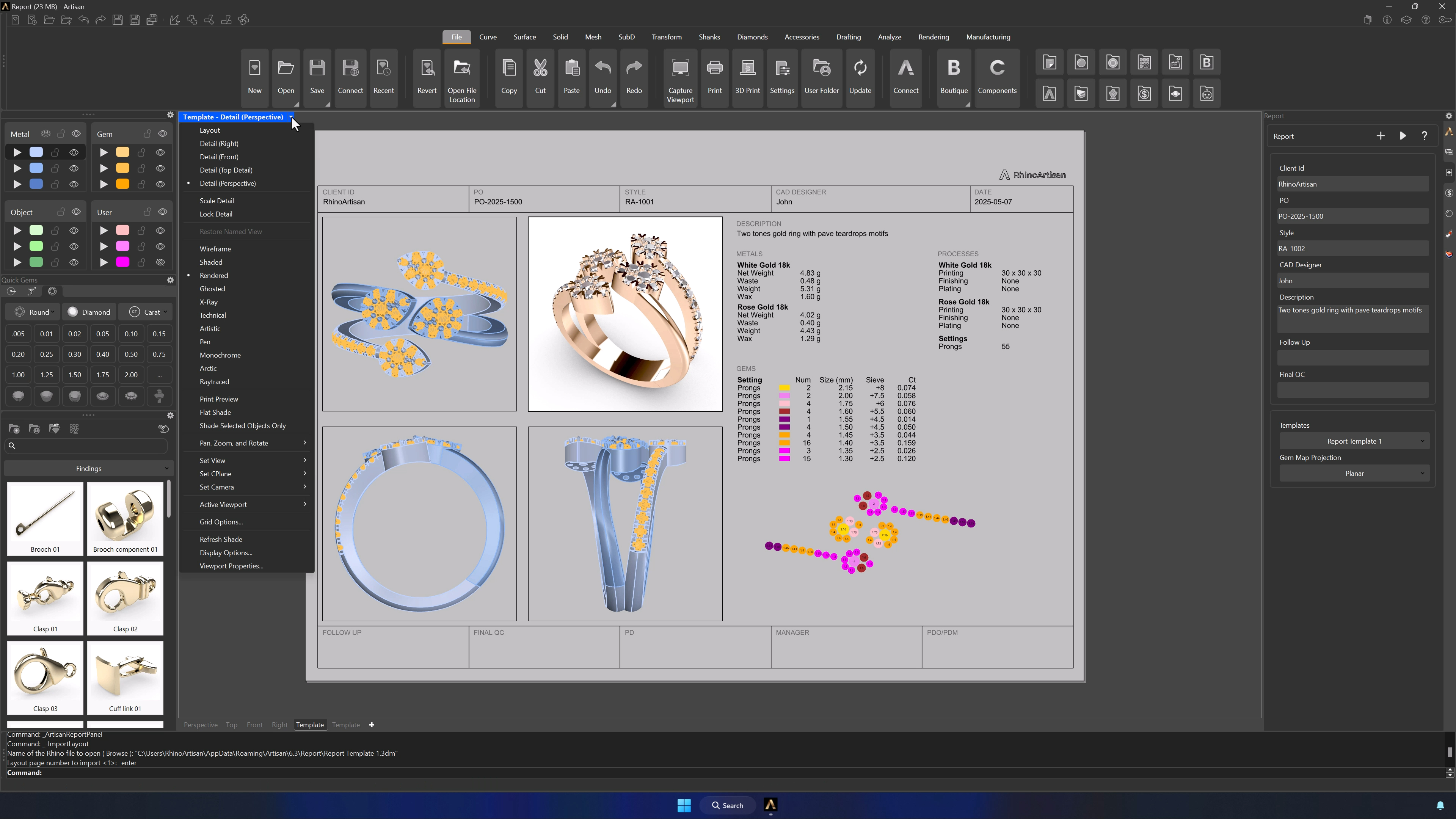
5. Edit Model Views and Update Display Settings
Double-click any model view to edit it, using the upper-left options to change display mode and visual settings. Updating the metal directly in the Outliner refreshes the report automatically, and you can reposition the model for better presentation.
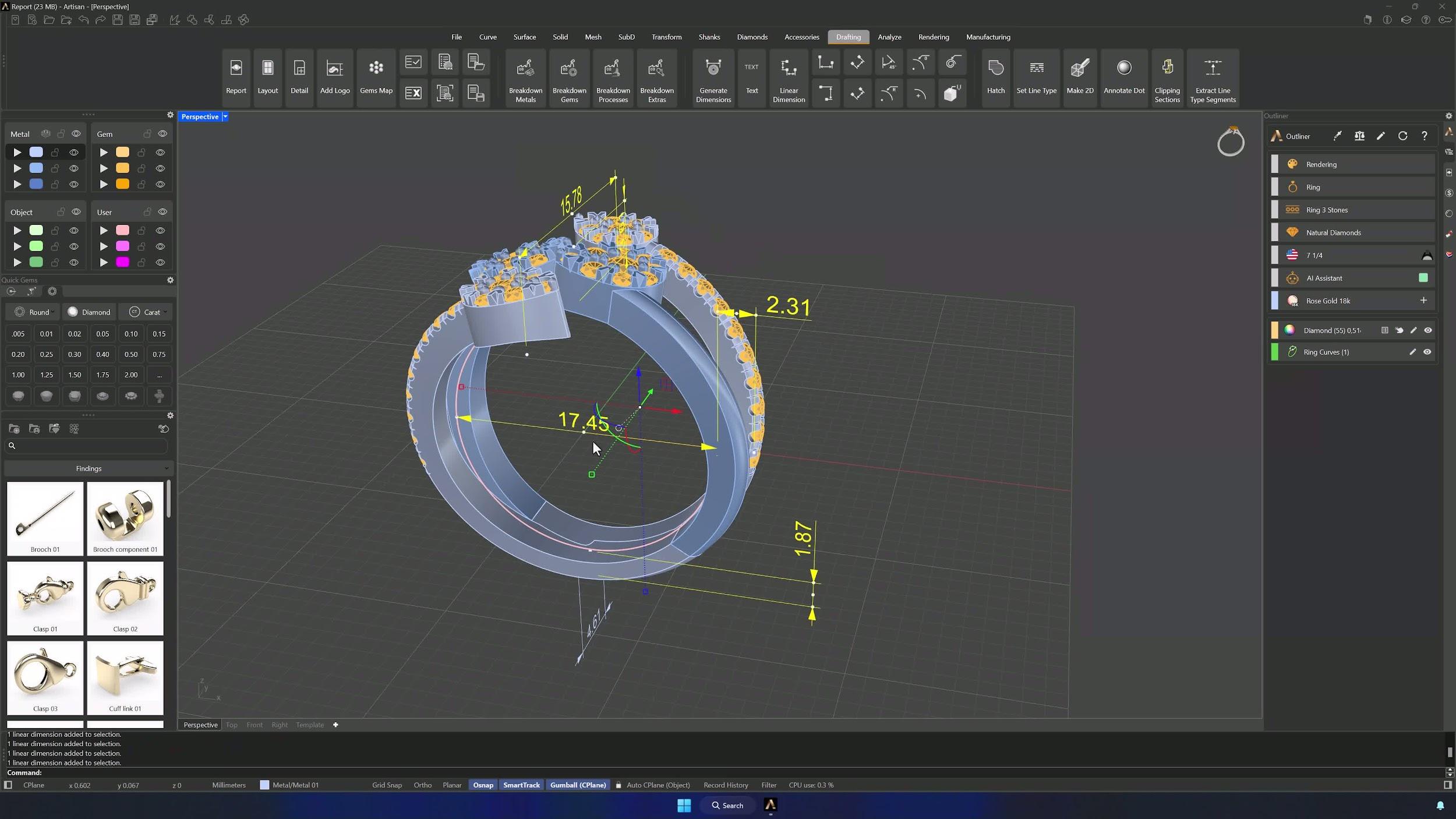
6. Add Dimension Annotations to the Model Views
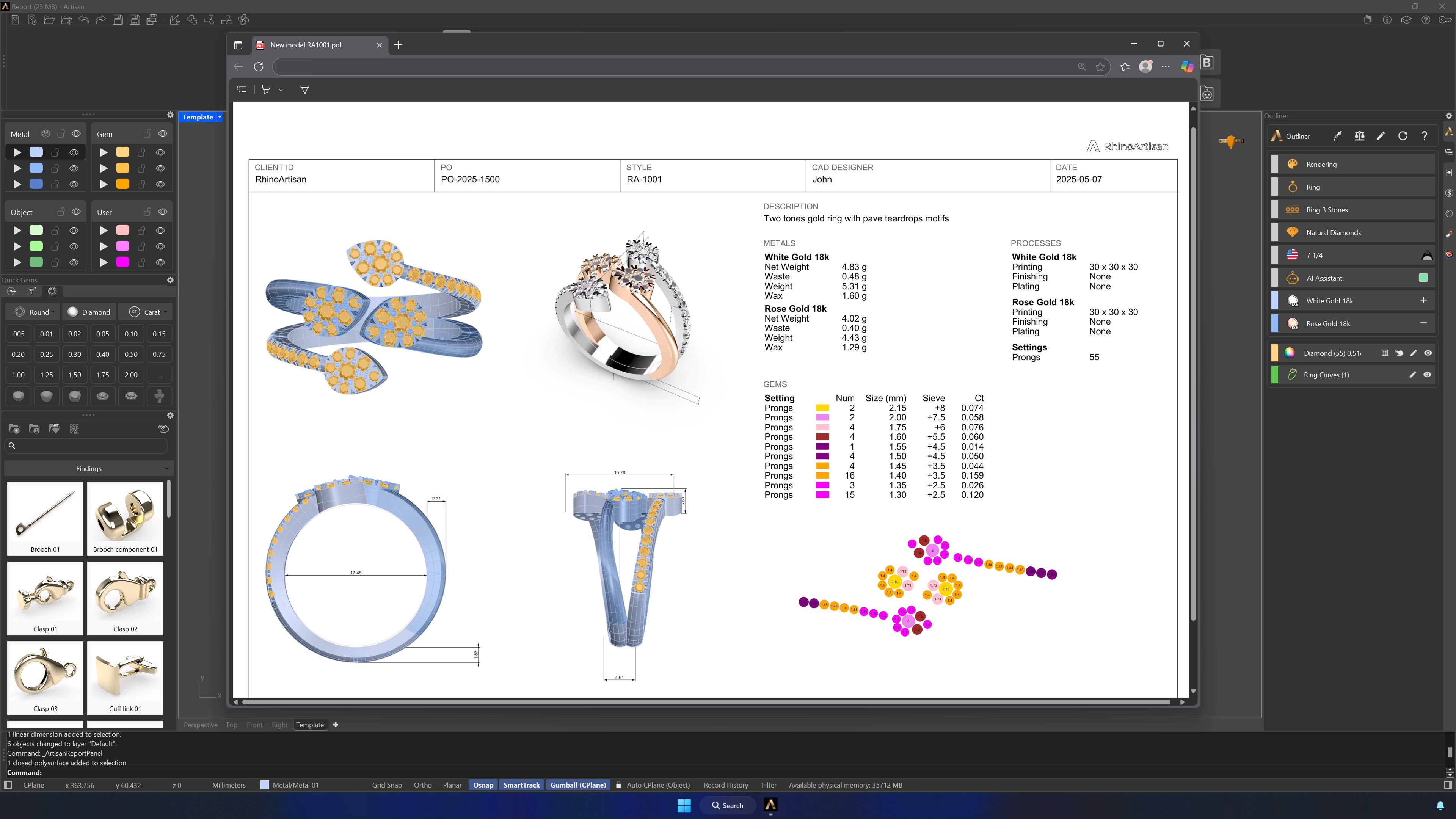
Back in the four model views, run Generate Dimensions from the Drafting tab and let the system create them from the geometry. Select the generated dimensions and move them to the default layer if you want them printing in black.
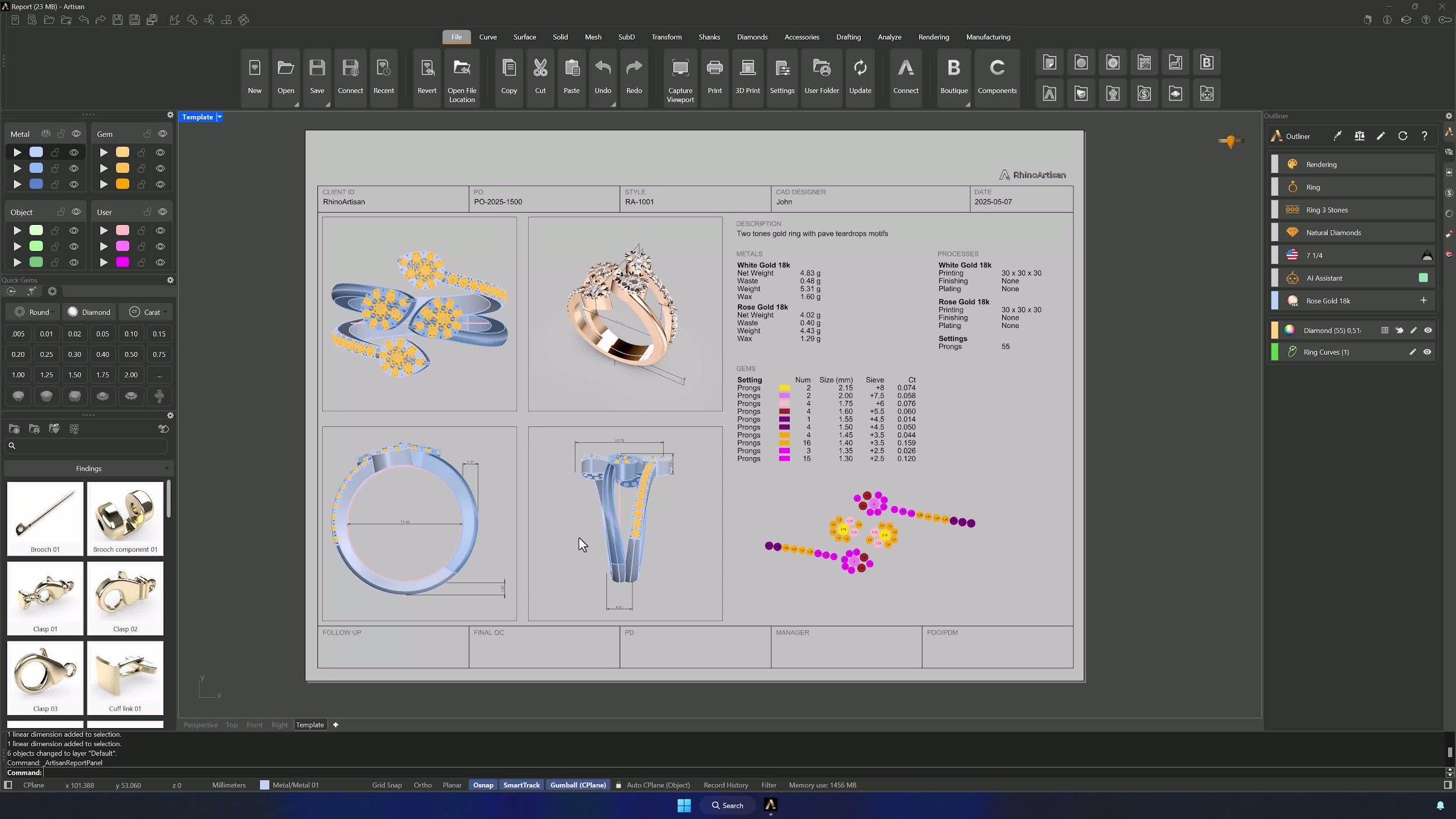
7. Preview the Updated Template with Dimensions
In the Files tab, don’t create a new report — scroll down and preview the existing template. The views should now show the generated dimensions.
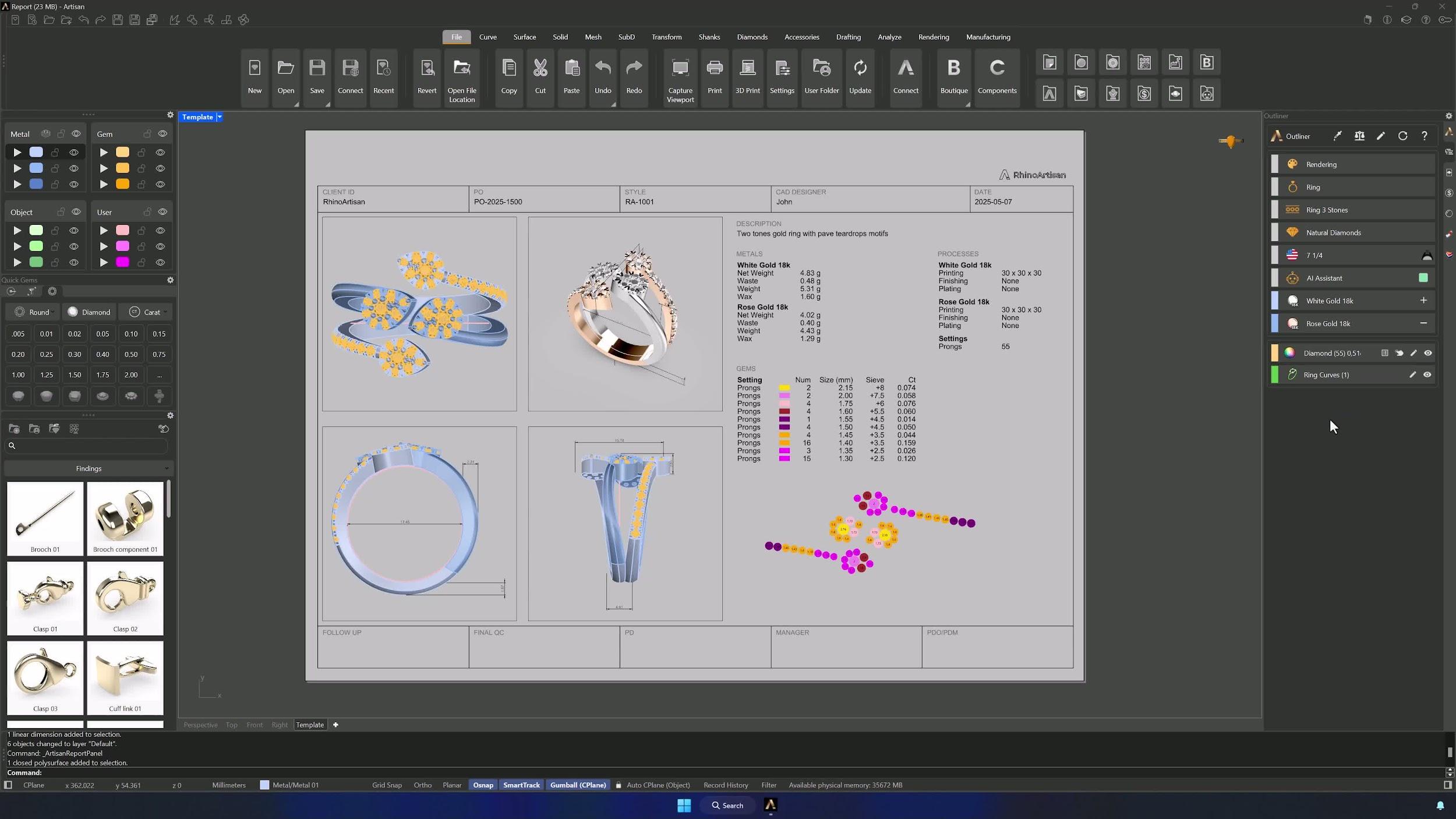
8. Add Additional Metals and Confirm the Final Report
If the design ships in more than one metal, add it in the Outliner and assign the metal layers in the template — white gold first, rose gold second in the example. The report updates with both metals displayed.
9. Export the Completed Report for Printing
In the Files tab, click 3D Print and the finished report is ready — save or export it according to your workflow.
Tips for a clean result
- Complete all the Breakdown data first; everything downstream reuses it.
- Use the template preview to verify changes — don’t regenerate the report just to look at updated dimensions.
- Keep dimensions on a consistent layer for uniform print styling.
- Update metals in the Outliner where possible so the report refreshes automatically.
- Review the report after each major change to catch issues early.
Almost there — you still have some lessons to complete. Jump to the next one →
Impersonating — progress and reviews are disabled.
Course completed
You've completed Jewelry Production & Manufacturing Essentials 🎉
Great work. Get your certificate of completion and, if you have a minute, let other jewelers know what you thought of the course.