Creating Report Templates
Lesson 5 of 18
Overview
Sign in to access this lesson
This lesson is part of Jewelry Production & Manufacturing Essentials, which can come bundled with a RhinoArtisan Commercial license subject to current promotions. Log in with your customer account, or get in touch and we'll set you up.
Customers only
Solo para clientes
This lesson is part of Jewelry Production & Manufacturing Essentials, which can be included with a RhinoArtisan Commercial license subject to current promotions. If you've already purchased and don't see it in your account, get in touch.
The default report works — but your reports should look like your studio. This workflow rebuilds the report template from the ground up so every future report carries your own branded layout: field boxes arrayed with exact spacing, text labels whose bracketed IDs map to the report fields, view boxes scaled against the data, and four configured viewports — all saved where the generator picks it up automatically.
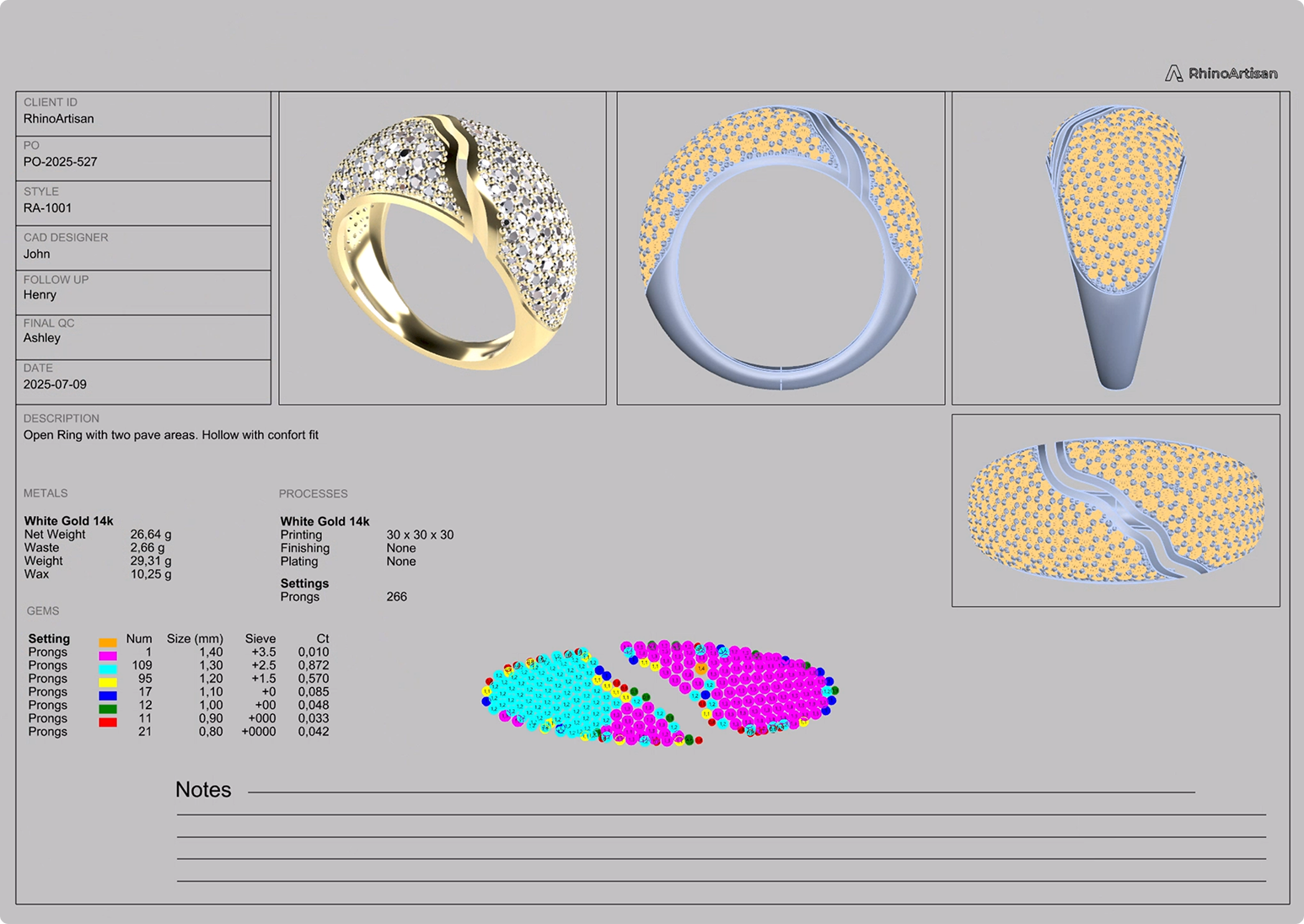
Create your own report template using RhinoArtisan.
In this tutorial you will learn how to:
- Open the default Report Template, rebuild the layout, and Array the field boxes — mapping each bracketed field ID to its report field (underscores, not spaces).
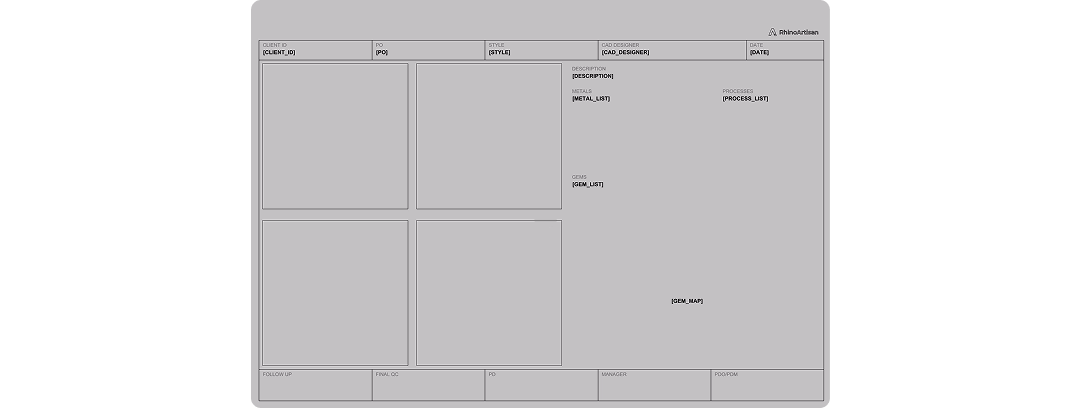
- Add any custom fields from the Report panel, position and scale the view boxes against the data, and Align everything cleanly.
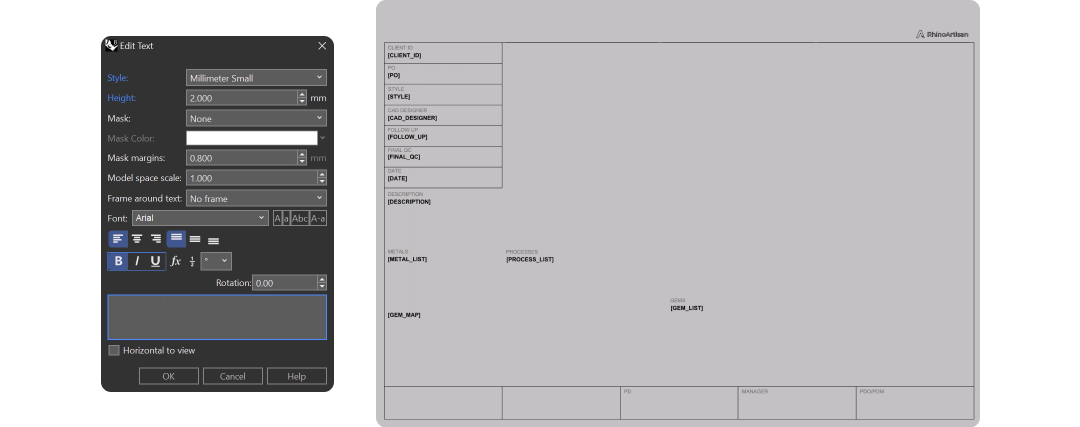
- Configure the four viewports (Perspective, Front, Right, Top), preview with a reference model, and save the template into the Report folder.
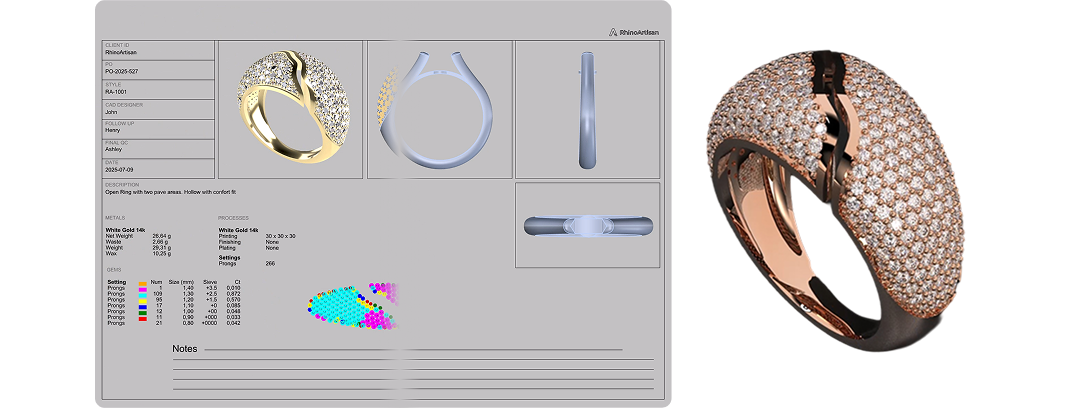
By the end of this project, you’ll have the skills to build a branded, reusable report template from scratch.
Almost there — you still have some lessons to complete. Jump to the next one →
Impersonating — progress and reviews are disabled.
Course completed
You've completed Jewelry Production & Manufacturing Essentials 🎉
Great work. Get your certificate of completion and, if you have a minute, let other jewelers know what you thought of the course.