Applying Materials
Lesson 16 of 37
Assignment Modes: By layers
Sign in to access this lesson
This lesson is part of Master in Jewelry Rendering in Cycles, which can come bundled with a RhinoArtisan Commercial license subject to current promotions. Log in with your customer account, or get in touch and we'll set you up.
Customers only
Solo para clientes
This lesson is part of Master in Jewelry Rendering in Cycles, which can be included with a RhinoArtisan Commercial license subject to current promotions. If you've already purchased and don't see it in your account, get in touch.
We can also assign materials to different layers, thus making it easy to change the material for each element. From the Layers tab, the image cursor points to the layer material.
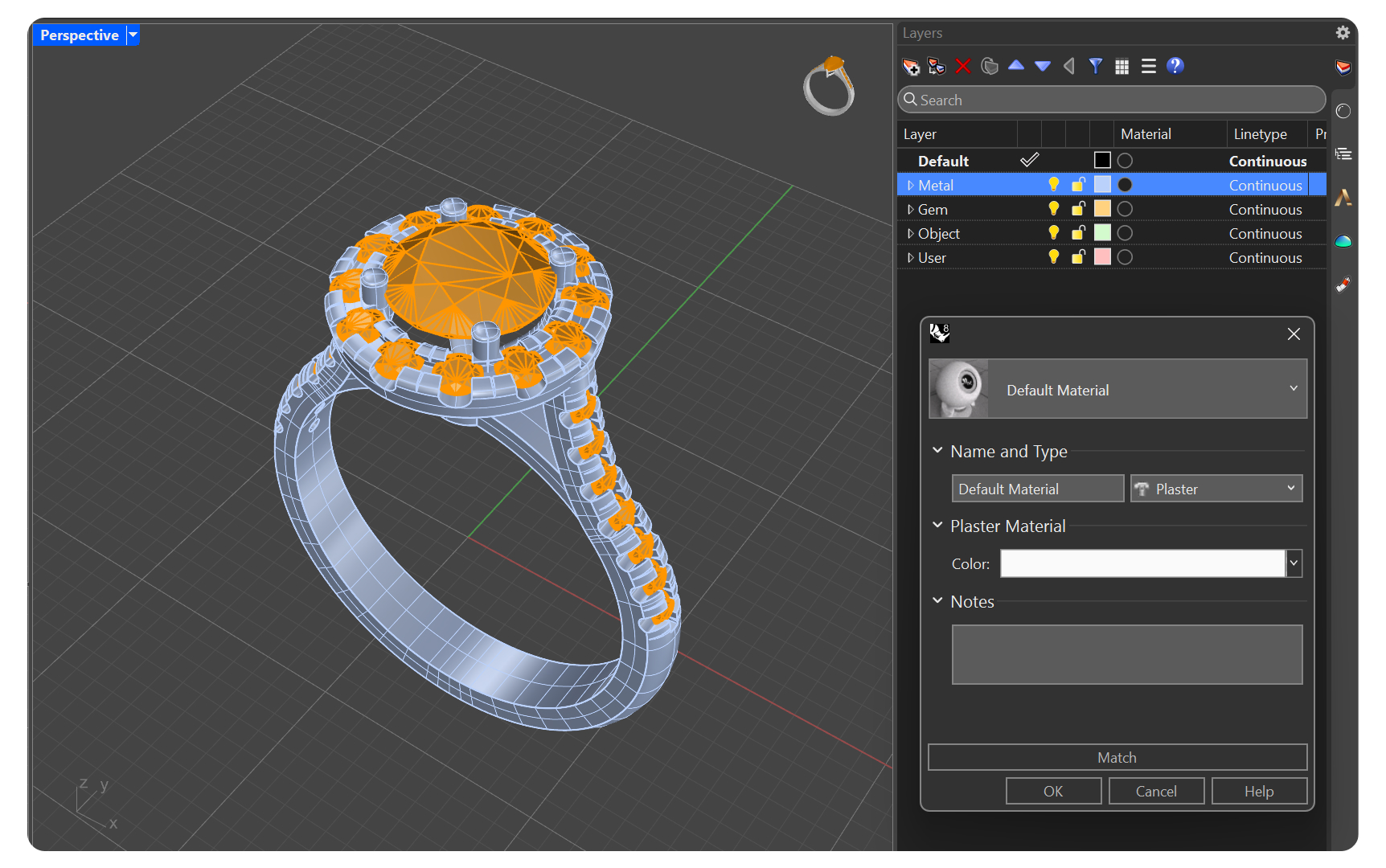
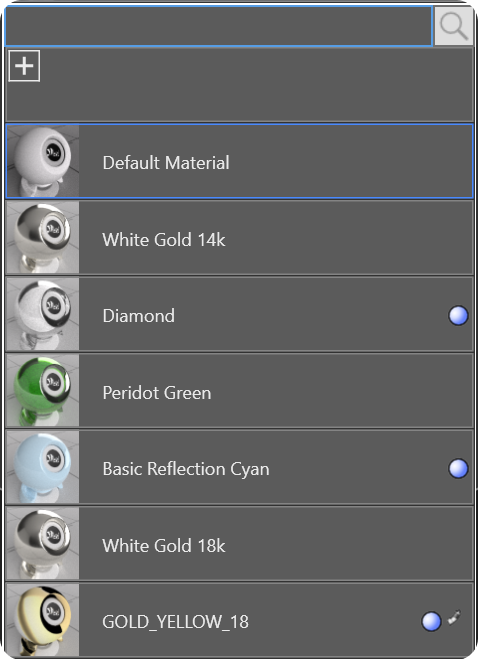
Clicking on the material icon will bring up the Layer Material window. From here, we can select a material for the layer, press the Default material will display a list from which we can either select a material or add a new one.
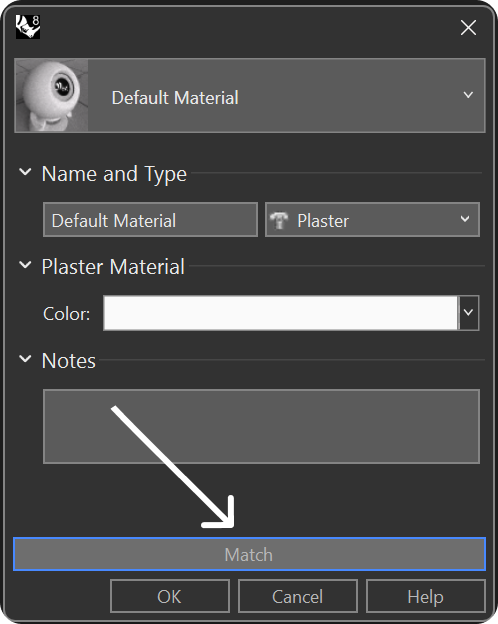
Another option is to perform a Match, which means to get the color of a certain element and apply it to the layer. To do this we press Match…, we click on the element from which we will obtain the material for the layer.
Almost there — you still have some lessons to complete. Jump to the next one →
Impersonating — progress and reviews are disabled.
Course completed
You've completed Master in Jewelry Rendering in Cycles 🎉
Great work. Get your certificate of completion and, if you have a minute, let other jewelers know what you thought of the course.