Environments
Lesson 31 of 37
Creating and Editing Environments
Sign in to access this lesson
This lesson is part of Master in Jewelry Rendering in Cycles, which can come bundled with a RhinoArtisan Commercial license subject to current promotions. Log in with your customer account, or get in touch and we'll set you up.
Customers only
Solo para clientes
This lesson is part of Master in Jewelry Rendering in Cycles, which can be included with a RhinoArtisan Commercial license subject to current promotions. If you've already purchased and don't see it in your account, get in touch.
To optimize the lighting we will edit the environment:
-
- We will change its rotation, in case the shadows generated are not the required ones. Rotation.
-
- We will also take into account the light intensity of the environment. Intensity
We can import an environment, dragging it from any folder to the workspace. Another option is to create a new environment, for this, we will follow the same mechanics as the creation of materials.
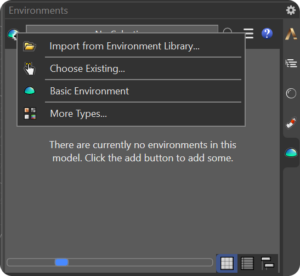
From the + icon we can both import and create a new environment.
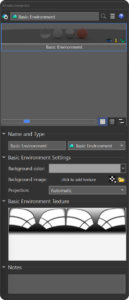
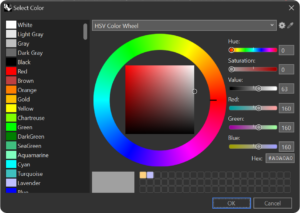
Once a basic environment has been created, we must assign it a background color (background color) and an image as a texture (Click to assign texture).
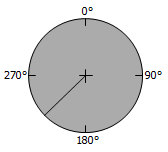
Rotation
Sets the rotation of the environment. This helps put the image in the correct position to accomplish the correct reflections and lighting.
Intensity
Specifies the strength of the environment.
Almost there — you still have some lessons to complete. Jump to the next one →
Impersonating — progress and reviews are disabled.
Course completed
You've completed Master in Jewelry Rendering in Cycles 🎉
Great work. Get your certificate of completion and, if you have a minute, let other jewelers know what you thought of the course.