Applying Materials
Lesson 12 of 37
Display Modes
Sign in to access this lesson
This lesson is part of Master in Jewelry Rendering in Cycles, which can come bundled with a RhinoArtisan Commercial license subject to current promotions. Log in with your customer account, or get in touch and we'll set you up.
Customers only
Solo para clientes
This lesson is part of Master in Jewelry Rendering in Cycles, which can be included with a RhinoArtisan Commercial license subject to current promotions. If you've already purchased and don't see it in your account, get in touch.
Pressing on the arrow that is located to the right of the view we are in, a menu like the one in the image with all the display options will be displayed, also we can find a display panel in the bottom right corner of each view.
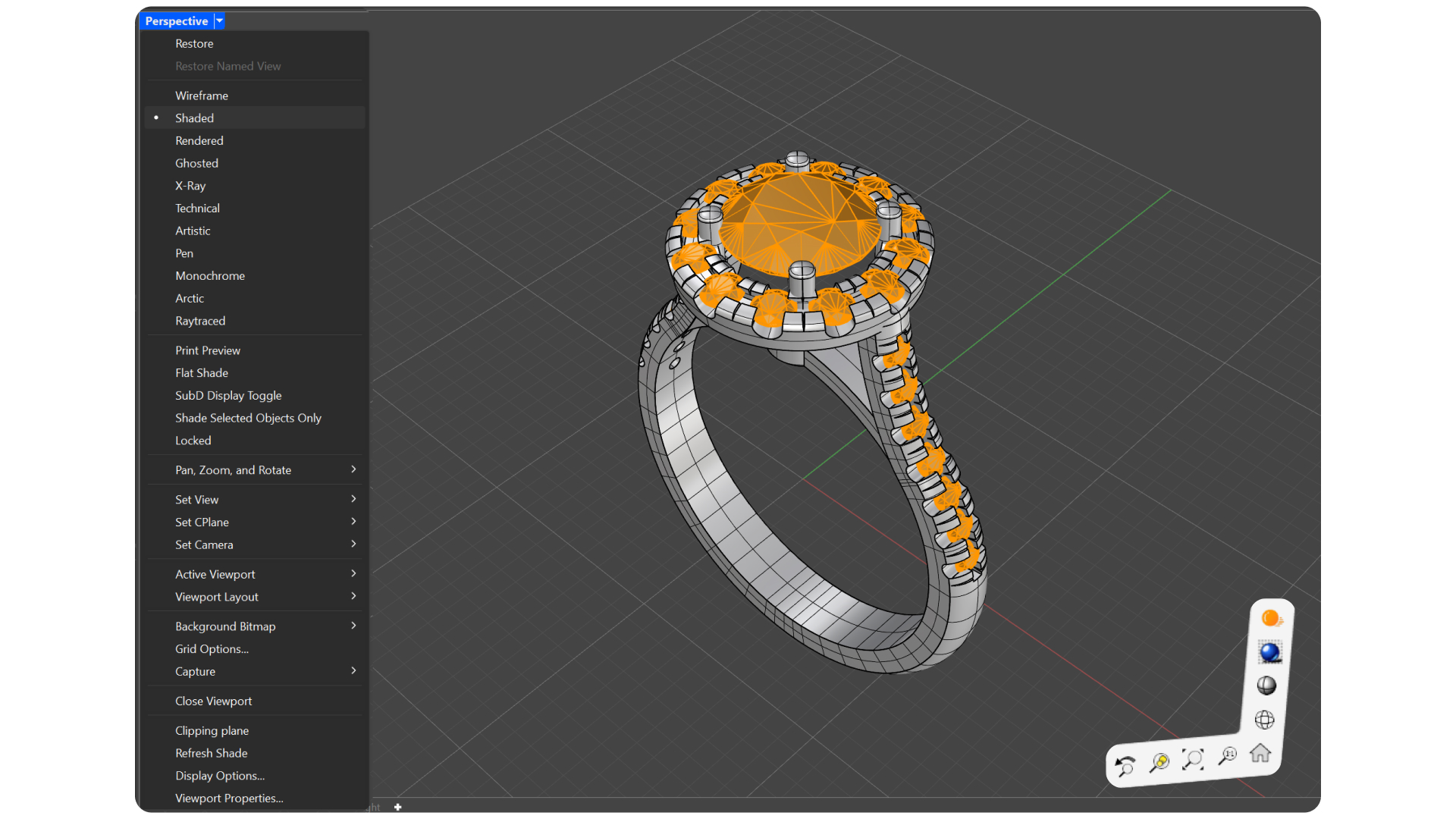
Below we can see the different modes:
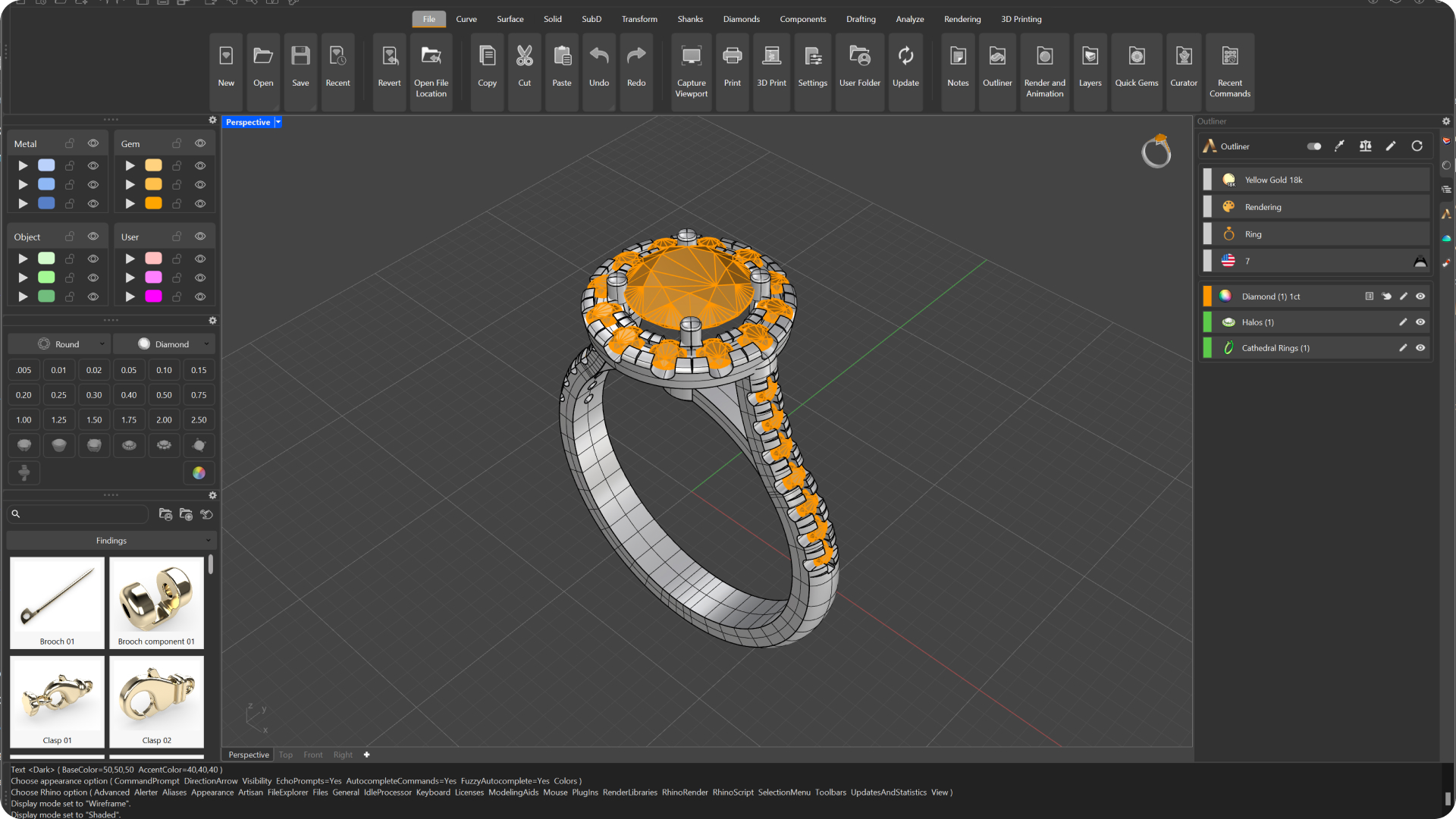
1. Wireframe: Sets the view display to non-shaded wireframe.
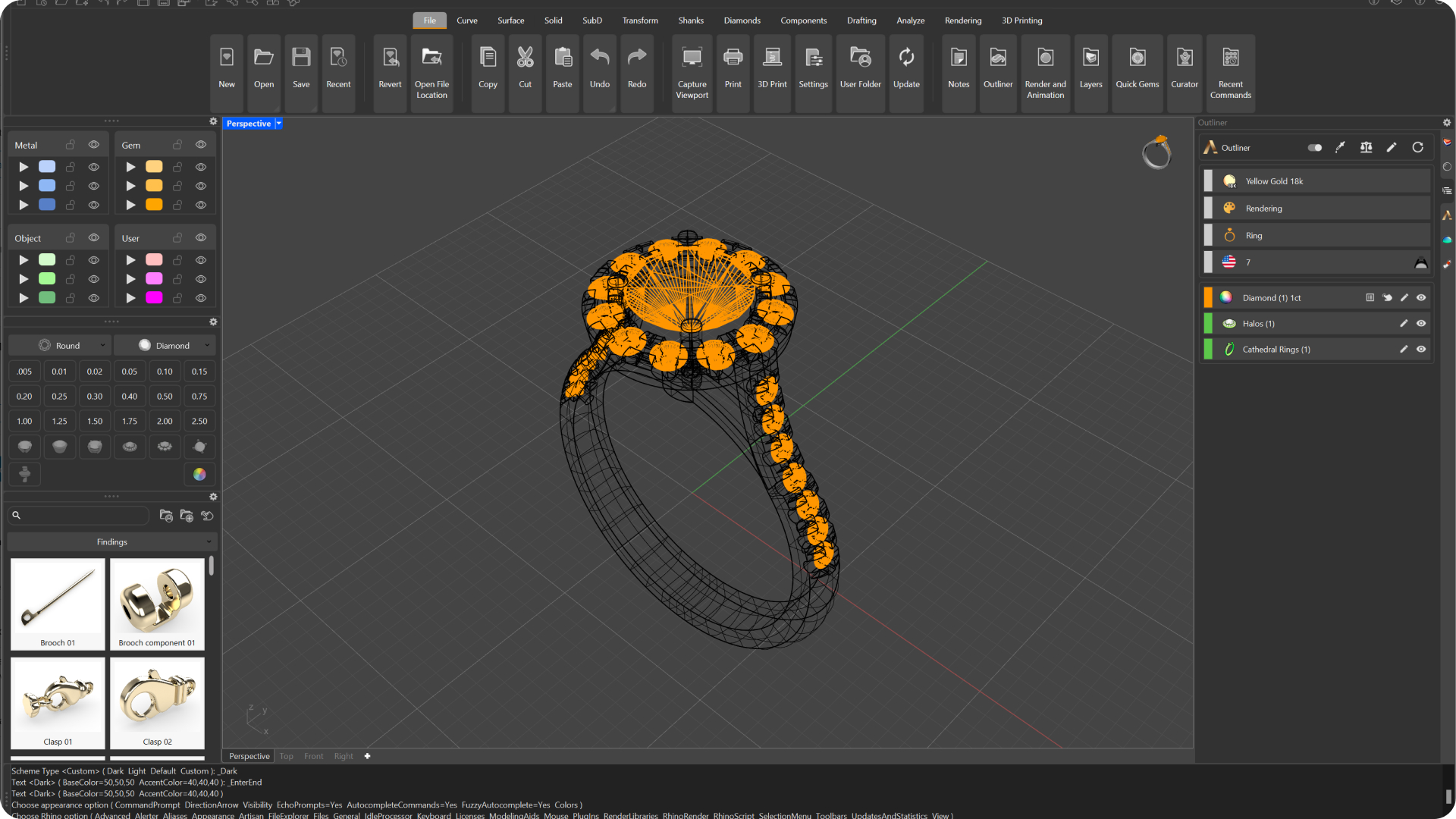
2. Shaded: Sets the view to opaque shaded mode. Shaded mode uses a mesh to shade surfaces using layer colors.
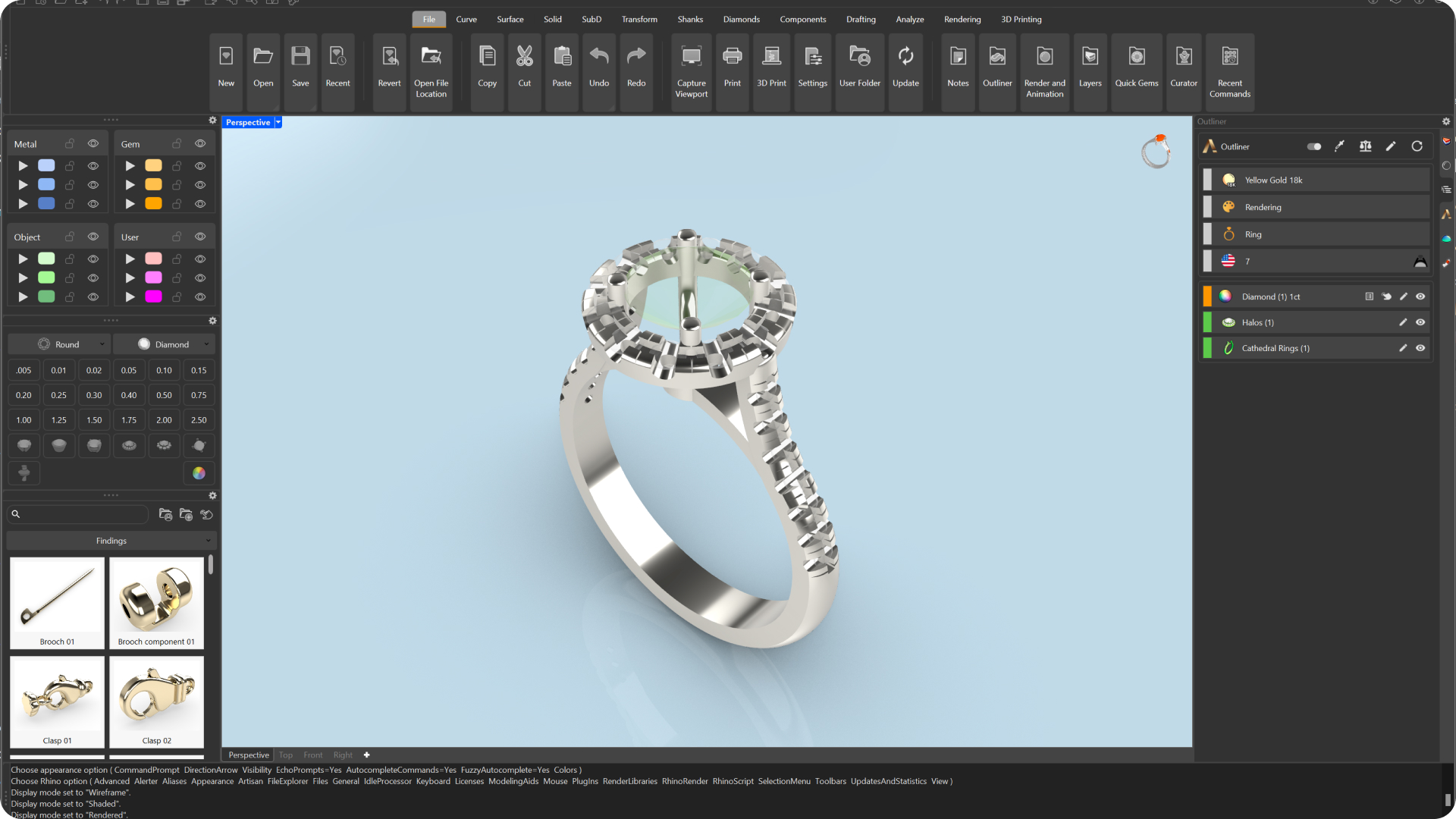
3. Rendered: Shades the view with a simulation of the rendered view.
4. Ghosted: Sets the viewport display so that surfaces are translucent.
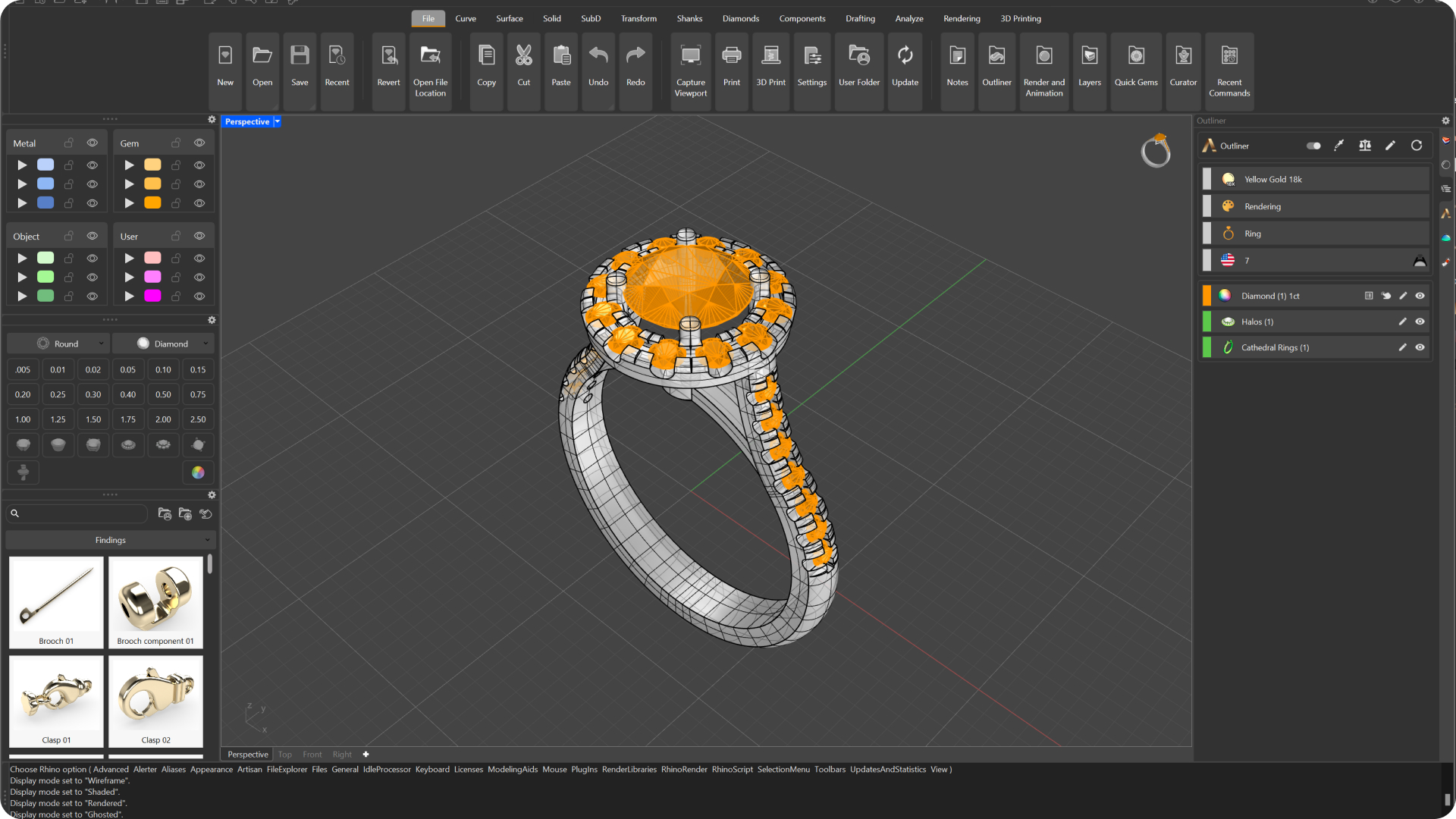
5. X-Ray: All points and wireframe will be displayed, even if they are normally hidden by surfaces ahead of the view .
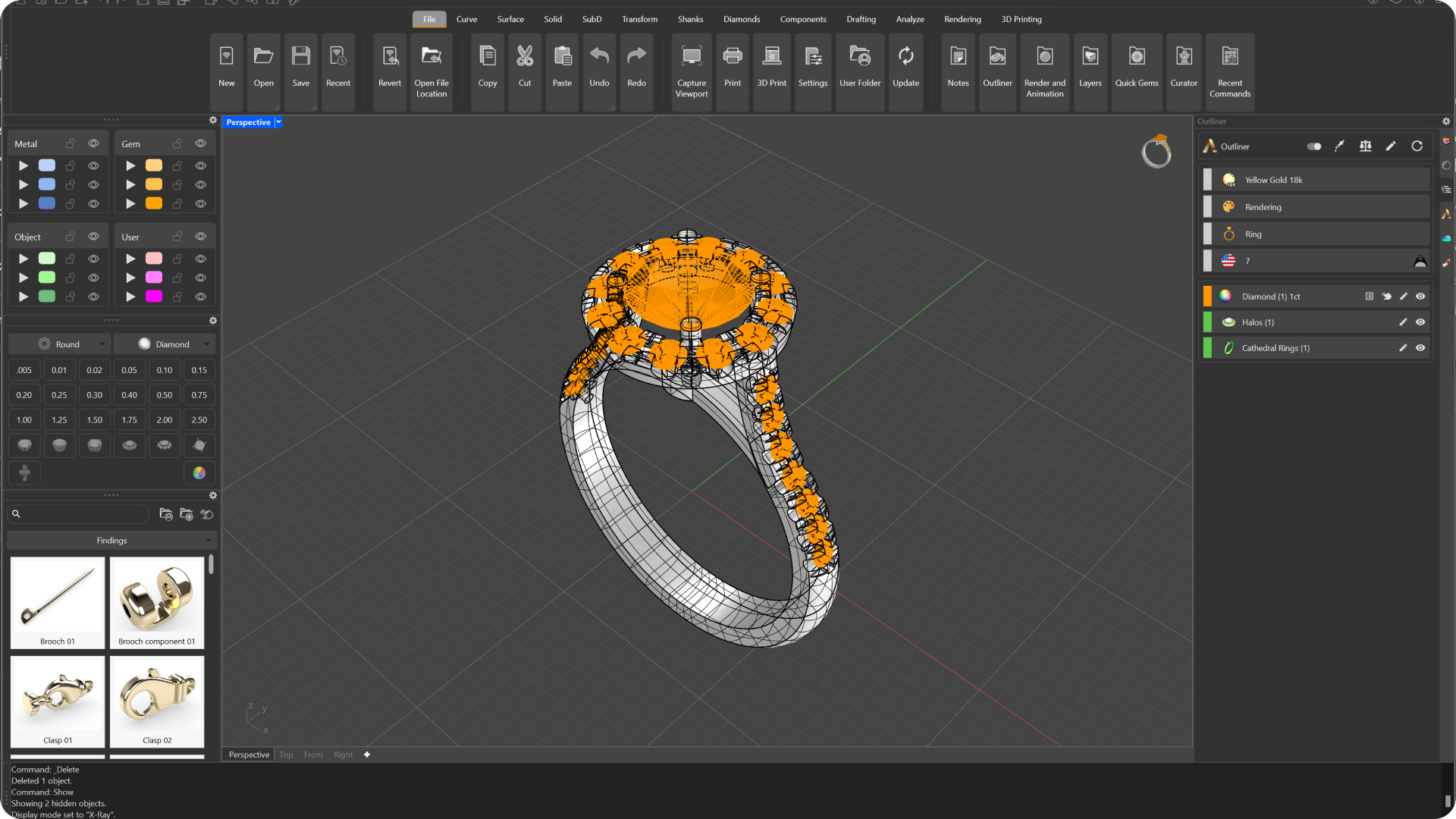
6. Technical: Uses display of silhouettes and intersections, creases, edges, and real-time blended shader and render mode. Objects behind other objects are hidden.
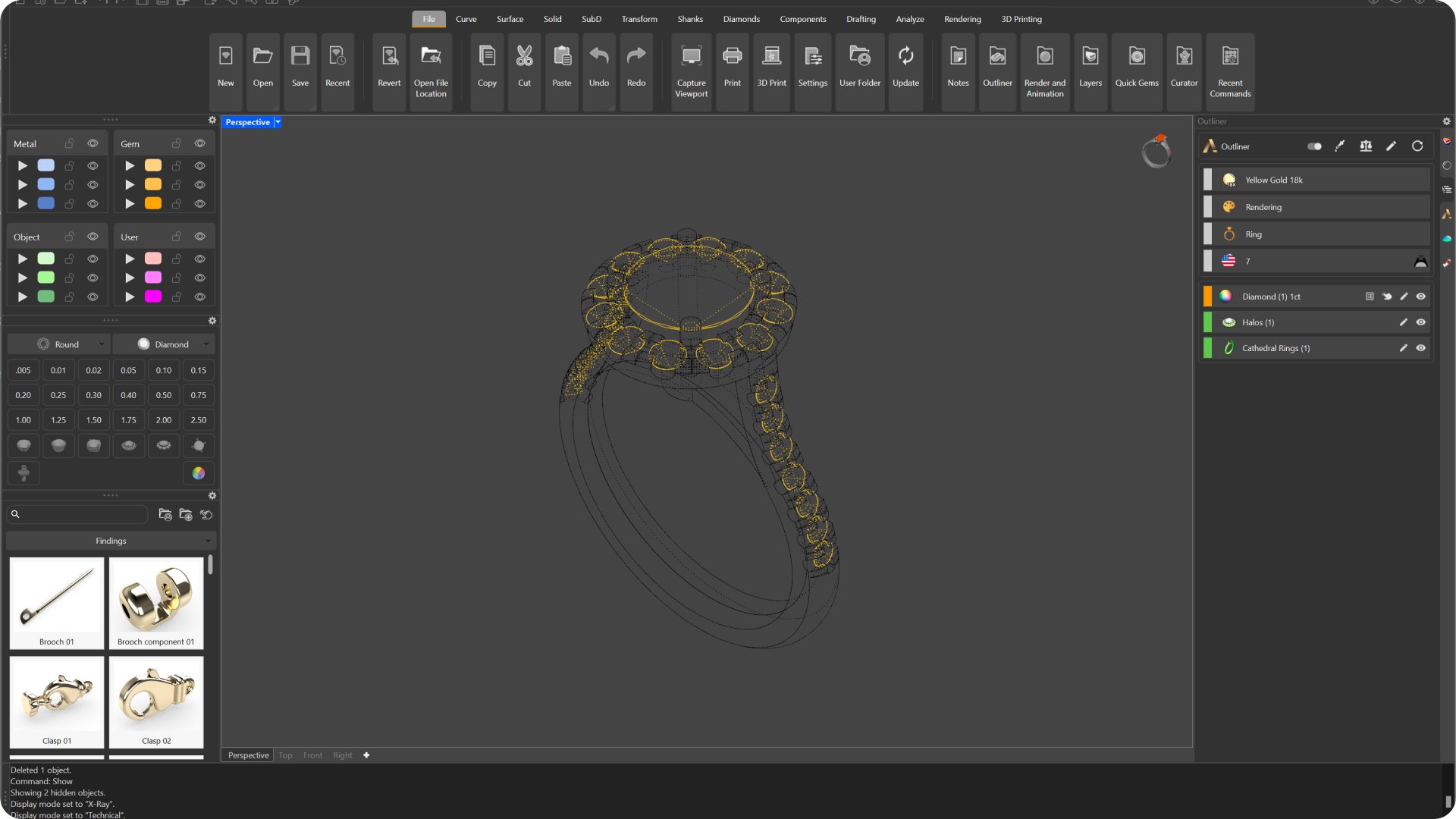
7. Artistic: Uses the display of silhouettes and intersections, creases, edges, and real-time mixed shader and render mode. Objects behind other objects are hidden.
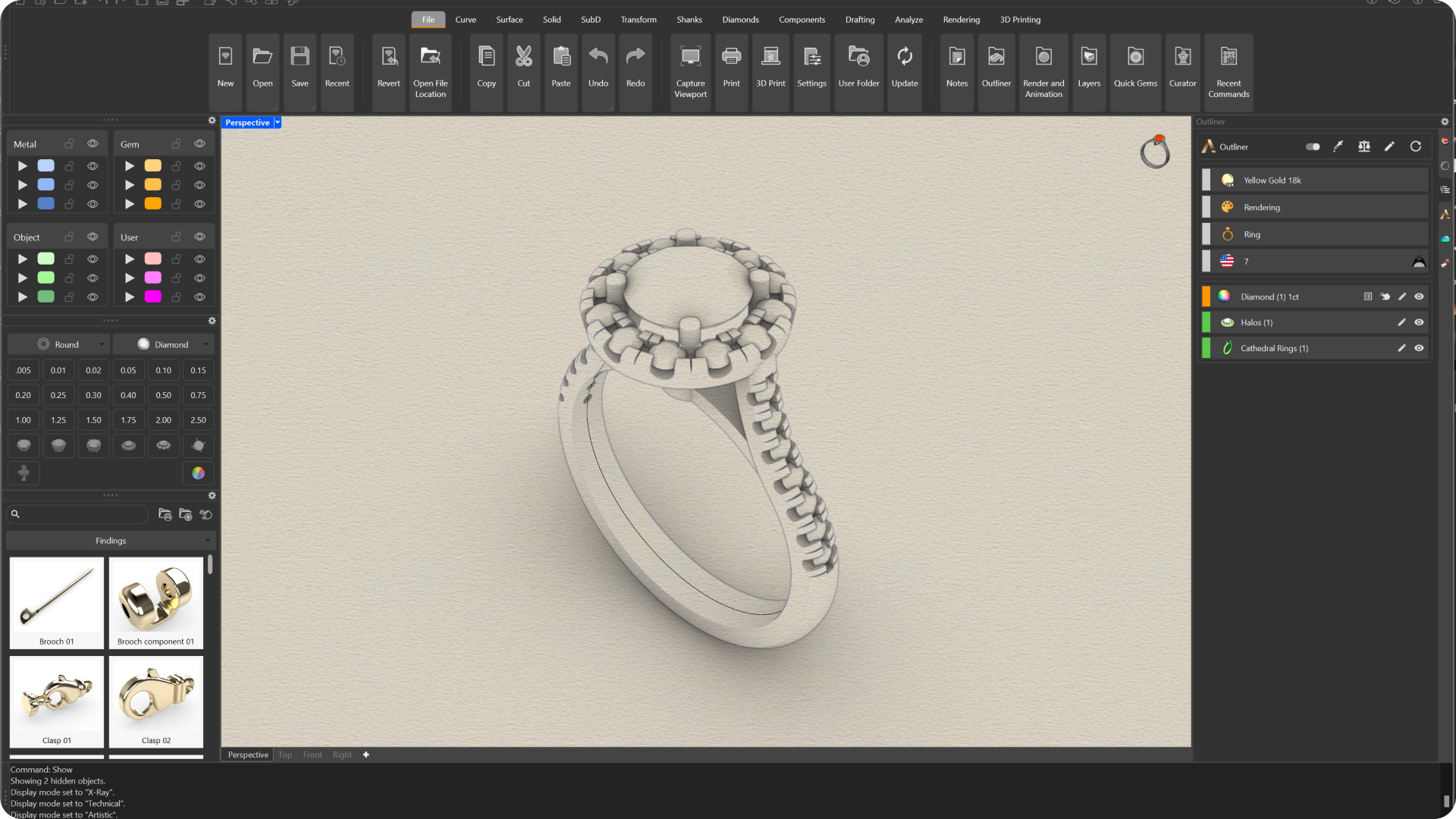
8. Pen: Uses black and white lines simulating pencil drawing.
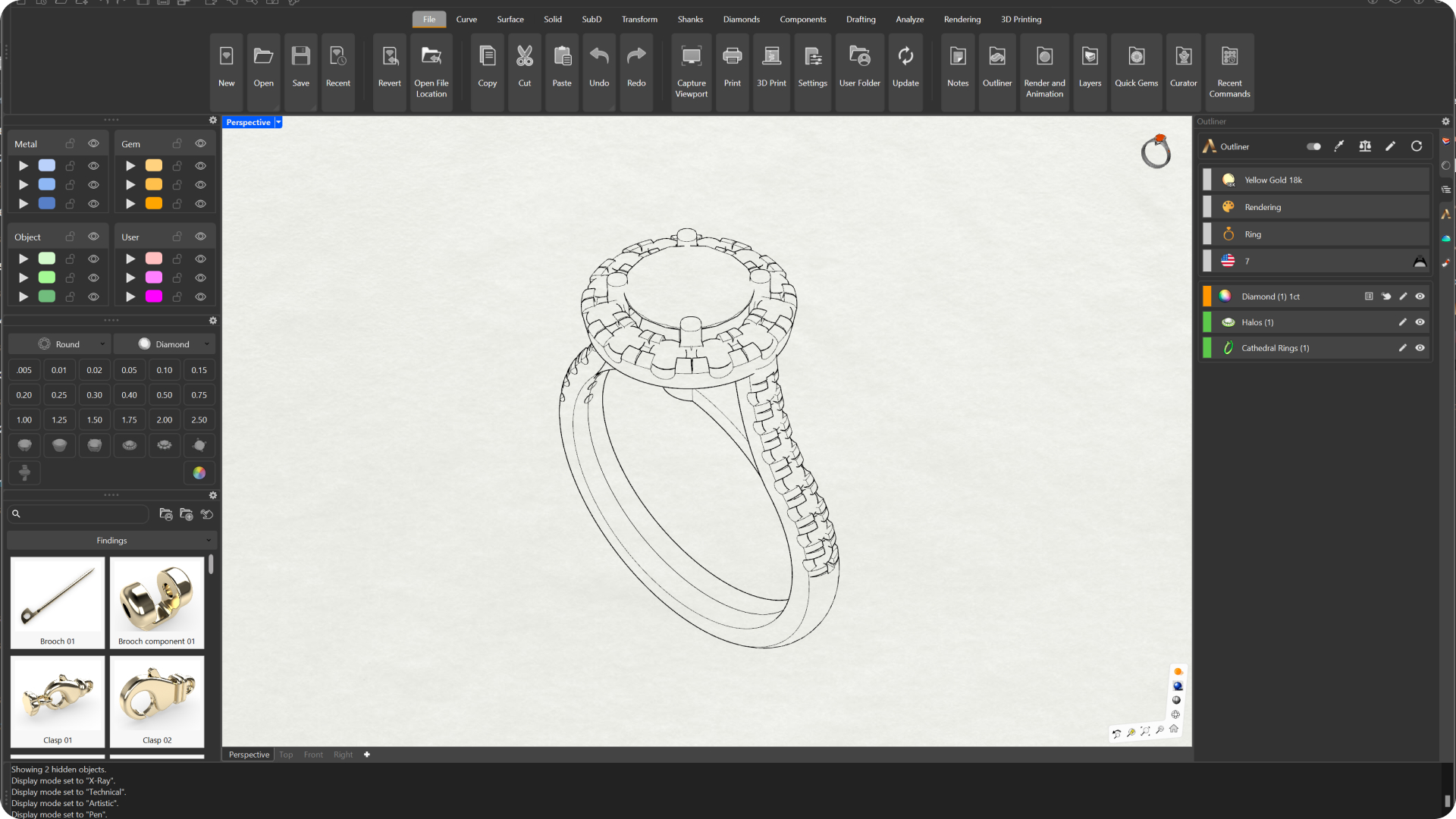
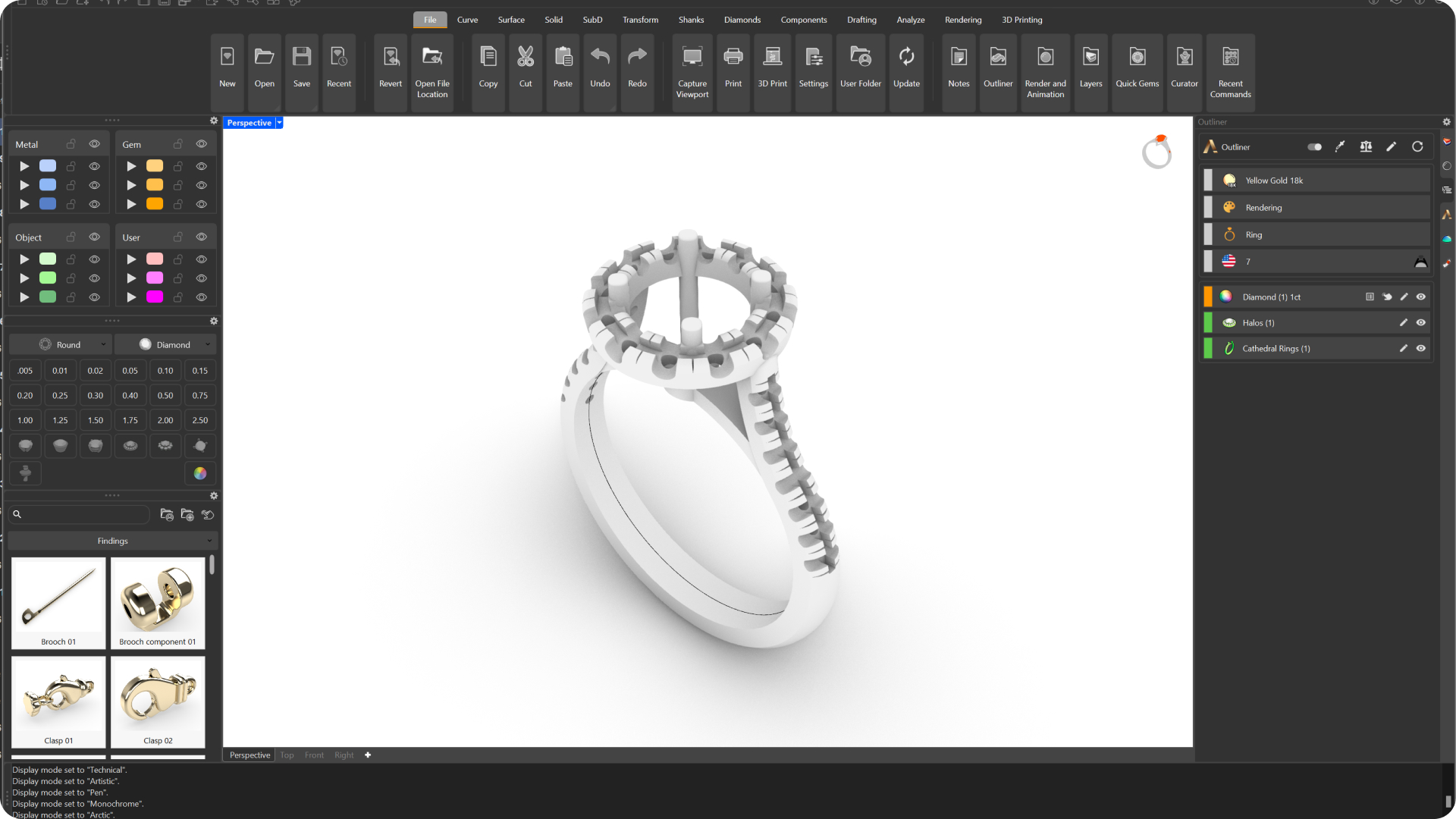
9. Arctic: Use white for all objects and background with soft shadows to give the feel of the Arctic.
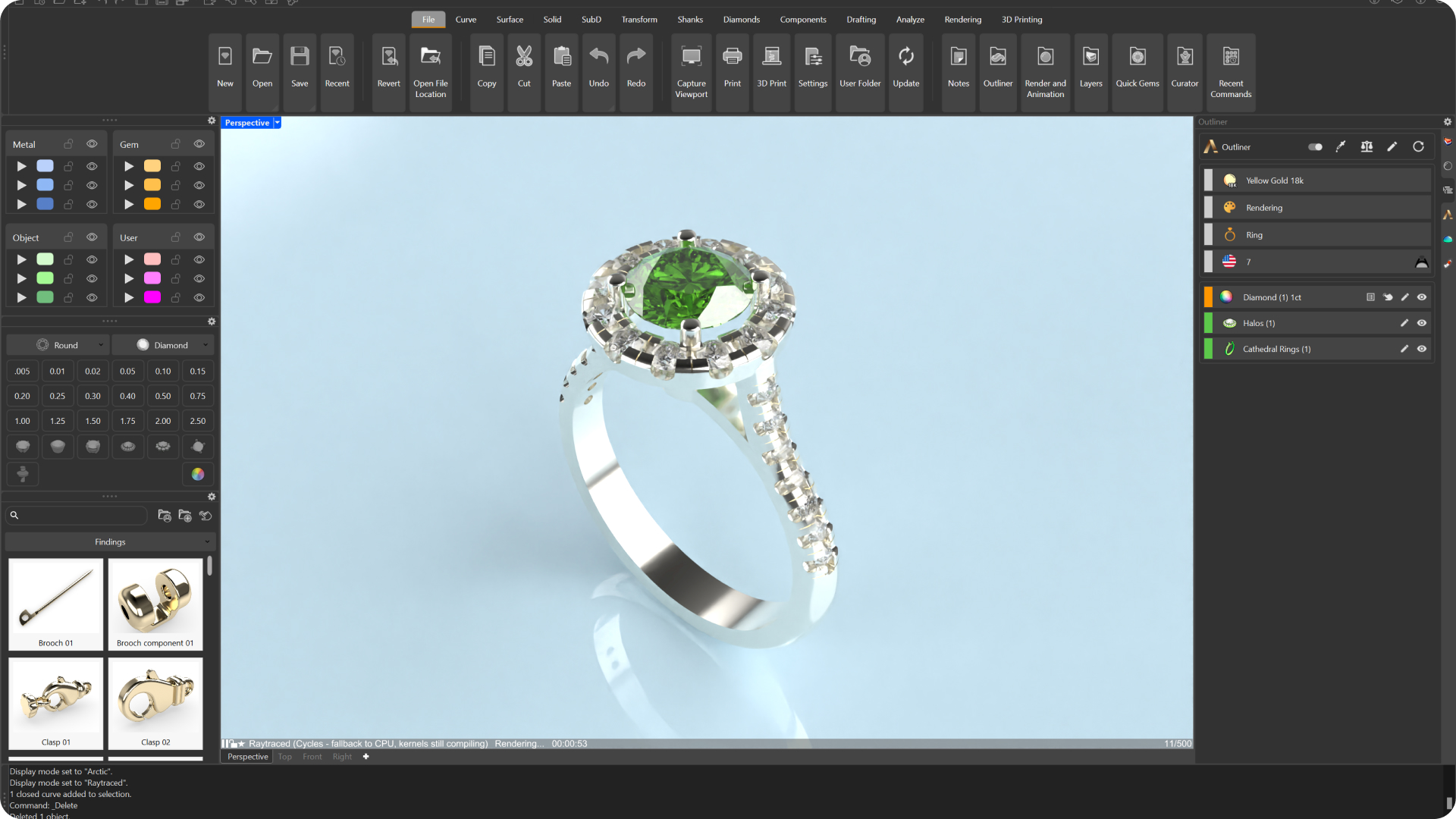
10. Raytraced: Defines the view in Cycles rendering mode, traces the rays in real time, after visualizing the final rendering.
Almost there — you still have some lessons to complete. Jump to the next one →
Impersonating — progress and reviews are disabled.
Course completed
You've completed Master in Jewelry Rendering in Cycles 🎉
Great work. Get your certificate of completion and, if you have a minute, let other jewelers know what you thought of the course.