Organizing our model
Lesson 6 of 37
Show and Hide
Sign in to access this lesson
This lesson is part of Master in Jewelry Rendering in Cycles, which can come bundled with a RhinoArtisan Commercial license subject to current promotions. Log in with your customer account, or get in touch and we'll set you up.
Customers only
Solo para clientes
This lesson is part of Master in Jewelry Rendering in Cycles, which can be included with a RhinoArtisan Commercial license subject to current promotions. If you've already purchased and don't see it in your account, get in touch.
It is interesting to have the option to hide some elements of our scene and focus on others, and, once the necessary tasks are done, to be able to show all the elements again, this function facilitates organization and selection of objects. To do this, the command bar will be used.
Example 1:
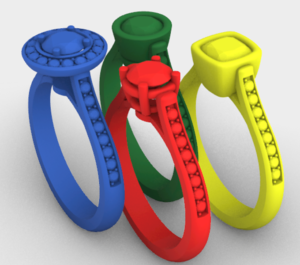
We have 4 rings in the scene, and we are only interested in working with one of them at the moment. The first thing we must do is select the rings we want to hide, we have two options:
- Select the three rings as we have learned before (Left Click + shift to each element).
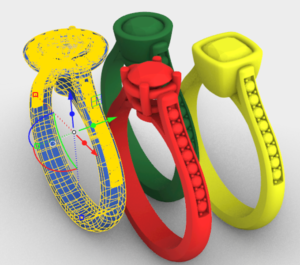

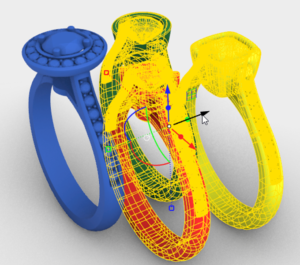
- Select the ring with which we are going to work, write in the command bar Invert , press enter.
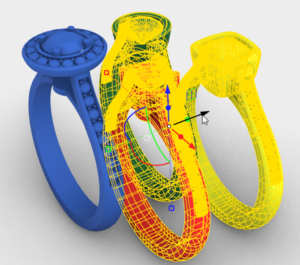
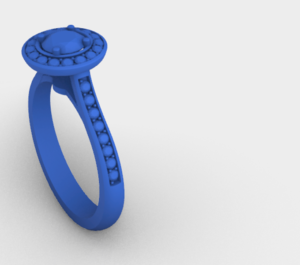
Once the three rings are selected, write us in the command bar Hide, press enter**.** The selected elements will be hidden. To show them we will type Show in the command bar, and press enter.


Almost there — you still have some lessons to complete. Jump to the next one →
Impersonating — progress and reviews are disabled.
Course completed
You've completed Master in Jewelry Rendering in Cycles 🎉
Great work. Get your certificate of completion and, if you have a minute, let other jewelers know what you thought of the course.