Organizing our model
Lesson 10 of 37
Matching Properties
Sign in to access this lesson
This lesson is part of Master in Jewelry Rendering in Cycles, which can come bundled with a RhinoArtisan Commercial license subject to current promotions. Log in with your customer account, or get in touch and we'll set you up.
Customers only
Solo para clientes
This lesson is part of Master in Jewelry Rendering in Cycles, which can be included with a RhinoArtisan Commercial license subject to current promotions. If you've already purchased and don't see it in your account, get in touch.
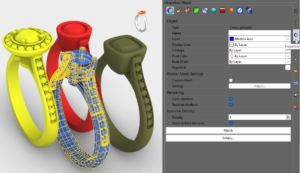
There are several properties that one element can obtain from another, within the properties menu, we find the option Match, this allows us to translate the selected properties.
Tip: In order to find the button Match we must have selected at at least one element.
Example 1:
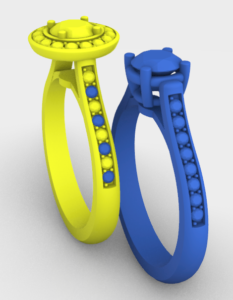
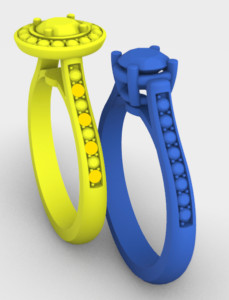
In this case we want one of the diamonds in the yellow model to have the Material of the blue model. To do this:
1. We will select the diamond that we would like to be blue
2. In the properties menu press the Match button
3. We now select the element from which we will obtain the Material.
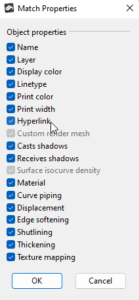
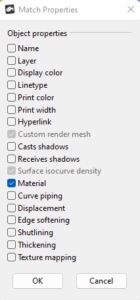
In the Match Properties panel we select the properties that we want to match. In this case Material. Press OK


Almost there — you still have some lessons to complete. Jump to the next one →
Impersonating — progress and reviews are disabled.
Course completed
You've completed Master in Jewelry Rendering in Cycles 🎉
Great work. Get your certificate of completion and, if you have a minute, let other jewelers know what you thought of the course.