Bail
Step 1: Bail Command
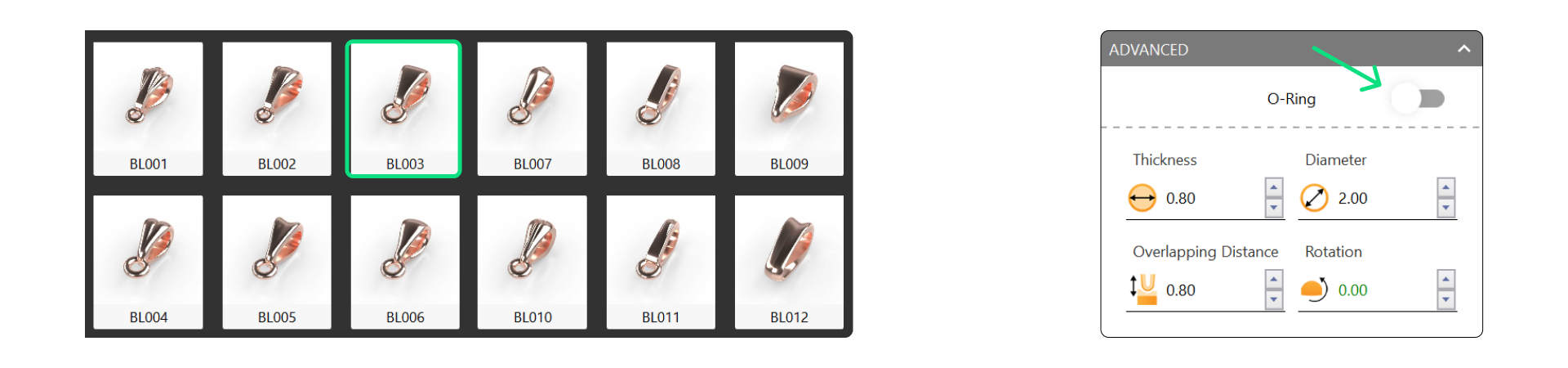
In the Components tab, use the Bail command.

Step 2: Bail Library and O-Ring
Select the BL03 model and disable the O-Ring.
Step 3: Parameters
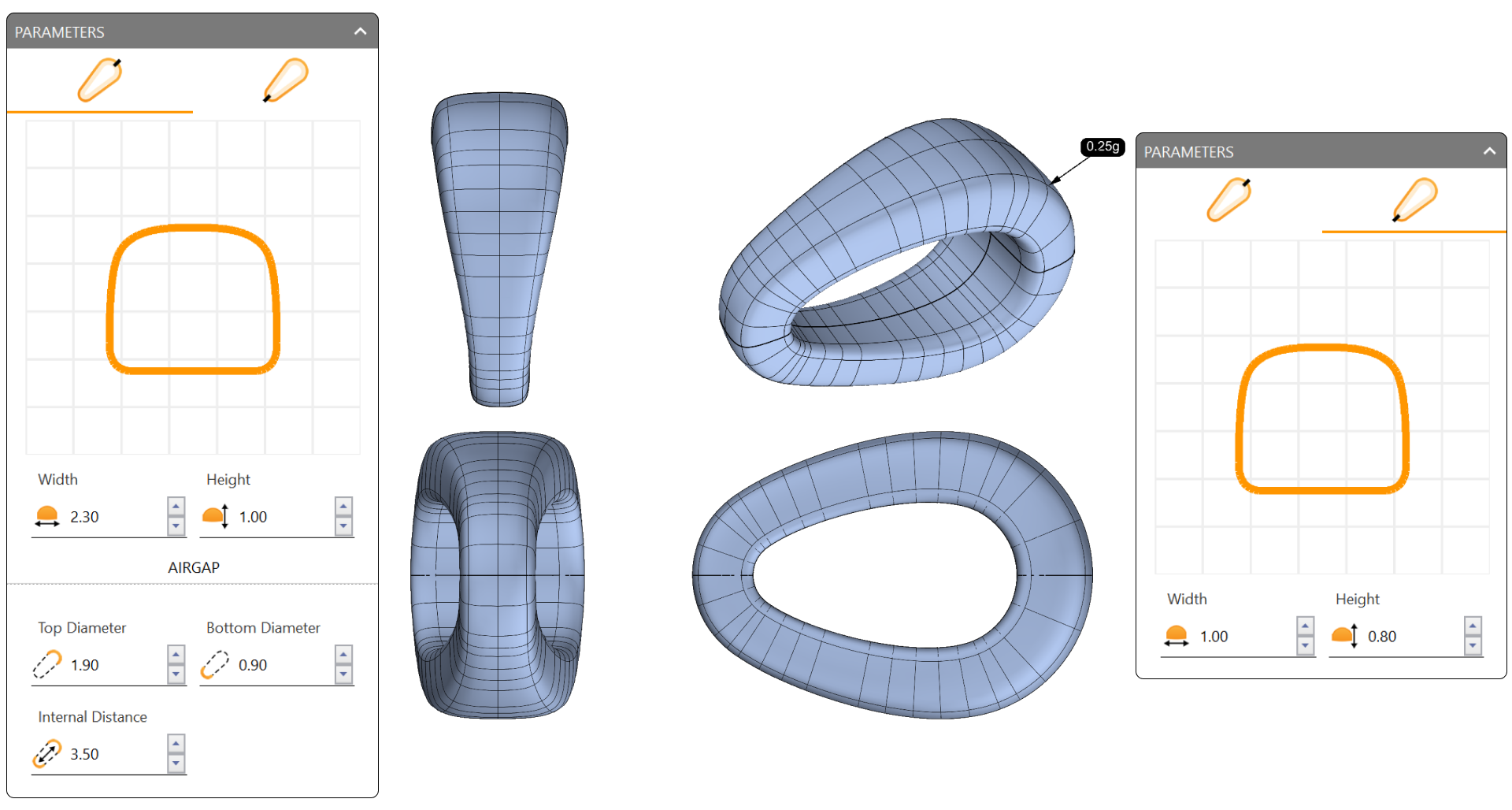
Adjust the parameters as follows:
First Curve
- Width: 2.3 mm
- Height: 1.0 mm
Second Curve
- Width: 1.0 mm
- Height: 0.8 mm
Airgap
- Top Diameter: 1.9 mm
- Bottom Diameter: 0.9 mm
- Internal Distance: 3.5 mm
Step 4: Display Modes
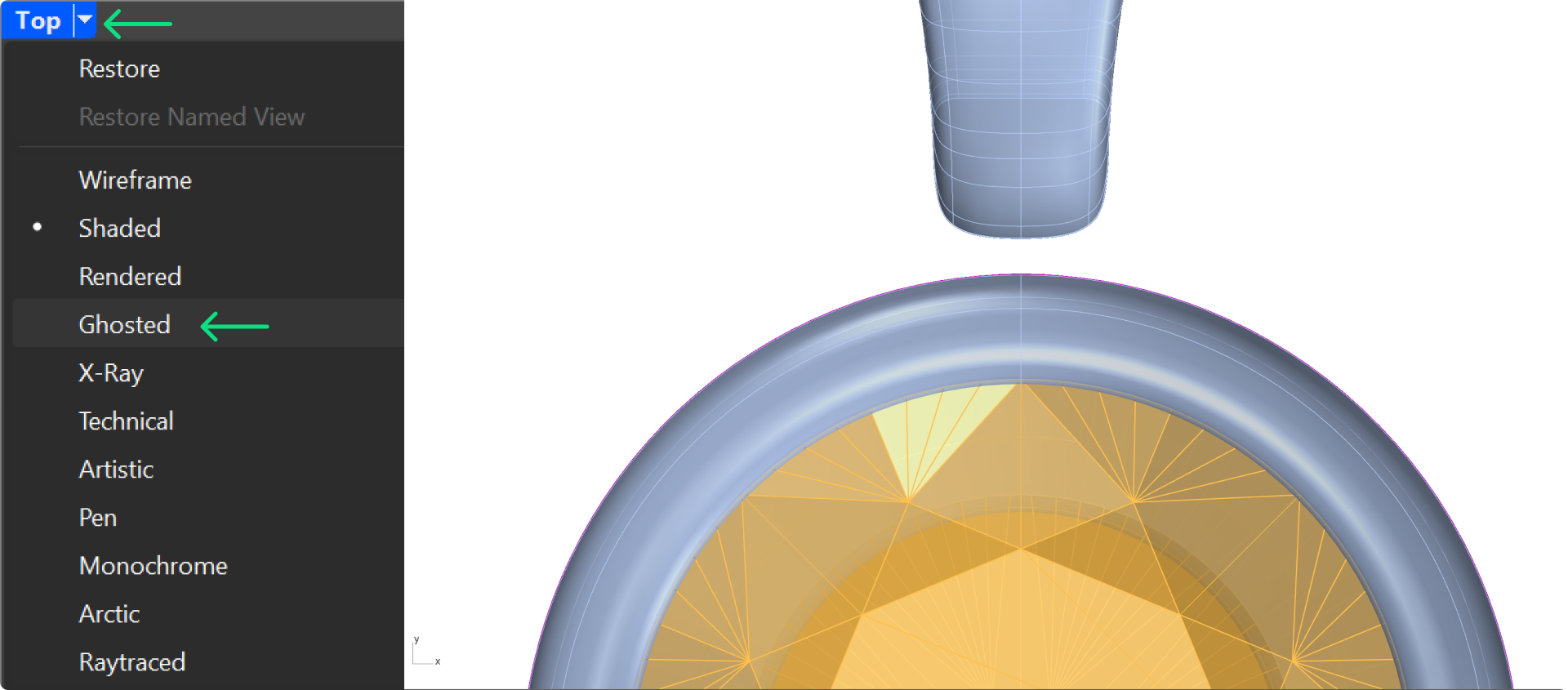
Switch to Ghosted visualization mode to view the inside of the bezel.
Step 5: Diameter Command
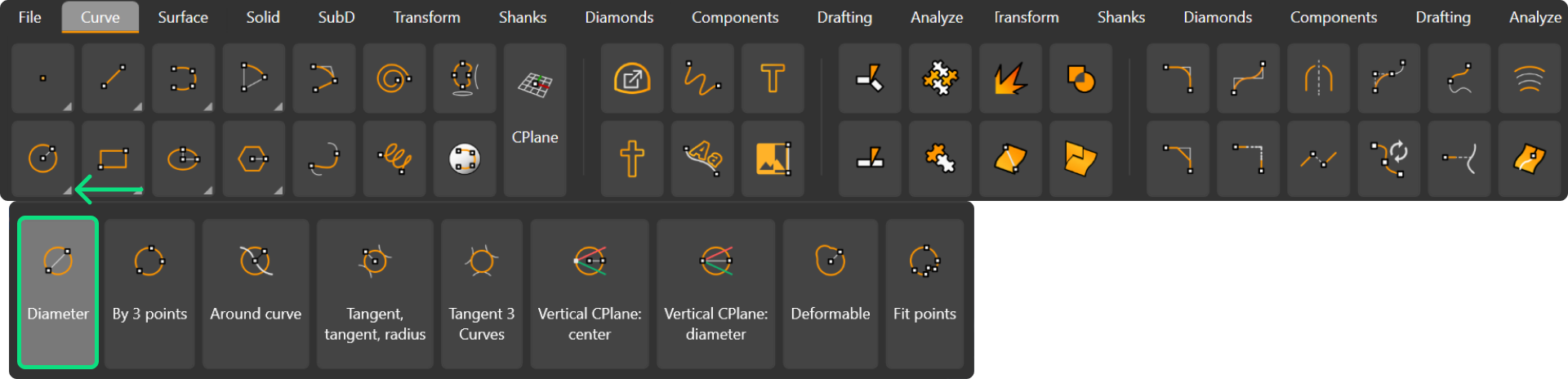
In the Curve tab, use the Diameter command.
Step 6: Inner Curve
As the first point, select the inner curve of the bezel.
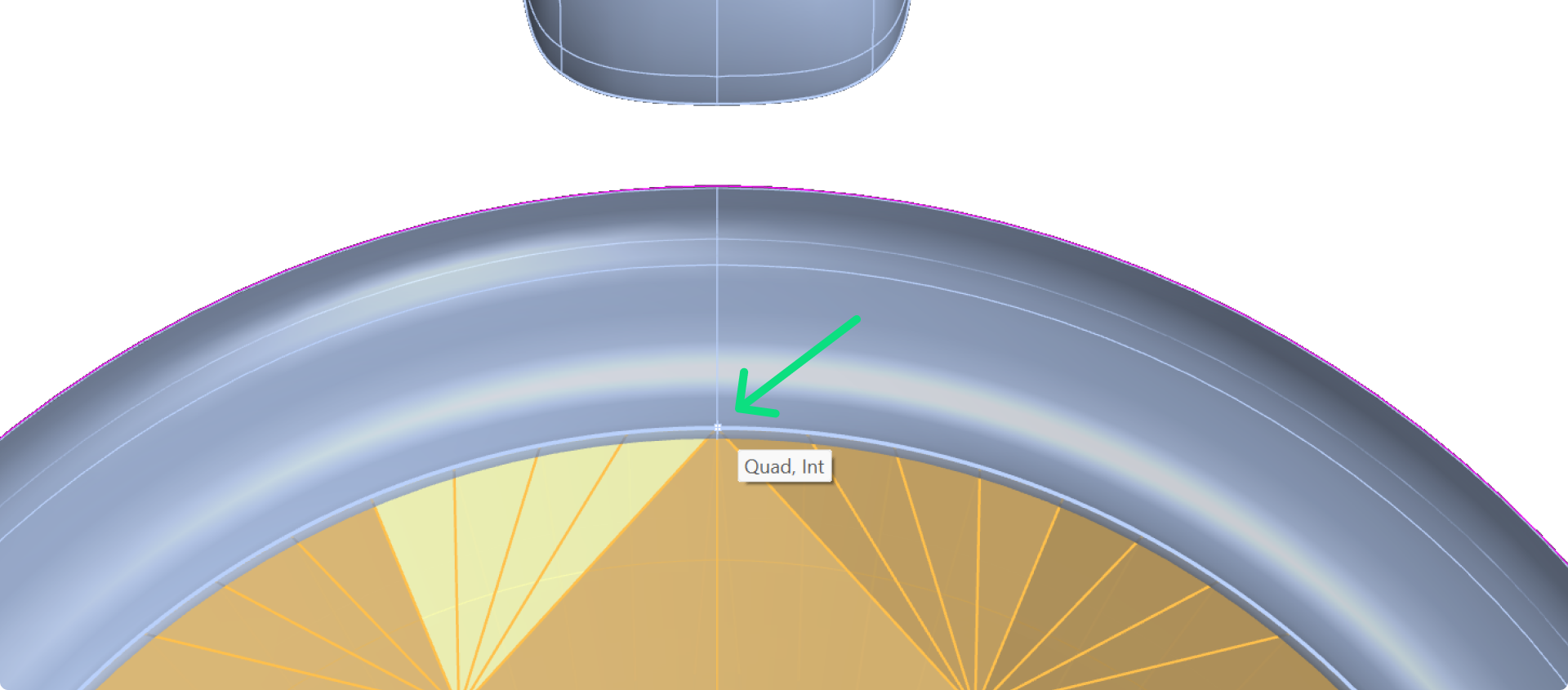
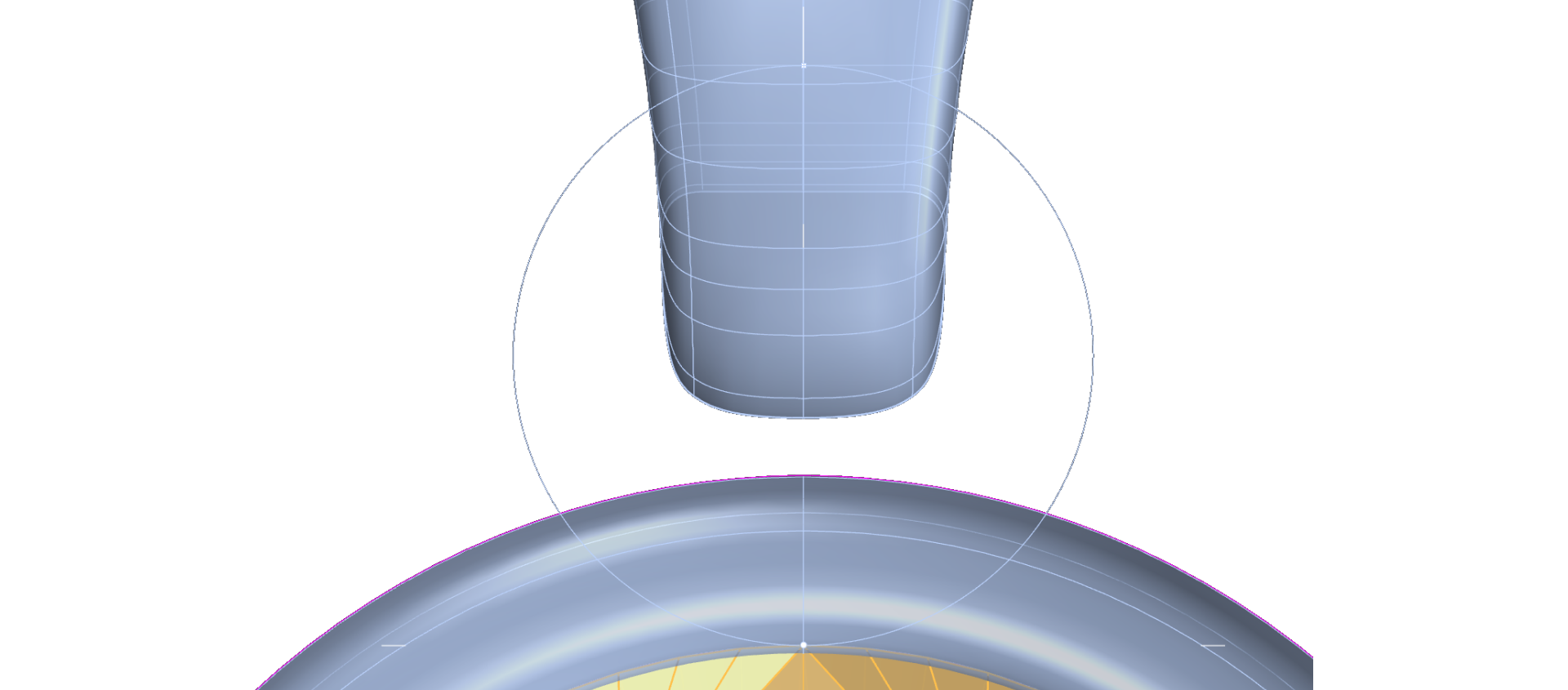
Step 7: Create the Diameter Curve
Type 2.05 millimeters and select a point on the Y-axis at the Bail’s location.
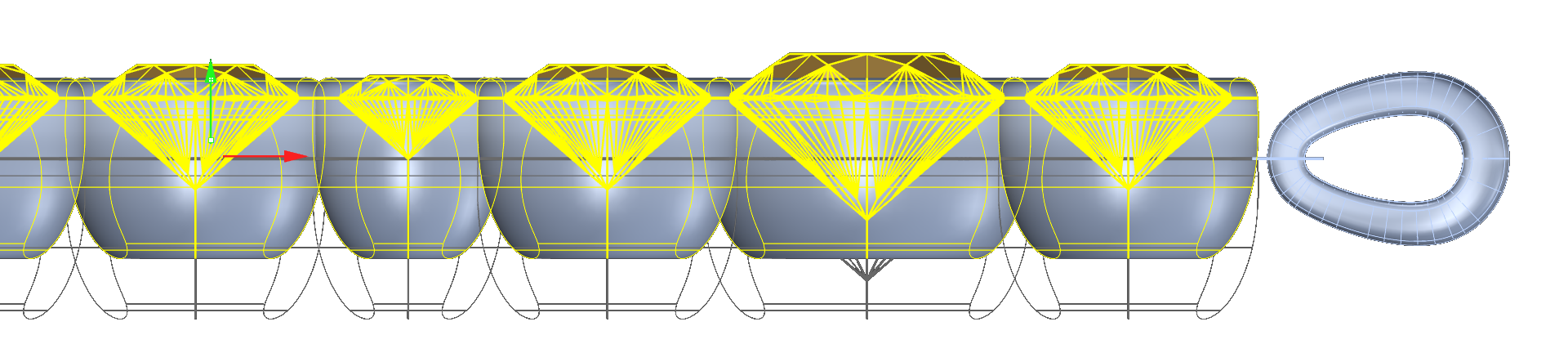
Step 8: Pose the bezels
In the Right view, select all bezels and gems, and adjust the height to align approximately at the center of the bezel using the curve created.
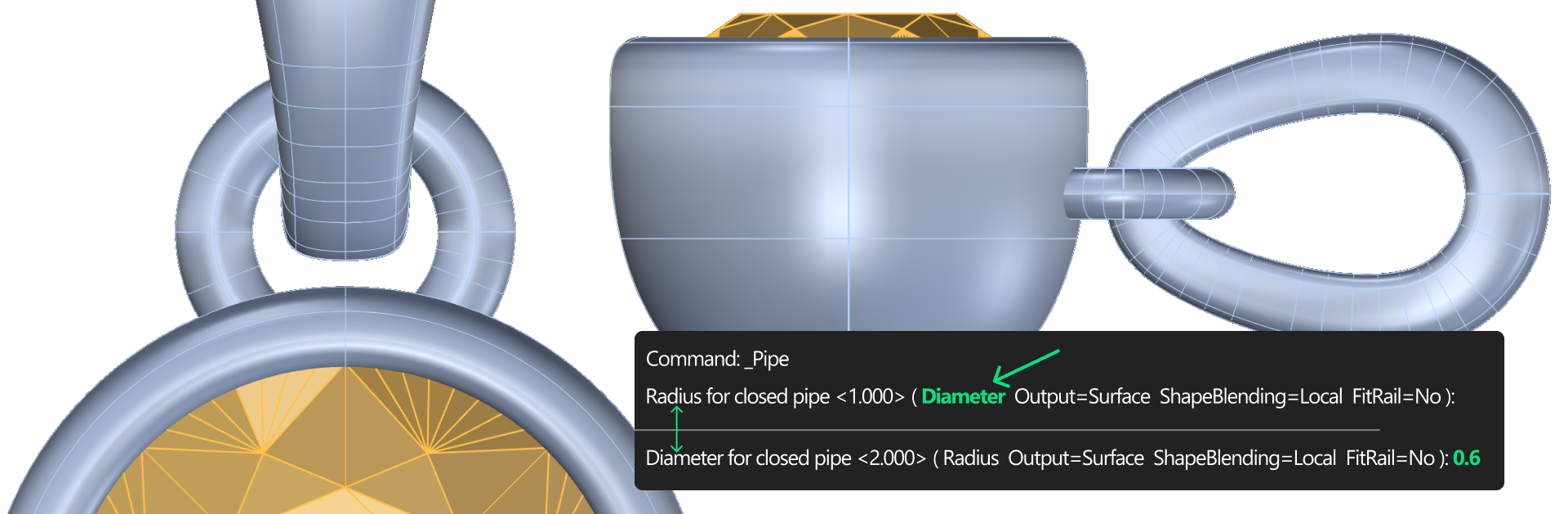
Step 9: Pipe Command
In the Solid tab, use the Pipe command.

Step 10: Create the O-Ring
Ensure Diameter mode is selected, type 0.6 millimeters for the diameter, and press Enter twice.
Step 11: Save in the Curator Panel
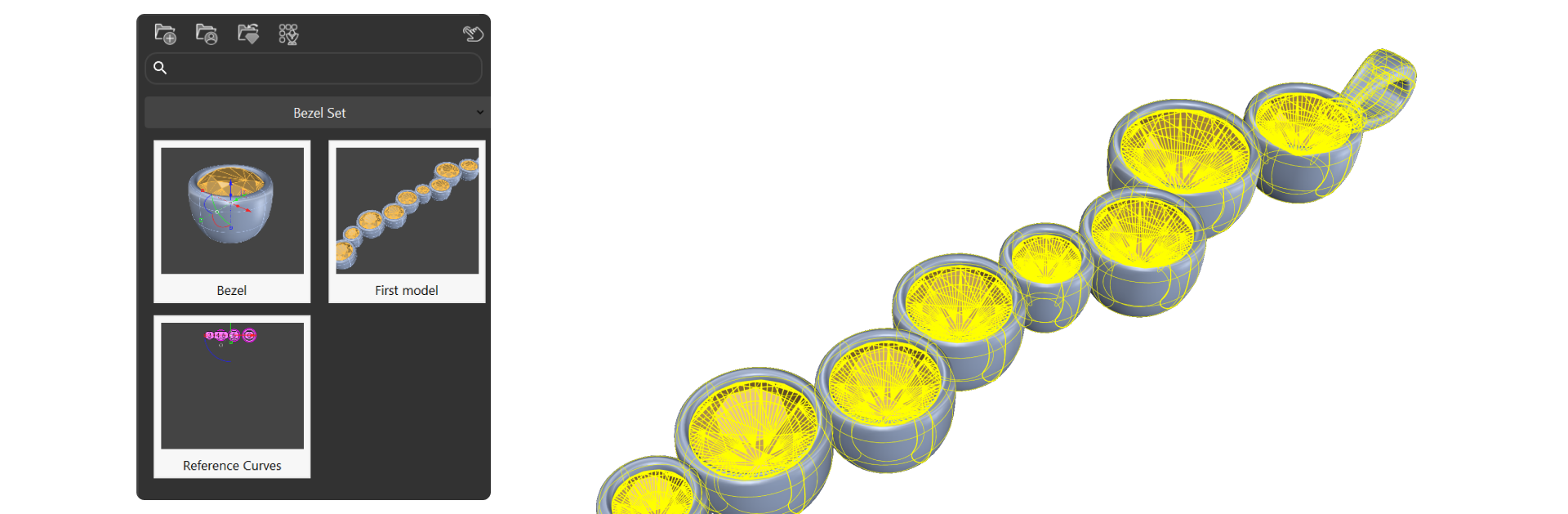
Select everything and save it in the Curator panel.
Video Lesson
Next Step: Start with the second model.