Eternal Orbits
Lesson 9 of 35
Shank, Union & SubD
Sign in to access this lesson
This lesson is part of Sculpted Elegance: Statement Jewelry Designs, which can come bundled with a RhinoArtisan Commercial license subject to current promotions. Log in with your customer account, or get in touch and we'll set you up.
Customers only
Solo para clientes
This lesson is part of Sculpted Elegance: Statement Jewelry Designs, which can be included with a RhinoArtisan Commercial license subject to current promotions. If you've already purchased and don't see it in your account, get in touch.
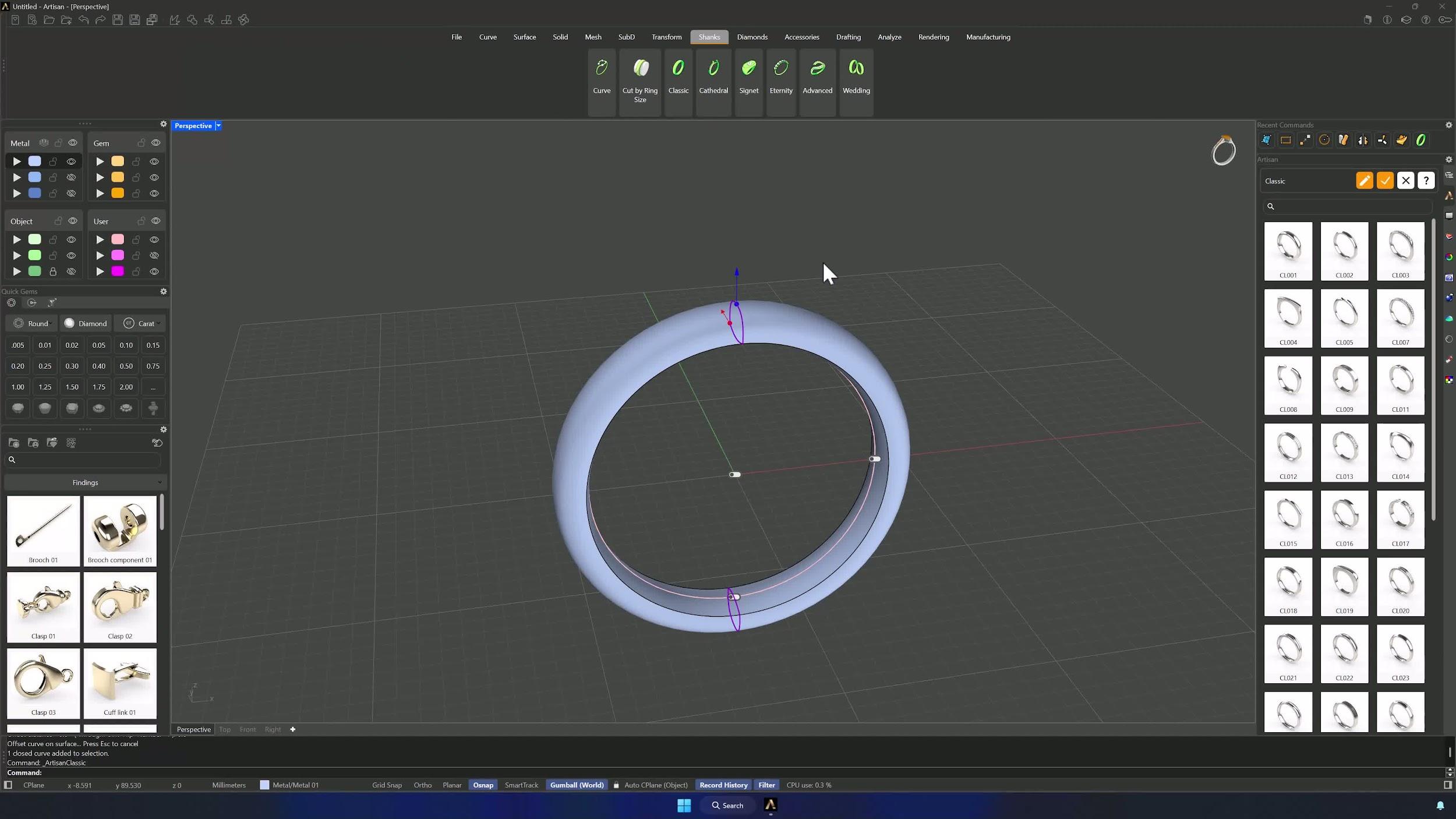
9. Build the shank profile and cutting opening
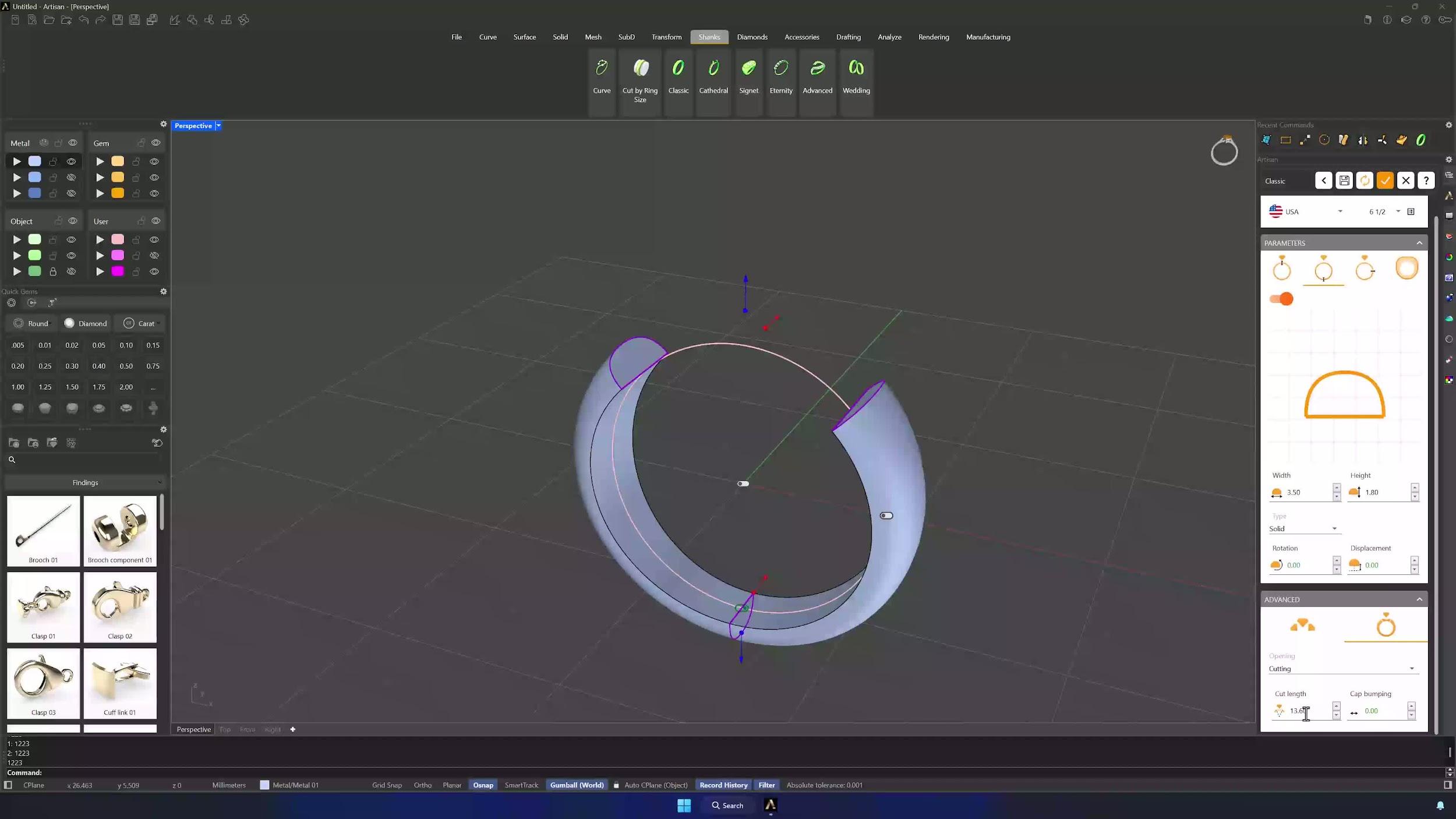
With only the ring curve visible, create a Classic shank and Edit (no preset): match the profile in the Asset Selector, top width 5.6 mm as Solid, lower profile matched with width 3.5 mm, height 1.8 mm, also Solid. In Advanced Options set Opening to Cutting with the length at 13.6 mm, and accept.
10. Join the shank and sphere, then remesh to Sub-D
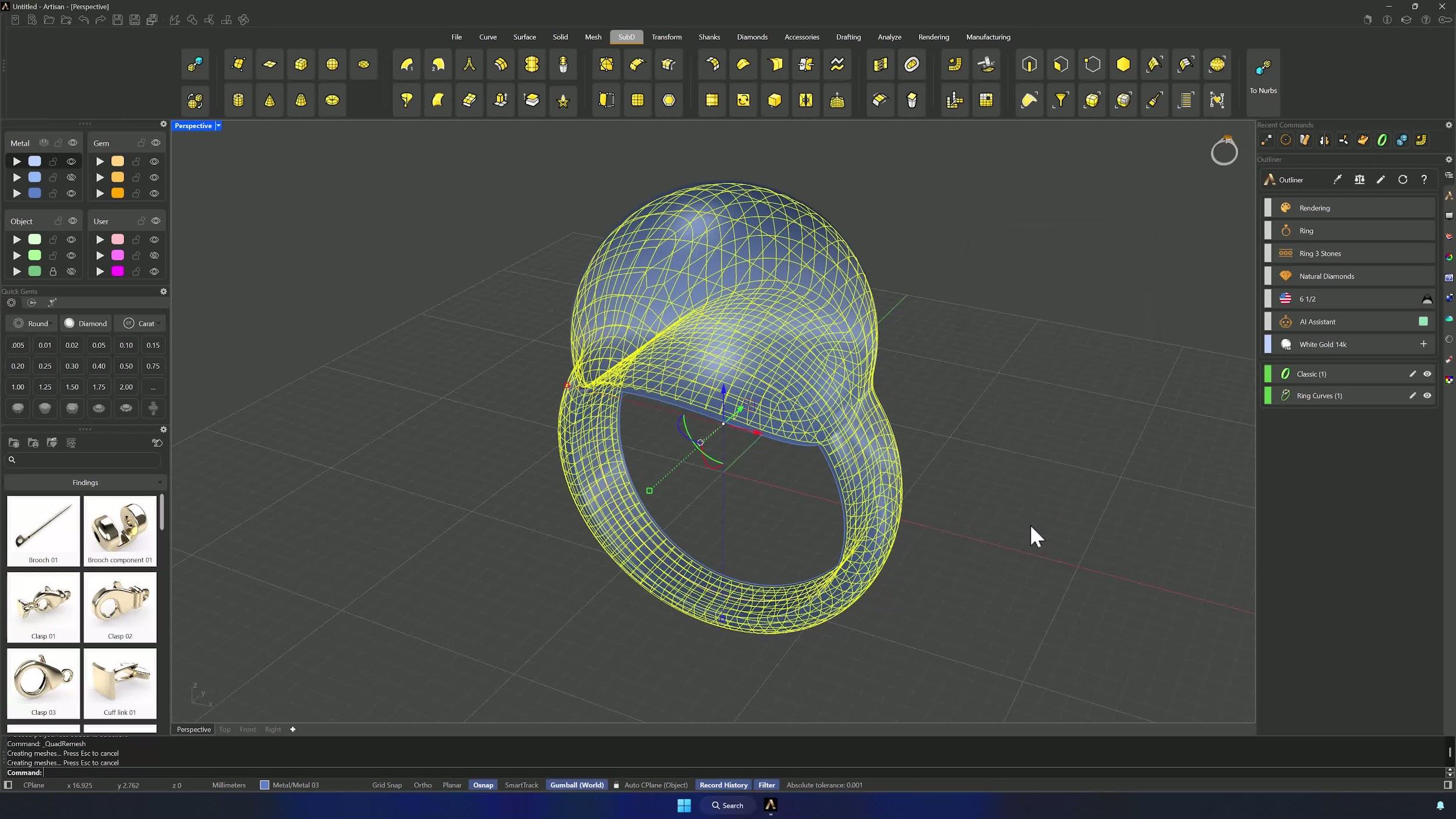
Show the sphere and Boolean Union it with the shank. Then Quad Remesh the result: Convert to SubD Preview and Hide Input enabled, Target Edge Length 0.75 mm, Symmetry in X and Y. OK generates the unified SubD ring.
11. Clean the Sub-D and soften selected edges
Move the SubD ring to its own layer and hide the rest. Select the reference edge loops (Ctrl + Shift + double-click) on both sides and delete them — the shape softens exactly where it should.
Almost there — you still have some lessons to complete. Jump to the next one →
Impersonating — progress and reviews are disabled.
Course completed
You've completed Sculpted Elegance: Statement Jewelry Designs 🎉
Great work. Get your certificate of completion and, if you have a minute, let other jewelers know what you thought of the course.