Apply Materials and Render
Lesson 25 of 28
Apply Materials for Final Render
Sign in to access this lesson
This lesson is part of Organic SubD Ring Design: Elegance Redefined, which can come bundled with a RhinoArtisan Commercial license subject to current promotions. Log in with your customer account, or get in touch and we'll set you up.
Customers only
Solo para clientes
This lesson is part of Organic SubD Ring Design: Elegance Redefined, which can be included with a RhinoArtisan Commercial license subject to current promotions. If you've already purchased and don't see it in your account, get in touch.
Objective: Apply materials to the rings and prepare the scene for rendering.
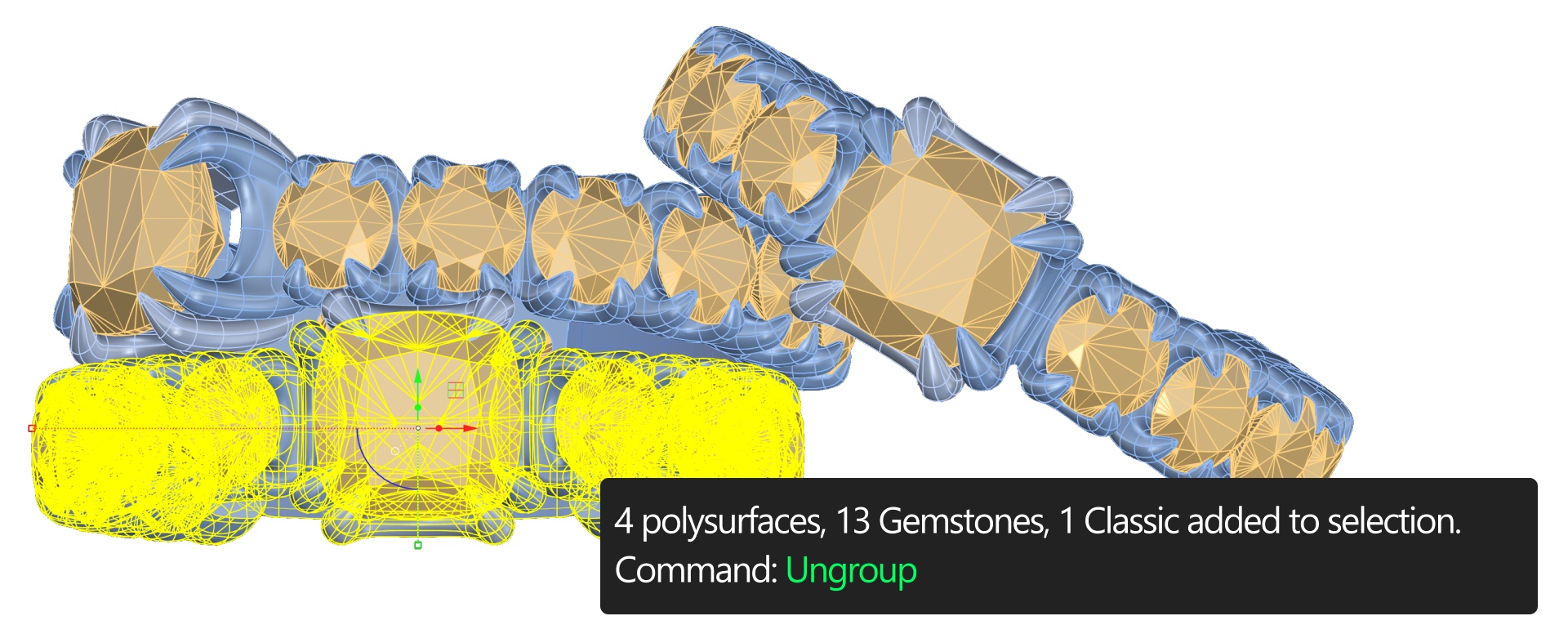
Ungroup the Elements
- Select the first ring, type
ungroupin the command bar to separate the components of the model.
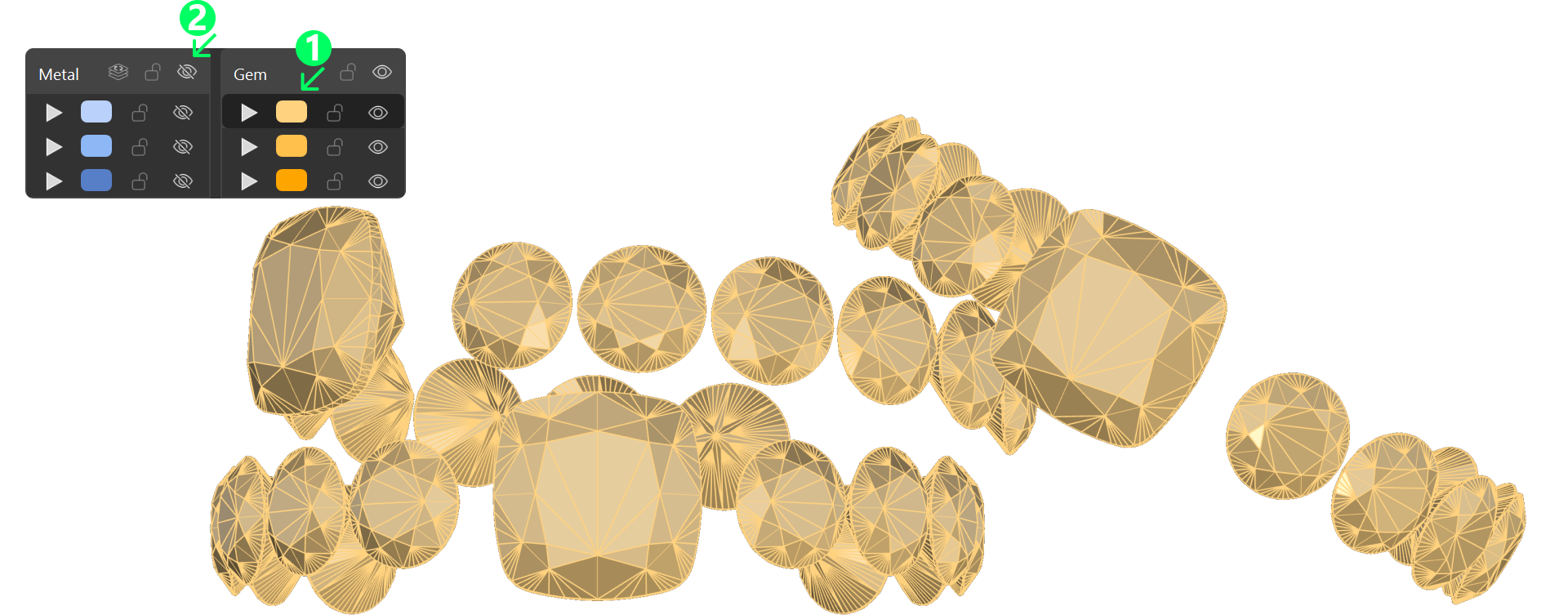
Hide the Metals Layer
- Change the active layer and hide the Metals layer to focus on the gems.
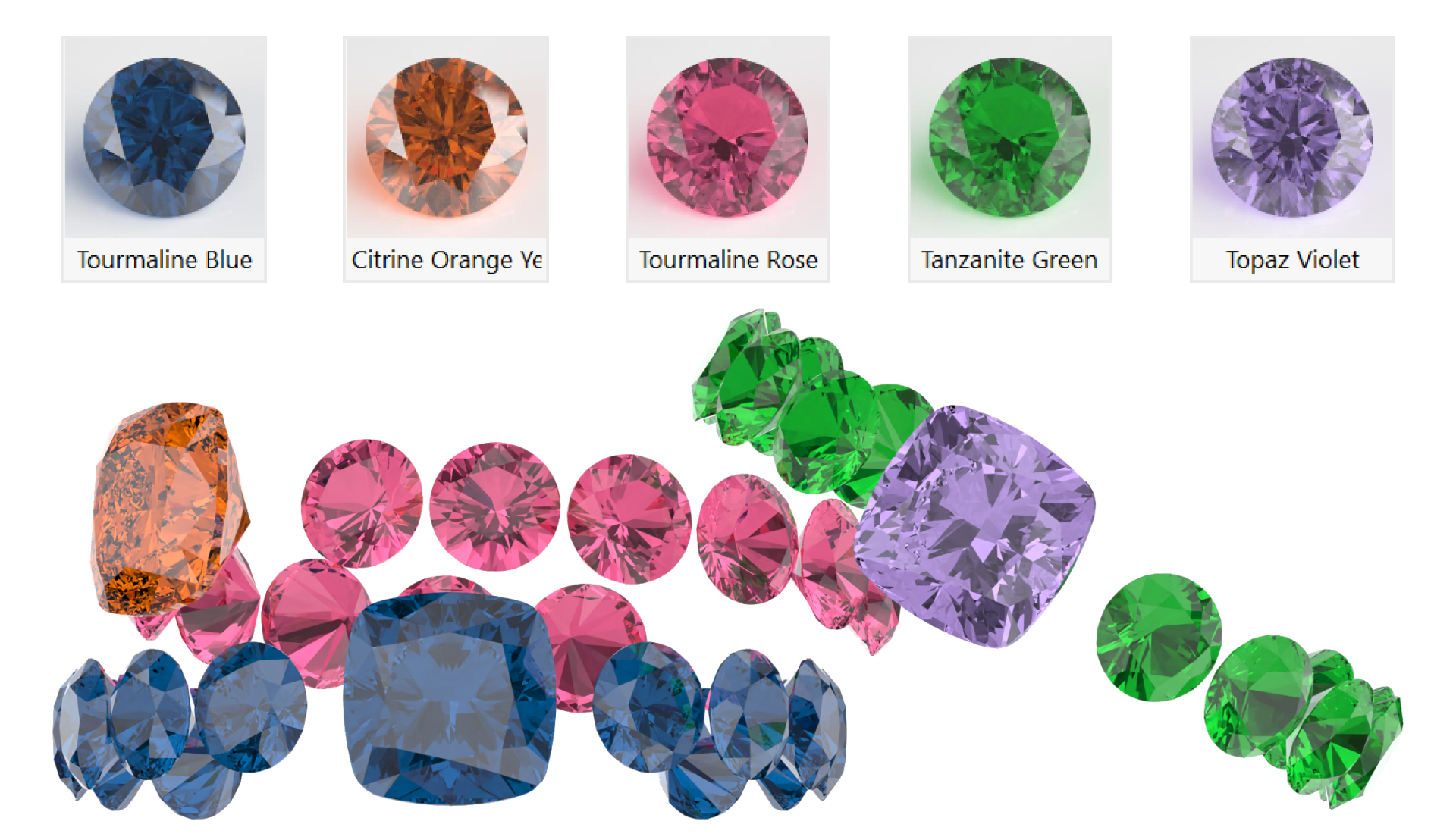
Apply Materials to Gems
- Select all the lower gems of the first ring and apply the Tourmaline Blue material.
- Ungroup the gems of the second ring. Apply the Citrine Orange material to the main gem and Tourmaline Rose to the side gems.
- Ungroup the gems of the third ring. Apply Topaz Violet to the main gem and Tanzanite Green to the side gems.
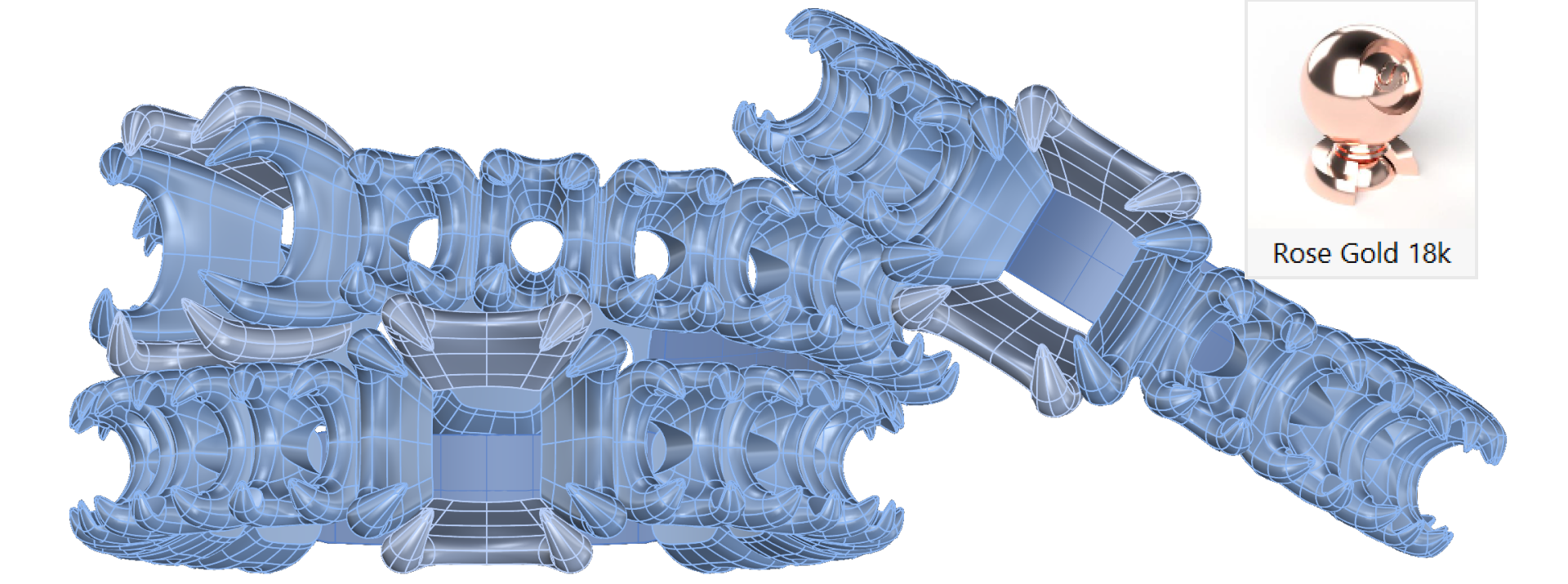
Show Metals and Hide Gems
- Reveal the metals layer and hide the gems to apply the metal materials.
- Select the metals and apply the Rose Gold 18k material to the entire metal layer.
Video Lesson
Next Lesson: Setting Up the Ground Plane
Almost there — you still have some lessons to complete. Jump to the next one →
Impersonating — progress and reviews are disabled.
Course completed
You've completed Organic SubD Ring Design: Elegance Redefined 🎉
Great work. Get your certificate of completion and, if you have a minute, let other jewelers know what you thought of the course.