Apply Materials and Render
Lesson 23 of 28
Creating Copies Using the Gumball
Sign in to access this lesson
This lesson is part of Organic SubD Ring Design: Elegance Redefined, which can come bundled with a RhinoArtisan Commercial license subject to current promotions. Log in with your customer account, or get in touch and we'll set you up.
Customers only
Solo para clientes
This lesson is part of Organic SubD Ring Design: Elegance Redefined, which can be included with a RhinoArtisan Commercial license subject to current promotions. If you've already purchased and don't see it in your account, get in touch.
Objective: Learn how to create copies and position the rings with the Gumball tool.
Create the First Copy
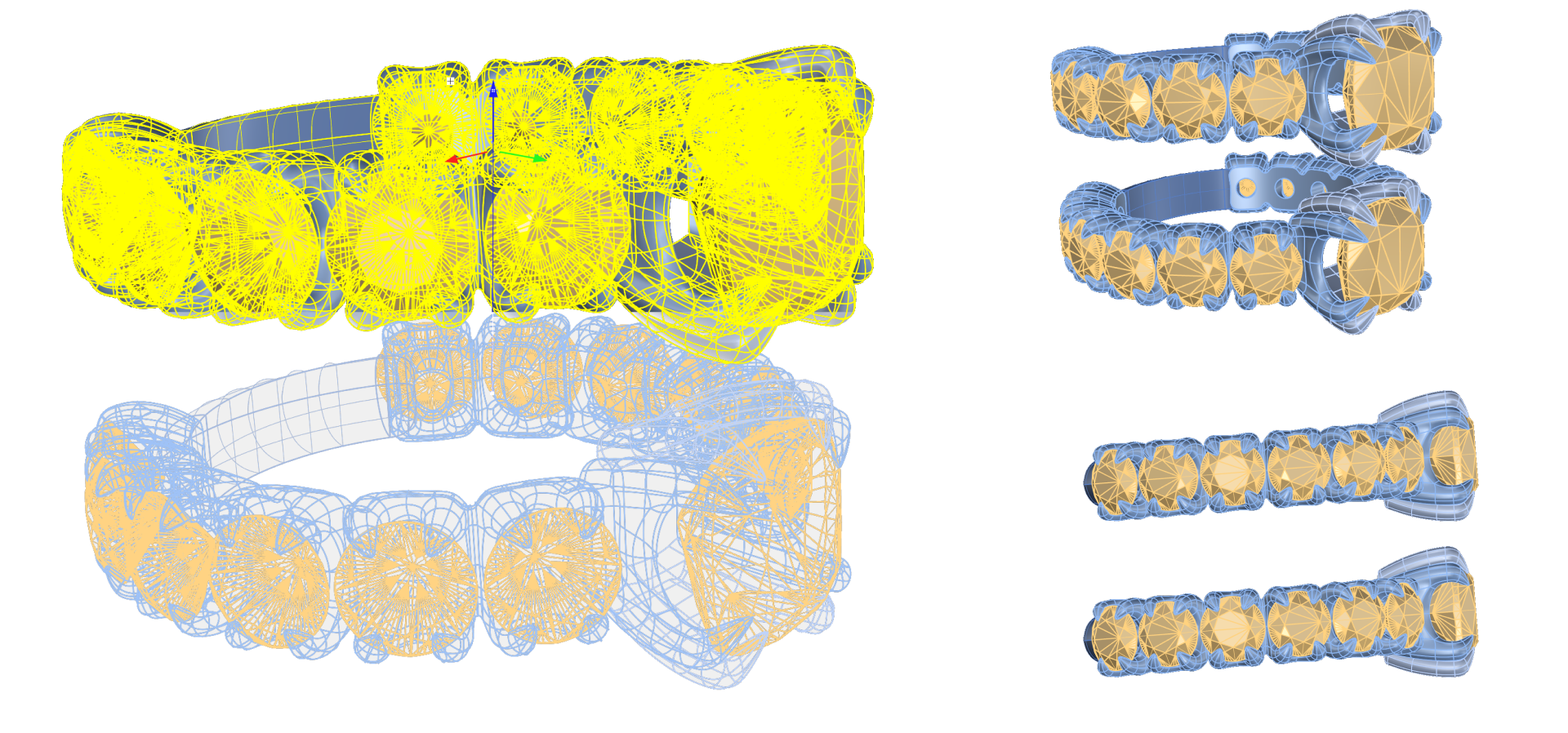
- Select the ring model, then press Alt while using the Gumball to drag the copy upwards along the Z-axis.
Position the Second Ring
- Rotate the second ring using the Gumball so that the basket cushion is positioned to one side of the first ring.
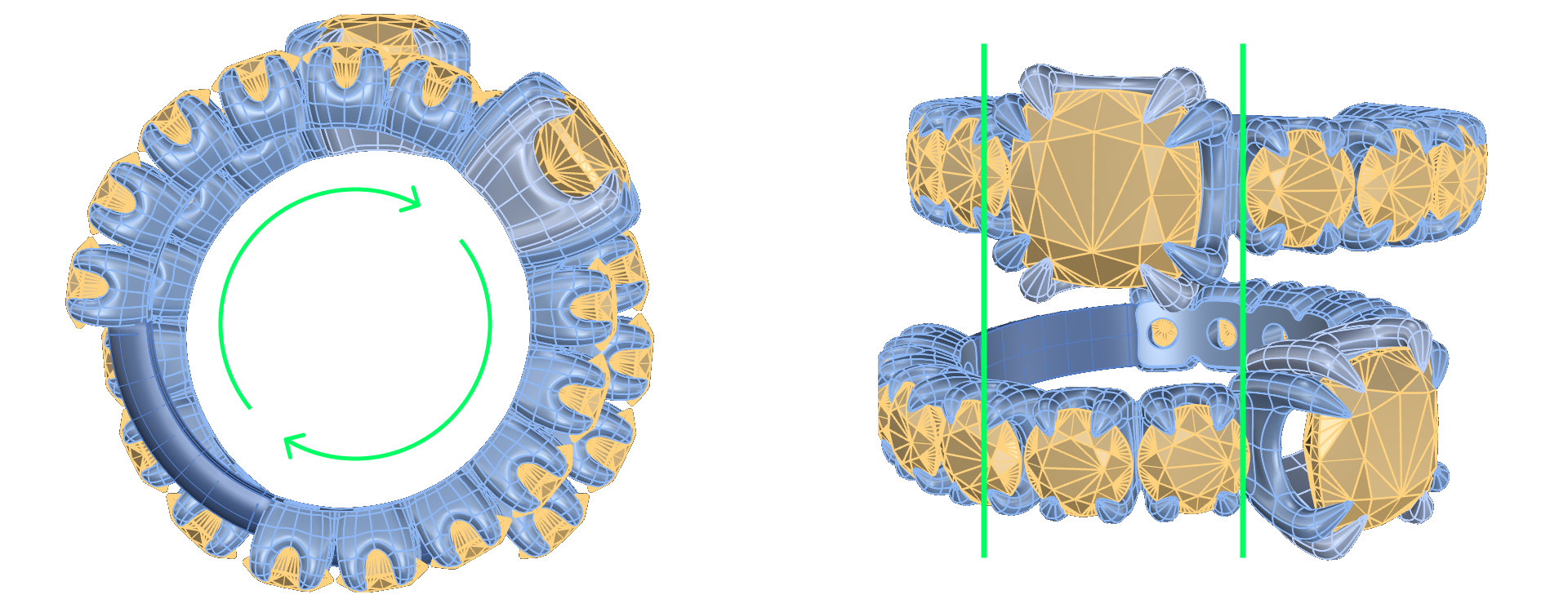
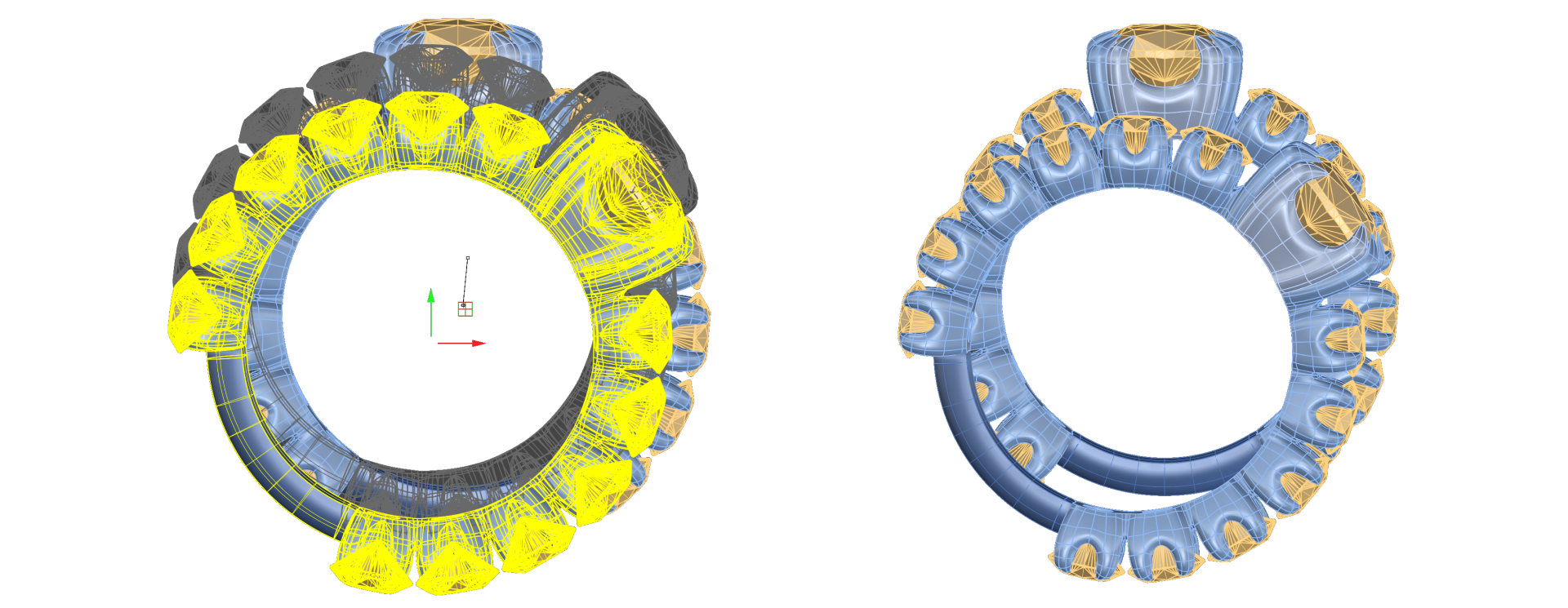
- Move the second ring slightly backward from the Top View to create separation between the two rings.
Adjust the Pose
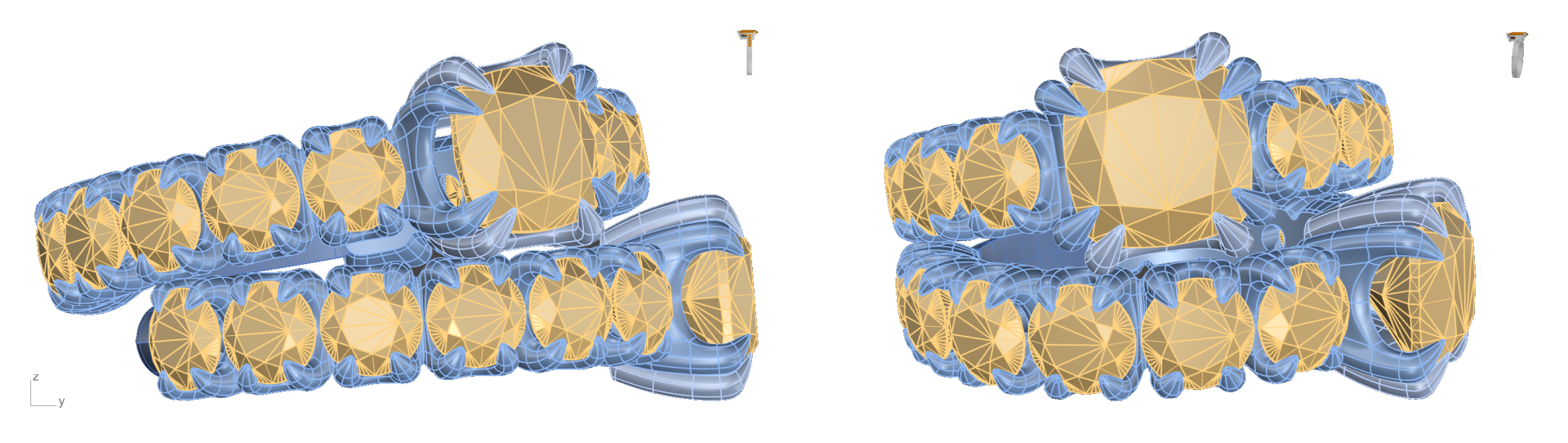
- The pose does not need to match the tutorial exactly. Feel free to position the second ring in a way that looks natural but does not overlap with the first ring for realistic rendering.
Video Lesson
Next Lesson: Creating a Third Copy and Positioning
Almost there — you still have some lessons to complete. Jump to the next one →
Impersonating — progress and reviews are disabled.
Course completed
You've completed Organic SubD Ring Design: Elegance Redefined 🎉
Great work. Get your certificate of completion and, if you have a minute, let other jewelers know what you thought of the course.