Stud Earrings
Lesson 17 of 43
Apply high-quality materials and render
Sign in to access this lesson
This lesson is part of Kickstart: From idea to Creation, which can come bundled with a RhinoArtisan Commercial license subject to current promotions. Log in with your customer account, or get in touch and we'll set you up.
Customers only
Solo para clientes
This lesson is part of Kickstart: From idea to Creation, which can be included with a RhinoArtisan Commercial license subject to current promotions. If you've already purchased and don't see it in your account, get in touch.
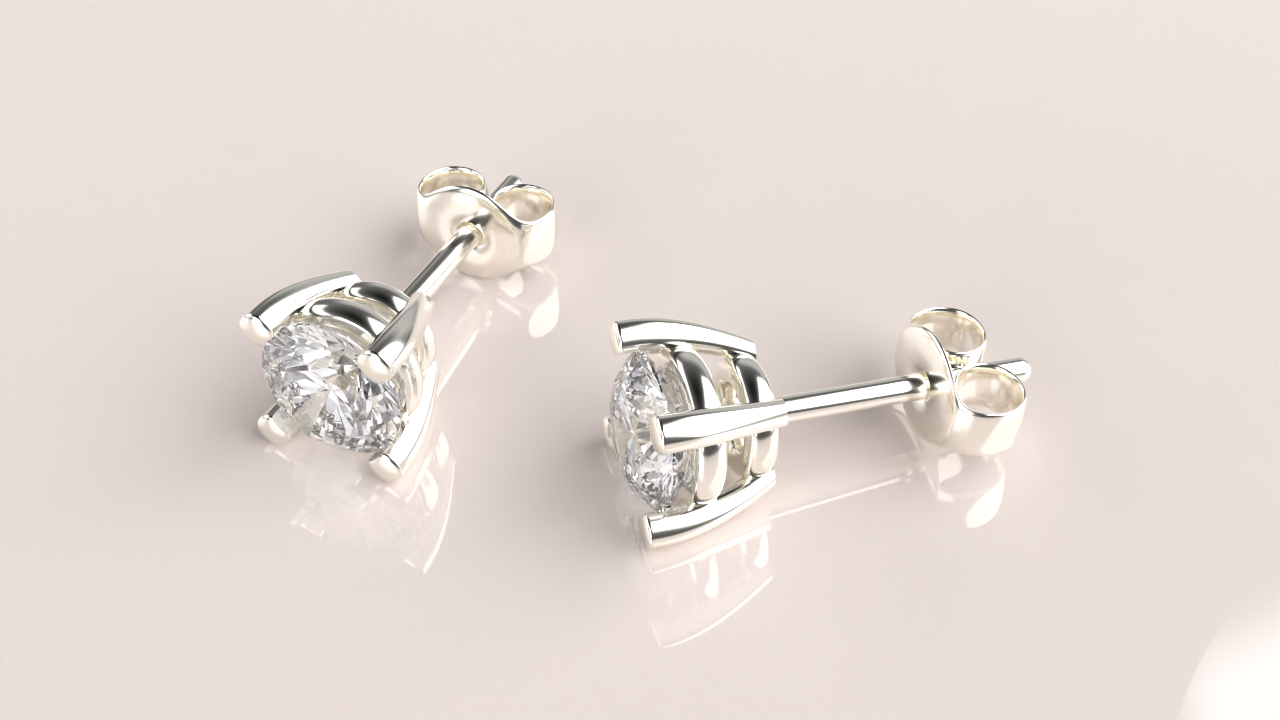
Objective: Apply high-quality materials and render your earrings to create a stunning visual.
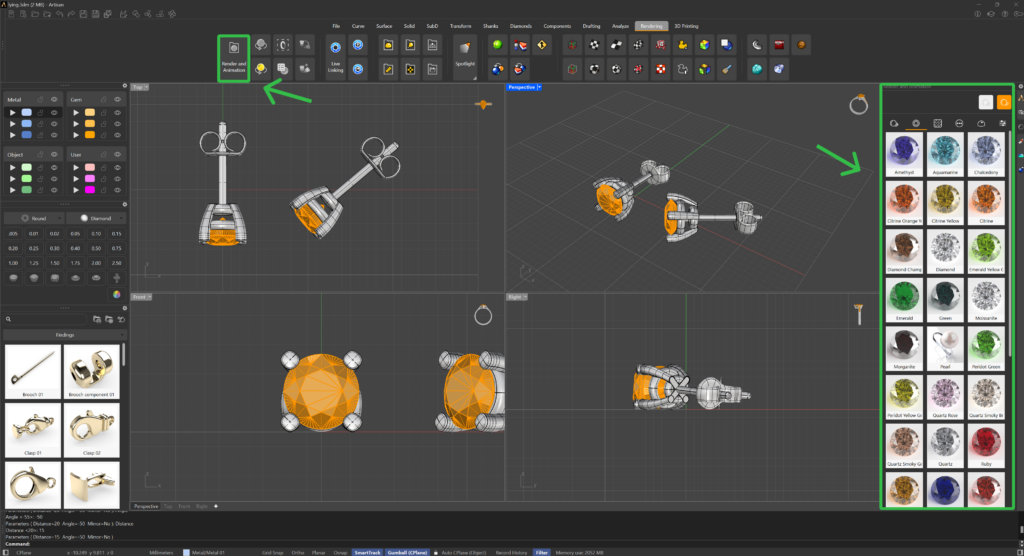
Access the Render and Animation Panel
To begin, go to the Render and Animation panel located on the right side of the interface.
Alternatively, you can access this panel by going to the Rendering tab and clicking on the Render and Animation command, located on the far right.
Select Metal Materials
In the Render and Animation panel, the first tab contains various metal materials.
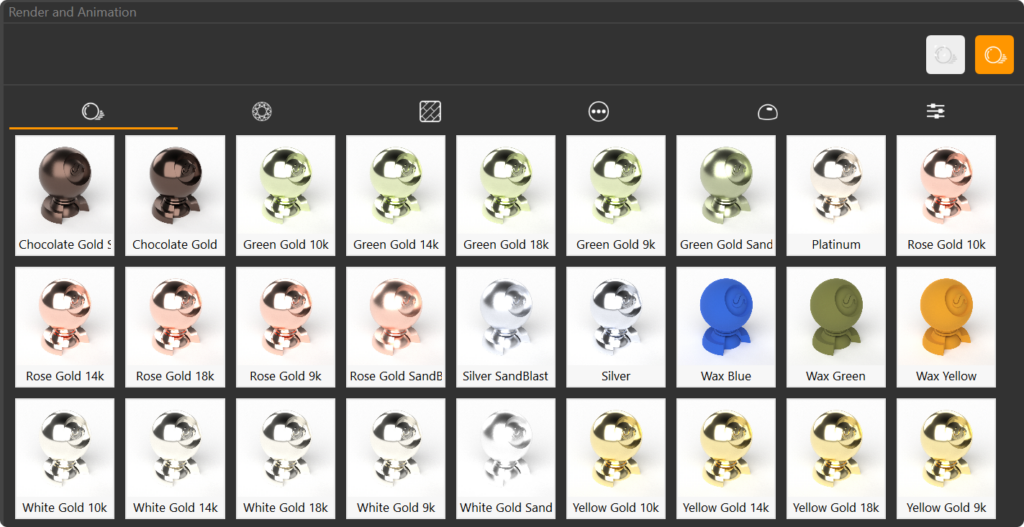
You can assign materials in two ways:
- Option 1: Select the element in your model, then double-click on the desired metal material.
- Option 2: Drag the material directly onto the element you want to apply it to.
For this model, assign White Gold 18k to all the metallic parts of your earrings.
Apply Gemstone Materials
In the second tab, you will find materials for gemstones.
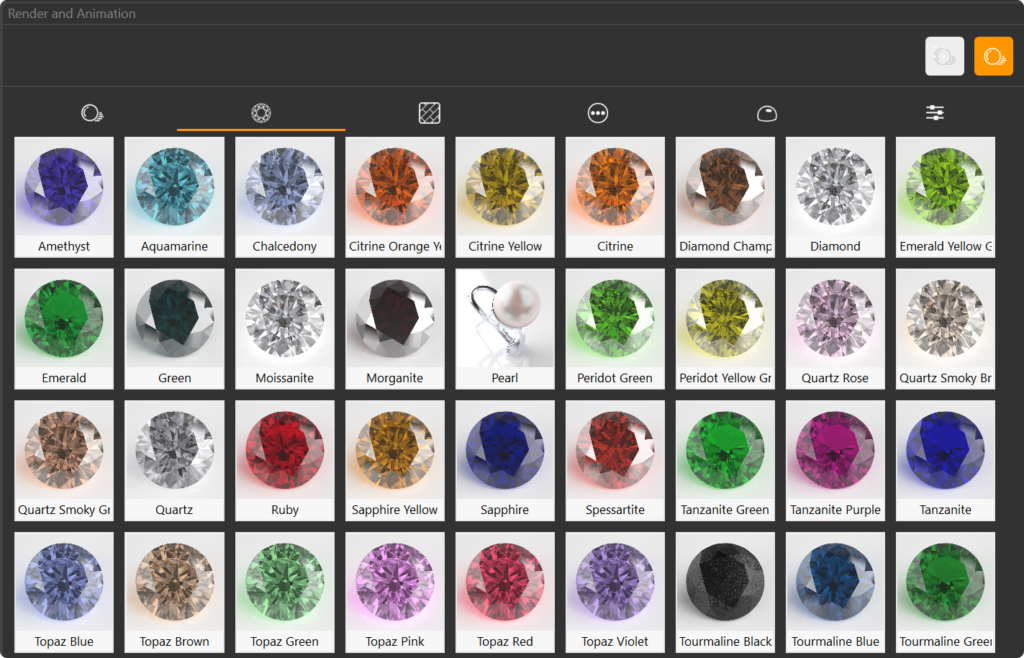
Apply the Diamond material to the gem in your model.
Ground Tab
Navigate to the Ground tab in the Render and Animation panel
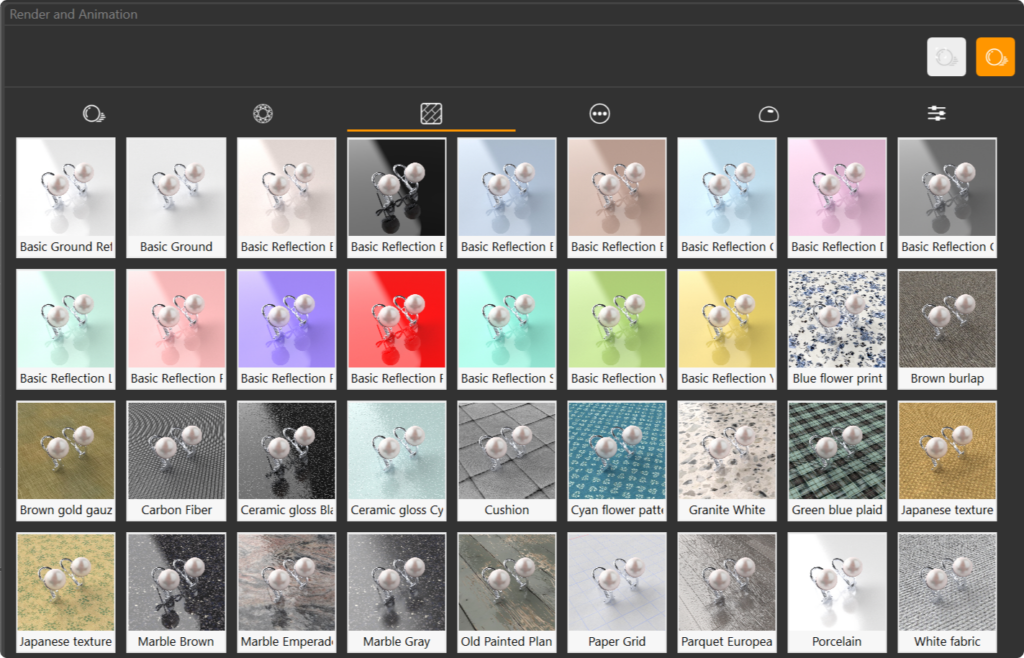
Apply a Basic Reflection Rose material to the ground, adding a subtle reflective surface beneath your earrings.
Set Rendering Parameters
In the Parameters tab, you can customize various rendering settings.
- Set the resolution to 1920x1080 for a high-quality output.
- Leave the Quality setting at 200, which is the default setting.
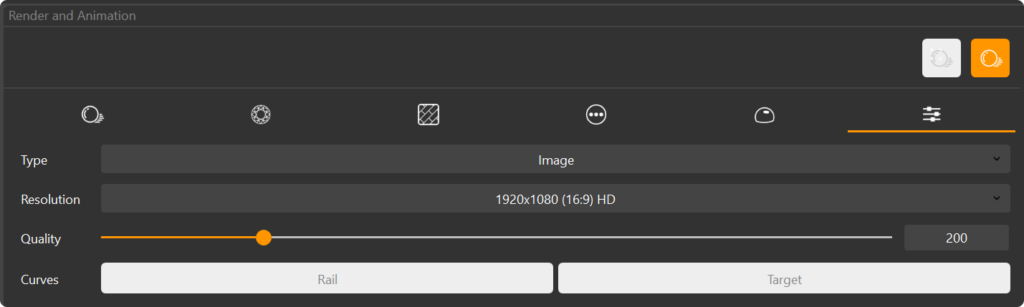
Render the Model
Ensure that your model is properly positioned within the safe frames.
Safe frames indicate the visible area of the render; anything outside these frames will not be included in the final image. Adjust the model’s position so that all important elements are within the safe frames.
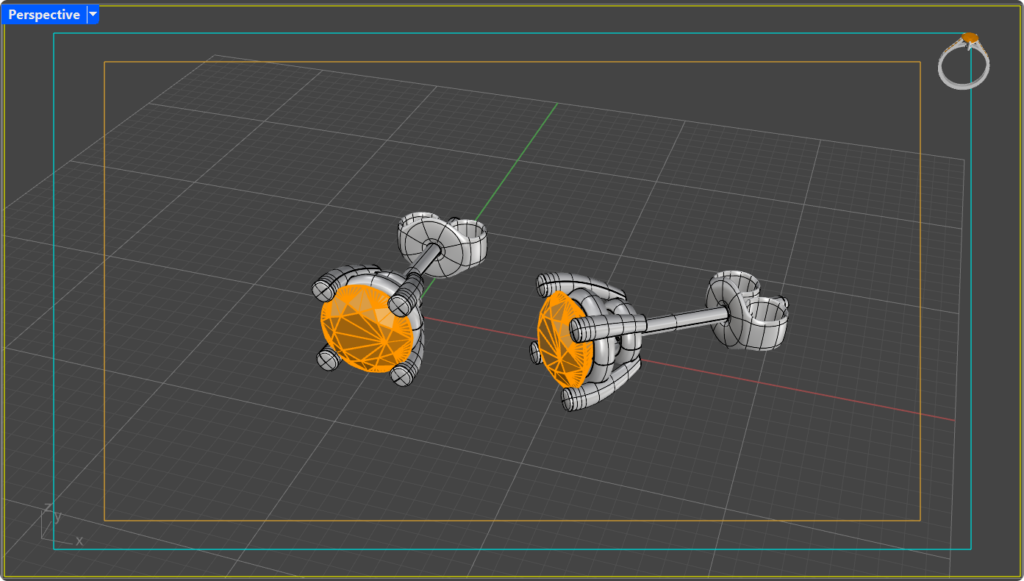
Once everything is set, press the Render button to generate your final image.
Your model will now be rendered with high-quality materials, showcasing the beauty of your earrings in stunning detail.
Video Lesson
Almost there — you still have some lessons to complete. Jump to the next one →
Impersonating — progress and reviews are disabled.
Course completed
You've completed Kickstart: From idea to Creation 🎉
Great work. Get your certificate of completion and, if you have a minute, let other jewelers know what you thought of the course.