Stud Earrings
Lesson 12 of 43
Selecting the Diamond
Sign in to access this lesson
This lesson is part of Kickstart: From idea to Creation, which can come bundled with a RhinoArtisan Commercial license subject to current promotions. Log in with your customer account, or get in touch and we'll set you up.
Customers only
Solo para clientes
This lesson is part of Kickstart: From idea to Creation, which can be included with a RhinoArtisan Commercial license subject to current promotions. If you've already purchased and don't see it in your account, get in touch.
Objective: Learn how to add and position a half-carat diamond using different tools in RhinoArtisan.
In this lesson, we are going to work with a half-carat diamond. RhinoArtisan provides several methods to add gemstones to your design. Let’s explore the options available for selecting and positioning your diamond.
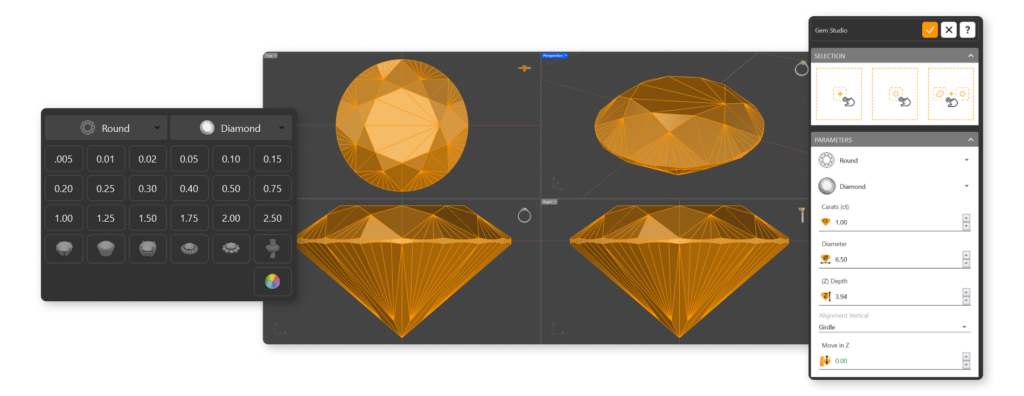
Option 1: Using the Diamonds Tab
- In the “Diamonds” tab (1), select the “Gem Studio” command (2). This will open a panel where you can customize various parameters of your diamond.

- Set the parameters according to your design needs. (3)
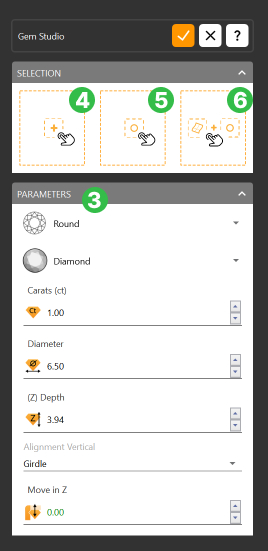
-
Add Gem:
- Add to Center (4): The diamond will be added to the center of the viewport.
- Add to a Specific Point (5): Select a point in the viewport, and the diamond will be positioned at that exact location.
- Add to a Surface Point (6): Select a surface, and then click on specific points on that surface to position the diamond precisely.
Option 2: QuickGems Panel
- The QuickGems panel is located on the left side of the interface. From here, you can quickly select the diamond’s shape, material, and choose from the available carat weights.
Once selected (1), the diamond will be automatically placed in the center of the viewport.
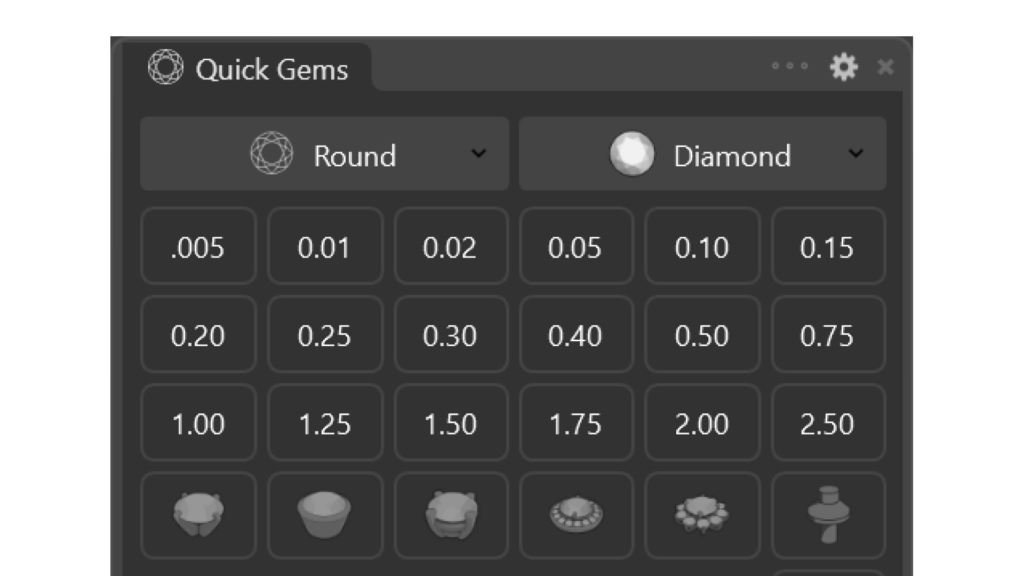
Step 1: Add gem
Use the method that you find most comfortable and add a half-carat gem to the center of the viewport, without any alignment, to begin the tutorial.
Next Steps
In the next lesson, we will learn how to create a beautiful basket setting for our gem.
Almost there — you still have some lessons to complete. Jump to the next one →
Impersonating — progress and reviews are disabled.
Course completed
You've completed Kickstart: From idea to Creation 🎉
Great work. Get your certificate of completion and, if you have a minute, let other jewelers know what you thought of the course.