Floating Diamond Ring
Lesson 21 of 43
Socket Curve
Sign in to access this lesson
This lesson is part of Kickstart: From idea to Creation, which can come bundled with a RhinoArtisan Commercial license subject to current promotions. Log in with your customer account, or get in touch and we'll set you up.
Customers only
Solo para clientes
This lesson is part of Kickstart: From idea to Creation, which can be included with a RhinoArtisan Commercial license subject to current promotions. If you've already purchased and don't see it in your account, get in touch.
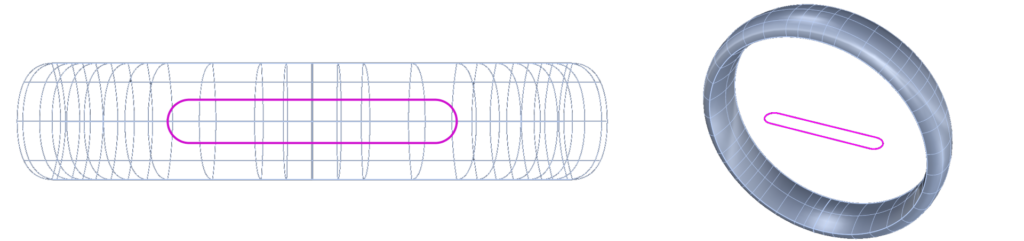
Objective: Learn how to draw a precise curve socket where the gemstone will be placed.
In this lesson, we’ll create the socket using a rounded rectangle.
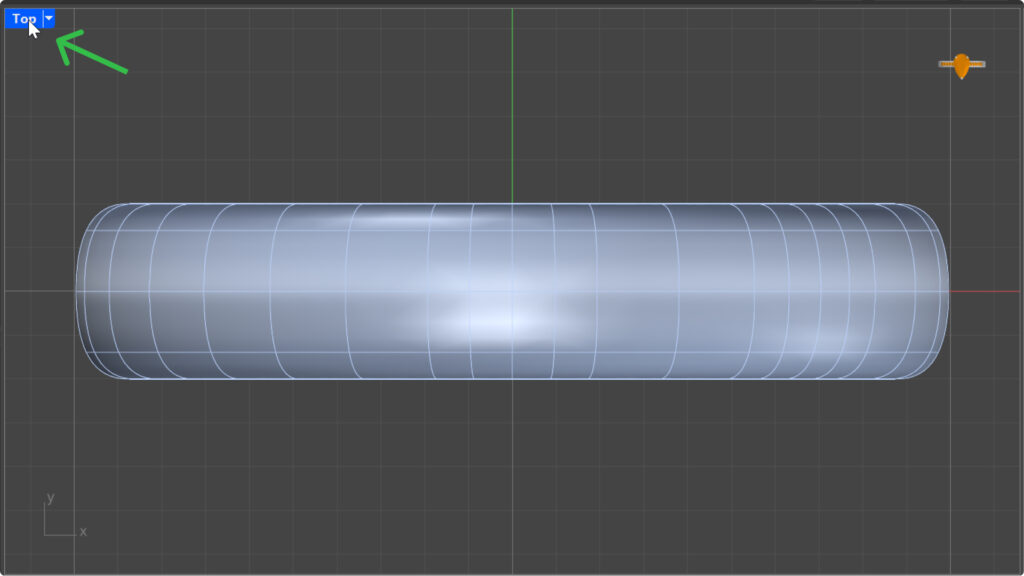
Top View
Switch to the “Top” view for better precision. Double click
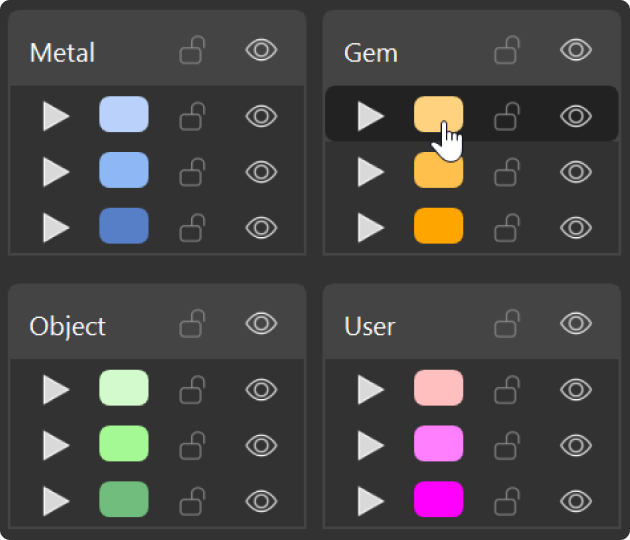
Set the Layer Color
Select a color from the left panel to visualize the curve.
Rounded Curve Command
Go to the “Curve” tab (1), select “Rounded Rectangle” (3) in the “Rectangle”(2) section.

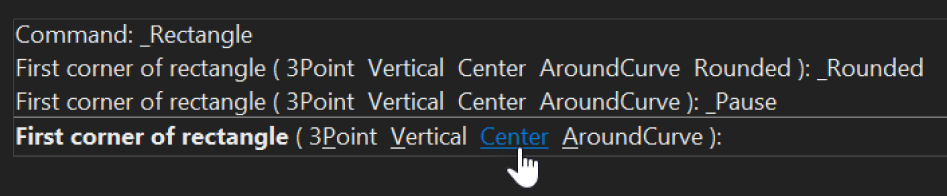
Command Prompt Options
In the “Command Prompt” options, choose “Center”.
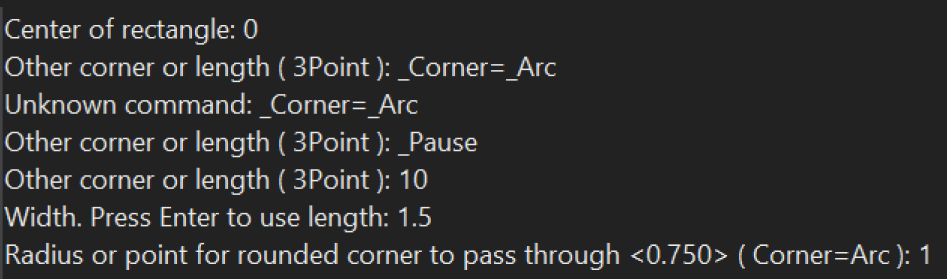
Parameters
- Enter
0as the center point. Press Enter. - Type
10 mmfor length. Press Enter. - Type
1.5 mmfor width. Press Enter. - Set the rounded corners to
1 mm. Press Enter.
The curve socket is now ready. Change to Wireframe mode to view the curve.
Video Lesson
Next Step
Next, we’ll create a solid from this curve.
Almost there — you still have some lessons to complete. Jump to the next one →
Impersonating — progress and reviews are disabled.
Course completed
You've completed Kickstart: From idea to Creation 🎉
Great work. Get your certificate of completion and, if you have a minute, let other jewelers know what you thought of the course.