Eternal Weave Ring
Lesson 5 of 38
Gems on Curve & Micro Settings
Sign in to access this lesson
This lesson is part of Modern Elegance: Fashion Jewelry Modeling, which can come bundled with a RhinoArtisan Commercial license subject to current promotions. Log in with your customer account, or get in touch and we'll set you up.
Customers only
Solo para clientes
This lesson is part of Modern Elegance: Fashion Jewelry Modeling, which can be included with a RhinoArtisan Commercial license subject to current promotions. If you've already purchased and don't see it in your account, get in touch.
14. Create gem guide curves and place gems on the shank
Use Extract ISO Curve on Surface to create a centered curve on each side of the shank, snapping to the mid-guide point with OSNAP. With everything else hidden, run Gems on Curve from the Diamonds tab: add the curve, select the reference surface for orientation, and set 1.25 mm gems with 0.4 mm spacing. Update, set vertical alignment to Top, and accept.
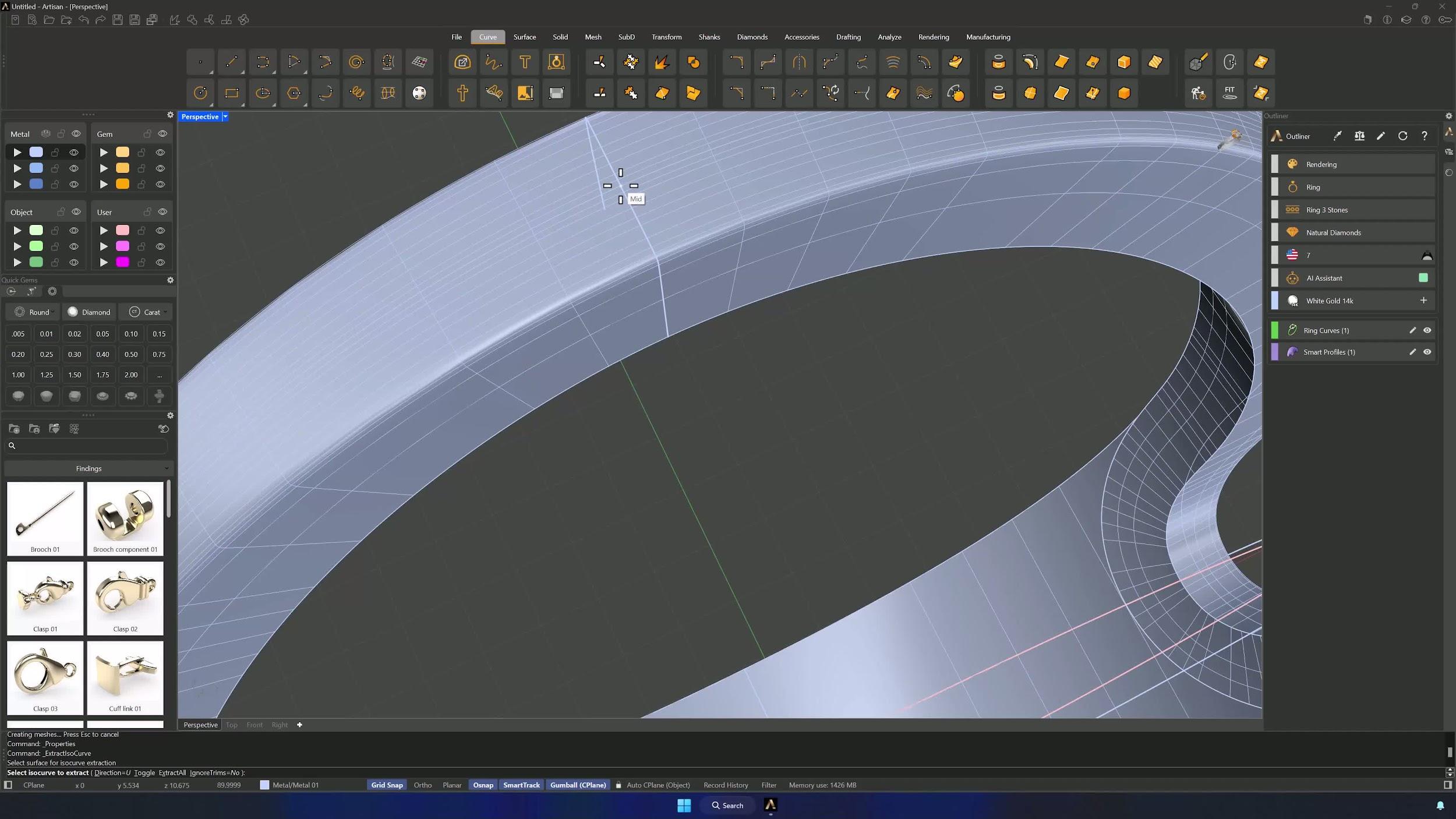
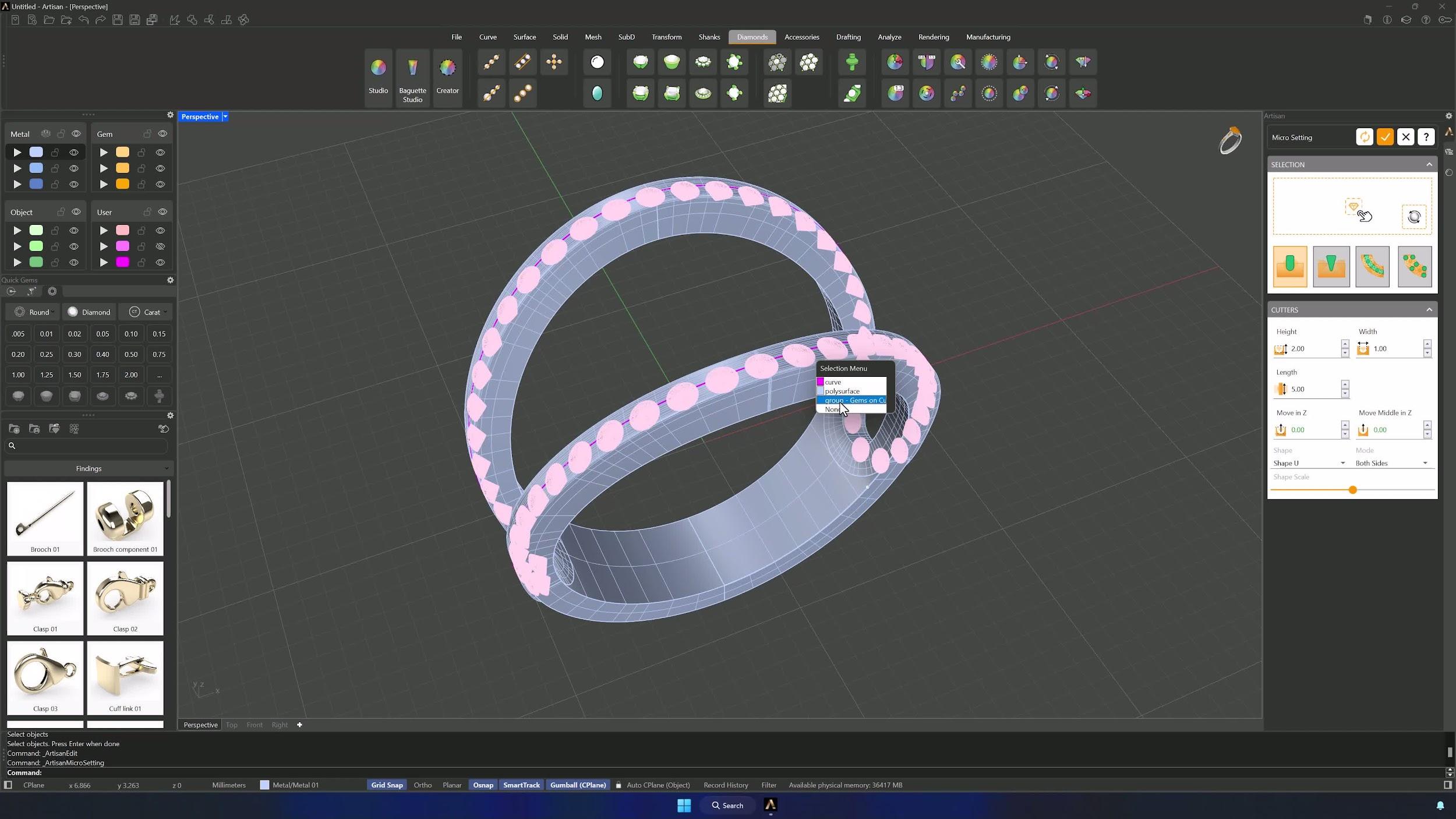
15. Create micro settings and cut the shank for stones
Open Micro Settings in the Diamonds tab and add the gems: width 0.70, V cutters active with length 2.5, and Channel on and set to Close with a channel width of 0.6. Accept to generate the cutters, then Boolean Difference: select the upper part of the shank, then each cutter, and press Enter.
Almost there — you still have some lessons to complete. Jump to the next one →
Impersonating — progress and reviews are disabled.
Course completed
You've completed Modern Elegance: Fashion Jewelry Modeling 🎉
Great work. Get your certificate of completion and, if you have a minute, let other jewelers know what you thought of the course.