Pavé Pendant
Lesson 22 of 34
Bail & Turntable Render
Sign in to access this lesson
This lesson is part of Pavé Perfection: Gemstone Detailing & Setting, which can come bundled with a RhinoArtisan Commercial license subject to current promotions. Log in with your customer account, or get in touch and we'll set you up.
Customers only
Solo para clientes
This lesson is part of Pavé Perfection: Gemstone Detailing & Setting, which can be included with a RhinoArtisan Commercial license subject to current promotions. If you've already purchased and don't see it in your account, get in touch.
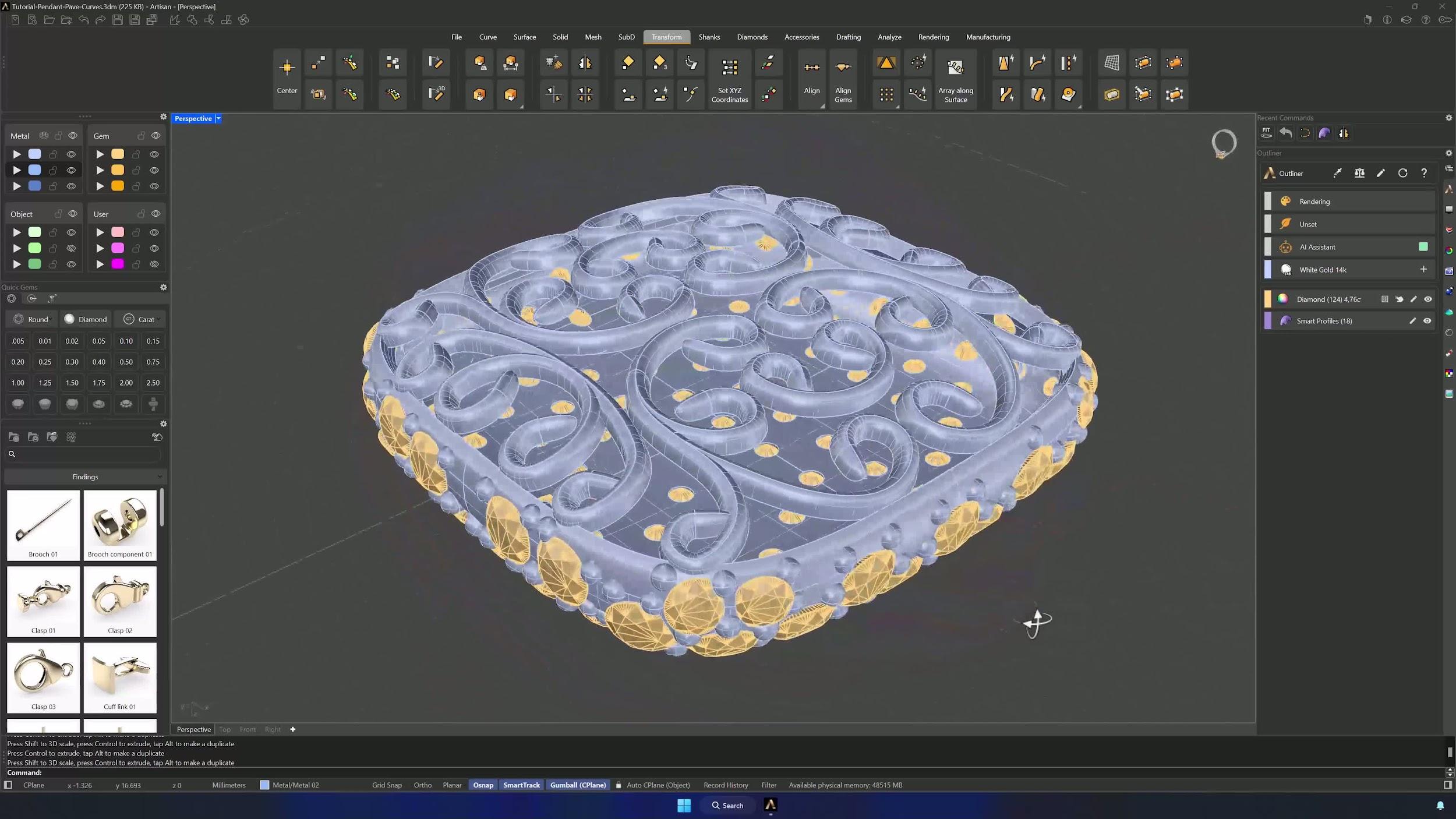
22. Add and configure the bail
Place a Bail from the Accessories tab using the Top view. Edit it with Asset 012 on both profiles: top at width 1.9 mm, height 0.9 mm, top diameter 2.60 mm and inner distance 4.5 mm; bottom at width 0.9 mm, height 0.8 mm. Re-enable the O-ring with thickness 0.6 mm, overlapping height 1.5 mm and diameter 1.8 mm, confirm, and position the bail over the spot where you removed the gem.
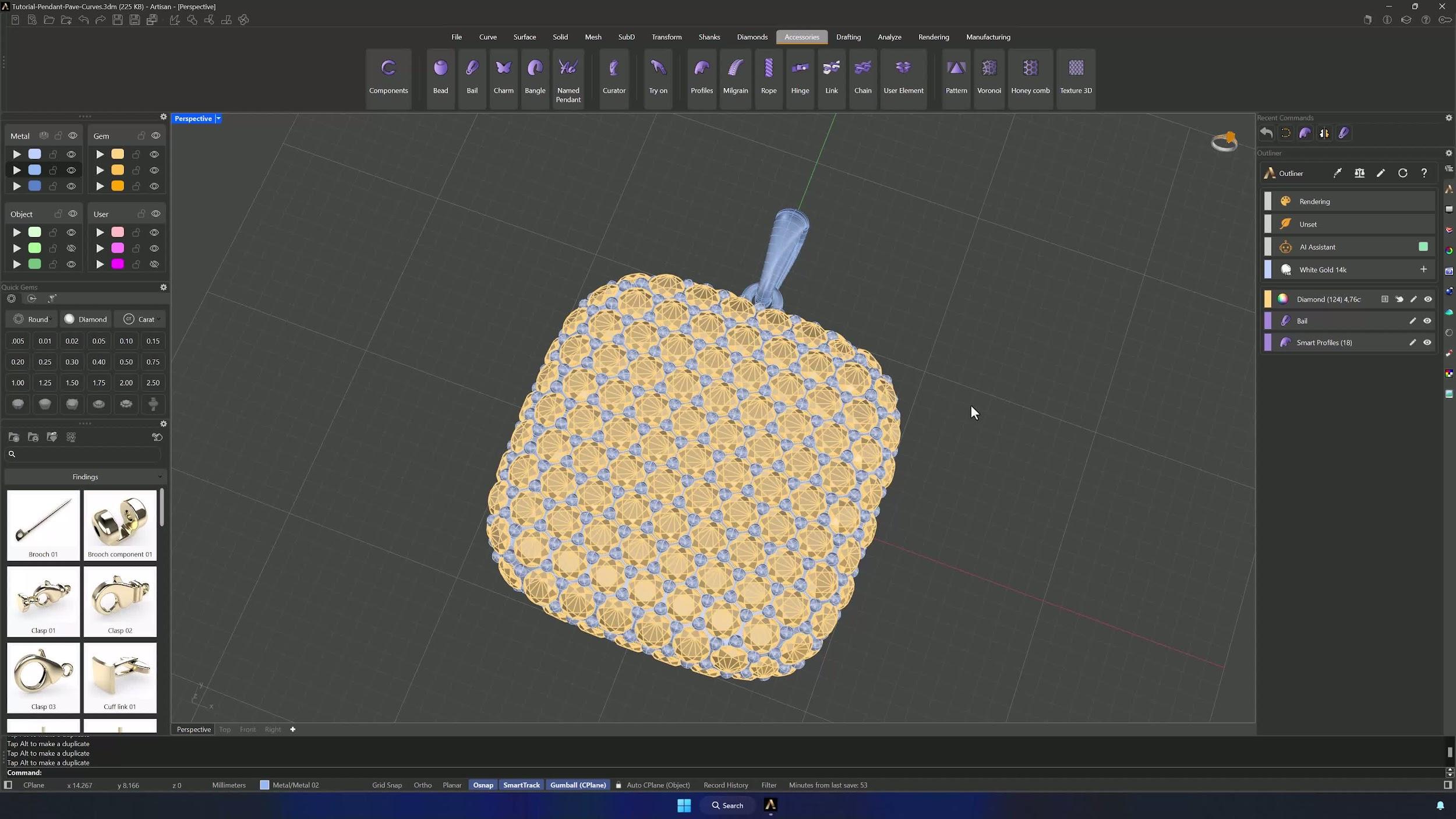
23. Assign materials and prepare the render scene
Open the Render and Animation panel from the File tab. Apply 18-karat yellow gold to the metals from the Layer Manager, a diamond material to the gems, and two shapes for lighting — then preview in Ray Traced mode.
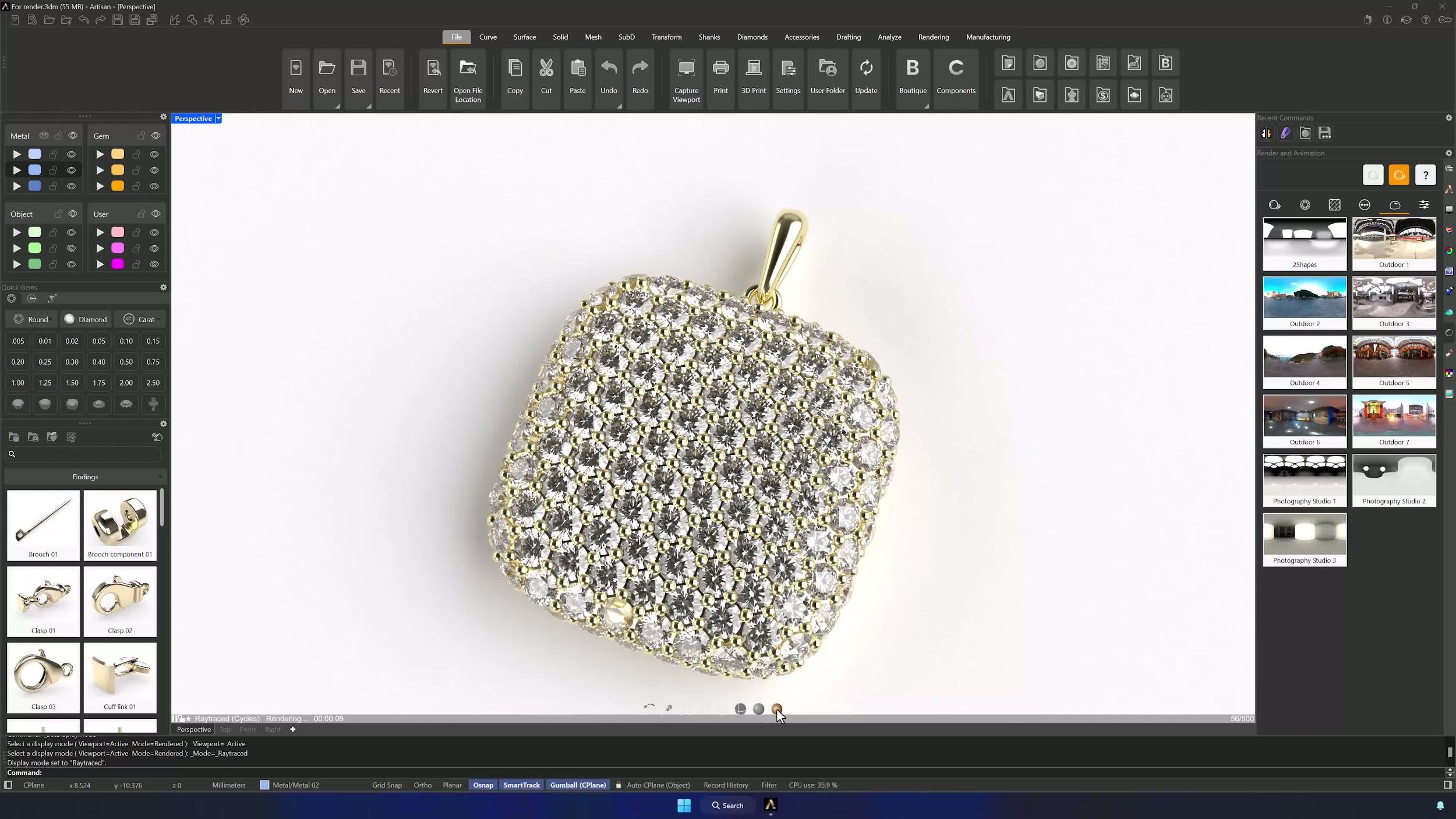
24. Adjust environment and camera framing
In the Environment panel switch the 360° projection to two shapes and try a different floor color if it helps. Rotate the model 90°, adjust the view, and use the resolution guides to confirm exactly what the output will show.
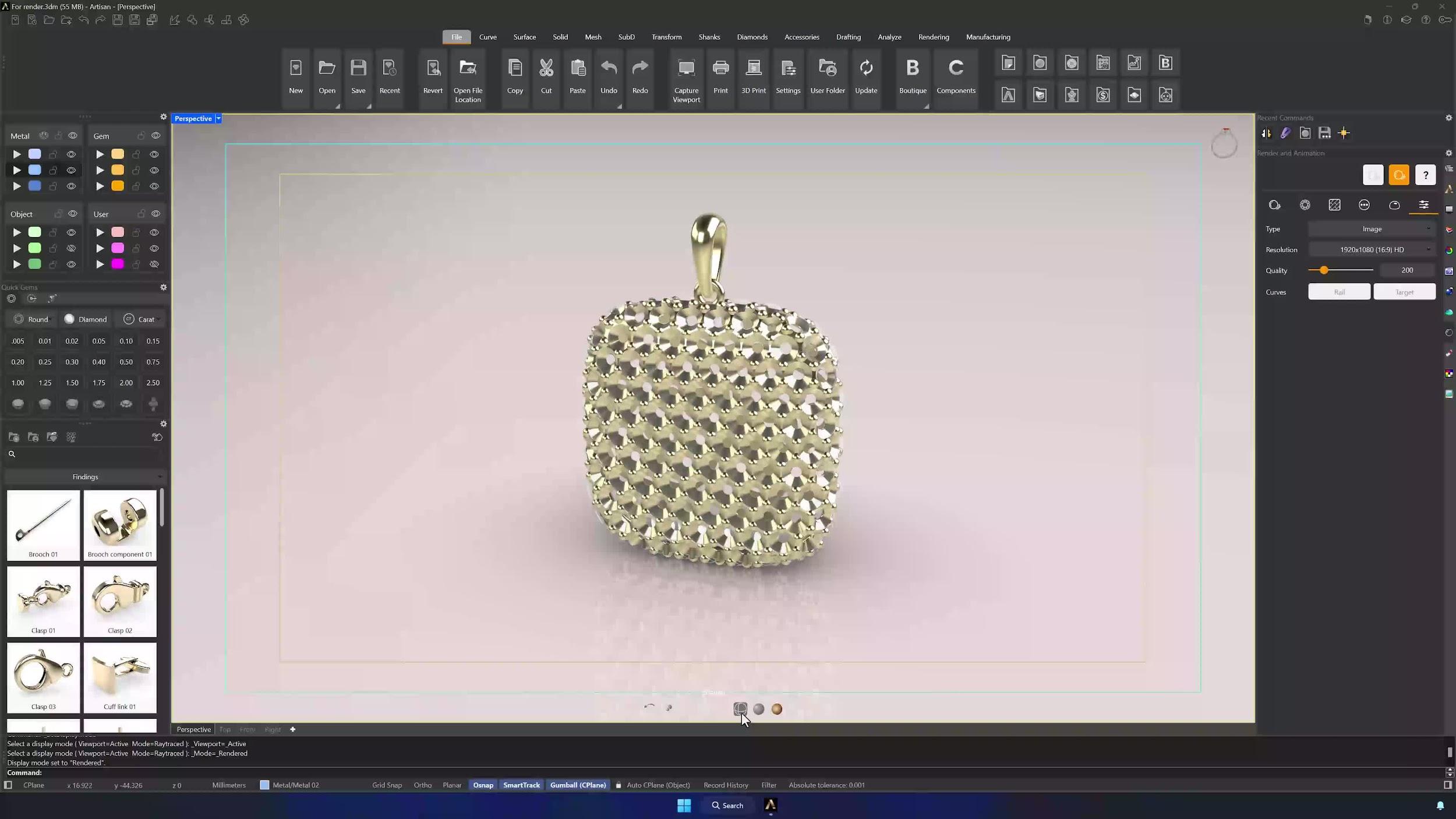
25. Set up the turntable render
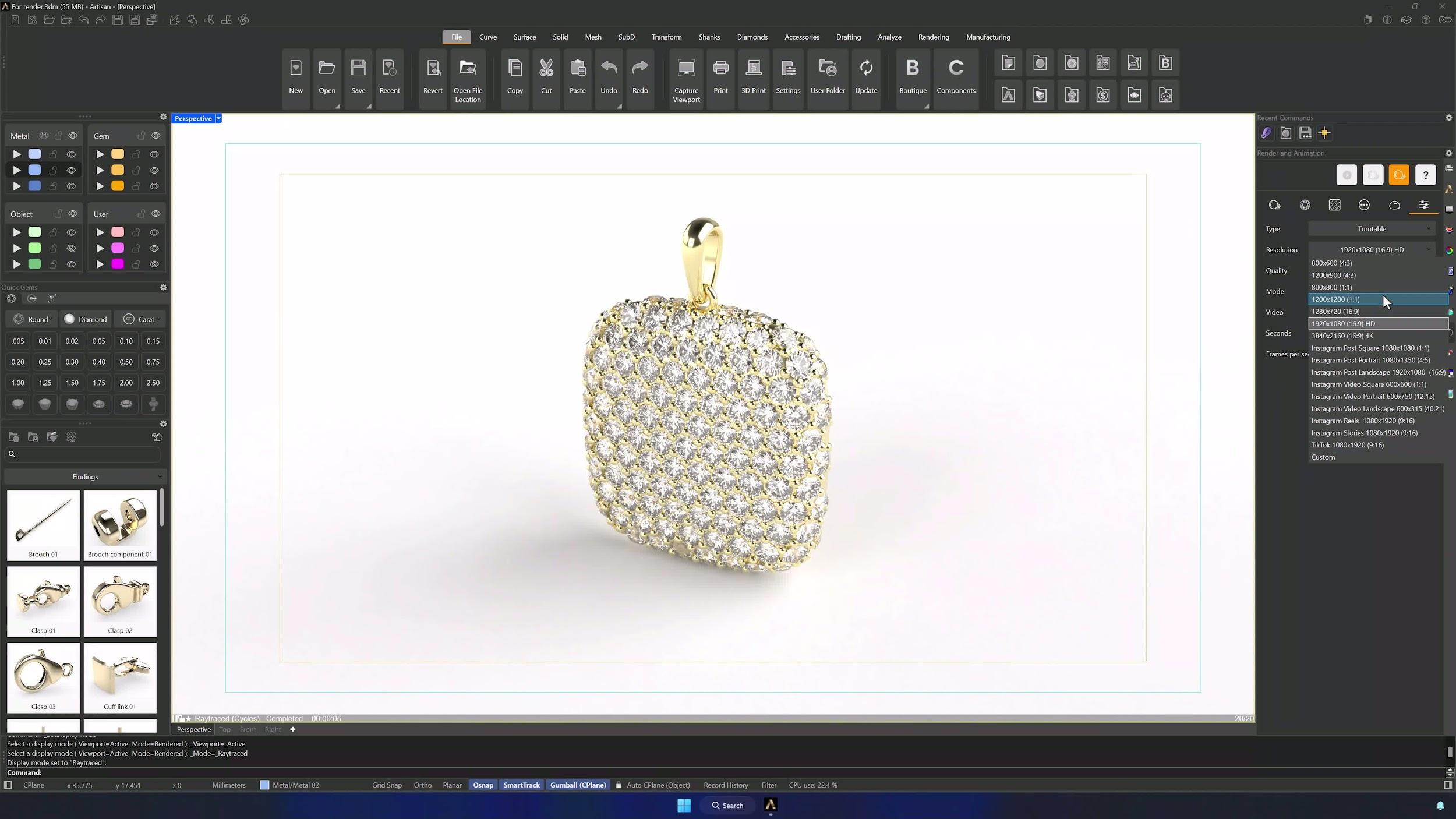
Change the render type to Turn Table and choose Custom under Video: 10 seconds at 30 fps, quality 20, Basic Ground floor, and a square 1200 × 1200 resolution.
26. Render and export the final MP4
Click Render, choose a folder for the frames, and wait — the MP4 is generated automatically when all frames finish. Check the time and pass count in the render window to confirm completion, and your pendant turntable is ready to share.
Tips for a clean result
- When deleting the center-axis gem and cutter, remove only the intended Y-axis elements.
- Verify the offset direction before confirming — a flipped offset builds the solid the wrong way.
- Boolean Difference needs the solid and cutters selected in the correct order.
- Keep reference geometry, working curves, gems and cutters on separate layers from the start.
- Hold Shift while scaling with the Gumball to maintain uniform proportions.
- Confirm framing and background before launching the full turntable render — high quality and resolution multiply the render time, and rework is expensive.
Almost there — you still have some lessons to complete. Jump to the next one →
Impersonating — progress and reviews are disabled.
Course completed
You've completed Pavé Perfection: Gemstone Detailing & Setting 🎉
Great work. Get your certificate of completion and, if you have a minute, let other jewelers know what you thought of the course.