Butterfly Pendant
Lesson 30 of 34
Tracing the Wings
Sign in to access this lesson
This lesson is part of Pavé Perfection: Gemstone Detailing & Setting, which can come bundled with a RhinoArtisan Commercial license subject to current promotions. Log in with your customer account, or get in touch and we'll set you up.
Customers only
Solo para clientes
This lesson is part of Pavé Perfection: Gemstone Detailing & Setting, which can be included with a RhinoArtisan Commercial license subject to current promotions. If you've already purchased and don't see it in your account, get in touch.
Downloads
1. Import and prepare the reference image
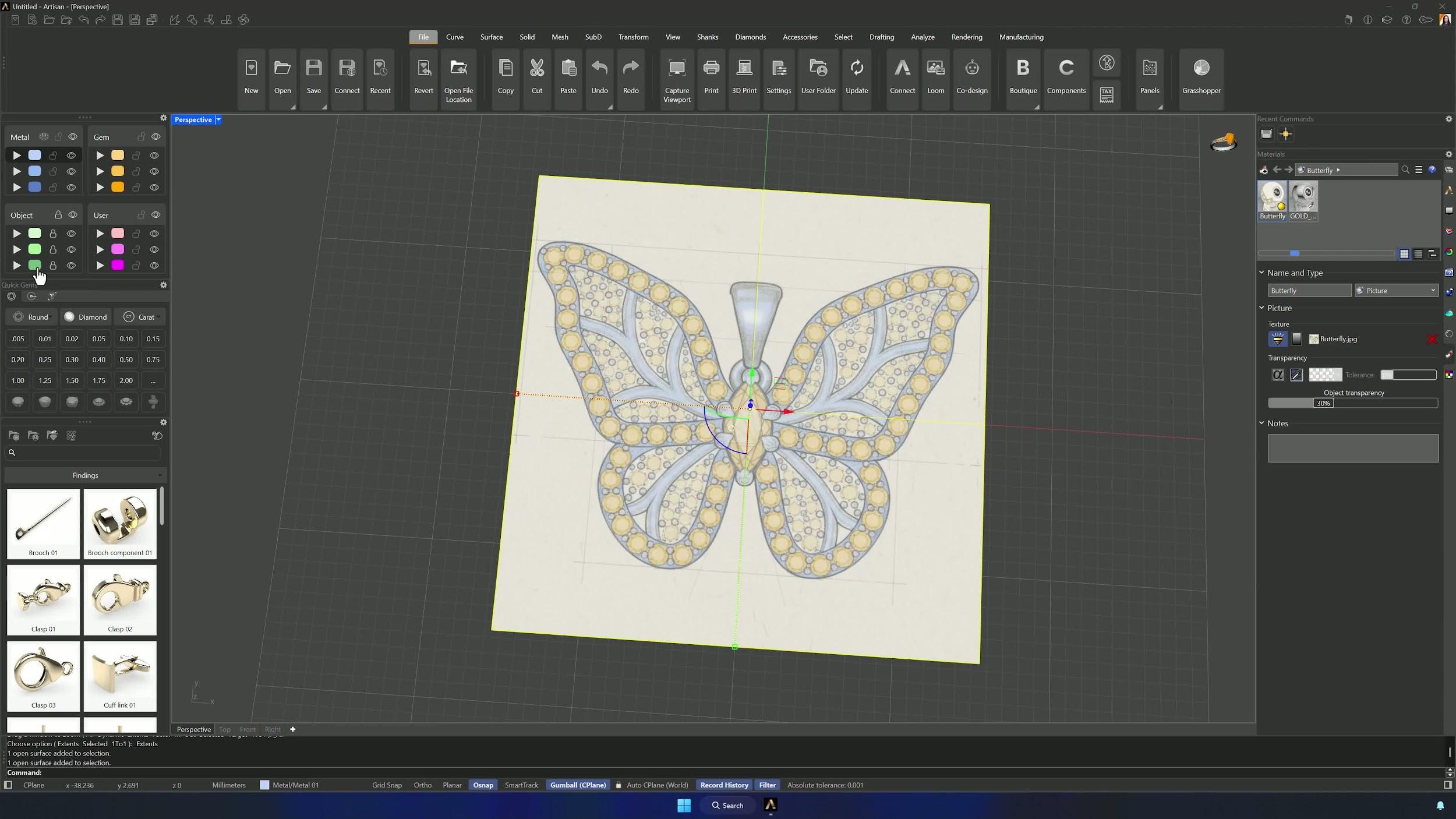
Download the reference image from the Downloads section and drag it into the Top view, centering it in the workspace. In the Material panel drop its opacity to about 30–33%, assign it to its own layer, and lock it so it never moves by accident.
2. Trace the outer butterfly wing outlines
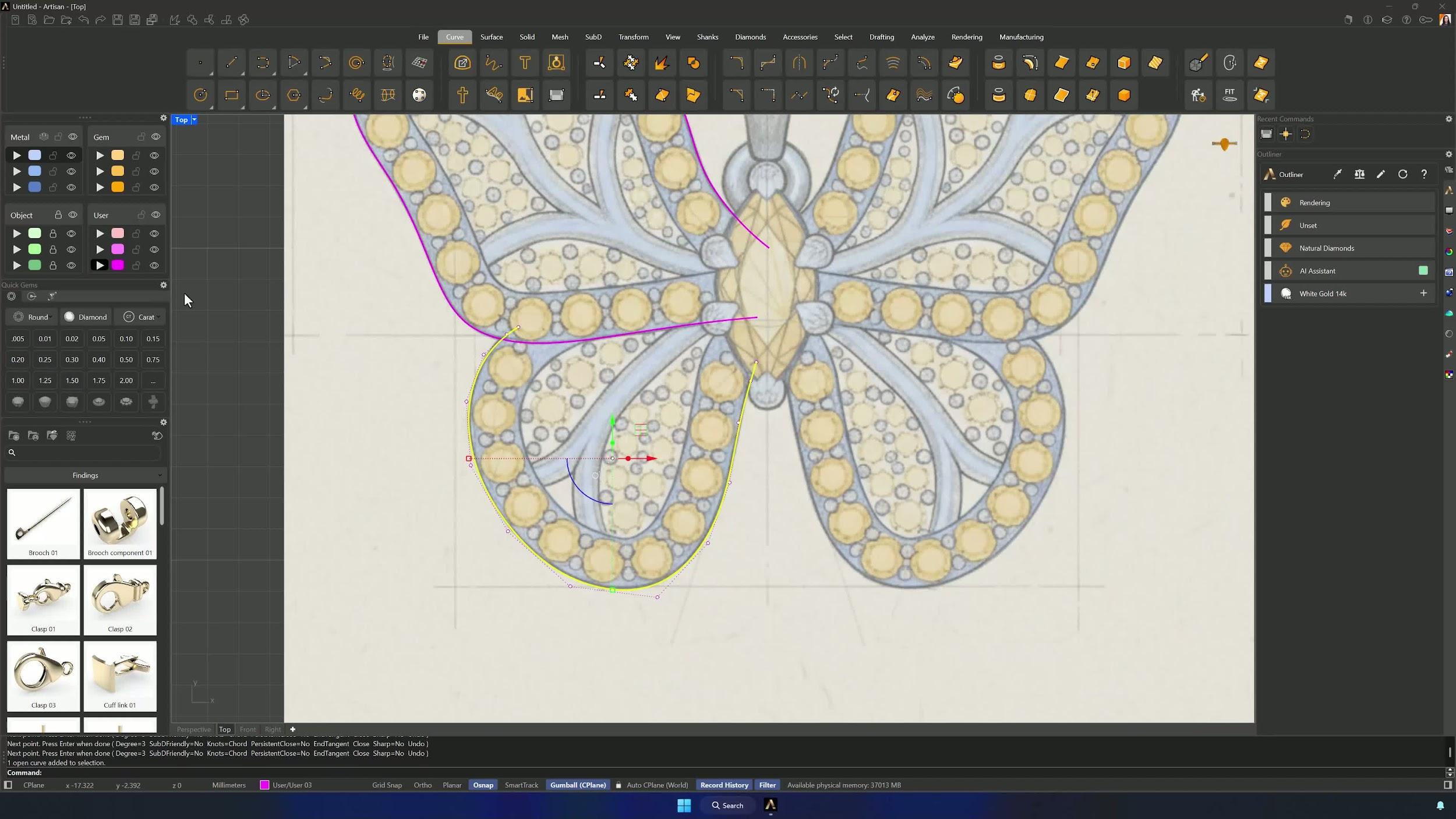
Trace the outer wing shape from the Top view with the Curve command, using as few control points as possible — a clean, simple curve is far easier to edit later. Repeat for the opposite side of the wing, keeping everything on the same layer.
3. Offset and close the wing curves
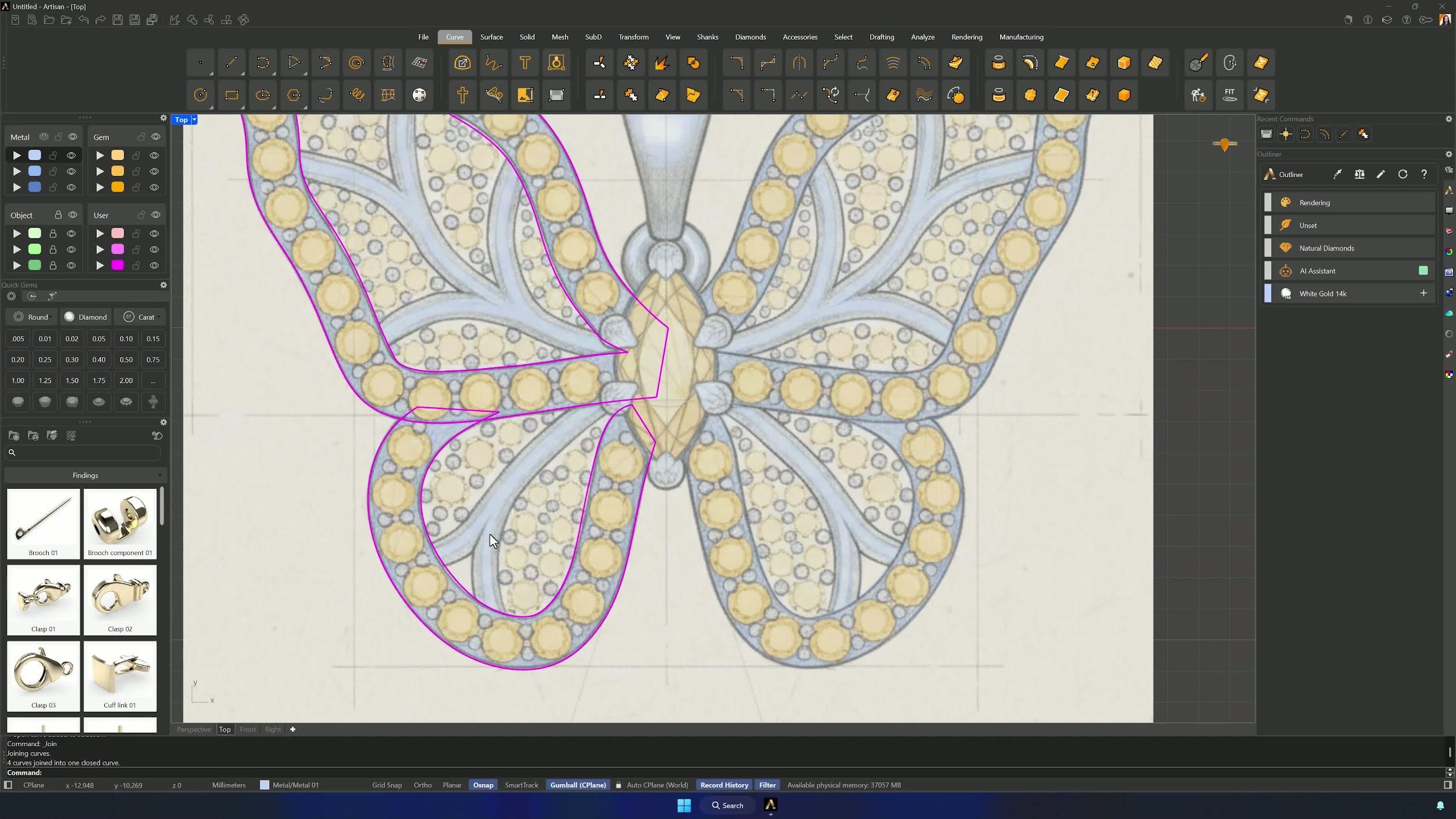
Offset each traced wing curve by roughly 1.7–1.8 mm and fine-tune the control points against the reference. Connect the open ends with the Line command and Join everything into a single closed curve per wing.
4. Generate wing surfaces and extrude them
Use From Planar Curve in the Surface tab to build a surface from each closed wing shape, then Split away the interior with the curve — flipping normals if they come out reversed. Extrude both wing surfaces downward by 2 mm.
Almost there — you still have some lessons to complete. Jump to the next one →
Impersonating — progress and reviews are disabled.
Course completed
You've completed Pavé Perfection: Gemstone Detailing & Setting 🎉
Great work. Get your certificate of completion and, if you have a minute, let other jewelers know what you thought of the course.