Moebius Diamond Pendant
Lesson 58 of 62
Isocurve for the Gemstones
Sign in to access this lesson
This lesson is part of Precision & Detail Design, which can come bundled with a RhinoArtisan Commercial license subject to current promotions. Log in with your customer account, or get in touch and we'll set you up.
Customers only
Solo para clientes
This lesson is part of Precision & Detail Design, which can be included with a RhinoArtisan Commercial license subject to current promotions. If you've already purchased and don't see it in your account, get in touch.
Objective: Learn how to extract the curve that runs through the whole channel.
Extract Isocurve
Go to the “Curve” tab and use the “Extract Isocurve” command.

If the isocurve is oriented in the wrong direction, you can change it from the command bar. In this case we need the isocurve in the U direction.
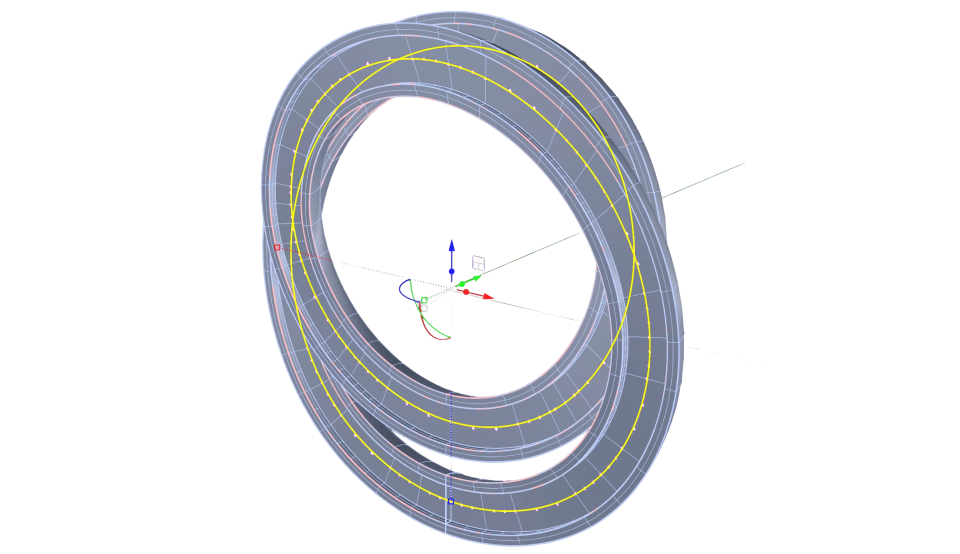
Click on the Intersection
With the help of OSnap, click on the central intersection point of the channel. Clicking creates a curve that goes through the entire element, which is what will help us position the gemstones.
Move the curve to another layer.
Video Lesson
Next Step
Next, we’ll place the gems with their prongs and cutters.
Almost there — you still have some lessons to complete. Jump to the next one →
Impersonating — progress and reviews are disabled.
Course completed
You've completed Precision & Detail Design 🎉
Great work. Get your certificate of completion and, if you have a minute, let other jewelers know what you thought of the course.