Commands
Chamfer Edge
.png) Chamfer Edge
Chamfer Edge
The ChamferEdge command creates a ruled surface between selected polysurface edges with varying chamfer distances, trims and joins the chamfer surfaces to the surface.
Steps
-
Select edges.
Or, double-click an edge to select tangent edges.
-
Edit chamfer distance handles and options.
Command-line options
-ShowsChamferDistance
- Yes: Displays chamfer distance handles in the viewport.
- No: Hides chamfer distance handles in the viewport. A hidden chamfer distance handle will display when the mouse cursor is close to it.
-NextChamferDistance: Specifies the chamfer distance for the next edge.
-ChainEdges: Automatically selects connected edge based on continuity.
.png)
-FaceEdges: Pick a face to select its boundary edges. Tangent edges are excluded.
.png)
-PreviousEdgeSelection: In cases where the command is canceled or ended prematurely, the PreviousEdgeSelection option re-selects the previously selected edges. Supports multiple sets of previously selected edges for up 20 previous edge sets.
-TrimAndJoin: Trims and joins the resulting surface to the input surfaces. History only works if TrimAndJoin=No
-SelectEdges: Allows selecting more edges after the selection has been closed.
-Preview: Displays a dynamic preview. You can change the options and the preview will update
-Edit: Edit the most recent selected set of edges.
-
“Tip”: When no command is running, double-clicking the object is the alternative way to start the editing mode.
-
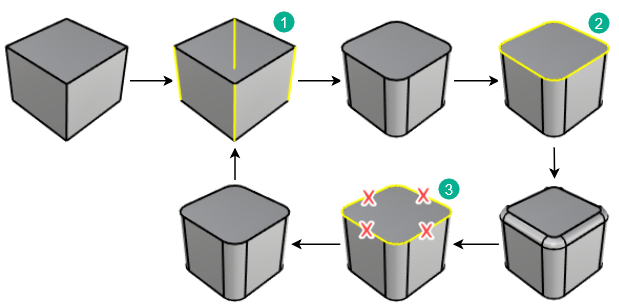
To edit edges
1.Select the object to edit. The editable edges highlight.
2.Edit the size of the handles.
3.Click the SelectEdges option.
4.Use Shift + click to add edges. Use Ctrl + click to remove edges. Remove all edges in the most recent edge set to return to the previous edge set.
For more information, please refer to the Rhino documentation.