Rendering
Spherical Mapping
 Spherical Mapping
The ApplySphericalMapping command adds a texture mapping channel to an object and sets the mapping type to spherical.
Steps
- Select objects, and press Enter.
- Draw the mapping widget sphere.
- Enter a mapping channel number, or press Enter to accept the default value.
Command-line options
BoundingBox
Uses the object bounding box to determine the location and size of the mapping widget.
CPlane
Uses Construction plane coordinates for the bounding box.
World
Uses World coordinates for the bounding box.
Radius
Creates a sphere by picking the center point and a radius point.
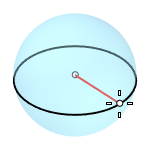
- Sphere attributes
- Diameter
- Orientation
- Circumference
- Area
- ProjectOsnap
2Point
Creates a sphere from two opposite points on the base circle.

3Point
Creates a sphere from three points on the base circle.
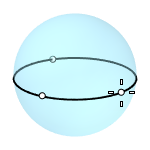
- Sphere attributes
- Radius
Tangent
Creates a sphere with the base circle tangent to one, two or three curves.

- Sphere attributes
- Point
- FromFirstPoint
- Radius
AroundCurve
Creates a sphere from its center point on a curve, and a point on the base circle perpendicular to the curve.
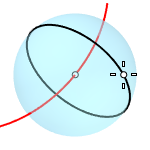
- Sphere attributes
- Radius
- Diameter
- Circumference
- Area
- ProjectOsnap
4Point
Creates a sphere from three points on a section circle and a point on the sphere.

- Sphere attributes
- Radius
FitPoints
Creates a sphere by fitting to selected point objects, curve and surface control points, and mesh vertices.
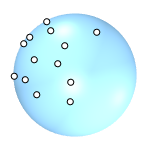
For more information, please refer to the Rhino documentation.