Commands
Set XYZ Coordinates
 Set XYZ Coordinates
The SetPt command moves selected points and control points of objects to a specified location in the x, y, and/or z directions.
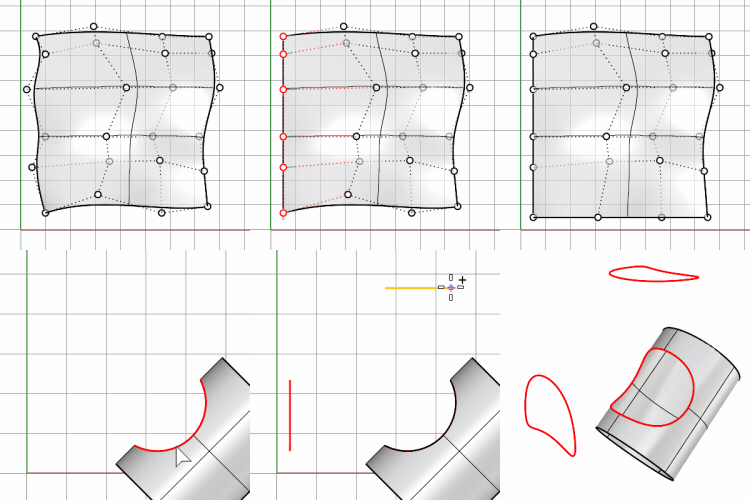
- If the entire objects such as curves or surfaces are selected without showing control points, SetPt will move all of the objects’ control points to that location. This may result in a flattening or distortion of the object.
- This command is often used to accurately change the position of points and control points. It is also a fast way to be sure that a set of planar curves are all in the same plane.
Steps
-
Select objects.
-
In the Set Points dialog box, click the check boxes for the coordinates.
-
Pick a location to match.
The selected objects will line up with the set point in the direction(s) you chose.
Set Points Options
-Set X/Set Y/Set Z: Aligns objets in the x, y, and z directions.
-Align to World/Align to CPlane: Align with the world or construction plane coordinates.
Command-line option
-Copy: Specifies whether or not the objects are copied.
- A plus sign
 appears at the cursor when copy mode is on.
 - Copy=Yes supports History recording.
- The RememberCopyOptions command determines whether the selected option is used as the default.
For more information, please refer to the Rhino documentation.