Rendering
Planar Mapping
 Planar Mapping
The ApplyPlanarMapping command adds a texture mapping channel to an object and sets the mapping type to planar.
Steps
- Select objects, and press Enter.
- Draw the mapping widget box.
- Select UV for 2D mapping, or UVW for 3D.
- Enter a mapping channel number, or press Enter to accept the default value.
Command-line options
-BoundingBox: Uses the object bounding box to determine the location and size of the mapping widget
- CPlane: Uses Construction plane coordinates for the bounding box.
- World: Uses World coordinates for the bounding box
Box
Draws a box to add a planar mapping widget.
- The vertical direction of the box defines the W direction that is used by 3D procedural textures, such as Wood, Noise, Granite, etc.
(Default)
Draws the rectangle using two opposite corners.
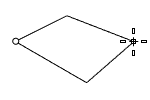
3Point
Draws the rectangle using two adjacent corner locations and a location on the opposite side.
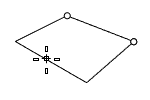
EdgeMidpoint
Draws the rectangle from the midpoint of the first edge, an end of the edge, and a location on the opposite side.
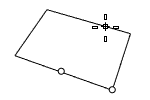
Vertical
Draws the rectangle perpendicular to the construction plane.
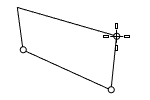
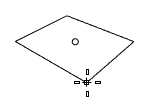
Center
Draws the rectangle from the center point and a corner.
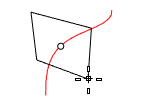
AroundCurve
Draws a rectangle perpendicular to a curve.
Steps
- Select a curve and pick the center of the rectangle on the curve.
For more information, please refer to the Rhino documentation.