Getting Started
How to download, install and activate your license
Check the minimum requirements
First, make sure your computer meets the minimum requirements to run RhinoArtisan.
Download RhinoArtisan
Download RhinoArtisan from your account.
RhinoArtisan requires Rhino — if you don’t have it yet, you’ll find it in your account too.
Activate your license
When you buy RhinoArtisan — even for the evaluation — you’ll receive a product key to activate your license. This product key is private, so use it with discretion.
To open the License Wizard, look for the key icon — it works the same from Rhino or RhinoArtisan: in the RhinoArtisan toolbar inside Rhino, or at the top-right corner of the RhinoArtisan UI.
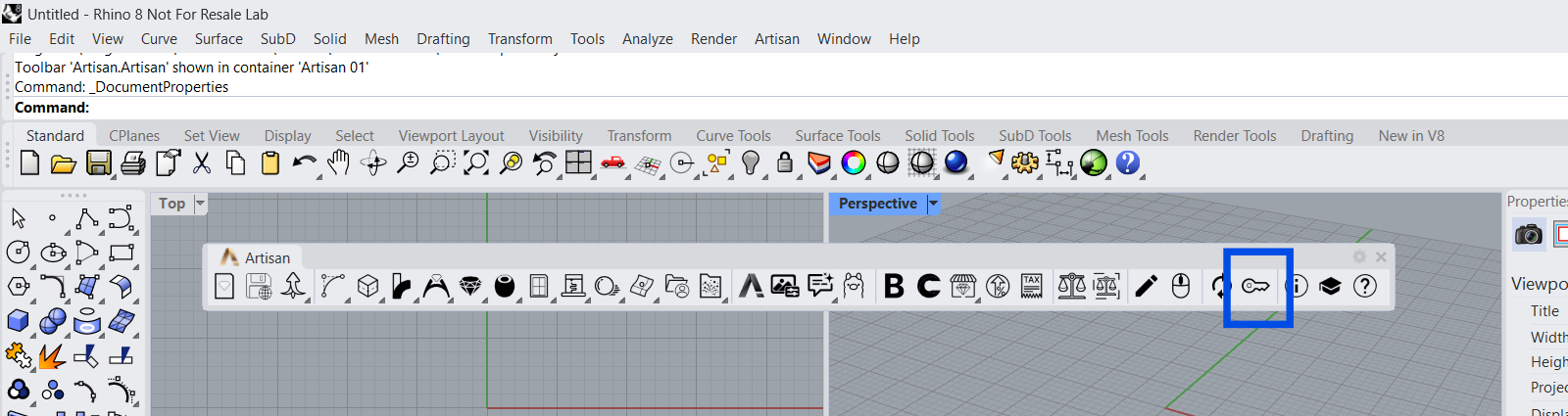
In Rhino — the key icon in the Artisan toolbar
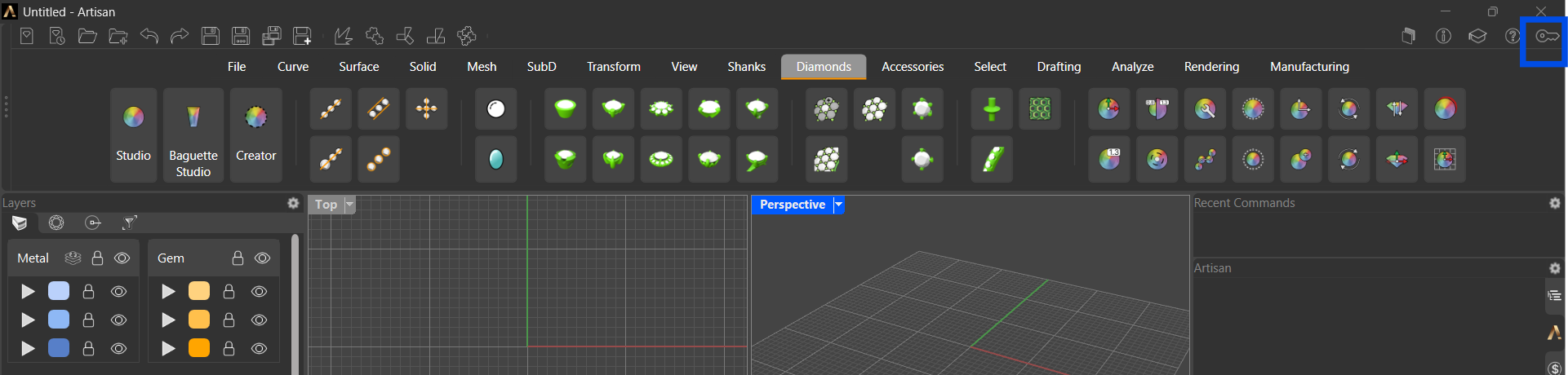
In RhinoArtisan — the key icon at the top-right
In the License Wizard, click Activate your license, choose Activate Online, then enter your product key and click Activate.
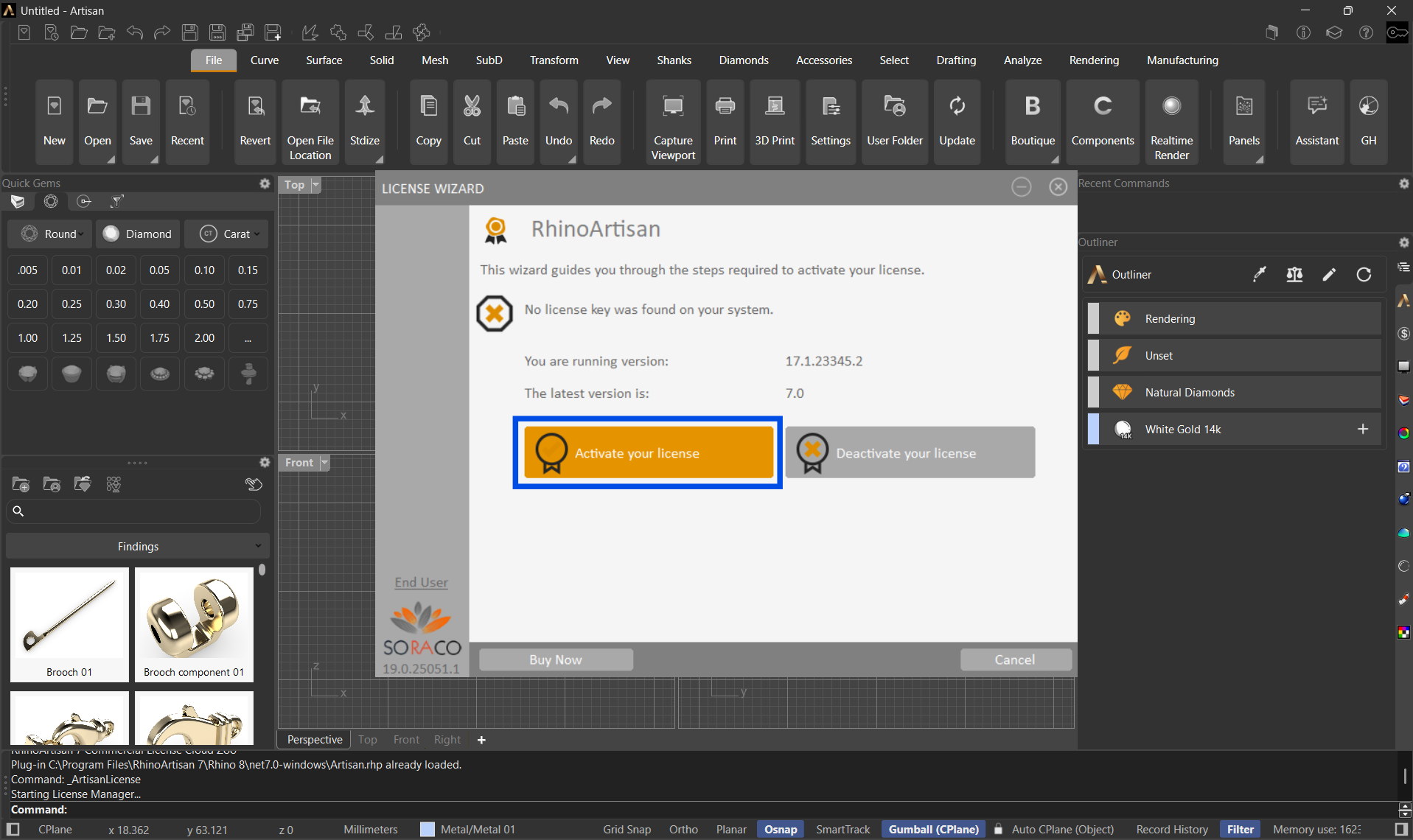
Click "Activate your license"
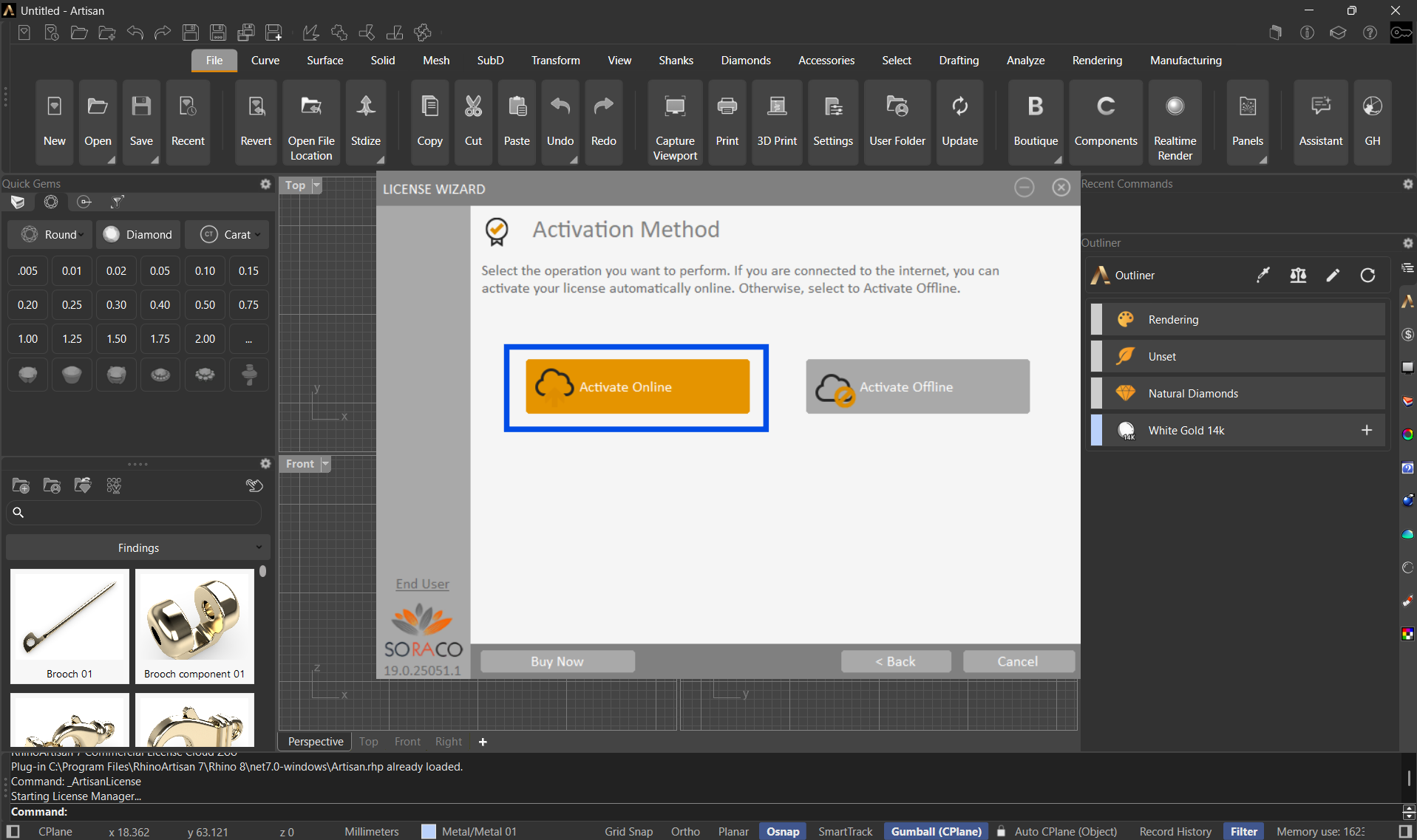
Choose "Activate Online"
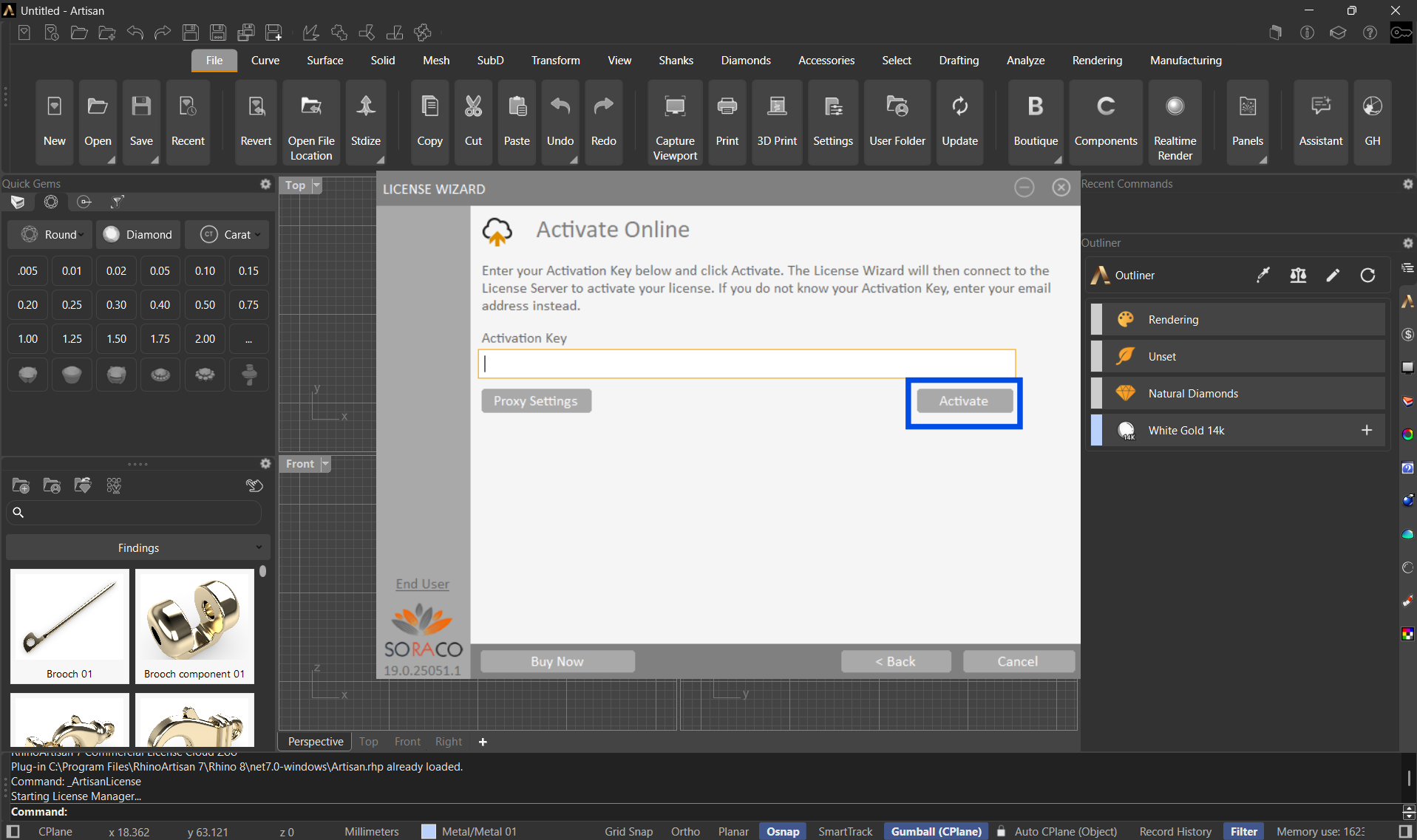
Enter your product key and click "Activate"