RhinoArtisan for Mac is in development, and so is this documentation. Any part of it may be inaccurate or change as the product evolves.
This page was written for RhinoArtisan 7 for Windows and has not been reviewed for Mac yet. Screenshots and some details may differ in Rhino for Mac.
Diamonds and Gemstones
Gems Orientation
Run ArtisanGemsOrientation in Rhino’s command line and select the gems to display their planes and 90° rotation handles. Run it again to hide the handles.
 Gems Orientation
This command allows us to view each gem’s individual alignment and rotate it in 90° steps. It’s especially useful when the gems aren’t aligned the way we’d like them to be for applying gem sets.
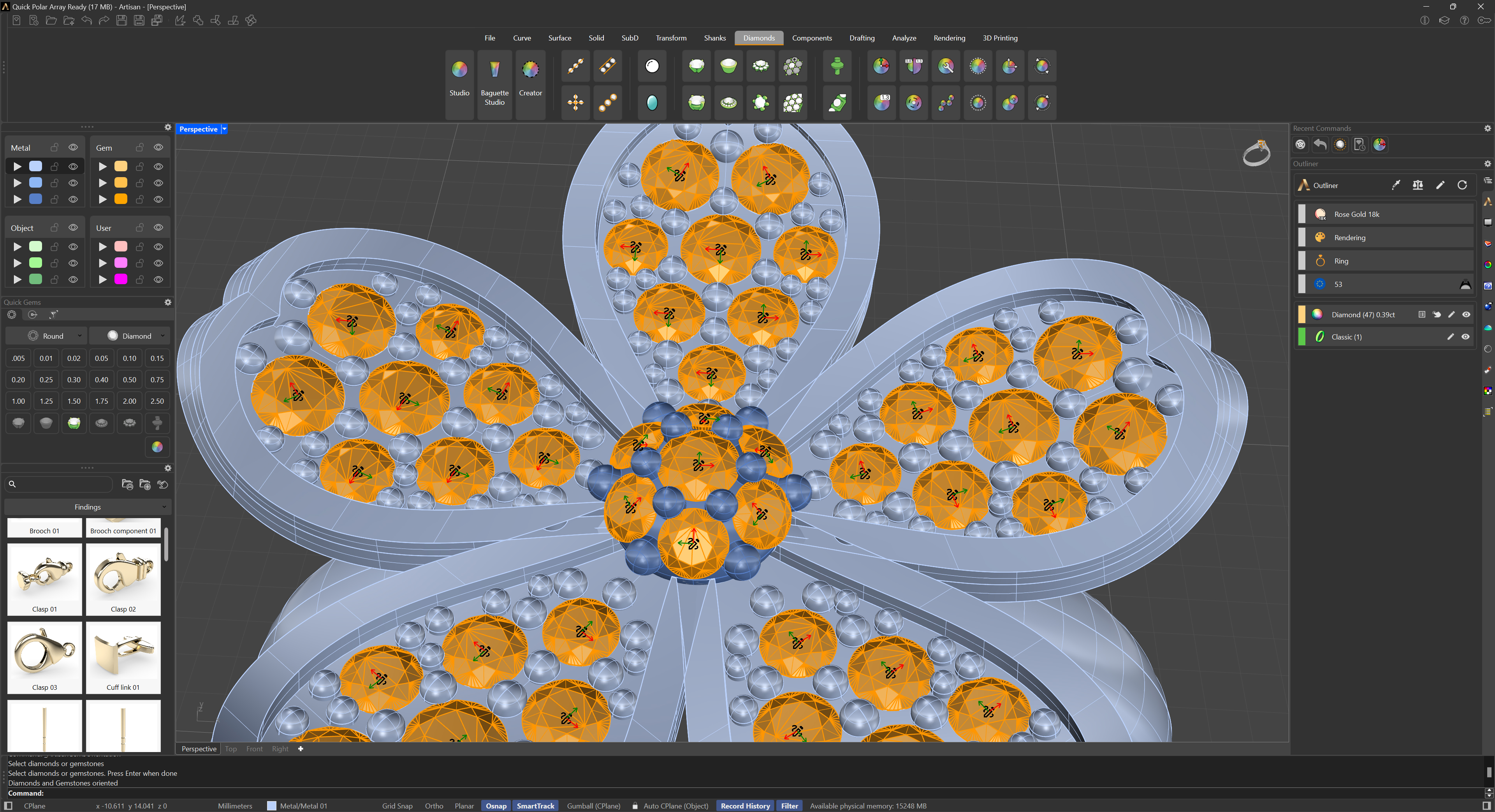
Above each gem, the plane and an edit button (pencil icon) will be displayed. Clicking the button rotates the gem 90° around its own plane normal. We can repeat the process as many times as needed.
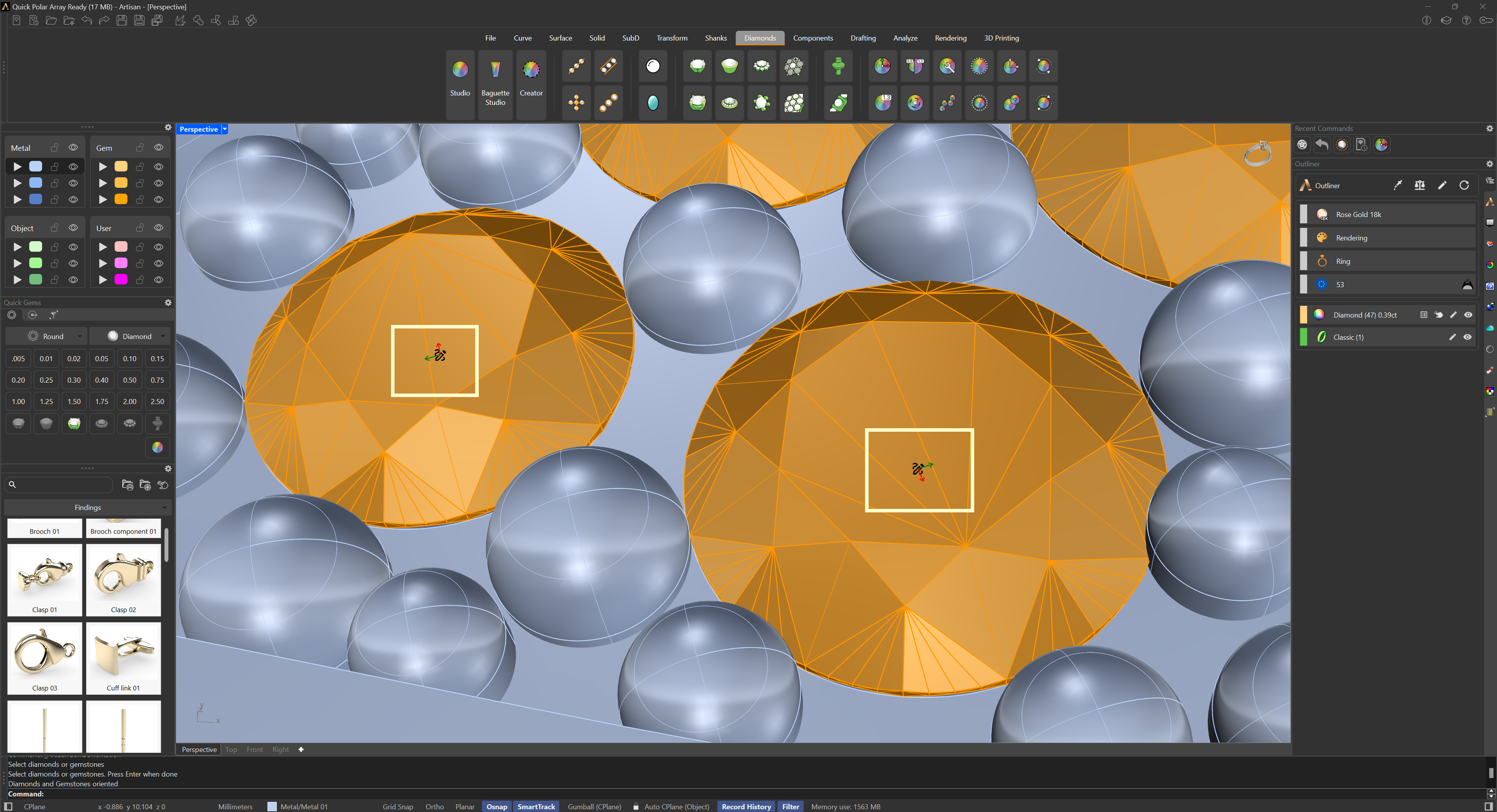
Running the command again with the handles still on screen turns them off.