RhinoArtisan for Mac is in development, and so is this documentation. Any part of it may be inaccurate or change as the product evolves.
This page was written for RhinoArtisan 7 for Windows and has not been reviewed for Mac yet. Screenshots and some details may differ in Rhino for Mac.
Retail
Product Details
Run ArtisanBoutiqueProductDetails to open Product Details.
Turn every design into a masterpiece with the right details. From a captivating name and enticing description to setting the perfect price and marking your featured items—these small touches make a big difference.
How to define the product details?
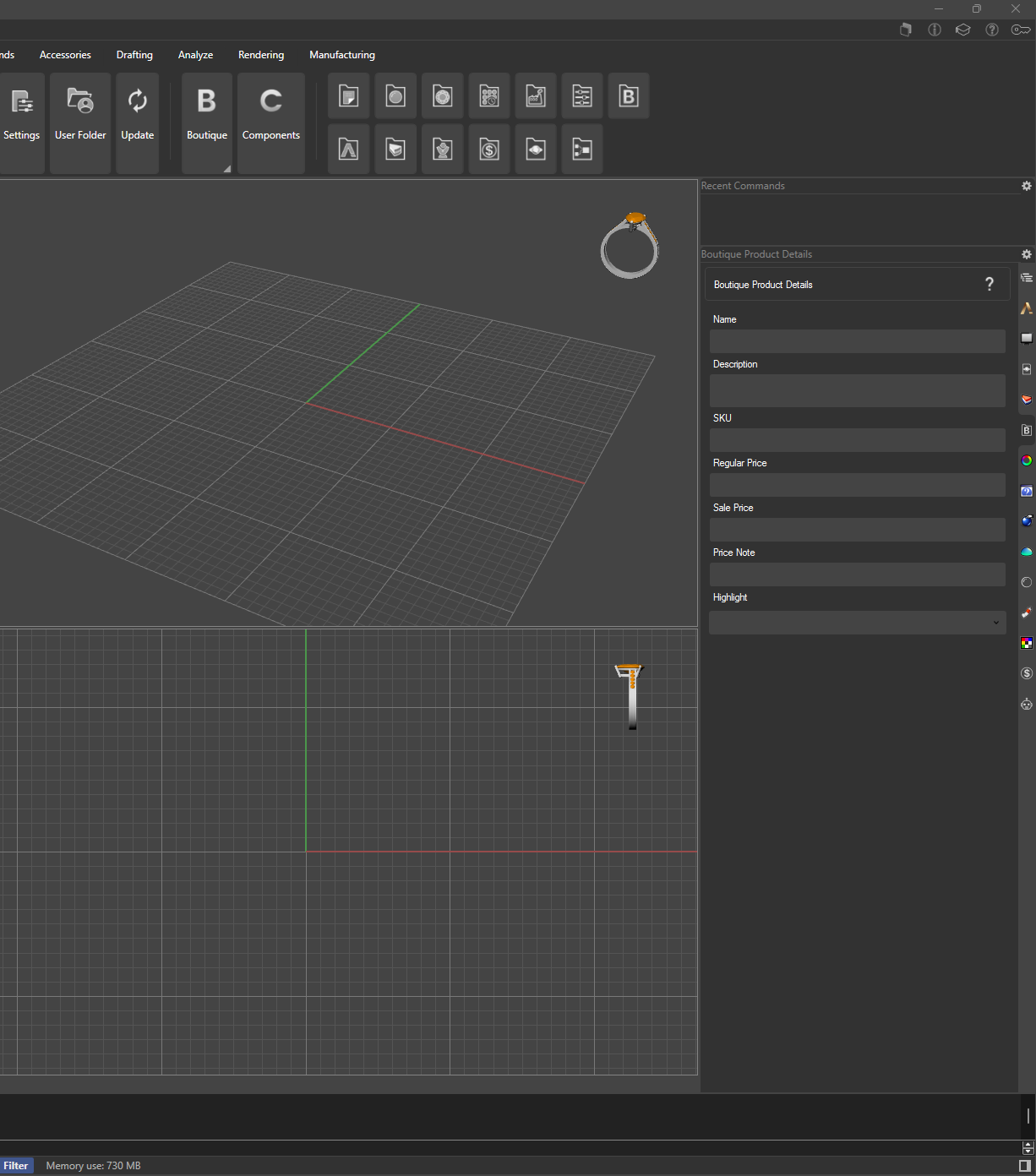
To create your own Boutique or Components collection, you must start by preparing your .3dm files with a minimum amount of information entered in the Boutique Panel, available from the File menu in RhinoArtisan. In this panel, you can fill out the following details for each design:
- Name (required)
- Description (required)
- SKU
- Regular Price
- Sale Price
- Highlight (to mark featured items)
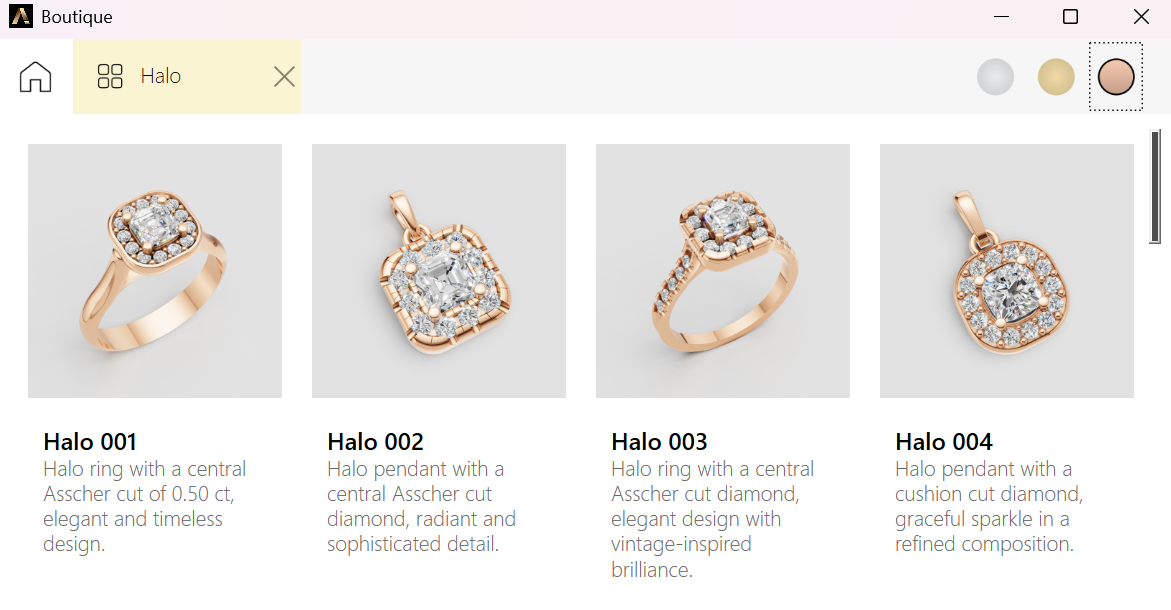
Only the Name and Description are mandatory, as these will appear under each item’s image when browsing the collection.
You’ll also need a cover image for your collection:
- The image must be named
Collection.jpgfor Boutique collections orComponents.jpgfor Components collections. - It must be placed in the same folder as the
.3dmfiles.
Additionally, you can provide individual preview images for each design:
- Each image must have the same name as its corresponding
.3dmfile. - If no image is provided, RhinoArtisan will automatically generate one by capturing a viewport screenshot of the model.
If you want to offer multiple metal color options (such as white, yellow, or rose gold) for a design, you can activate the Multi-Metal Selector during the collection creation.
To enable this feature:
- Include additional images named by adding a suffix to the
.3dmfilename:- W for White
- Y for Yellow
- R for Rose
- For example, if a design is named BE1001, you should provide:
BE1001(main image)BE1001W(white metal version)BE1001Y(yellow metal version)BE1001R(rose metal version)
This allows users to switch between metal color options through a color selector located in the top right corner when viewing the collection.