Bezel Set - Pendant
Lesson 32 of 58
Curves Pattern
Sign in to access this lesson
This lesson is part of Iconic Fashion Pieces, which can come bundled with a RhinoArtisan Commercial license subject to current promotions. Log in with your customer account, or get in touch and we'll set you up.
Customers only
Solo para clientes
This lesson is part of Iconic Fashion Pieces, which can be included with a RhinoArtisan Commercial license subject to current promotions. If you've already purchased and don't see it in your account, get in touch.
Downloads
Objective: Arrange the curves into a pattern for the pendant design.
Step 1: Using the Copy command, copy the pair of 4.5 mm circles to the center of the viewport.

Make sure to have grid snap enabled
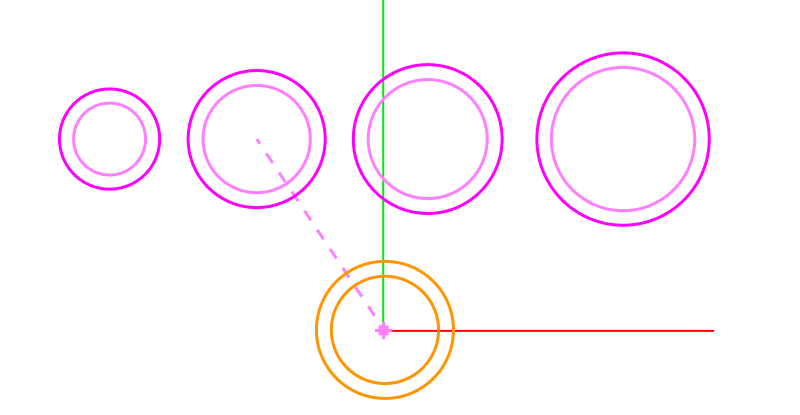
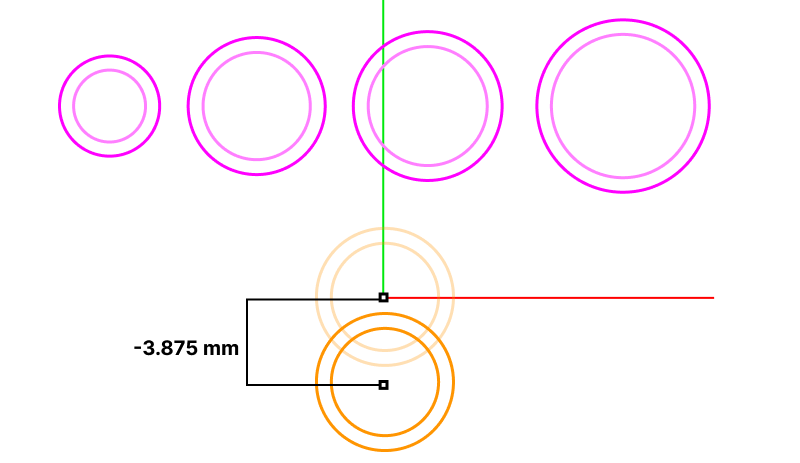
Step 2: Now move the circles -3.855 along the Y-axis. Use the gumball.
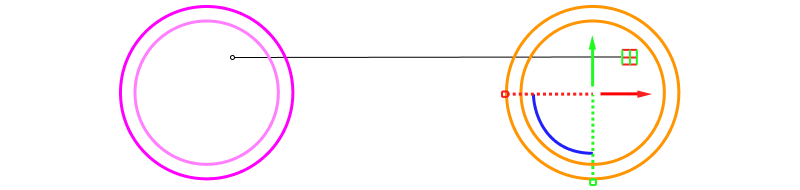
Step 3: By using Alt + PlaneHandle  on the gumball to copy and arrange the circles.
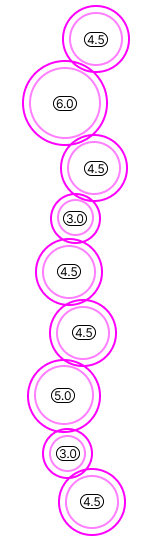
Step 4: Create this pattern.
Step 5: Ensure the outer curves overlap, and the distance between points is at least 1.5 millimeters for stability.
- Go to the Analyse tab and use the Distance command to measure the distance between the two intersection points, as shown in the image.
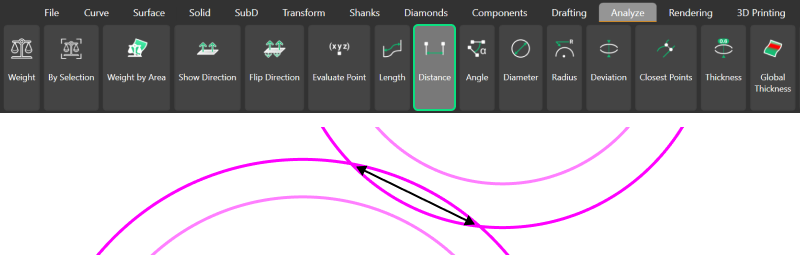
For the distance to be correct, it should measure at least 1.5mm to ensure the stability of the part.
Video Lesson
Next Step: Hide reference curves and create gemstones.
Almost there — you still have some lessons to complete. Jump to the next one →
Impersonating — progress and reviews are disabled.
Course completed
You've completed Iconic Fashion Pieces 🎉
Great work. Get your certificate of completion and, if you have a minute, let other jewelers know what you thought of the course.