Diamonds and Gemstones
Gems on Network
 Gems on Network
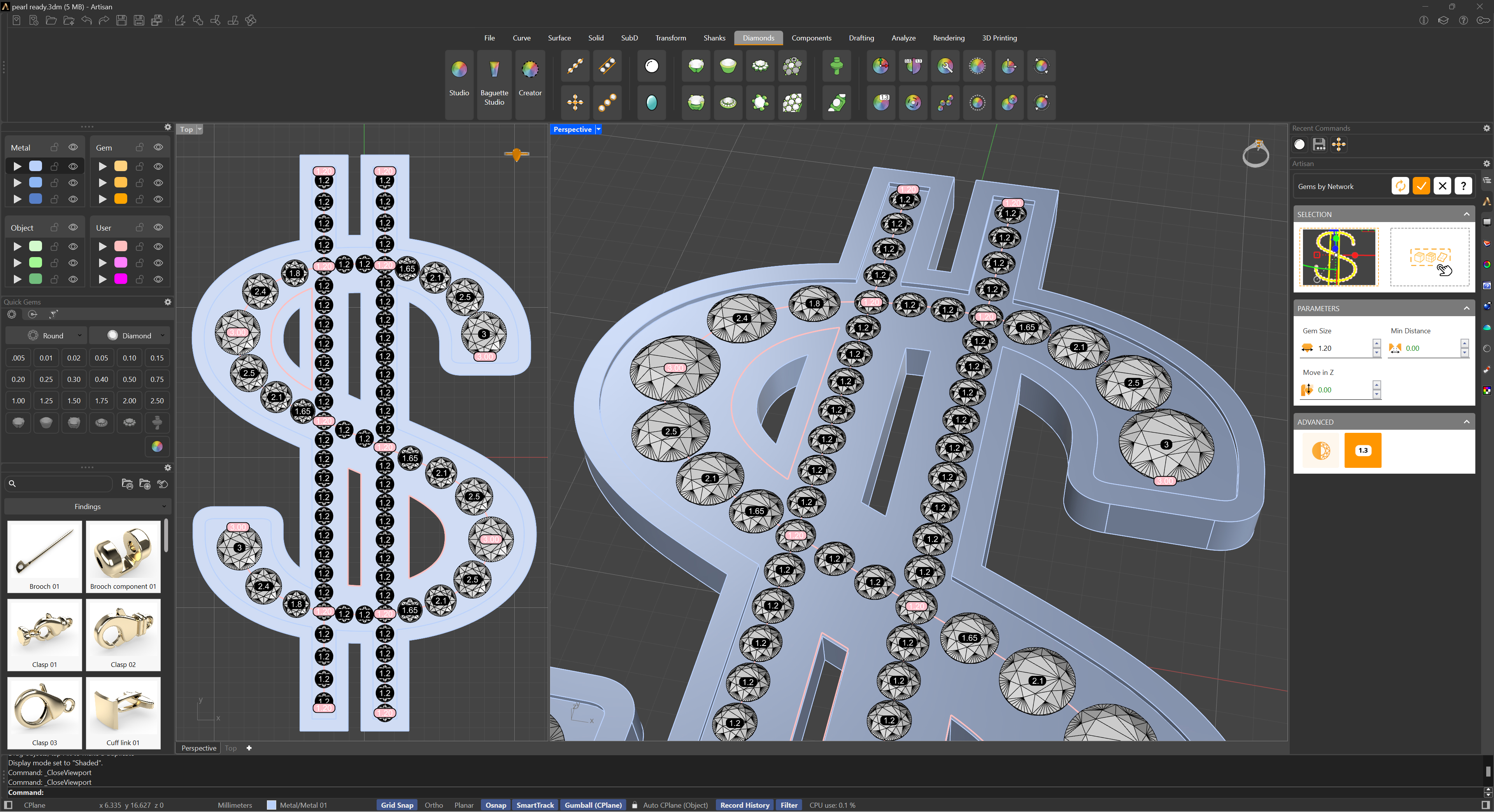
With this command, you can parametrically generate gems on a network of intersecting curves: RhinoArtisan distributes the stones along every curve and places gems right at the intersections. This is especially useful when adding gems to organic designs and complex pieces where multiple paths cross.
Selection
Select one or more curves that form the network — they will typically intersect at several points, defining the paths along which the gemstones are placed. Optionally, select the geometry the gems will be oriented to, so the stones follow the surface of your piece.
Parameters
- Gem Size: The default diameter for the gemstones distributed along the curves.
- Min Distance: The minimum spacing between gemstones along the curves.
- Move in Z: Fine-tune the vertical position of the gems relative to the curves.
Interactive size control
The software automatically places a gemstone at each intersection and at the ends of the curves, and marks these key stones with control dots so they are easy to identify. Click a dot to change the size of that gemstone: the sizes of the stones between that point and the next key point (another intersection or the curve’s end) are interpolated automatically, creating a smooth, harmonious gradient along the path.
This is what makes the command shine: you decide the size at the critical points of the design, and the network fills itself in between.
Advanced
The Advanced section contains two display aids for working on dense networks:
- Swap Display Mode: Switches the preview between full gemstones and lightweight circles, keeping the viewport fast on large networks.
- Show Gem Sizes: Displays the size of each gemstone in the viewport, so you can audit the whole distribution at a glance.
Once you confirm your changes, all your generated stones will be listed on the Outliner toolbar.