Shanks
Ring Curve
 Ring Curve
With this command, you can create a curve of a ring, with the precise diameter of the size you want.
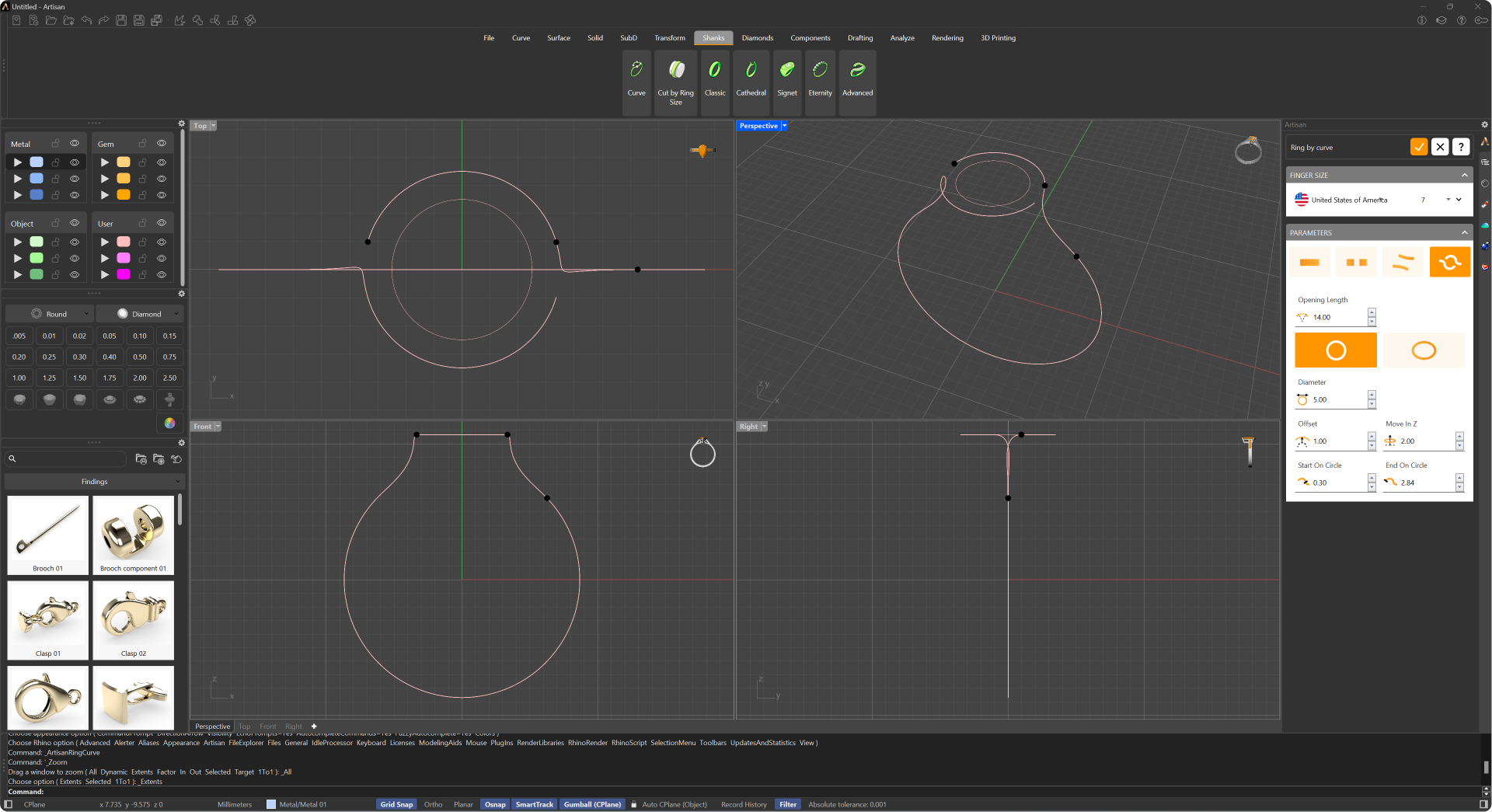
Running this command will display its parameters in the Commands toolbar.
Once the command has been executed, you can choose from various international sizing scales and sizes and what type of curve you want to create: closed, open, bypass, shape, or a custom profile drawn in the 2D editor.
The Ring Curve will be listed on the Outliner toolbar when you confirm your changes.
Finger Size
Allows users to select different finger sizes to adjust the ring accordingly.
.png)
Parameters
- Closed: Provides a closed curve for the ring’s creation, resulting in a continuous, complete band.
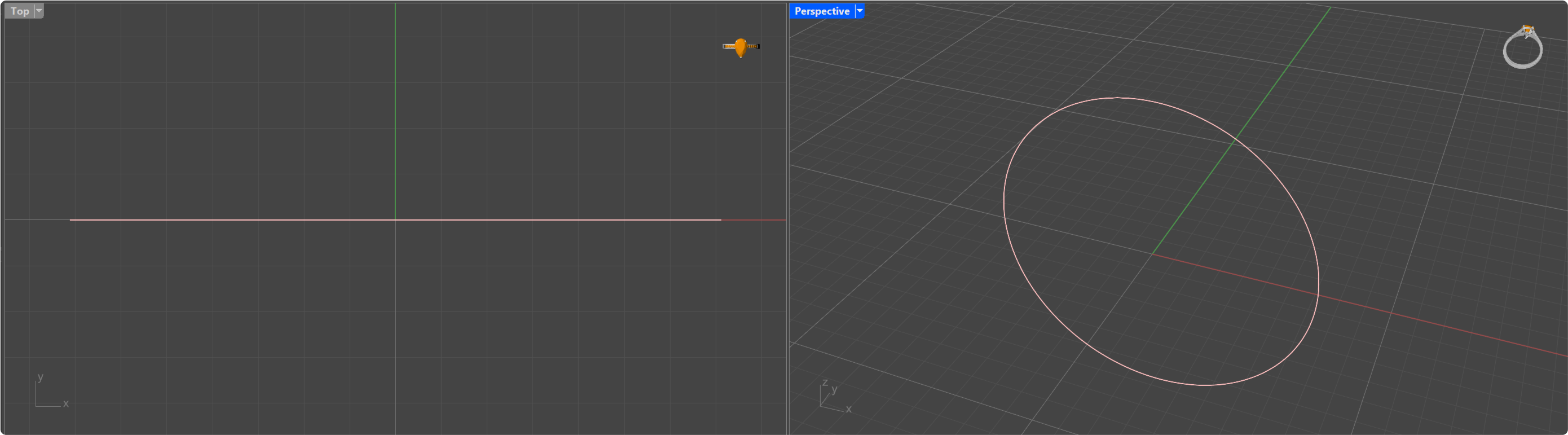
- Open: Provides an open curve for the ring’s creation. This option allows the user to set the degree of opening, offering more control over the design of the ring.
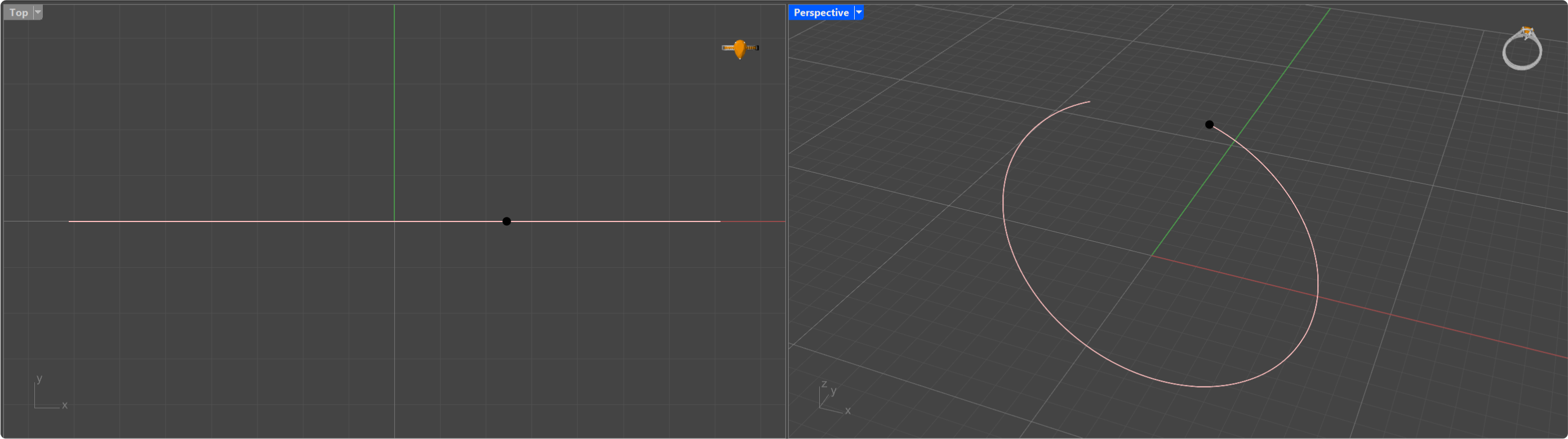
- Opening Length: Controls the size of the opening in the shank.
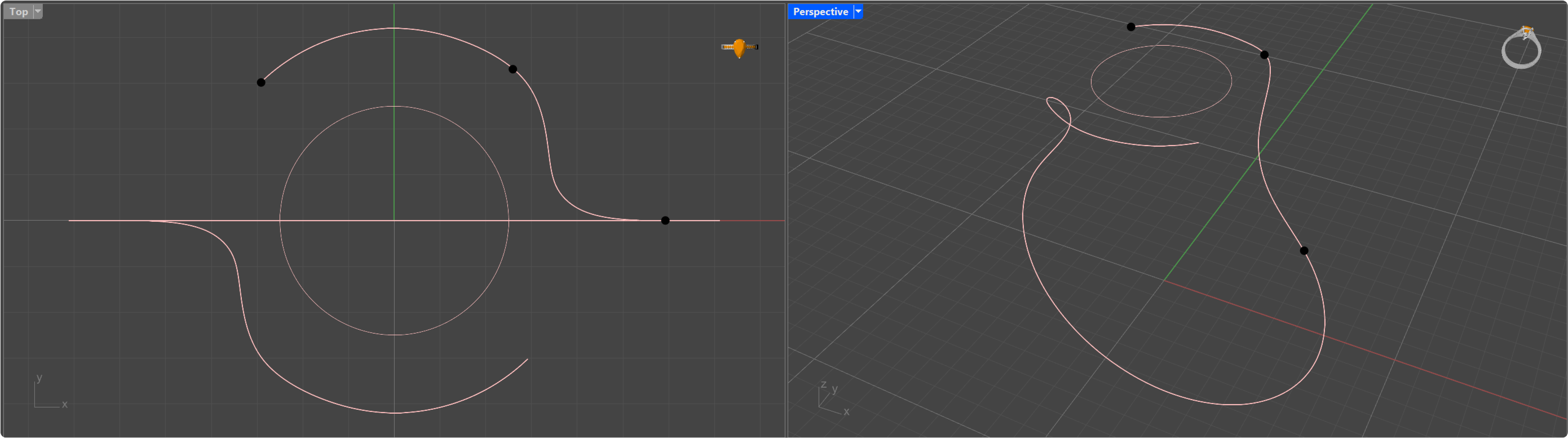
- Bypass: This style of ring features two bands that gracefully curve around each other, giving the appearance of overlapping or interwoven strands.
.png)
- Opening Length: Controls the size of the opening between the two curves.
- Angle: Allows the user to set the rotation angle of the curves. This parameter can be used to create rings with varied twists and orientations.
- Offset In X / Offset In Y: Controls the offset distance between the curves in both the X and Y axes, providing precise control over the alignment and spacing of the ring’s components.
- Shape: Provides an advanced curve creation system to define the shape of the ring. The following parameters allow customization:
- Opening Length: Adjusts the size of the opening in the shank, similar to the “Open” shank configuration.
- Round / Ellipse: Two buttons that define the general shape of the top portion of the shank, offering either a round or an elliptical form. The parameters below change with the choice: Round exposes a single Diameter, Ellipse exposes Width and Height instead.
- Diameter (Round only): Modifies the diameter of the upper curve, determining the overall size of the top portion of the ring.
- Width and Height (Ellipse only): Modify the two axes of the upper curve independently.
- Offset: Changes the offset of the central curve, allowing for further control of the curvature’s position relative to the center.
- Move In Z: Enables movement of the upper curve along the Z-axis, giving flexibility to the vertical positioning of the top part of the ring.
- Start On Circle: Allows the user to select the starting point of the curve along a circular path.
- End On Circle: Determines the endpoint of the curve on the circular path, providing control over the termination of the curve’s design.
- 2D Editor: Instead of one of the preset configurations, the ring curve follows a profile of your own. The section shows the current profile asset, with the option to pick a different one from the asset library or open it in the profile editor and reshape it point by point.
- Symmetry: Keeps the profile symmetric while you edit it, so both halves stay mirrored.
- Cylinder: Shows the finger cylinder in the editor as a reference, so you can see how far your profile departs from the finger circle.