Diamonds and Gemstones
Cabochon
 Cabochon
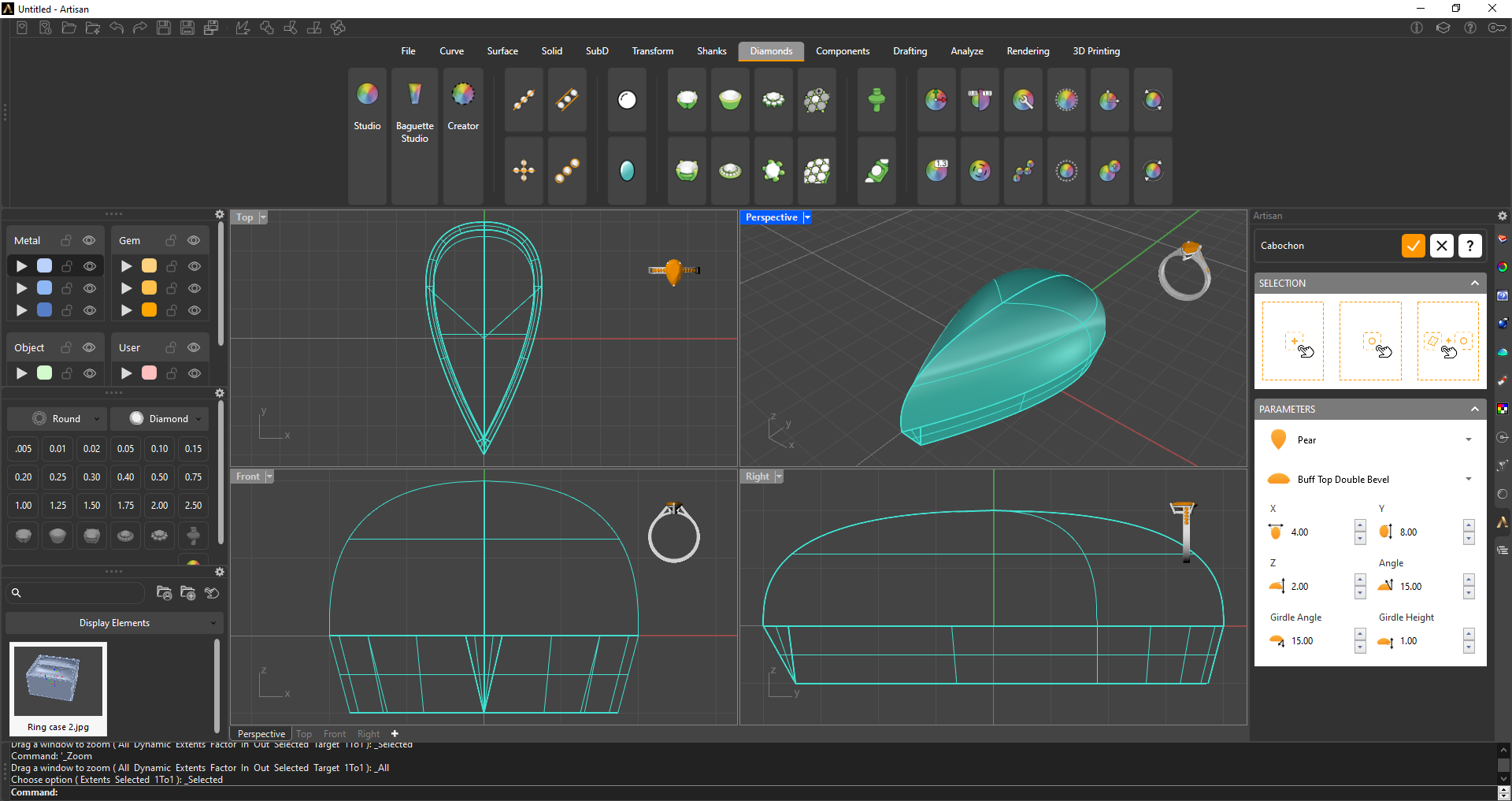
The Cabochon command is a versatile tool for placing and customizing cabochon stones in your designs. It offers two main sections: the Selection section, where you choose the placement method, and the Parameters section, where you define the cabochon’s shape and detailed measurements.
Selection
In the Selection section, you decide how and where to place your cabochon once all the parameters are set:
- Add: Places the cabochon at the center of the CPlane.
- Pick a point: Places the cabochon at the point you click in the viewport.
- Point on geometry: Places the cabochon directly on the surface of an object, aligned with the surface at the clicked point.
Parameters
In the Parameters section, you define the characteristics of your cabochon:
Shape: Choose the outline of the cabochon: Round, Oval, Rectangular, Heart, Pear, Marquise or Diamond.
Style: Select the style of the cabochon’s top surface:
- Cabochon: The classic domed cut with a flat base.
- Buff Top Single Bevel: A softly domed top over a single beveled side.
- Buff Top Double Bevel: A softly domed top over two stacked bevels.
- Flat Top Single Bevel: A flat table with a single beveled side.
- Flat Top Double Bevel: A flat table with two stacked bevels.
Measurements:
- X / Y / Z: The main dimensions of the stone — length, width and height.
- Angle: The inclination of the top section, most visible on the bevel styles.
- Girdle Angle: The angle of the girdle wall, which controls how the cabochon sits in the setting.
- Girdle Height: The height of the girdle band, which impacts the stone’s profile and how much it rises above the setting.
Once you confirm your changes, the cabochon you have created will be listed on the Outliner toolbar.