Diamonds and Gemstones
Pave along Surface
 Pave along Surface
The Pave Along Surface command places rows of gemstones across a surface following its UV directions. Each row is generated along an isocurve, which makes it easy to align and distribute the gems accurately.
.png)
Five panels control this command.
Selection
Select the surface where the pavé will be applied.
Management
The Add button starts the placement of rows. RhinoArtisan asks you to pick a point on the surface to define the isocurve where the row will be created, and the Rhino command line offers two toggles:
- Direction: switch between the U and the V direction of the surface.
- Justify: when set to Yes, the gems are distributed so the row is justified between both ends of the isocurve; when set to No, they are laid out from the start of the row keeping the exact spacing.
You can keep picking points to add as many rows as you need, and press Enter to finish.
Every row you create gets its own gumball in the viewport, with which you can:
- Drag the row to a different position on the surface.
- Increase or decrease the gem size of that particular row in 0.05 mm steps.
- Delete the row.
Parameters
These values are applied to every row at once — to change a single row, use its gumball.
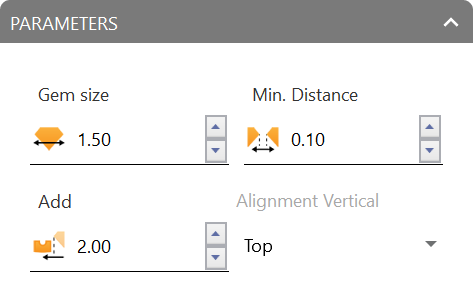
- Gem Size: diameter of the gems, in millimetres.
- Min Distance: minimum separation kept between neighbouring gems.
- Distance to Border: margin kept between the outermost gems and the ends of the row, so the stones do not run over the edge of the surface.
- Alignment Vertical: how the row sits with respect to the isocurve — Center, Top or Bottom.
Info
Reports the Number of gems in all the rows and their total weight in Carats.
Advanced
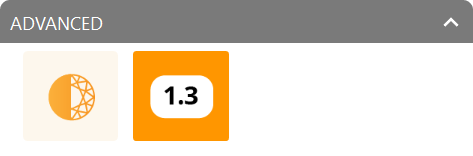
This panel provides two display toggles:
- Swap Display Mode: draw the gems either as real gemstones or as circles representing their placement.
- Show Gem Sizes: toggle the visibility of the gem size labels in the viewport, to streamline your design process or to review the dimensions as needed.
When you confirm your changes, the Gems will be grouped and listed on the Outliner toolbar.