Getting Started
How to download, install and activate your license
Check the minimum requirements
First, make sure your computer meets the minimum requirements to run RhinoArtisan.
Create your account
Sign up for the free trial at rhinoartisan.com and fill in the form. You get full access to every tool for 15 days, no credit card required.
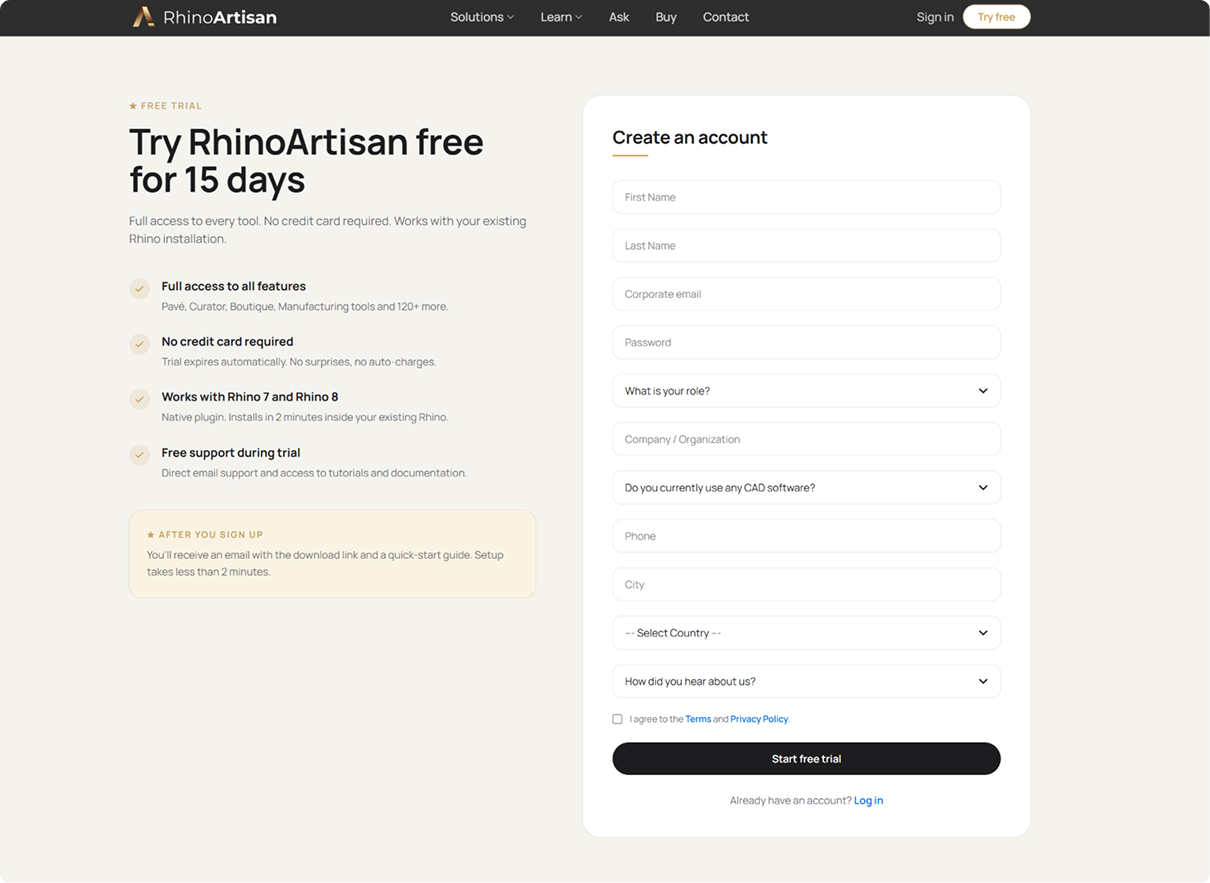
Fill in the form to start your free trial
Download RhinoArtisan
Once your account is created, go to your account. There you’ll find your license key and the Download installer button for the latest release.
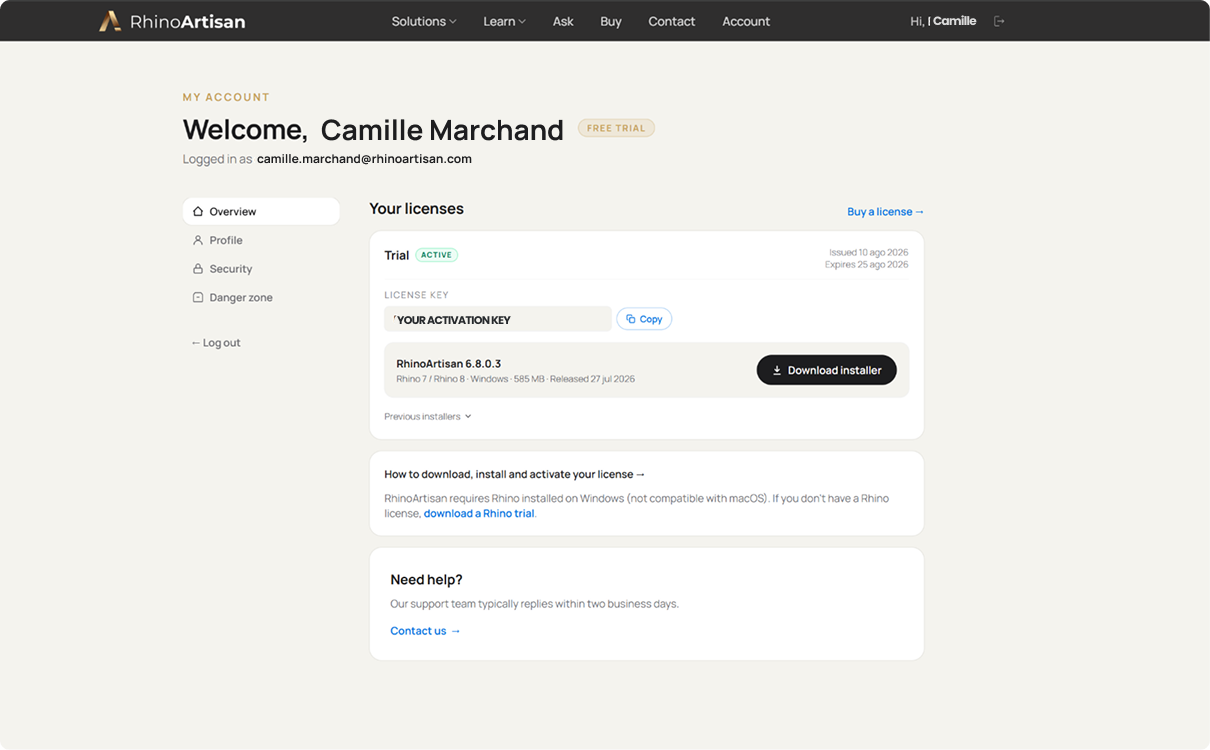
Your licence key and the installer, both in your account
RhinoArtisan requires Rhino — if you don’t have it yet, you’ll find a Rhino trial linked from your account too.
Install RhinoArtisan
Locate the installer you just downloaded, open it and follow the on-screen instructions. Close Rhino first if you have it running.
Activate your license
When you buy RhinoArtisan — even for the evaluation — you’ll receive a product key to activate your license. RhinoArtisan has its own license system, and also integrates with Cloud Zoo, Rhino’s license manager. Both are covered in the License page:
Open RhinoArtisan
The installer leaves two shortcuts on your desktop and in the Windows start menu. Open Rhino 8 to work with the Artisan toolbar inside Rhino, or RhinoArtisan 7.0 to get the dedicated interface with all the panels laid out for jewelry. See Rhino and RhinoArtisan interface for the difference between the two.
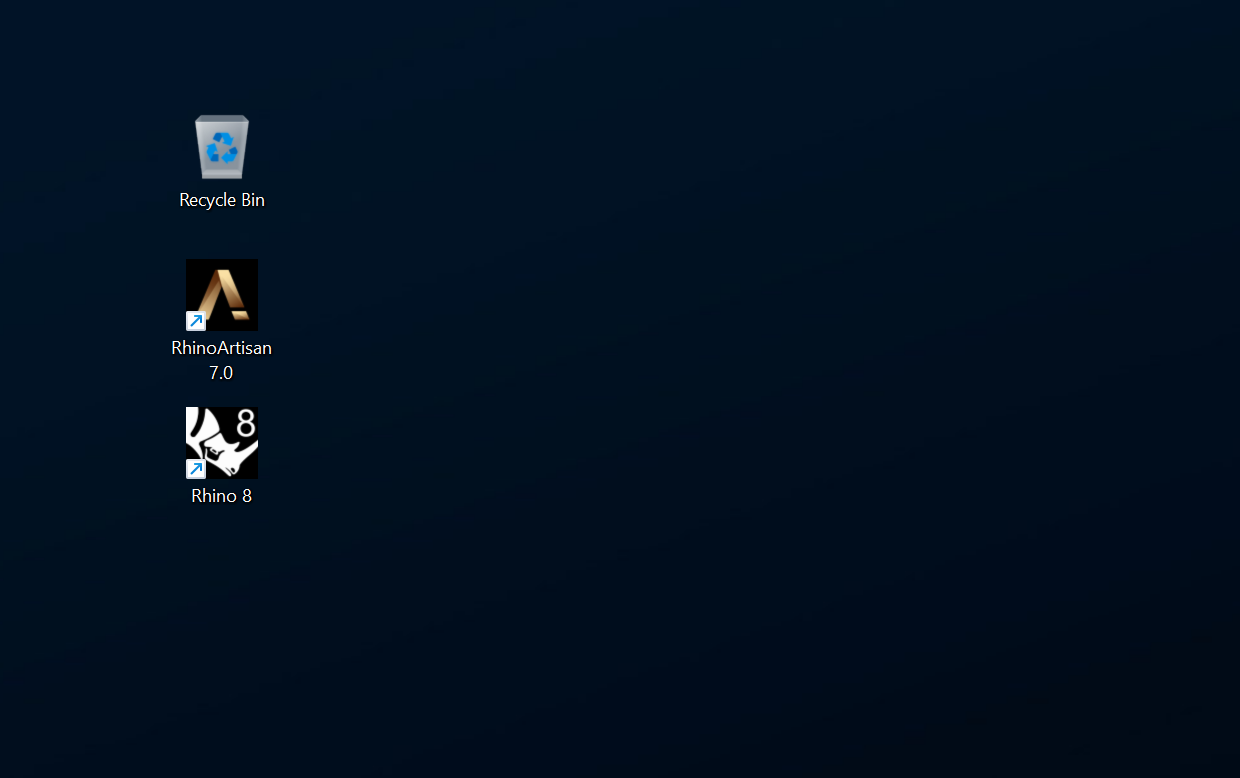
Windows 11 Desktop
Watch it step by step
This lesson is the opening of Kickstart: From idea to Creation, our free course for new users.