User Interface
Viewport Commands
There’s a toolbar hidden in the viewport that appears when we move the mouse to the bottom of any viewport. Hover over an icon and its name is shown above the strip, so you never have to guess which one you are about to click.
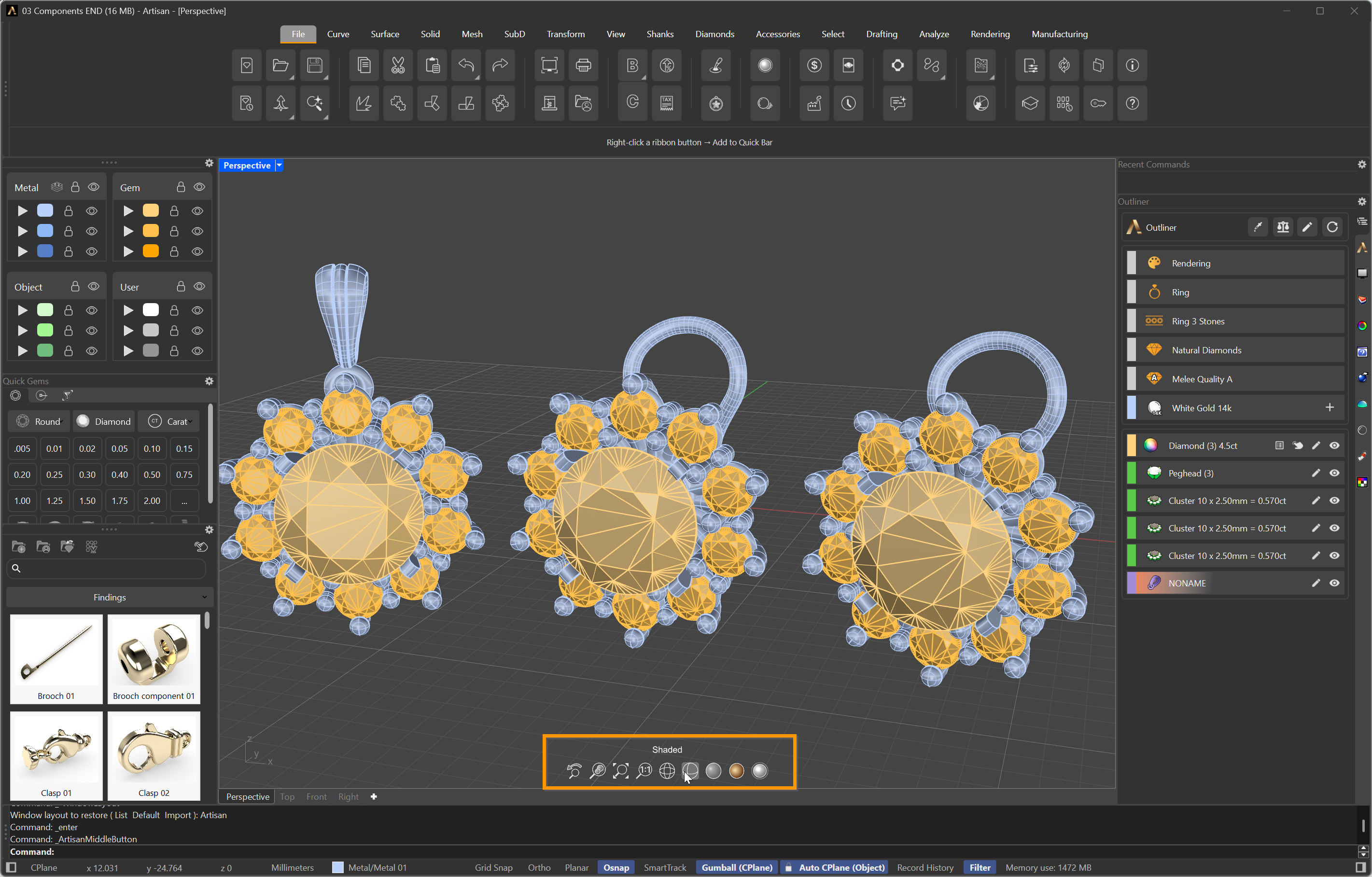
The toolbar appears at the bottom of the active viewport
Nine icons, in two families: the first four frame what you are looking at, the last five change how it is drawn.

Undo magnifier · Magnify to selected · Magnify · Scale to real size · Wireframe · Shaded · Rendered · Raytraced · Realtime
Framing the view
- Undo magnifier — steps back to the previous view, undoing the last zoom or orbit. Hold Shift to step forward again.
- Magnify to selected — zooms until the selected objects fill the viewport. Hold Shift to do it in every viewport at once.
- Magnify — zooms to fit everything in the model. Hold Shift for every viewport.
- Scale to real size — sets the zoom so the model is displayed at its actual physical size on screen: a 16 mm ring measures 16 mm against a ruler. Hold Shift to calibrate it first, which you do once per monitor.
Display modes
Clicking a mode changes the active viewport. Holding Shift while you click changes all of them — Top, Front, Right and Perspective together.
- Wireframe — edges only. The fastest mode, and the one where you can see through the piece.
- Shaded — solid surfaces with flat colour. The everyday modelling mode.
- Rendered — surfaces with their materials and the scene lighting, still drawn in real time.
- Raytraced — Rhino’s raytracer in the viewport: real reflections, refraction through stones and true shadows. The slowest to resolve, and the closest to a final image.
- Realtime — opens the Realtime Render view, which keeps refining the image while you work.