Diamonds and Gemstones
Bezel
 Bezel
Bezel
The Bezel command in our software is designed to give you complete control over the creation of a bezel setting, ensuring a perfect fit for your gemstones. It is organized into three collapsible sections, each offering essential tools and parameters for precise customization.
.png)
Parameters
.png)
In the Parameters section, you can define the key characteristics of your bezel:
- Section Curve: View and select the curve used to shape the bezel. You have the option to choose a different curve from your assets collection or edit the current one to refine its shape.
- Height: Total height of the bezel.
- Girdle Height: Extra metal above the girdle, which is crucial for accommodating any adjustments needed during setting. This extra height allows you to hammer the metal securely around the stone and account for metal removal during filing and polishing.
- Girdle Width: Thickness of the wall at the girdle, which is essential for ensuring that the bezel is robust enough to support the gemstone while considering the material that will be removed during finishing.
- Gem Inside: Allow a small margin in the girdle to ensure the gemstone fits smoothly into the bezel. This margin not only helps the gem to seat properly but also saves time during the setting process. By providing this slight clearance, you minimize the need for excessive metal removal or heavy hammering, leading to a cleaner and more efficient setting.
- Seat: Width of the seat, a bevel under the girdle that follows the slope of the stone’s pavilion (0.3 mm by default). Its angle is read from the stone itself, so the stone rests on metal all round. Set it to 0 for no seat; the wall then starts right at the girdle.
- Wall Angle: Angle of the inner face of the wall from the vertical, measured below the seat (8° by default). Positive values bring the base in toward the stone (a cup), negative values open it outward, and 0 makes the wall straight.
- Bottom Width: Width of the flat base of the wall (1 mm by default). It stays exact whatever the seat and the wall angle.
Below the parameters, the panel draws the cross-section of the bezel over the stone, cut by the same plane, so you can see the seat, the wall and the base as they will be built. It refreshes after every change.
Support
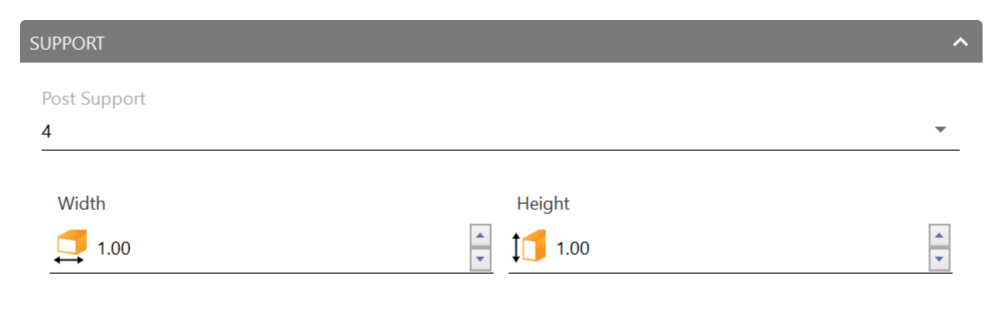
The Support section is used to add and customize support features:
- Post Support: Choose the number of posts, from 0 (none) to 6, using the dropdown to add post supports to the bezel — for example, for an earring design. Once at least one post is selected, set its Width and Thickness so the bezel is pre-configured with the correct support geometry.
Cutter and Airgaps
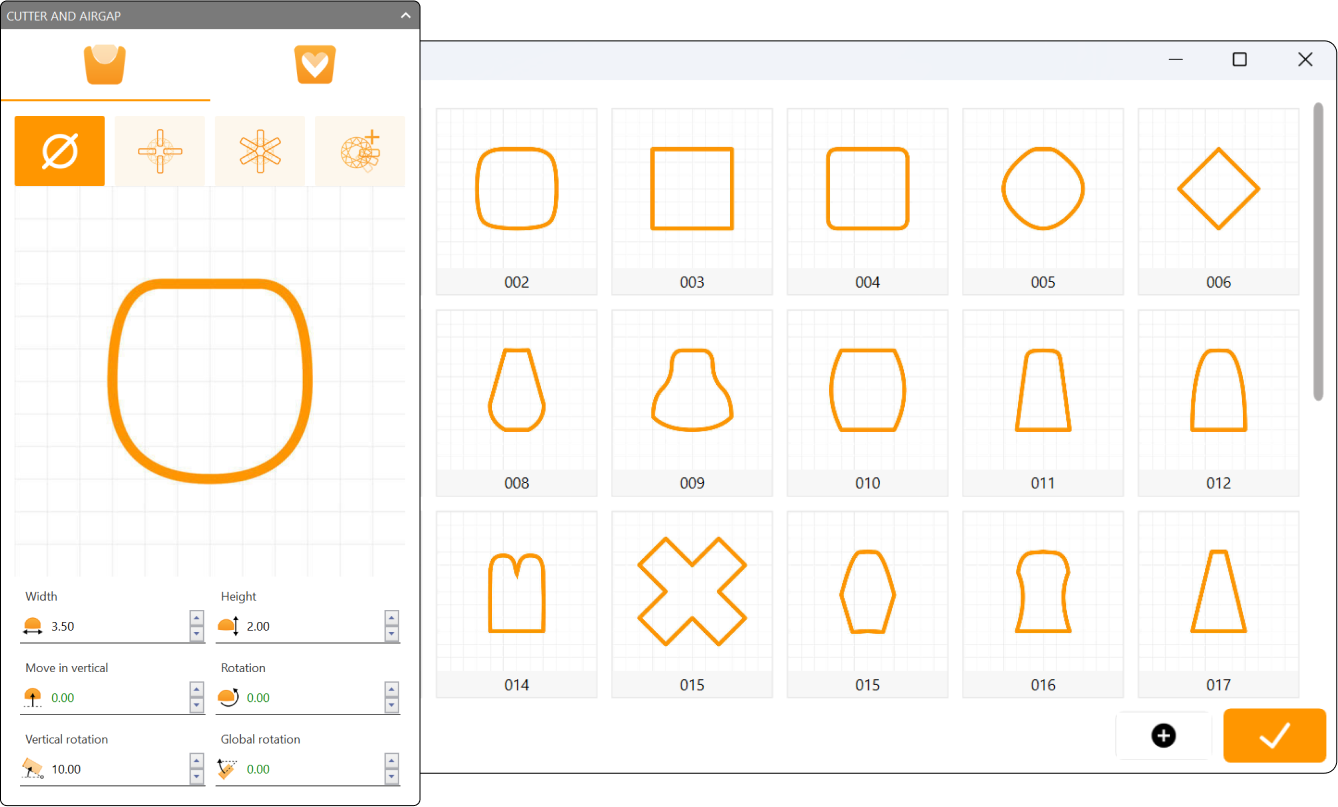
The Cutter and Airgaps section lets you add aesthetic and functional details to the bezel:
- Cutter: Choose the number of cuts in the bezel’s girdle — None, 4, 6, or a custom count — to enhance its design or facilitate adjustments. You can also pick a cutter profile and adjust its width, height, vertical offset, and rotation (standard, vertical, and global).
- Airgaps: Introduce airgaps in the bezel’s middle section, using the same None / 4 / 6 / custom count options and a profile with adjustable width, height, vertical offset, and rotation. These gaps can be used for both aesthetic purposes and to ensure that the bezel is lightweight and comfortable.
.png)
Keep in mind that you can save the element you create in the gallery for further designs.