Shanks
Advanced Ring
 Advanced Ring
Using this command, you can create advanced rings and a shank with multiple sections, measurements, and assets to create your own custom shank type.
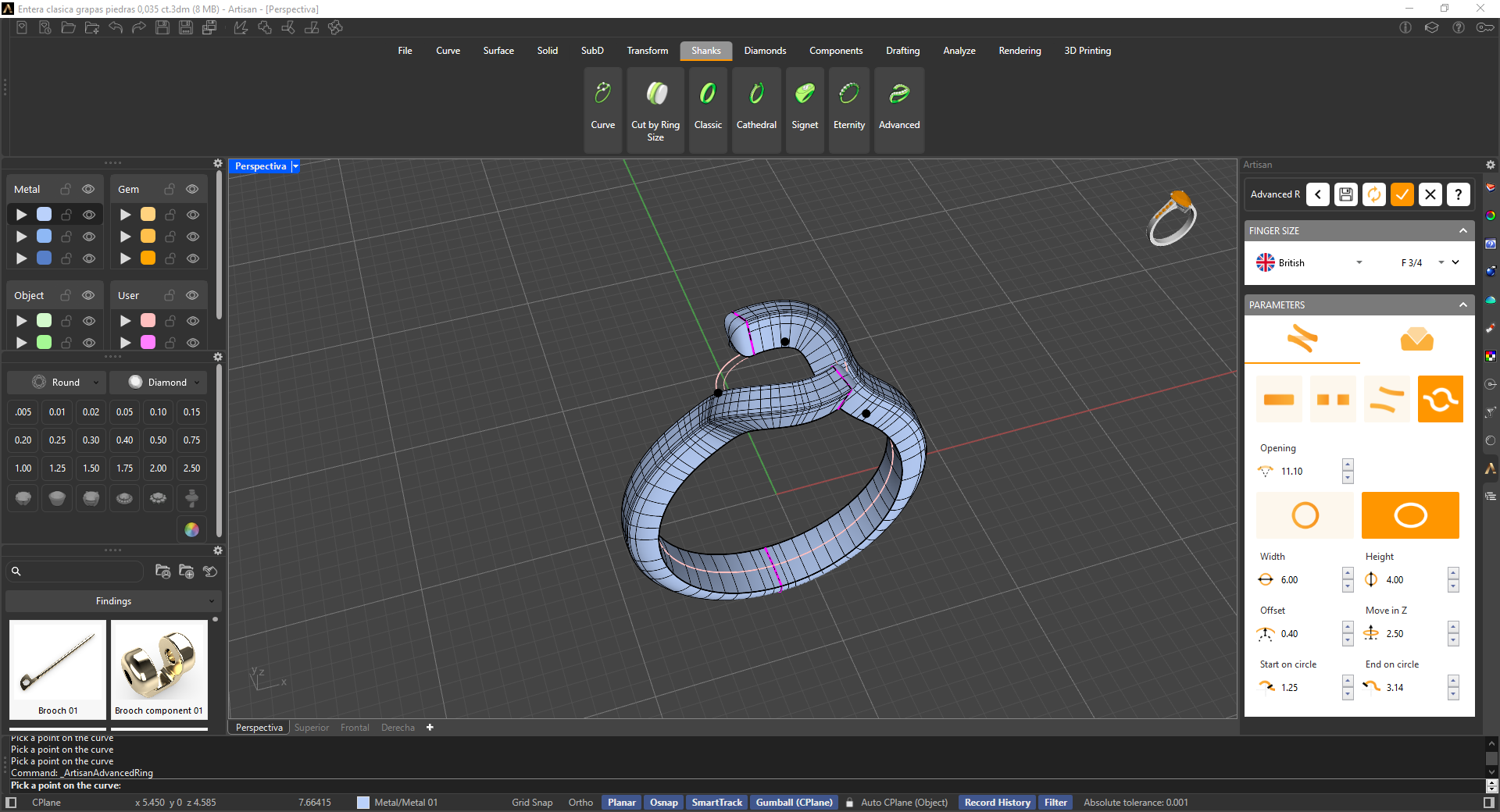
Running this command will display its parameters in the Commands toolbar. Your first step should be to choose whether you want to start working on a style provided by RhinoArtisan or create a new one by editing the style currently displayed in the viewport.
.png)
On its parameters, you can find:
Finger Size
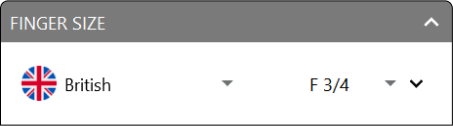
Allows users to select different finger sizes to adjust the ring accordingly.
 Ring Curve
This tab defines the shape of the curve the shank is built on. Choose between four configurations:
Closed
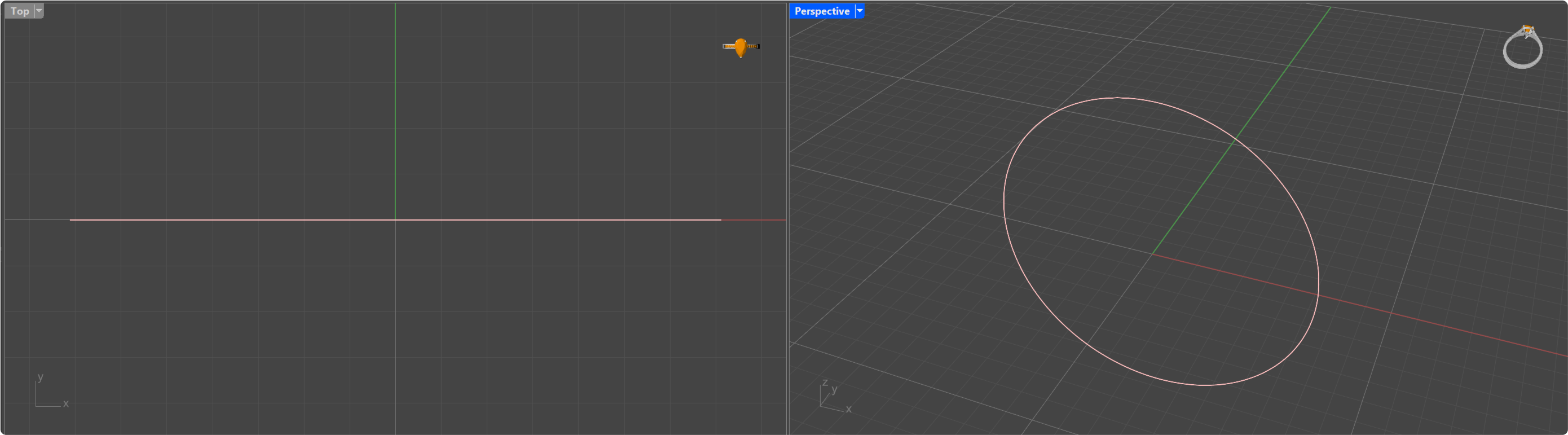
Provides a closed curve for the ring’s creation, resulting in a continuous, complete band.
Opening
Provides an open curve for the ring’s creation. This option allows the user to set the degree of opening, offering more control over the design of the ring.
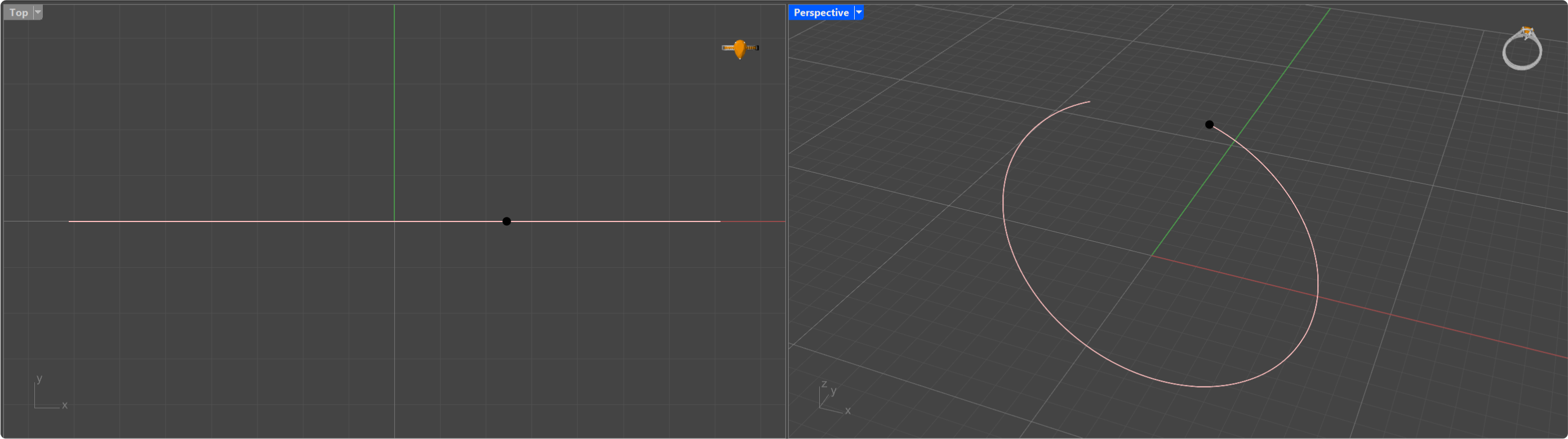
- Opening: Controls the size of the opening in the shank.
Bypass
This style of ring features two bands that gracefully curve around each other, giving the appearance of overlapping or interwoven strands.
.png)
- Opening: Controls the size of the opening between the two bands.
- Angle: Allows the user to set the rotation angle of the curves. This parameter can be used to create rings with varied twists and orientations.
- Offset X / Offset Y: Controls the offset distance between the curves in both the X and Y axes, providing precise control over the alignment and spacing of the ring’s components.
Shape
Provides an advanced curve creation system to define the shape of the ring.
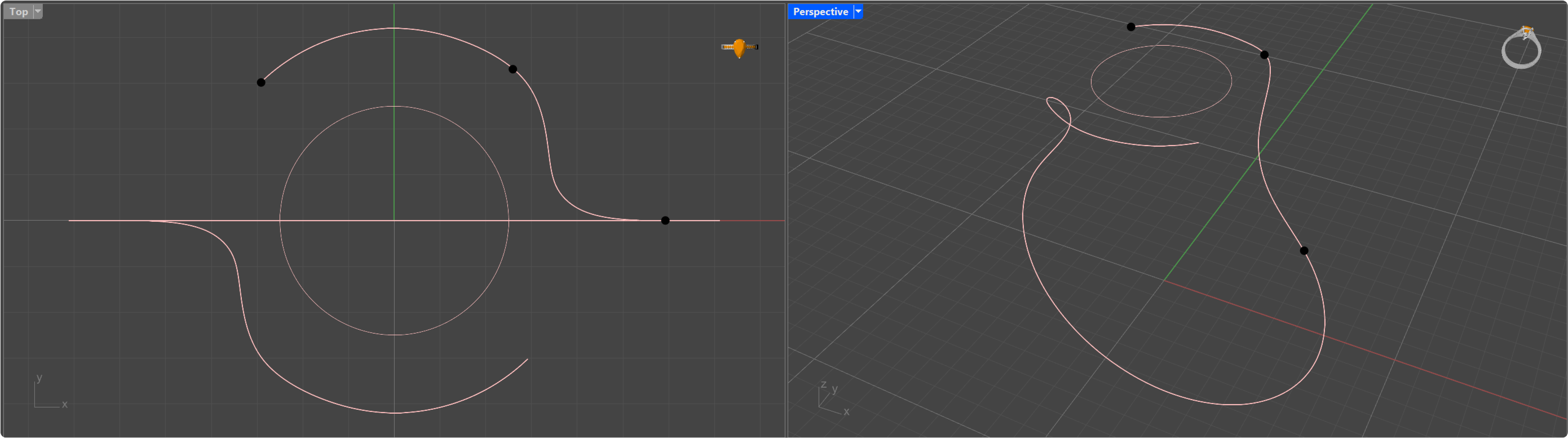
- Opening: Adjusts the size of the opening in the shank, similar to the “Opening” shank configuration.
- Round / Ellipse: Defines the general shape of the top portion of the shank, offering either a round or an ellipse form.
- Diameter (Round only): Modifies the diameter of the upper curve, determining the overall size of the top portion of the ring.
- Width / Height (Ellipse only): Modifies the width and height of the upper curve when the ellipse shape is selected.
- Offset: Changes the offset of the central curve, allowing for further control of the curvature’s position relative to the center.
- Move in Z: Enables movement of the upper curve along the Z-axis, giving flexibility to the vertical positioning of the top part of the ring.
- Start on Circle: Allows the user to select the starting point of the curve along the shape’s path.
- End on Circle: Determines the endpoint of the curve on the shape’s path, providing control over the termination of the curve’s design.
 Profiles
In the Profiles section, the panel displays a list of profiles used to construct the sweep forming the ring. Each profile is numbered and assigned a distinct color, facilitating its identification on the ring displayed in the viewport.
By selecting any of the listed profiles in the panel, you can modify the corresponding section of the ring. Additionally, if desired, you can edit the profile’s shape using the integrated profile editor, allowing for further customization of the design.
.png)
- Add: Enables users to add new profile curves to the shank. Users can select a point from the curve created in the first tab to define the shape and the parameters of the new profile.
- Show Hide Solids: Toggles the visibility of the shank’s solids in the viewport.
Cap
- Starting Cap: Allows users to define the size of the initial cap at the starting point of the shank.
- End Cap: Provides the option to set the size of the cap at the end point of the shank.
Bridge
- Switch: Toggles the bridge on or off, activating or deactivating this structural component.
- Width: Allows users to modify the width of the bridge, changing its overall horizontal span.
- Thickness: Defines the thickness of the bridge, allowing for adjustments to its vertical depth.
- Diameter: Controls the diameter of the bridge, affecting its curvature or roundness.
- Angle: Enables the user to adjust the angles of the bridge, allowing for customized shaping and orientation.
Rebuild Profiles
- Rebuild: Toggles the automatic rebuild of the profile curves.
- Points: Controls the number of points used to rebuild the profile curves.
When you confirm your changes, the Advanced Ring will be listed on the Outliner toolbar.