Diamonds and Gemstones
Halo
 Halo
Halo
This command allows you to set a selected gem into a Halo configuration.
The halo can be created for the following gem cuts:
Round, Cushion, Oval, Emerald, Radiant, Asscher, Pear, Heart and Marquise
.png)
Start by selecting one of the Halo designs available in the RhinoArtisan gallery, or if you prefer to modify the existing design, click the pen icon to enter editing mode. Clicking the edit button will open the command panel for this tool in the Artisan panel, allowing you to customize the halo to your specifications.
.png)
Whether you’ve chosen to edit the existing halo or modify one from the gallery, you’ll gain access to the Parameters panel, which is divided into three sections:
- Metal Profile: This section allows you to customize the metal profile that surrounds the central stone. You can modify the section curve or edit the existing one, adjusting the width and height as needed. You can also control the distance from the central stone’s girdle to the inner edge of the halo, move the halo in the Z direction, and adjust the rotation angle of the section—especially useful for inclining the halo’s gemstones. A Smooth Edges slider lets you fillet the metal profile for a softer transition.
%20(1).png)
-
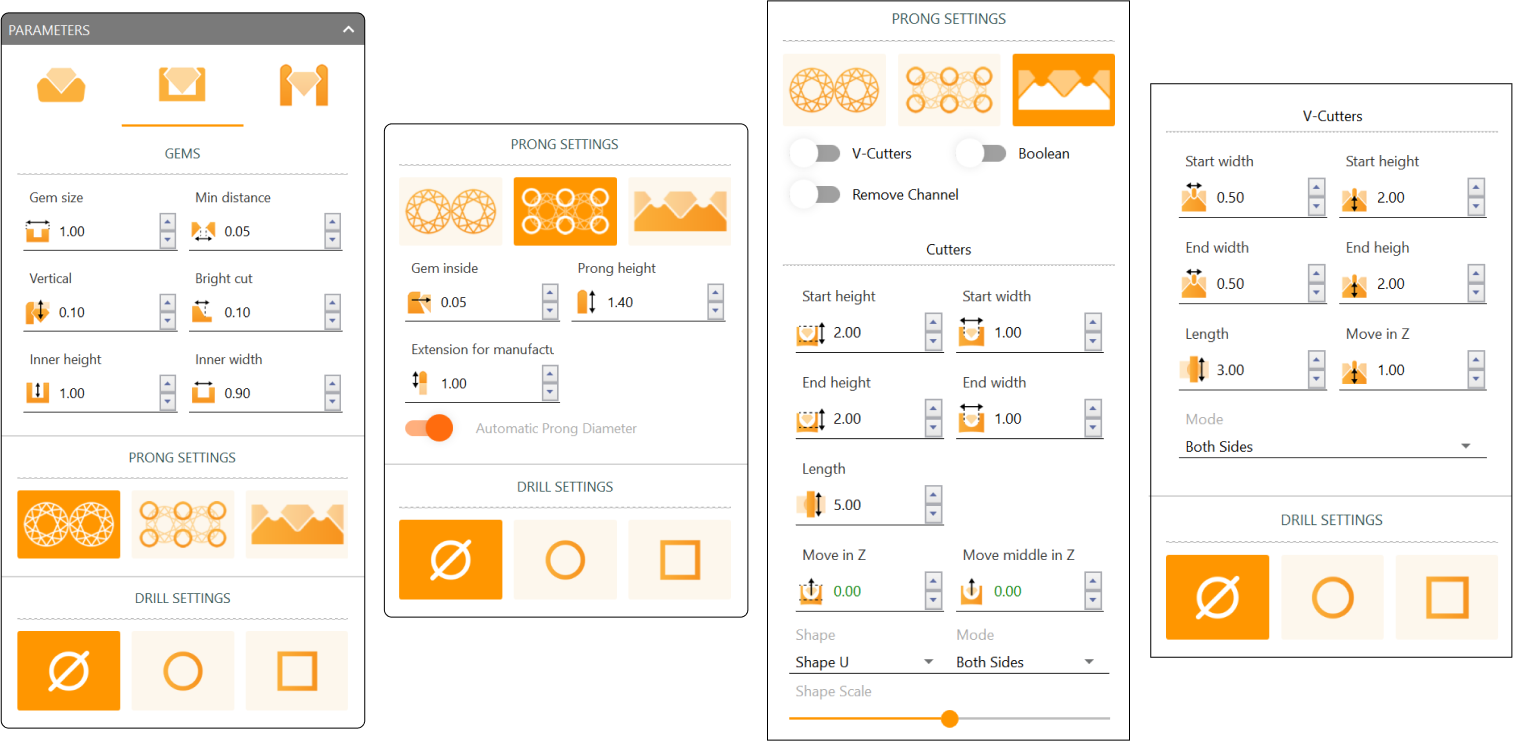
Gem Settings: Here, you can define the dimensions of the halo’s gemstones, their vertical position, and the channel where they are set (bright cut and the inner height/width of the channel), plus a toggle to force an even number of gems. You can also choose how the side stones are set with four icon buttons—Flush, Channel, Shared Prongs or Scalloped—and add drill holes if necessary.
- Flush: no channel is cut. The halo’s metal is left as it is and the stones sit on it, with no prongs and no seat to tune.
- Channel: the default. The stones sit in a channel, without prongs; its seat is set by the bright cut and the inner height/width. Halos saved before Flush existed, with the old “None” setting, open as Channel.
- Shared Prongs: adds controls for the shared-prong height and diameter, with an option to size them automatically, and a Remove Channel toggle that leaves out the channel so the prongs stand directly on the halo.
- Scalloped: lets you enable V-cutters, boolean cutting and channel removal, with advanced Cutters and V-Cutters expanders for fine-tuning the cutter shapes. Remove Channel is one setting for Shared Prongs and Scalloped: switching it on in one shows it on in the other. Channel always keeps its channel, and Flush never has one.
The Drill Settings can be set to None or Round. Round is a cutter shaped on each stone, the same one the Cathedral drill uses, with Height Top, Height Crown, Height Girdle, Height Pavilion and Height Drill (as percentages of the stone), Size Top, Size Drill and Size Bottom (percentages too), Gem Inside (in millimetres) and a Type (Gemstone Shape, Round, Square or Hexagon). Show cutters draws the cutters in the viewport; they are only shown, the drill cuts the halo whether they are visible or not. A halo saved with the old square drill keeps drilling as before, but the square drill is no longer offered.
-
Prongs for the Central Stone: In this section, you can control the prongs that secure the central stone. Adjust the prong diameter, how much they bite into the stone (Gem Inside), the height above the stone’s girdle, and their position (move in Z and rotation). Additionally, you can extend the prongs for manufacturing purposes if the manufacturing mode is enabled in the Outliner panel. The Mode combo offers the same prongs as the Basket:
- Circle: one round prong per position, with a Cap Bump control.
- Double: a pair of round prongs at each position, slid along the girdle until their tops touch.
- Triple: a Double with a thinner third prong between them.
- Claw: the Basket’s sculpted claw, which hooks over the girdle. It adds Gem Inside (how far the tip reaches in toward the stone), Height (the tip moved up or down), and the Tip direction and Smoothness sliders to shape the curve of the hook.
- Double Claw: claws in pairs.
- Custom: a custom section you select from an asset.
For Double, Triple and Double Claw, Overlap sets how much the prongs of a pair cross: 0 makes them just touch, a larger value makes them intersect. Enabling Extend to Bridge connects the prongs to a bridge/gallery structure, with a height and a Curved/Straight mode.
.png)