User Interface
Ribbon
RhinoArtisan (and Rhino) commands are contained in the Ribbon. They are grouped into tabs according to their functionality — and as you can see, all Rhino commands are included together with RhinoArtisan commands.
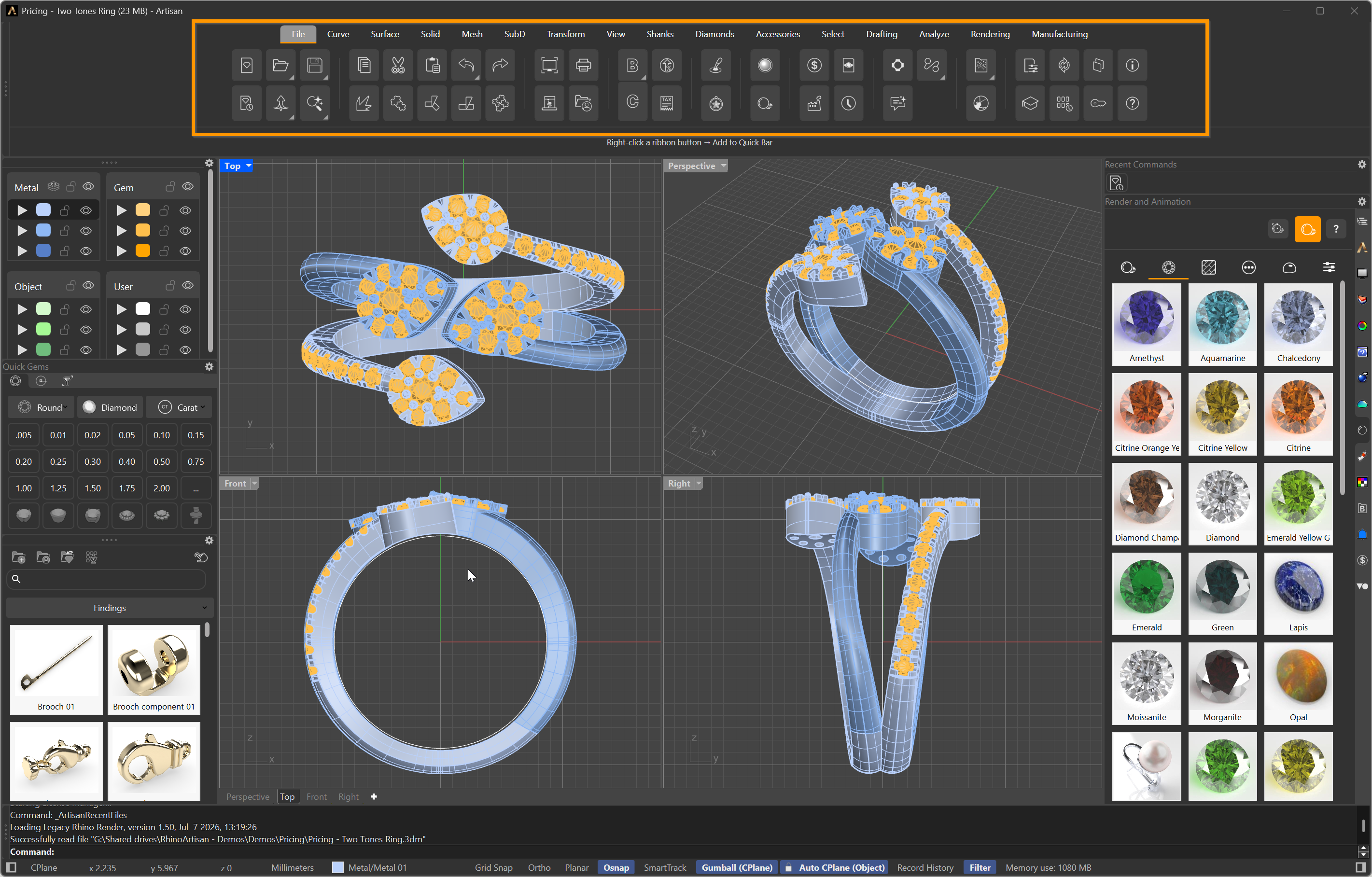
RhinoArtisan Ribbon
Quick Bar
New in RhinoArtisan 7. The strip right under the ribbon is the Quick Bar, and it’s yours: customise it with the commands you use the most. Right-click any ribbon button, choose Add to Quick Bar, and it stays one click away no matter which tab you’re on — a big usability win when you keep jumping between tabs for the same handful of tools.
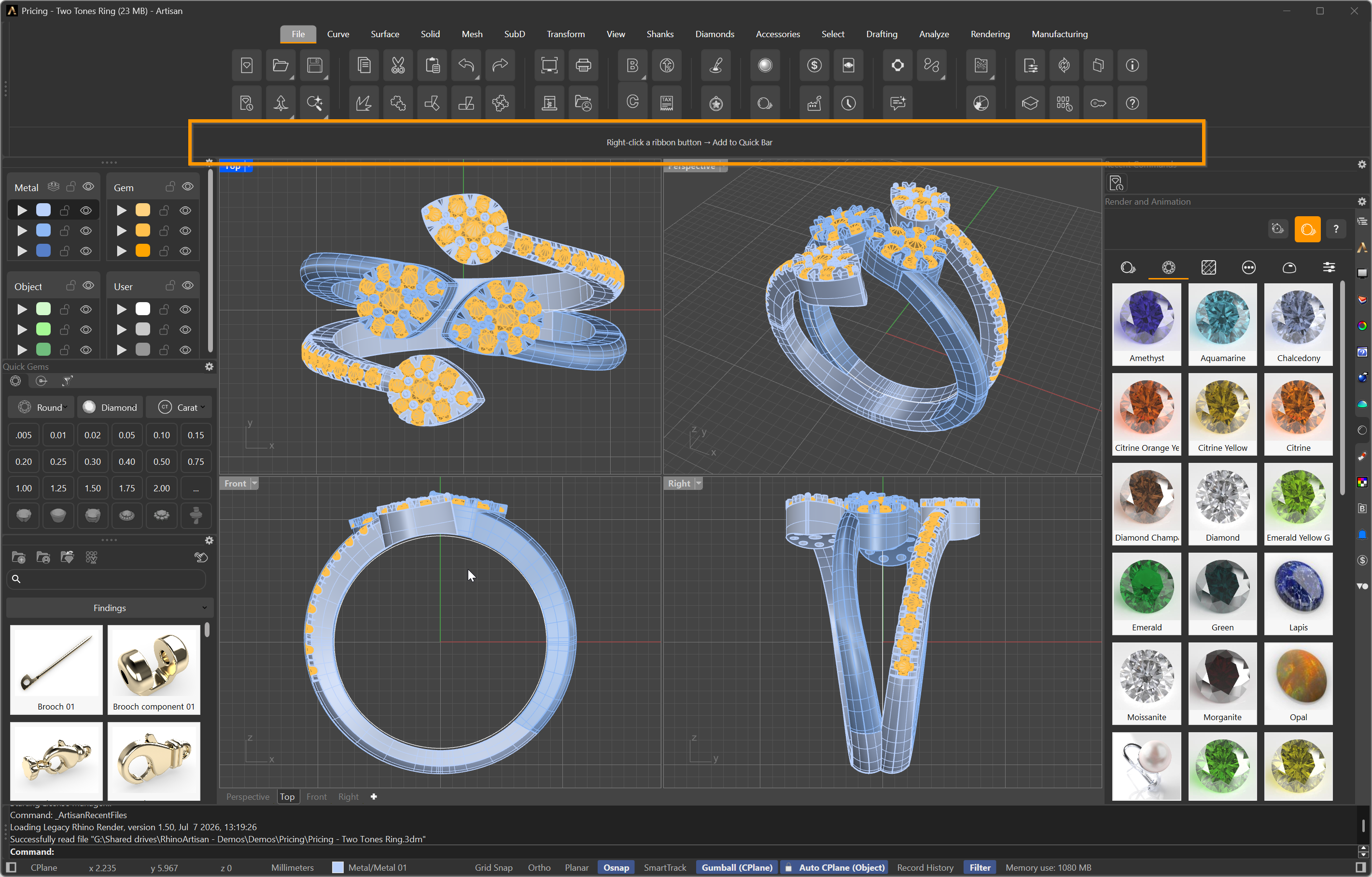
The Quick Bar, right under the ribbon
We’ve written a whole section about it:
Quick Bar — build your own toolbar
Panels
Panels allow us to organize the interface according to our preferences and needs. RhinoArtisan and Rhino panels can be docked anywhere within the application and even moved to other monitors, providing a larger graphical workspace. We recommend visiting the Panel section to get acquainted with each of them.
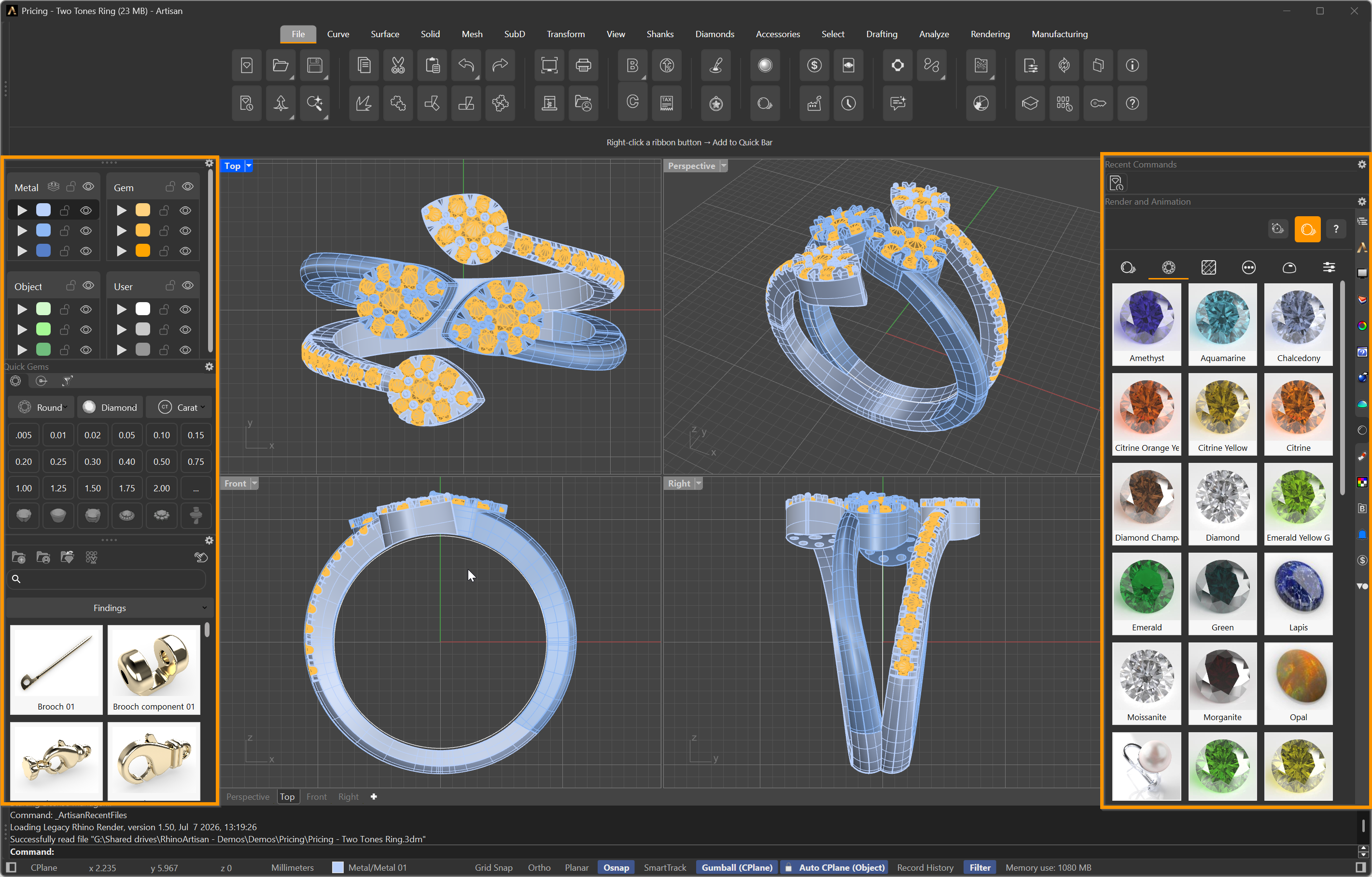
Panels docked on both sides of the workspace