Shanks
Classic
 Classic
Using this command, you can create classic rings, which are especially useful for traditional engagement rings, wedding rings, and simple yet universally gorgeous designs.
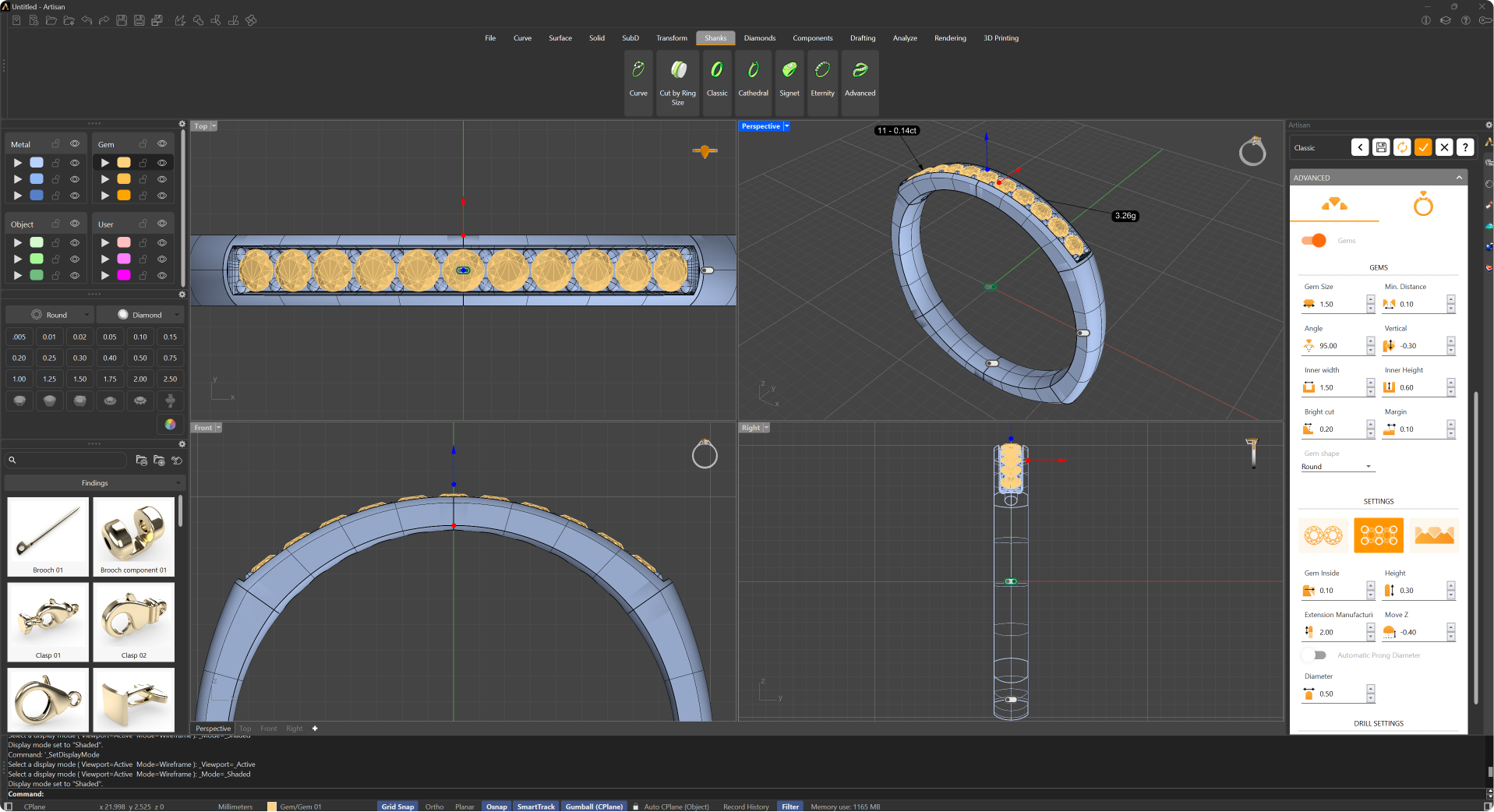
Running this command will display its parameters in the Commands toolbar. Your first step should be to choose whether you want to start working on a style provided by RhinoArtisan or click on the Edit Element to create a fresh new style by editing the one that appears in the viewport.
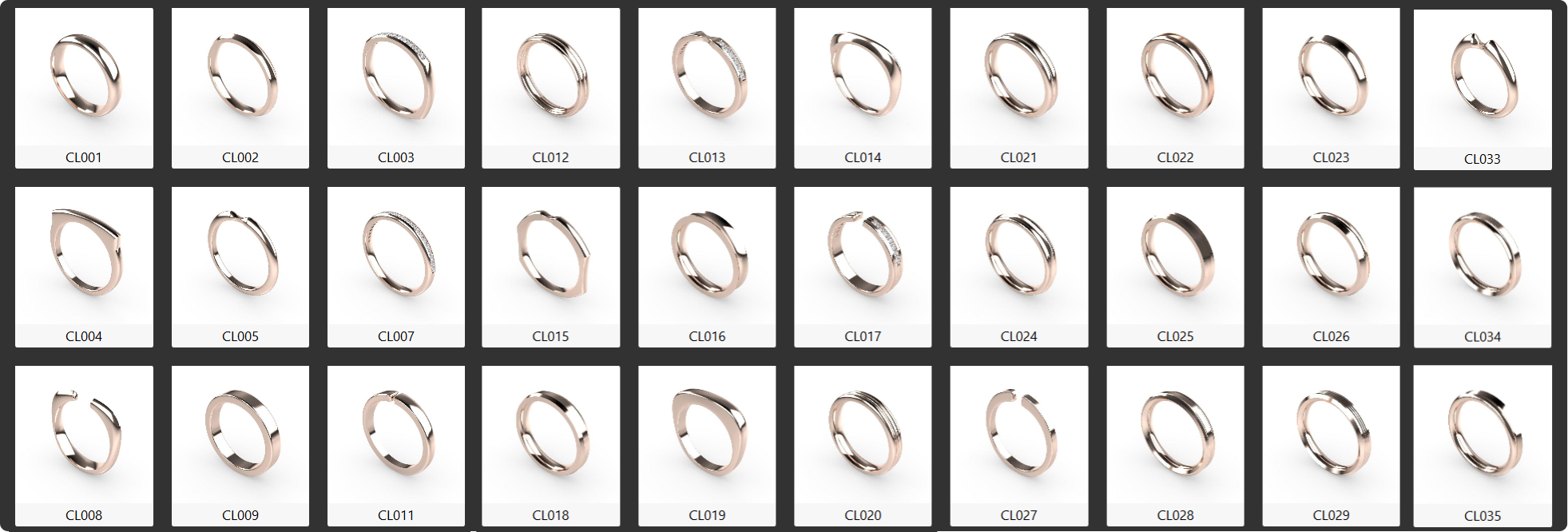
In its parameters section, you’ll find options to set the ring size, define measurements, and select the asset that shapes the shank, including the option to extend its external form if needed. Additionally, you can choose settings for adding gems and customize their placement and style, among other features
The Classic Shank will be listed on the Outliner toolbar when you confirm your changes.
Finger Size
Allows users to select different finger sizes to adjust the ring accordingly.
.png)
Shank Parameters
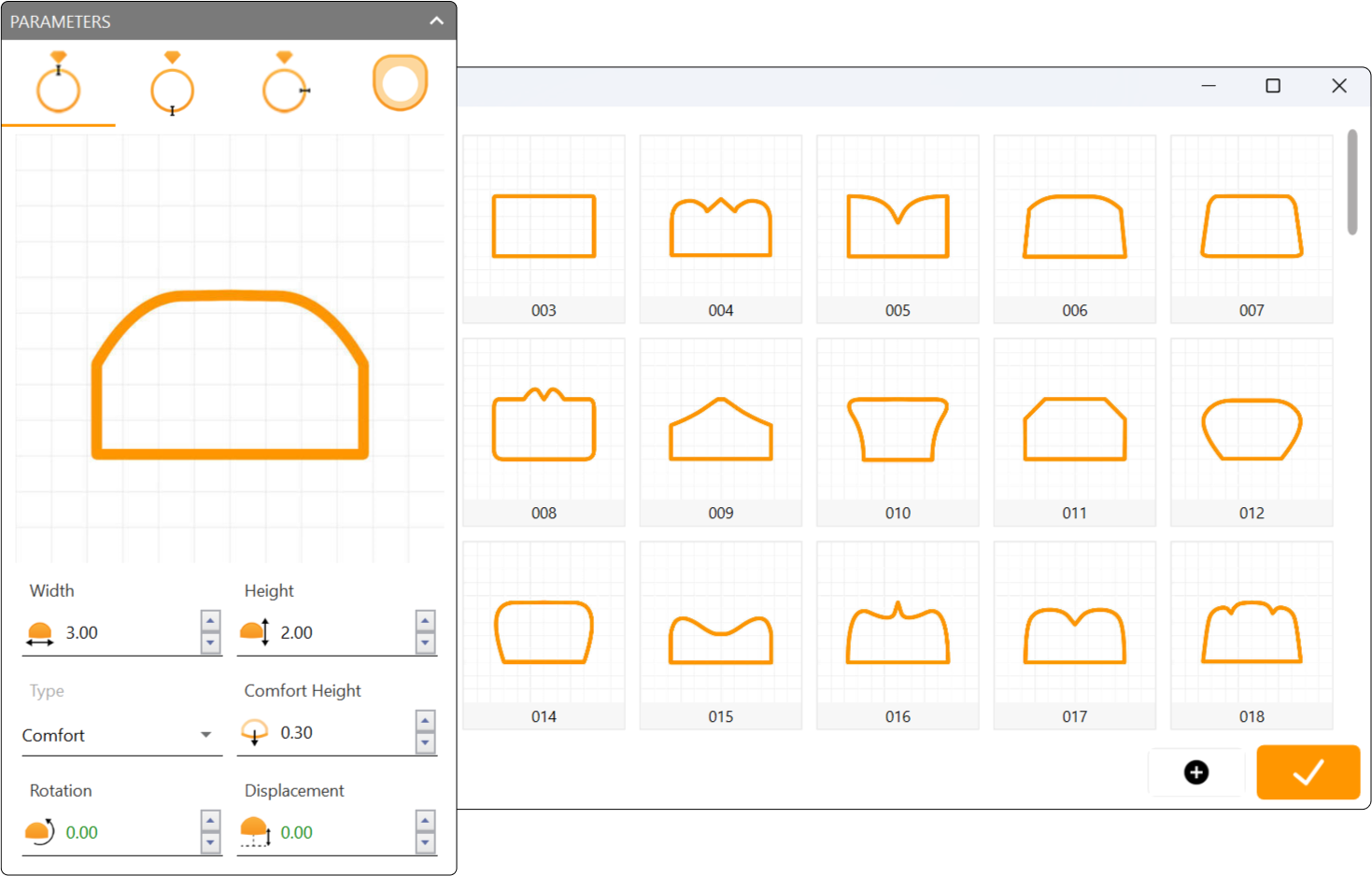
 Top, Middle and Bottom Profiles
Four tabs let you shape the shank’s cross-section: Top Profile, Bottom Profile, Mid Profile, and External Ring. The Bottom, Mid, and External Ring tabs can each be switched on or off independently.
- Enable (Bottom and Mid profiles only): Toggles whether that profile is used in the shank at all.
- Profile Editor: Custom edit the shape of the different parts of the ring.
- Width: Controls the profile’s width.
- Height: Controls the profile’s height.
- Type: Can change the interior ring shape with the properties. You can choose between Solid, Comfort and Thickness.
- Rotation: Controls the shank’s rotation.
- Displacement: Controls the displacement of the lateral sides of the shank.
- Orientation: Sets the profile’s orientation, Natural or Reverse.
 External Ring
- Enable: Toggles whether the external ring silhouette is applied to the shank.
- Top: Controls the top width of the external ring.
- Mid: Controls the mid width of the external ring.
- Bottom: Controls the bottom width of the external ring.
 Advanced: Gems
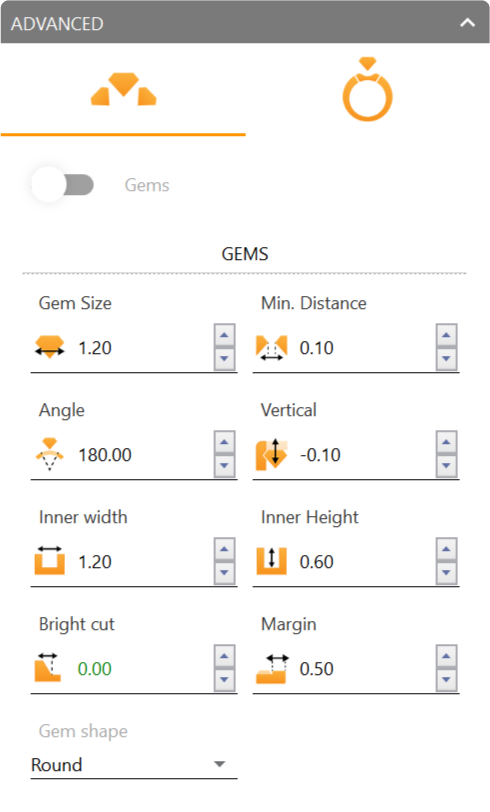
- Toggle between gems: can enable or disable the ring’s gem.
- Gem Size: Controls the size of gems.
- Min Distance: Controls the distance between gems.
- Distribution: how the row is sized. By angle covers the arc set in Angle and fits as many stones as the gem size and minimum distance allow. By number sets exactly how many stones the row carries and works out the arc for you, so the stones sit at the minimum distance from each other.
- Angle: the arc of the band covered by gems, in degrees (180 = the top half). Shown in By angle.
- Number of gems: how many stones the row carries. When the band has an opening (Cut or Strangle) the stones run on both sides of it and the number is per side, like on the Cathedral; on a band without an opening it is the whole row. Shown in By number; if they do not fit, or fewer than the shortest row holds, the panel says so.
- Vertical: Controls the gems height offset.
- Inner width: Controls the gem’s prongs inner width.
- Inner height: Controls the gem’s prongs inner height.
- Bright cut: Controls the height of the edge between the ring and the gems.
- Margin: Controls the width of the edge between the ring and the gems.
- Gem Shape: Round or Square, picked from the icon list.
 Advanced: Settings
The Advanced Settings section provides a range of options to fine-tune the design of rings, including the management of prongs, cutters, and V-Cutters. This allows for precise control over the appearance and functionality of these components.
.png) Flush
Flush
Four icon buttons choose how the stones are held: Flush, Channel, Add Prongs and Cutters. Flush cuts no channel at all: the band is left as it is and the stones sit on it, with no prongs and no seat to tune. It is the cleanest starting point when you want to build the setting yourself, or when a drill is all the stones need.
 Channel
The default setting: a channel is cut along the row and the stones sit in it, without prongs. Its seat is set by Inner width, Inner height and Bright cut in the Gems tab. This is what older files saved as the “without prongs” setting, so they open unchanged.
.png) Add Prongs
Add Prongs
This option includes prongs for the gems and provides several parameters for customization:
.png)
- Gem Inside: Controls the horizontal level at which the prong interacts with the gem.
- Height: Adjusts the vertical height of the prong.
- Extension Manufacturing (only in manufacturing mode): Manages the extension of the prong from the topside, useful in the manufacturing stage.
- Move Z: Modifies the height position of the prong along the Z-axis.
- Automatic Prong Diameter: Toggles the automatic adjustment of the prong’s diameter based on the gem’s dimensions.
- Diameter: Controls the diameter of the prong.
- Remove Channels: leaves out the channel under the stones, so the prongs stand directly on the band. It is the same setting as the Remove Channels toggle of Cutters: switching it on in one shows it on in the other.
.png) Cutters
Cutters
The Cutters section allows users to establish cutting options and parameters for both standard and V-Cutters.
V-Cutters: Toggles between enabling V-Cutters.
Boolean: Toggles between enabling the cutters boolean.
Remove Channels: leaves out the channel under the stones, so the scallops are cut straight into the band. It applies to Cutters and to Add Prongs only: Channel always keeps its channel, and Flush never has one.
Cutters Parameters
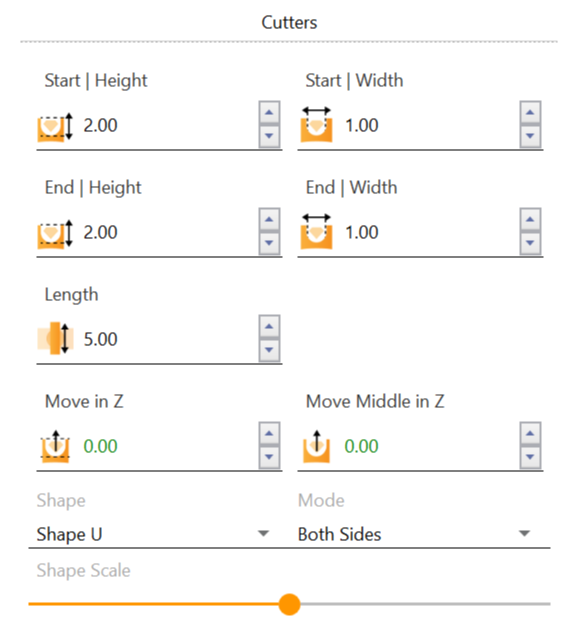
- Start | Height: Controls the top height of the cutters.
- Start | Width: Controls the top width of the cutters.
- End | Height: Controls the bottom height of the cutters.
- End | Width: Controls the bottom width of the cutters.
- Length: Controls the length of the cutters.
- Move in Z: Controls the vertical placement.
- Move Middle in Z: Controls the center height of the Cutters.
- Shapes: Toggles between the shapes in the cutters.
- Mode: Toggles between the independence of the cutters towards the Start/End parameters.
- Shape Scale: Controls the spectrum between round and squared shape by a slider.
V-Cutters Parameters
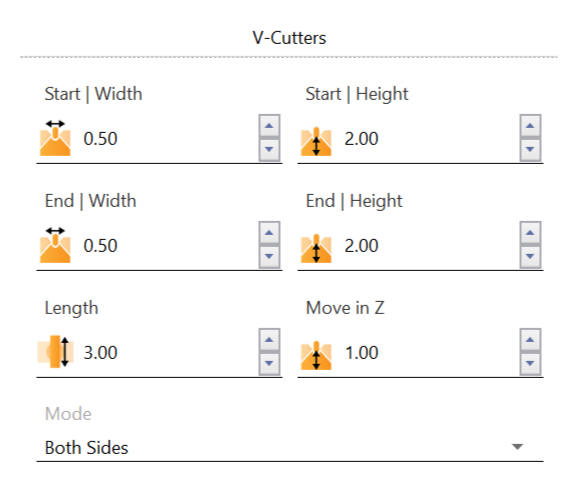
- Start | Height: Controls the top height of the V-Cutters.
- Start | Width: Controls the top width of the V-Cutters.
- End | Height: Controls the bottom height of the V-Cutters.
- End | Width: Controls the bottom width of the V-Cutters.
- Length: Controls the length of the V-Cutters.
- Move in Z: Controls the vertical placement.
- Mode: Toggles between the independence of the V-Cutters towards the Start/End parameters.
Drill Settings
The Drill Settings section allows users to configure drilling operations. This includes toggling different drill types and adjusting their parameters to achieve the desired drilling effects.
 Without drill: Deactivates the drilling feature.
 Round Drill: a cutter shaped on each stone, the same one the Cathedral uses, instead of a plain cylinder. It reveals:
- Show cutters: draws the drill cutters in the viewport. They are only shown: the drill cuts the band whether they are visible or not.
- Height Top, Height Crown, Height Girdle, Height Pavilion, Height Drill: the vertical stages of the cutter, as percentages of the stone.
- Size Top, Size Drill, Size Bottom: its width at each stage, as percentages of the stone.
- Gem Inside: how far the cutter reaches around the stone, in millimetres.
- Type: the shape of the hole: Gemstone Shape, Round, Square or Hexagon.
A ring saved with the old square drill keeps drilling as before, but the square drill is no longer offered: the Square and Hexagon shapes of the cutter’s Type replace it.
Advanced Shank: Opening mode
The Advanced Shank Parameters section offers detailed controls for the opening mode of the ring shank, featuring various cutting and pinching techniques. These settings enable precise adjustments to the shank’s design and structure, allowing for customized modifications. Choose None, Cutting, or Pinch from the Opening dropdown.
Cutting
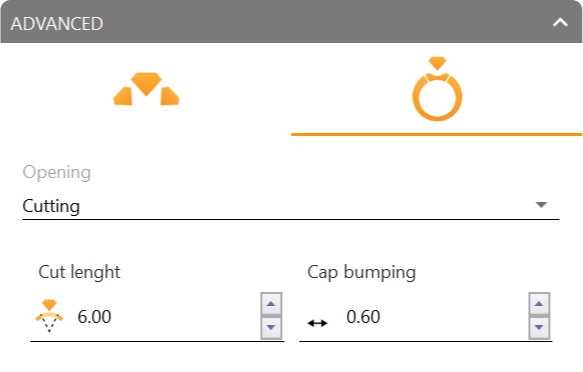
- Cut length: Controls the length of the cut’s edge.
- Cap bumping: Controls the bump outside the ring.
Pinch
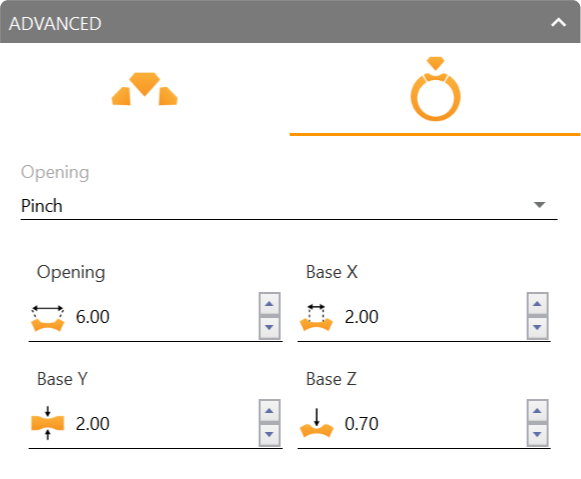
- Opening: Adjusts the width of the pinched area on the shank. This parameter determines the extent to which the shank is pinched or narrowed, affecting the visual and structural characteristics of the ring.
- Base X: Controls the horizontal positioning (X-axis) of the base of the pinch. Adjusting this parameter changes the lateral placement of the pinch effect, allowing for precise alignment along the X-axis.
- Base Y: Controls the depth positioning (Y-axis) of the base of the pinch. This parameter determines how far the pinch extends into the material of the shank, affecting the depth and prominence of the pinch effect.
- Base Z: Adjusts the vertical positioning (Z-axis) of the base of the pinch. This parameter affects the vertical placement of the pinch effect relative to the shank, providing control over the height of the pinch.