Diamonds and Gemstones
Micro Setting
 Micro Setting
The Microsetting command is designed to create all the necessary cutters required for a microsetting, specifically for use in a subsequent Boolean Difference operation. This command helps you prepare precise gaps in the base object where gemstones will later be set.
.png)
This tool is ideal for crafting traditional micro settings and working with complex designs. It allows for the creation of cutters that match the shape and placement of the gems you plan to use, ensuring accuracy and efficiency during the setting process.
Selection
Select the gems to work on in the Selection panel. Below the selector, four buttons let you turn each cutter type on or off: Cutters, V Prongs, V Channel and Prongs in a Row. Cutters is on by default; the other three panels only appear once you enable them here.
 Cutters
The main cutter for the gemstones is controlled in this panel. You can choose between different cutter shapes and adjust parameters like height and width.
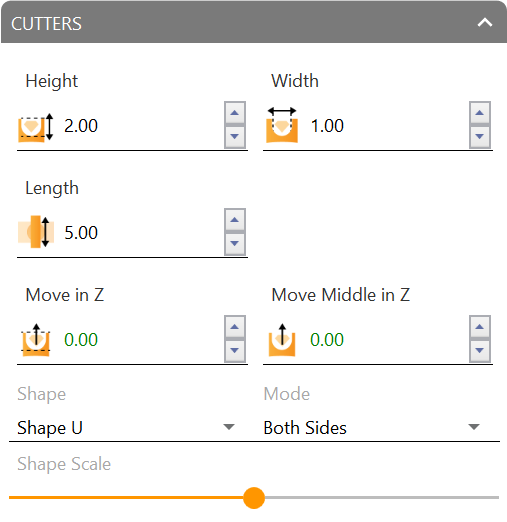
Height / Width: Adjusts the height and width of the cutter. With Mode set to Independently these split into separate Start Height / Start Width and End Height / End Width, so each end of the cutter can be sized differently — useful for curved surfaces where one side needs to be thicker than the other.
Width Mode: Choose between Measure (Width entered directly) or % of gem, where the width is instead set as a Width % of gem percentage and follows the size of each stone automatically.
Length: Adjusts the length of the cutter.
Move in Z: Allows you to adjust the height of the cutter along the Z-axis.
Move Middle in Z: Allows you to adjust the height of the cutter along the Z-axis, of the middle part.
Shape: You can customize the shape of the cutter.
- Shape U
- Shape V
- Square Shape
- Trapezoidal Shape
- Shape French
Mode: Allows you to modify both sides at the same time (Both Sides) or to modify each side independently (Independently).
Shape Scale: Allows to set the proportion of the shape in proportion to the total cutter.
 V Prongs
This panel allows you to create V-shaped cutters between stones. While some setters prefer to add these cuts manually, this feature automates the process, giving you full customization of the V-prong cuts to match the design.
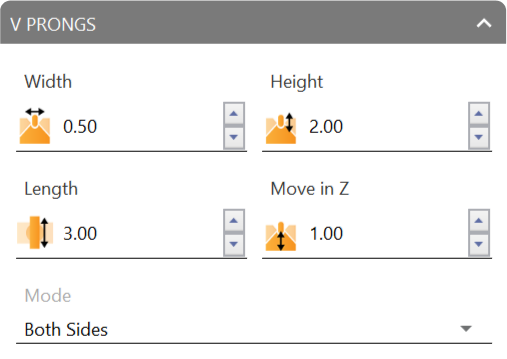
Height / Width: Adjusts the height and width of the V prong. With Mode set to Independently these split into Start Height / Start Width and End Height / End Width.
Length: Adjusts the length of the V prong.
Move in Z: Allows you to adjust the height of the V prong along the Z-axis.
Move Middle in Z: Allows you to adjust the height of the V prong along the Z-axis, of the middle part.
Mode: Allows you to modify both sides at the same time (Both Sides) or to modify each side independently (Independently).
 V Channel
Similar to the Cutters panel, this section allows you to shape the V-channel between the stones. You can choose between flat or round ends, and even extend the ends if required.
.png)
Height / Width: Adjusts the height and width of the channel. With Mode set to Independently these split into Start / End pairs.
Move in Z: Allows you to adjust the height of the channel along the Z-axis (also split into Start / End when Mode is Independently).
Extension: Extends the end of the channel.
Bend: Bends the end of the channel to its side (a negative amount bends it to the opposite side if needed).
Shape: Selects the shape of the channel cutter between Shape U, Shape V, Square Shape or Trapezoidal Shape. The Shape Scale slider below it sets the proportion of the shape relative to the channel.
Mode: Allows you to modify both sides at the same time (Both Sides) or to modify each side independently (Independently).
Profile: Flip Start / Flip End toggles to reverse the channel’s profile direction at each end.
Caps: Flip Start / Flip End toggles to flip the channel’s cap ends independently of the profile.
Channel: a Close toggle to close the channel.
Flat Ends: a toggle to flatten the channel’s ends.
Precise: This feature allows for a more precise channel, especially in cases where the shape of the object being used to construct the channel is highly curved or has double curvature.
 Prongs in a Row
This optional panel lets you reinforce the space between the stones with prong-shaped cutters.
.png)
Diameter: Sets the prong diameter directly. With Diameter Mode set to % inside gem, this is replaced by an Inside gem % field, so the diameter is instead derived from how far the prong should sit inside each neighboring gem.
Over Girdle / Under Girdle: How far each prong extends above and below the girdle.
Allow Collision: Lets prongs overlap neighboring geometry instead of being skipped.
Close: Closes the row of prongs.
Smart Adapt: Adapts prong placement automatically to the row.
Activating this panel displays a draggable gumball, which you can move to position the prong row precisely, ensuring it is well-aligned with your design.
Once the cutters are generated, they can be used in a Boolean Difference operation to carve out the appropriate spaces in the object where the gemstones will be set.