Getting Started
RhinoArtisan’s own system
The simplest and fastest way to get going: open the License Wizard, enter your product key, and the license is activated on that specific machine. Nothing else to set up.
When you buy RhinoArtisan — even for the evaluation — you’ll receive a product key to activate your license. You’ll find it both in the email we send you and in your account. This product key is private, so use it with discretion.
To open the License Wizard, look for the key icon — it works the same from Rhino or RhinoArtisan: in the RhinoArtisan toolbar inside Rhino, or in the File tab of the ribbon in the RhinoArtisan UI.
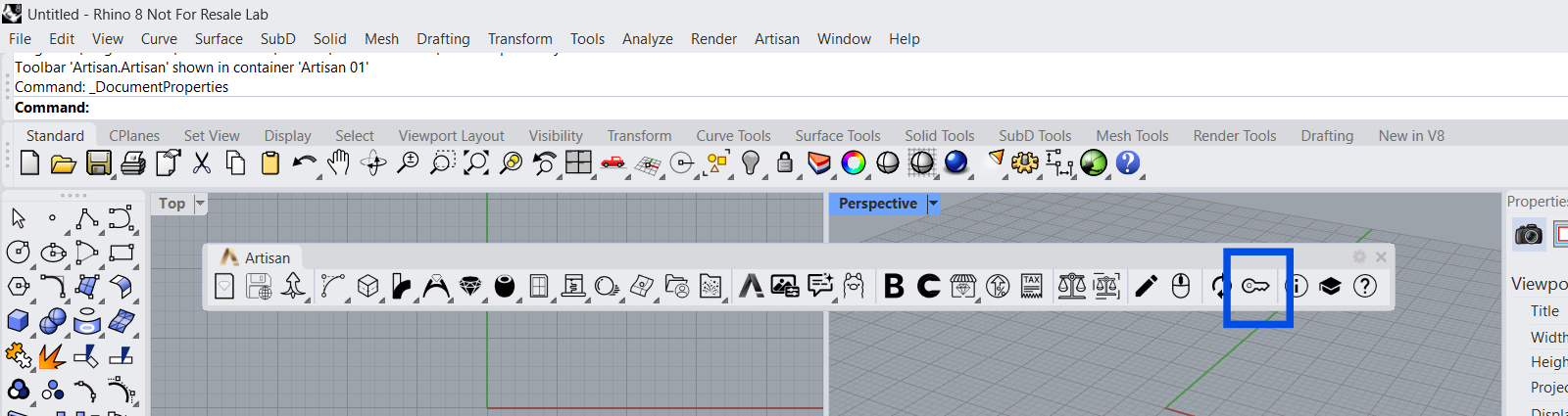
In Rhino — the key icon in the Artisan toolbar
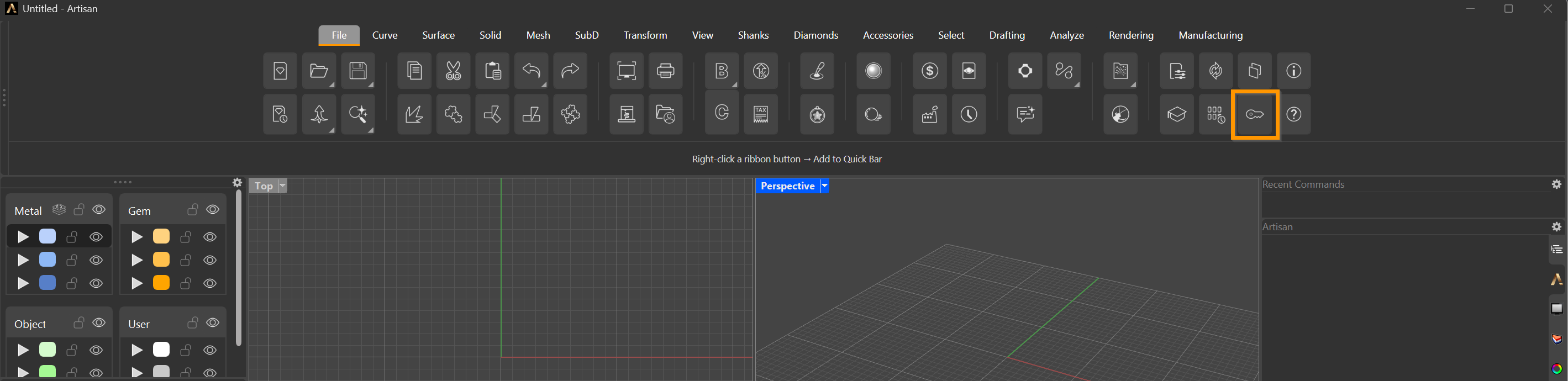
In RhinoArtisan — the key icon in the File tab
In the License Wizard, click Activate your license, choose Activate Online, then paste your product key and click Activate.
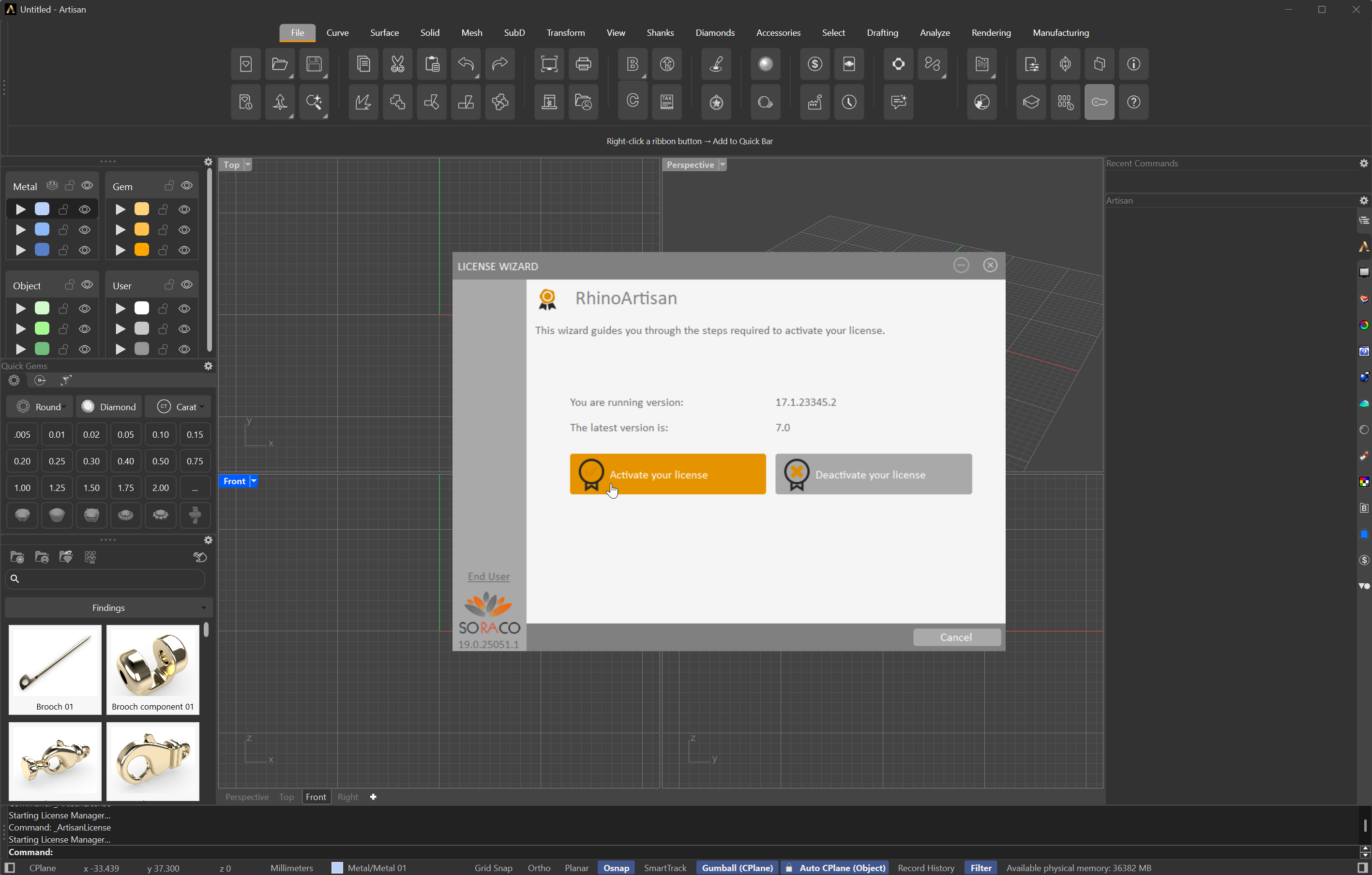
Click "Activate your license"
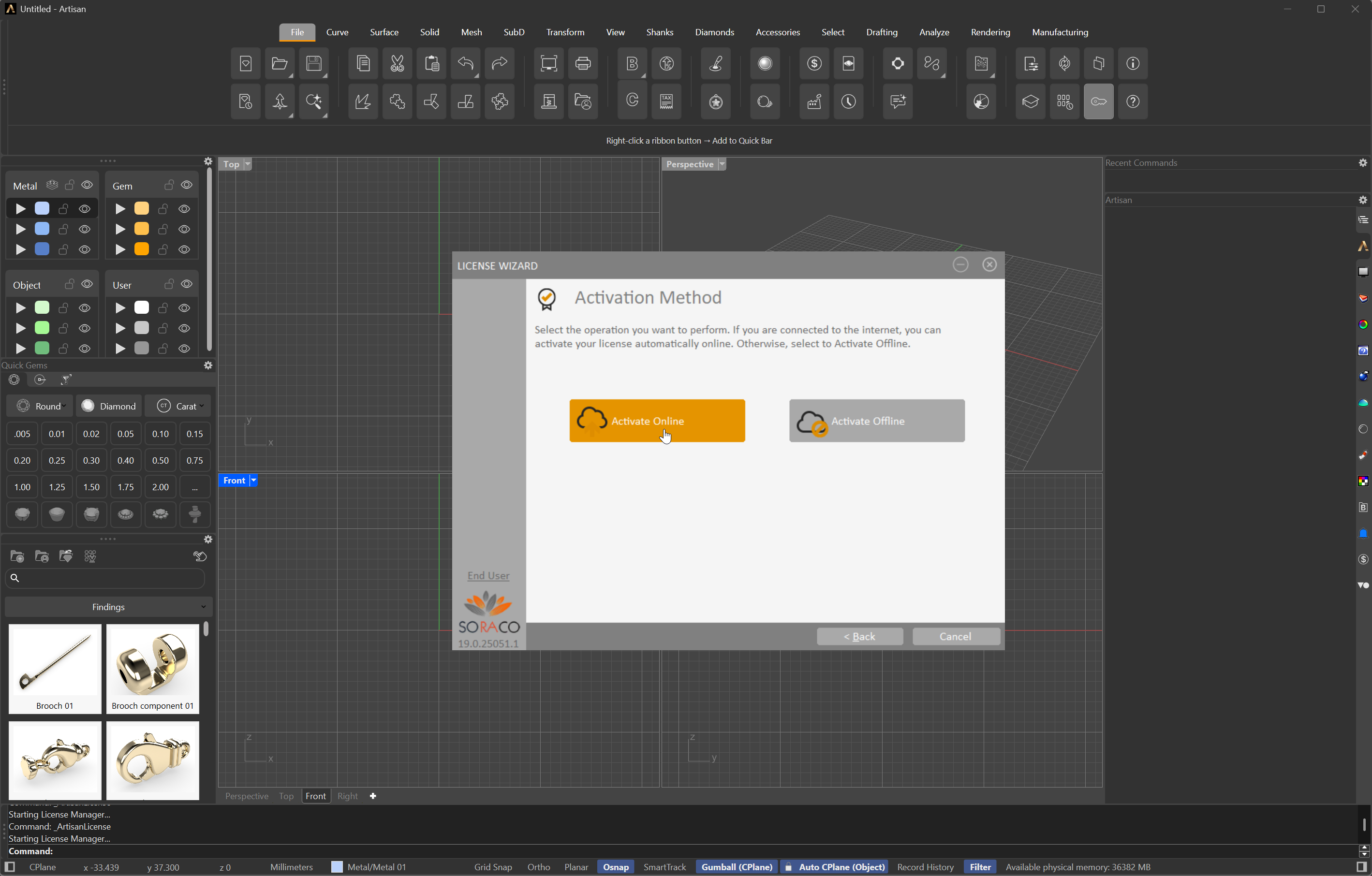
Choose "Activate Online"
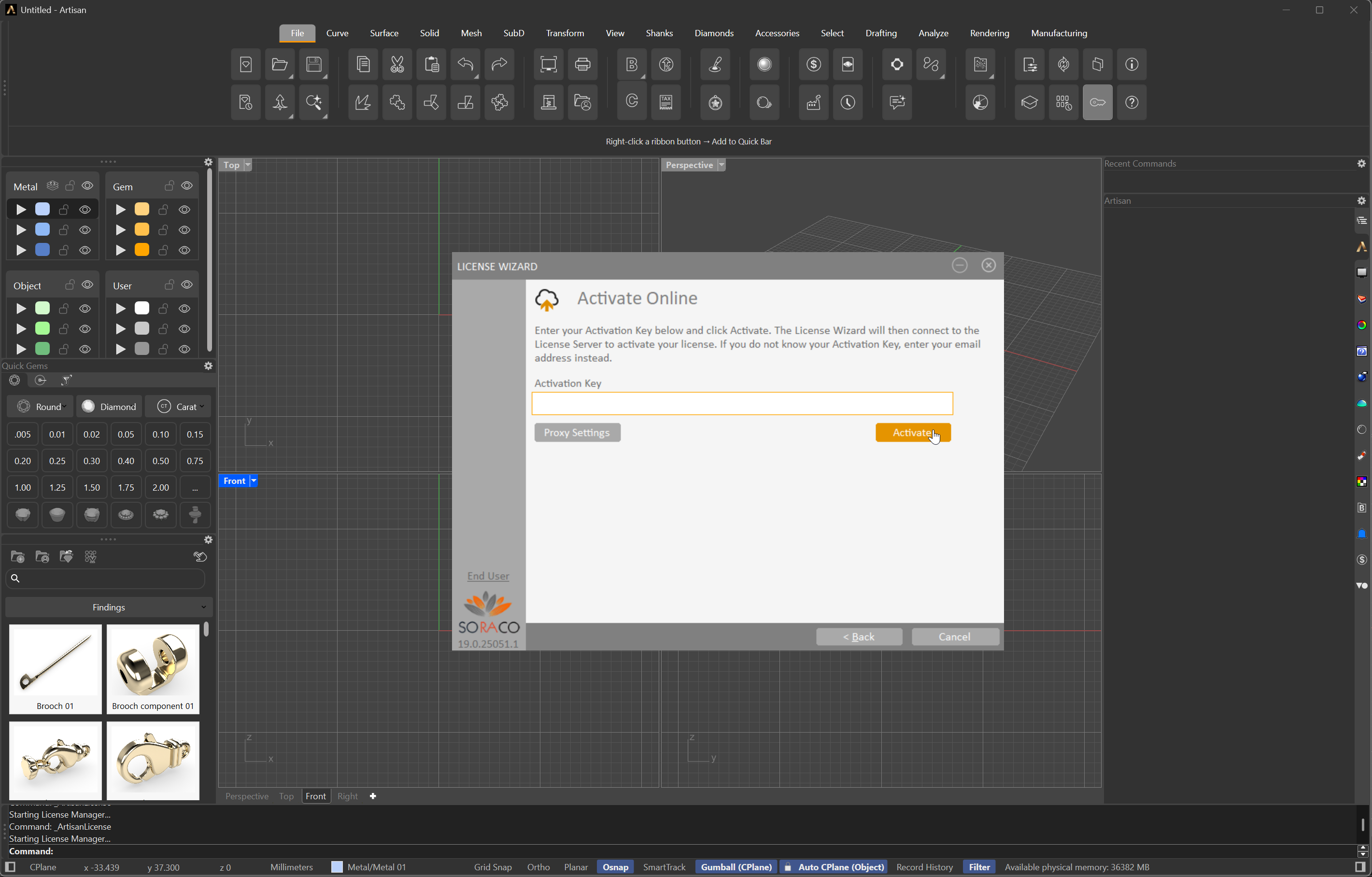
Enter your product key and click "Activate"